How to Send Files from PC to Multiple Devices at the Same Time (PC, Phone, TV, Tablet)
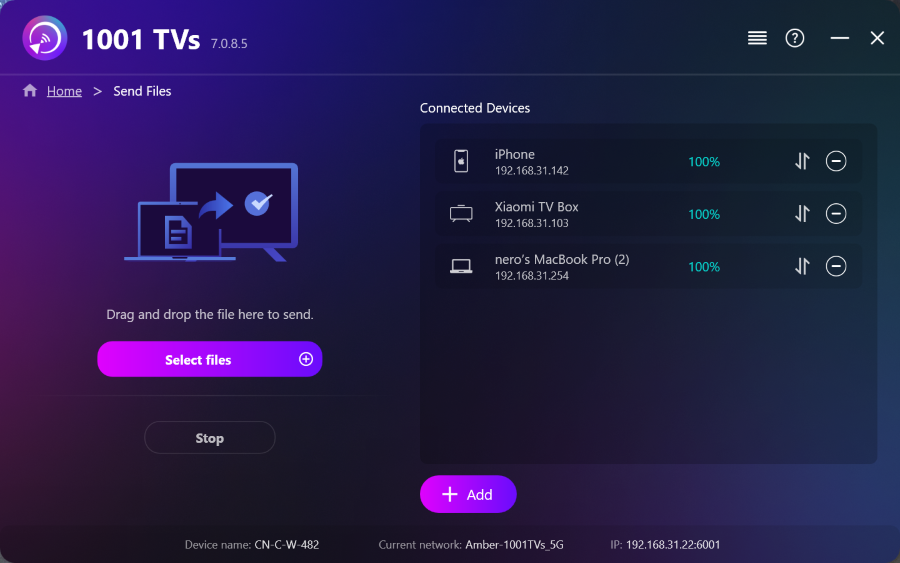
With the latest Windows version of 1001 TVs (v7.0.8.5), your PC can now send files to multiple devices — TVs, tablets, phones, or other PCs — all at the same time.
Once connected, send any file, of any size, to multiple devices at once, as many times as you need. No compression. No hassle. Just fast, seamless transfers to every screen in the room.
Perfect for team collaboration, classroom distribution, or just getting files to everyone instantly.
Tutorial
1. Install 1001 TVs on Your PC and Receiving Devices
📱 iOS App: Download from App Store
📱 Android App: Download from Google Play
📥PC App: Download from Microsoft Store
For detailed steps, refer to the PC Installation Guide
📥Mac App: Download from App Store
📥TV App: How to Install 1001 TVs on Your TV
2. Connect to the Same Wi-Fi
Make sure both your PC and the receiving devices are connected to the same Wi-Fi network.
For best performance, use a 5 GHz Wi-Fi network to reduce delay and improve stability.
3. For your first device, follow the guide below:
How to Send Files from Your PC/Mac to TV/PC/Mac
How to Send Files to Android and iOS Phones and Tablets
4. Adding more devices
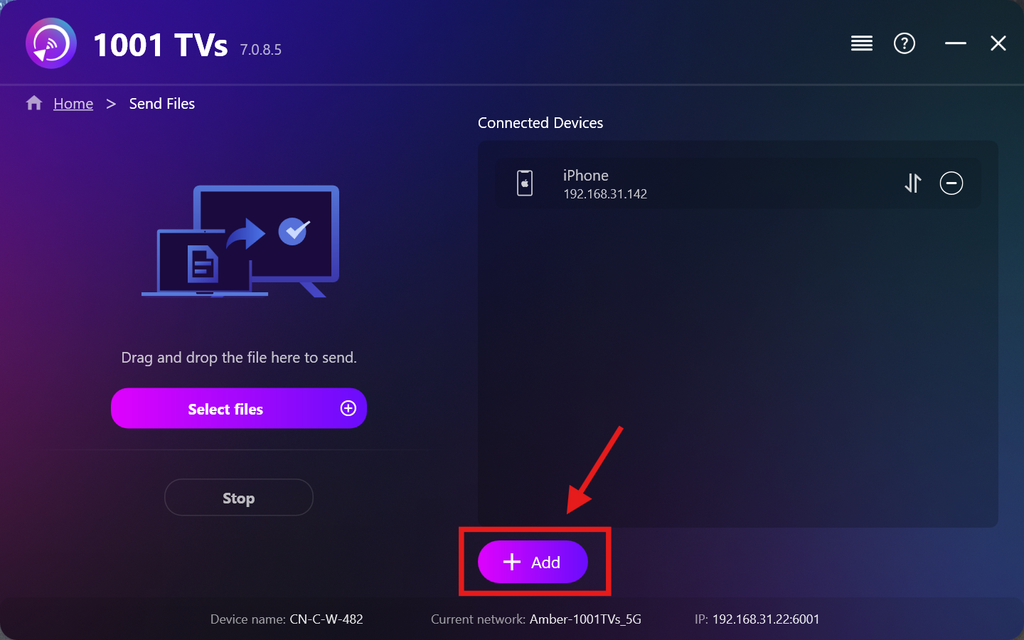
Once your first device is set up, you can add more target devices by clicking the Add icon.
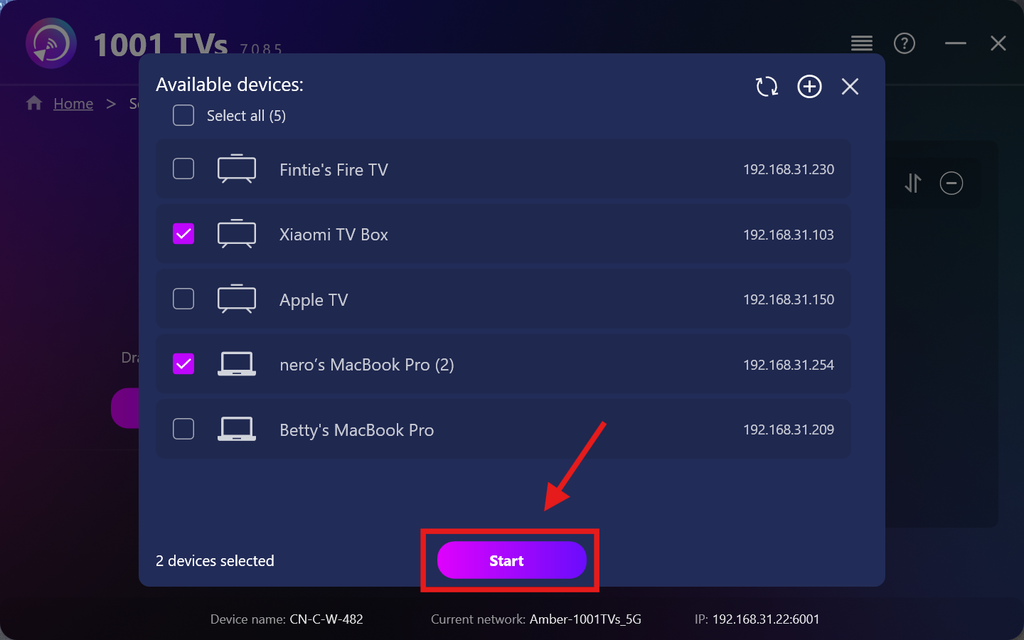
Select all the devices you want to send files to (multiple selection is supported).
Click Start to initiate the connection.
Accept the pairing request on each target device when pairing for the first time.
5. Sending files to multiple devices
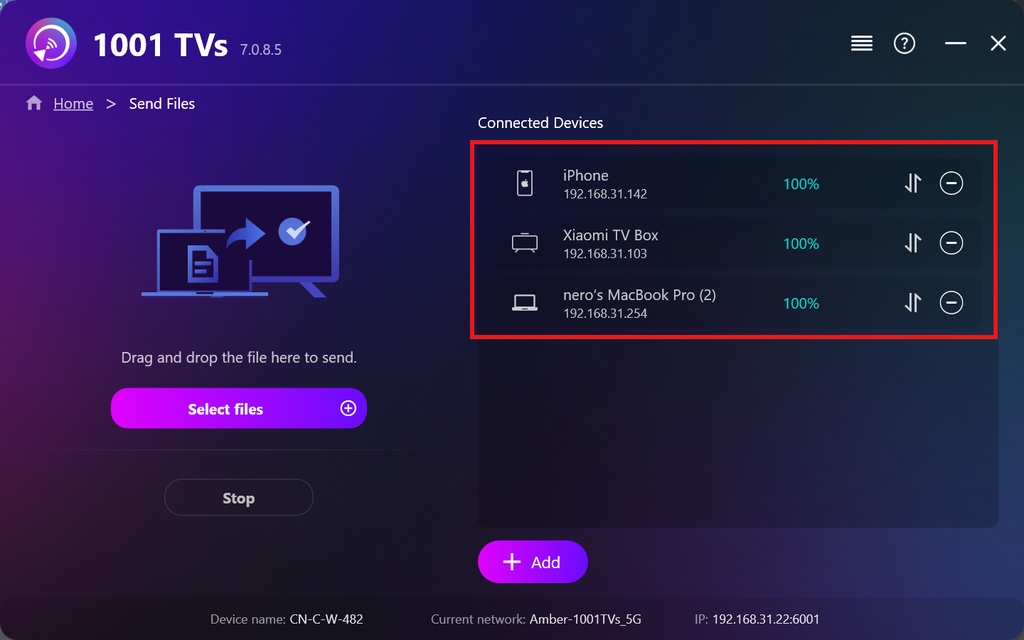
Select the files you wish to send, or simply drag and drop them into the file area on the left — there are no limits on file size or quantity.
⚠️ Make sure your receiving devices have enough storage space, or the transfer will fail.
6. Manage Your Receiving Devices
Click the – (minus) icon to remove a device from your receiving list.
Click the transfer icon to view all files sent to this device.
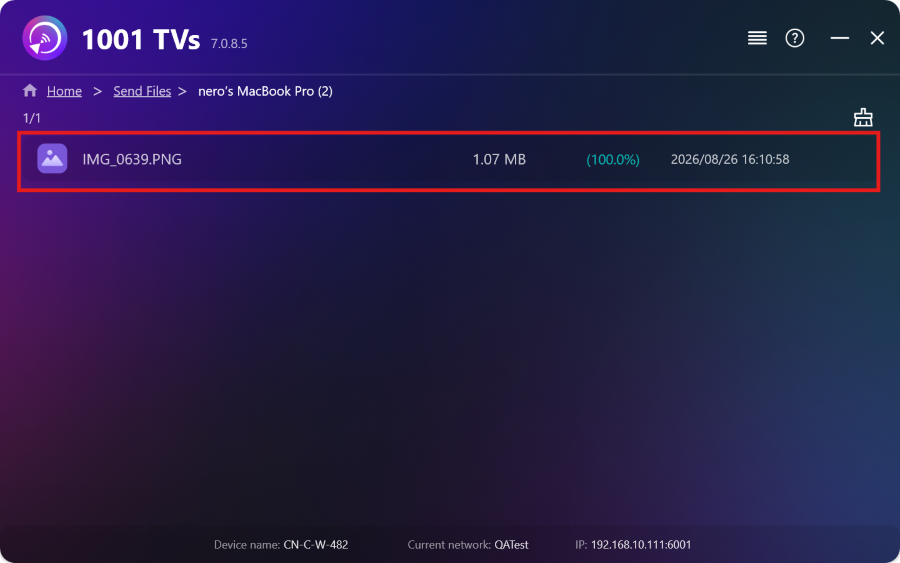
That’s it! You can now send files to multiple devices simultaneously, anytime, with no restrictions.
Get 1001 TVs Now
📱 iOS App: Download from App Store
📱 Android App: Download from Google Play
📥PC App: Download from Microsoft Store
For detailed steps, refer to the PC Installation Guide
📥Mac App: Download from App Store
Read More
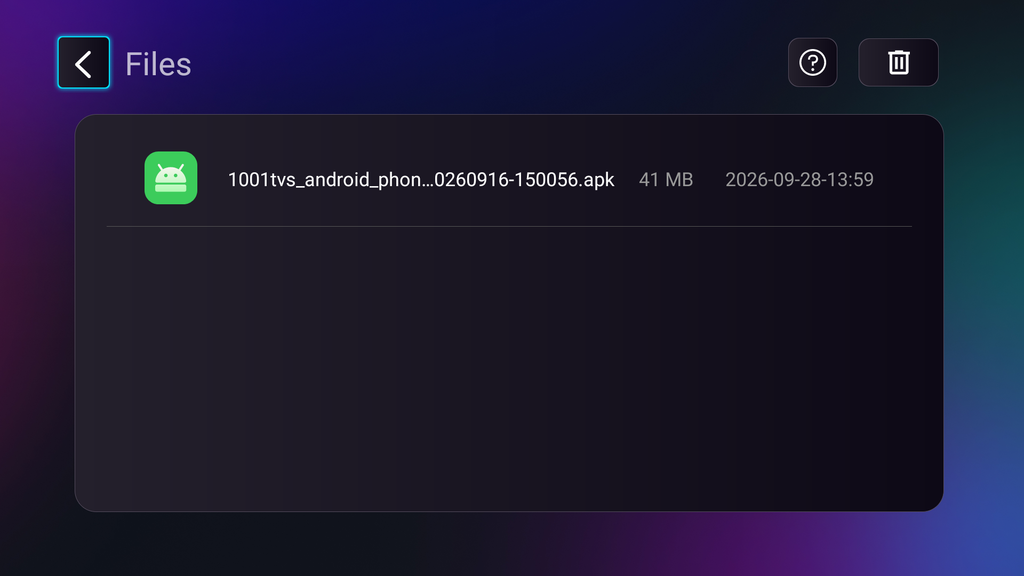 TV APK Installation Guide: How to Send and Install APK Files on TV from Your PC or Mac via Wi-Fi
Got an APK file on your phone, PC or Mac that you want to run on your TV? With 1001 TVs, you can send…
TV APK Installation Guide: How to Send and Install APK Files on TV from Your Phone via Wi-Fi
Got an APK file on your phone or PC that you want to run on your TV? With 1001 TVs, you can send APK…
TV APK Installation Guide: How to Send and Install APK Files on TV from Your PC or Mac via Wi-Fi
Got an APK file on your phone, PC or Mac that you want to run on your TV? With 1001 TVs, you can send…
TV APK Installation Guide: How to Send and Install APK Files on TV from Your Phone via Wi-Fi
Got an APK file on your phone or PC that you want to run on your TV? With 1001 TVs, you can send APK…

