آئی فون، اینڈرائیڈ یا پی سی سے ہائسینس ٹی وی پر اسکرین مرر کیسے کریں
Hisense ٹی وی پر اسکرین مرر کرنے کے لیے پہلے اس کا آپریٹنگ سسٹم معلوم کریں، پھر دونوں آلات کے لیے معاونت یافتہ طریقہ منتخب کریں۔. iPhone اور AirPlay سے منسلک ٹی وی کے لیے AirPlay استعمال کریں، مطابقت رکھنے والے Android سے Google TV کنکشن کے لیے Google Cast استعمال کریں، یا جب دونوں آلات اس کی حمایت کرتے ہوں تو Miracast استعمال کریں۔.
اگر بلٹ ان اختیارات میل نہ کھائیں،, 1001 TVs مدد شدہ وصول کنندہ آلات پر ایک اور آپشن فراہم کر سکتا ہے۔.
Hisense ٹی وی مختلف سافٹ ویئر پلیٹ فارمز استعمال کرتی ہیں، جن میں Google TV، Android TV، Roku TV، VIDAA اور Fire TV شامل ہیں۔ ایک طریقہ جو ایک Hisense ماڈل پر کام کرتا ہے، ممکن ہے دوسرے ماڈل پر دستیاب نہ ہو۔ دیکھیں ہائسینس کے پلیٹ فارم کا جائزہ مزید معلومات کے لیے۔.
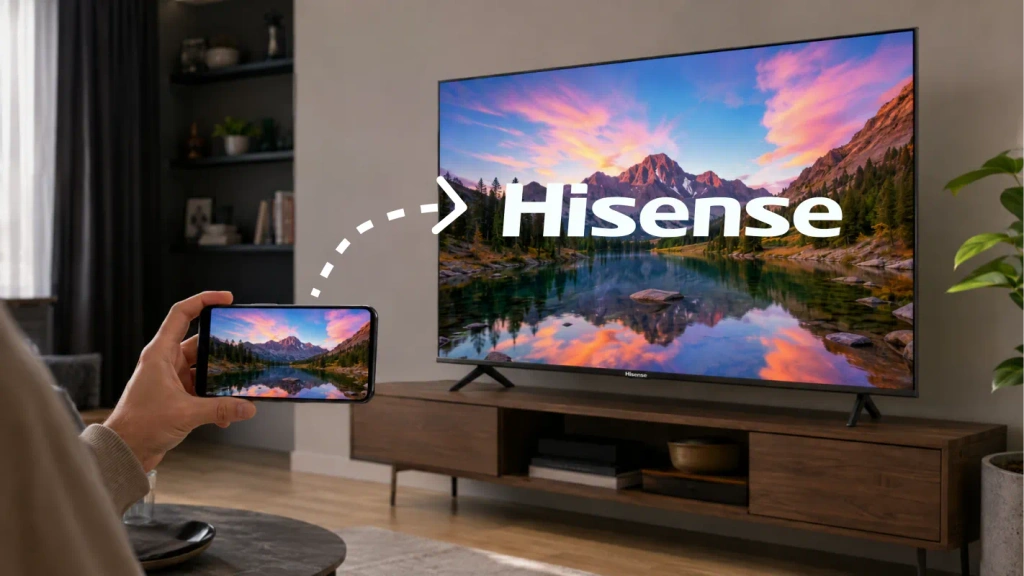
اپنی ہائسینس ٹی وی کا آپریٹنگ سسٹم شناخت کریں۔
دبائیں گھر ریموٹ پر گوگل ٹی وی، روکو ٹی وی، VIDAA یا فائر ٹی وی کی برانڈنگ تلاش کریں۔.
اگر آپ کو یقین نہیں ہے تو درج ذیل اقدامات پر عمل کریں:
- کھولیں۔ ترتیبات.
- دیکھیں کے لیے سسٹم, کے بارے میں, ڈیوائس کی ترجیحات یا مدد.
- سافٹ ویئر کی معلومات اور ماڈل نمبر تلاش کریں۔.
- اگر آپریٹنگ سسٹم ابھی بھی واضح نہ ہو تو ماڈل مینوئل چیک کریں۔.
مینو کے نام ماڈل اور خطے کے لحاظ سے مختلف ہوتے ہیں۔ اگر اسٹریمنگ اسٹک منسلک ہو تو Home بٹن دبائیں۔ ہائسینس ریموٹ اسٹک کے نظام کے بجائے ٹی وی کے اپنے نظام کی جانچ کریں۔.
اس جدول کو نقطۂ آغاز کے طور پر استعمال کریں:
| ہائسینس ٹی وی سسٹم | آئی فون یا آئی پیڈ سے | اینڈرائیڈ سے |
|---|---|---|
| گوگل ٹی وی / اینڈرائیڈ ٹی وی | اگر ایئر پلے شامل ہو (AirPlay 2 فعال ٹی وی کی فہرست); ورنہ ایک مطابقت پذیر وصول کنندہ ایپ | گوگل کاسٹ |
| روکو ٹی وی | ایئر پلے آن مدعومعمول ماڈلز | مِری کیسٹ کے موافق اسکرین کی عکس بندی |
| وِڈیا | اگر آپ کے ماڈل میں AirPlay شامل ہو | اگر دونوں آلات اس کی حمایت کرتے ہوں تو اسکرین شیئرنگ |
| فائر ٹی وی | AirPlay صرف معاون ماڈلز پر دستیاب ہے؛ ورنہ ایک مطابقت پذیر رسیور ایپ درکار ہے۔ | اگر دستیاب ہو تو ڈسپلے مررنگ |
| دوسرا یا پرانا نظام | ماڈل مینوئل چیک کریں یا بیرونی رسیور استعمال کریں۔ | ماڈل مینوئل چیک کریں یا بیرونی رسیور استعمال کریں۔ |
2. کنکٹ کرنے سے پہلے ان ترتیبات کو چیک کریں۔
AirPlay، Google Cast یا کسی ایپ پر مبنی آئینہ کاری کے طریقہ کار کو استعمال کرنے سے پہلے:
- ٹی وی اور بھیجنے والے آلے کو ایک ہی گھر کے وائی فائی نیٹ ورک سے منسلک کریں۔.
- ایسے مہمان نیٹ ورکس سے گریز کریں جو منسلک آلات کو الگ کر دیتے ہیں۔.
- ٹی وی کو جاگتے ہوئے رکھیں اور اس کا ریسیور یا اسکرین شیئرنگ فیچر کھولیں۔.
- درخواست کردہ مقامی نیٹ ورک اور اسکرین شیئرنگ کی اجازت دیں۔.
- ٹی وی سافٹ ویئر اور وہ ایپ جسے آپ استعمال کرنے کا ارادہ رکھتے ہیں، اپ ڈیٹ کریں۔.
ایک VPN جو مقامی نیٹ ورک تک رسائی روکتا ہے، ٹی وی کے ظاہر ہونے سے روک سکتا ہے۔ خرابی دور کرنے کے دوران اسے عارضی طور پر منقطع کر دیں۔.
یہ بھی فیصلہ کریں کہ آیا آپ کو ضرورت ہے اسکرین کی عکس بندی یا ویڈیو کاسٹنگ. مررنگ آپ کے فون یا کمپیوٹر کی پوری ڈسپلے دکھاتا ہے۔ کاسٹنگ ایک ایپ سے منتخب مواد کو مطابقت رکھنے والے وصول کنندہ تک بھیجتی ہے۔ اگر آپ صرف ویڈیو دیکھنا چاہتے ہیں تو ایپ کا کاسٹ یا ایئر پلے بٹن کافی ہو سکتا ہے۔.
3. ہائسنز ٹی وی پر آئی فون کی اسکرین کیسے مِرر کریں
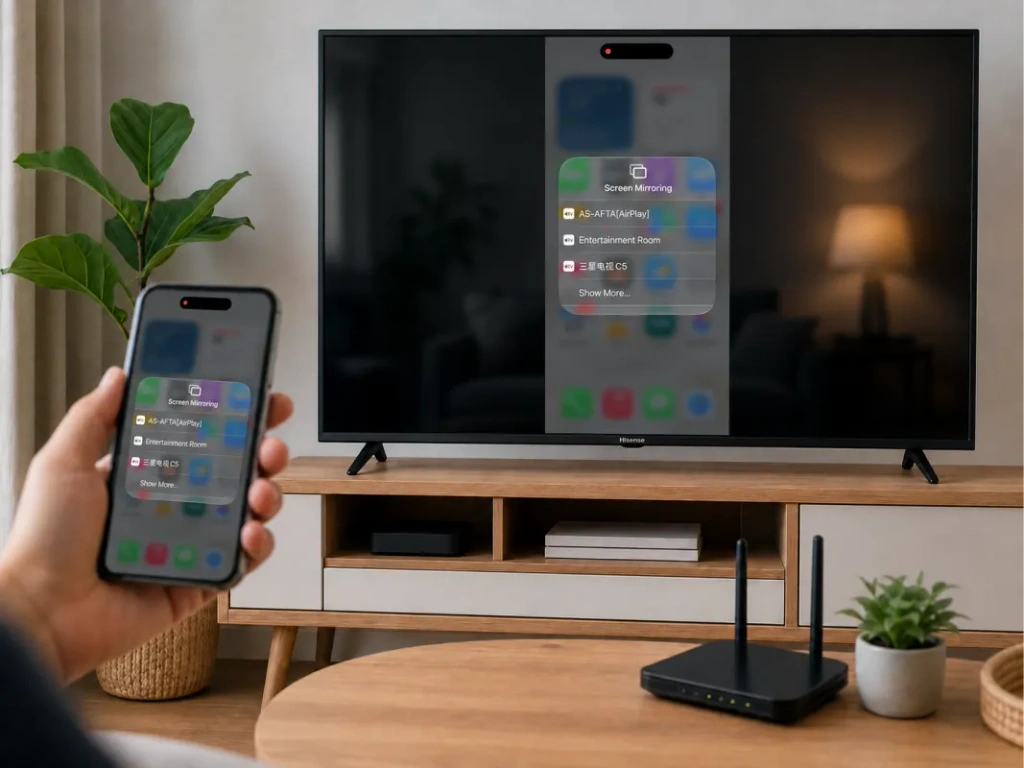
جب آپ کا ٹی وی AirPlay کو سپورٹ کرتا ہو تو AirPlay استعمال کریں۔
ٹی وی کی سیٹنگز یا ان پٹ لسٹ میں دیکھیں ایئر پلے یا ایپل ایئر پلے اور ہوم کٹ. Hisense اپنے سپورٹڈ ماڈلز پر AirPlay کو دستاویزی شکل دیتا ہے، لیکن دستیابی ماڈل اور علاقے کے لحاظ سے مختلف ہوتی ہے۔ دیکھیں ہائسینس ایئر پلے ہدایات.
اپنا آئی فون منسلک کرنے کے لیے:
- ٹی وی پر ایئر پلے آن کریں۔.
- آئی فون اور ٹی وی کو ایک ہی وائی فائی نیٹ ورک سے جوڑیں۔.
- کھولیں۔ کنٹرول سینٹر آئی فون پر.
- تھپتھپائیں۔ اسکرین مررنگ.
- اپنا ہائسینس ٹی وی منتخب کریں۔.
- اگر کہا جائے تو ٹی وی پر دکھایا گیا کوڈ درج کریں۔.
مررنگ روکنے کے لیے کھولیں۔ اسکرین مررنگ دوبارہ اور ٹیپ کریں آئینہ بندی بند کریں. یہی عمل آئی پیڈ پر بھی کام کرتا ہے۔ دیکھیں۔ ایپل کی اسکرین کی نقل کی رہنما.
اگر آپ کی ہائسینس ٹی وی میں ایئر پلے کا آپشن نہیں ہے
ایک غیر متعلقہ اسکرین شیئرنگ مینو آئی فون کو کنیکٹ نہیں کرے گا۔ ٹی وی کی وصولی کی خصوصیت کو آئی فون کے استعمال کردہ طریقہ کار کی حمایت کرنی چاہیے۔.
ایک مطابقت رکھنے والے گوگل ٹی وی یا اینڈرائیڈ ٹی وی ماڈل پر چیک کریں کہ کیا آپ 1001 TVs انسٹال کر سکتے ہیں۔ روکو یا VIDAA کے لیے یہ فرض نہ کریں کہ اینڈرائیڈ ٹی وی ایپ انسٹال کی جا سکتی ہے۔ اگر ضروری ہو تو ایک معاونت یافتہ بیرونی رسیور استعمال کریں۔.
4. ہائسنز ٹی وی پر اینڈرائیڈ اسکرین کو کیسے اسٹریم کیا جائے
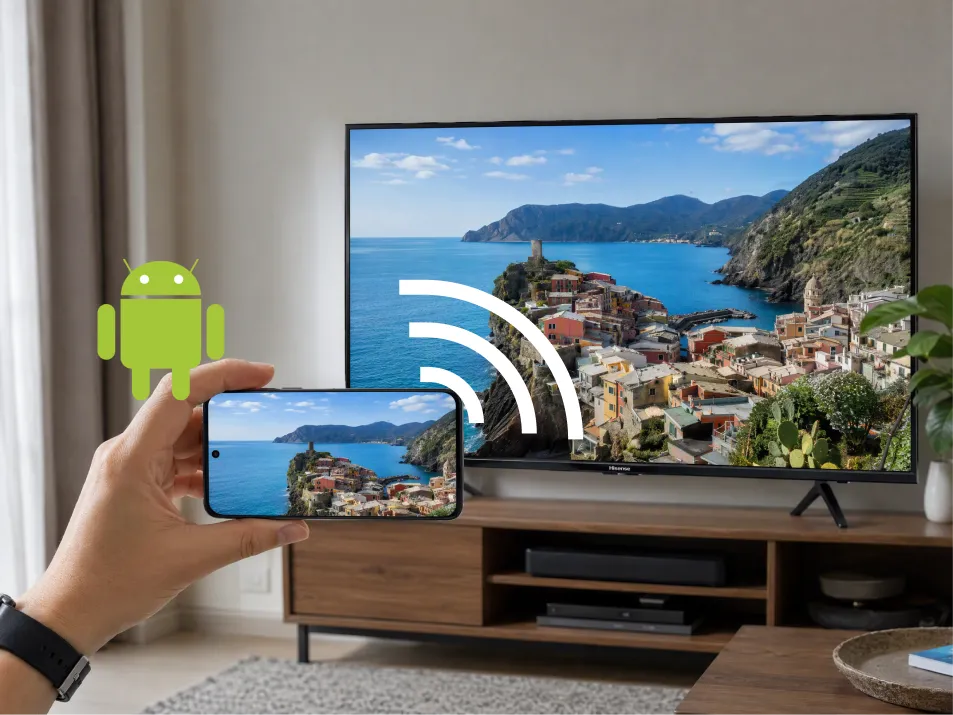
گوگل ٹی وی یا اینڈرائیڈ ٹی وی: گوگل کاسٹ استعمال کریں
گوگل کاسٹ کے ساتھ ہائسینس ٹی وی کے لیے:
- اینڈرائیڈ فون اور ٹی وی کو ایک ہی وائی فائی نیٹ ورک سے جوڑیں۔.
- کھولیں۔ گوگل ہوم.
- ٹی وی کے ڈیوائس ٹائل کو تلاش کریں اور منتخب کریں۔.
- دیکھیں کے لیے میری اسکرین کو کاسٹ کریں یا اسکرین کاسٹنگ کنٹرول۔.
- اسکرین یا منتخب ایپ شیئر کرنے کے لیے ہدایات پر عمل کریں۔.
لفظی عبارت ایپ اور اینڈرائیڈ ورژن کے مطابق مختلف ہو سکتی ہے۔ گوگل کی موجودہ ہدایات اینڈرائیڈ 8.0 اور اس کے بعد کے ورژنز کو کور کرتی ہیں۔ دیکھیں گوگل ہوم کاسٹنگ ہدایات.
روکو، VIDAA یا فائر ٹی وی: پہلے رسیور چیک کریں۔
مطابقت رکھنے والے ماڈلز پر، ان ترتیبات کو دیکھیں:
- روکو ٹی وی: سیٹنگز → سسٹم → اسکرین کی عکاسی۔.
- وِڈیا: اسکرین شیئرنگ، اکثر ان پٹس یا ایپس کے تحت۔.
- فائر ٹی وی: سیٹنگز → ڈسپلے اور آوازیں → ڈسپلے مررنگ کو فعال کریں۔.
پھر اپنے فون پر مطابقت رکھنے والا وائرلیس ڈسپلے کنٹرول کھولیں، ٹی وی منتخب کریں اور کنکشن کی منظوری دیں۔.
سام سنگ کے فونز اس فیچر کو کال کر سکتے ہیں۔ سمارٹ ویو. دوسرے فون مختلف نام استعمال کرتے ہیں، اور “Cast” لیبل والا بٹن ہمیشہ ایک ہی ٹیکنالوجی استعمال نہیں کرتا۔ Roku نوٹ کرتا ہے کہ Google Pixel فونز اس کے معیاری Android اسکرین-مِررنگ راستے کی حمایت نہیں کرتے۔ دیکھیں روکو مطابقت رہنما.
فائر ٹی وی پر، ایمازون کہتا ہے کہ اگر ڈسپلے مررنگ کو فعال کریں غائب ہے، نیٹیو طریقہ کار دستیاب نہیں ہے۔ دیکھیں ایمیزون کی مطابقت کی رہنمائی.
5. ہائنسن ٹی وی پر لیپ ٹاپ کو کیسے مِرر کریں
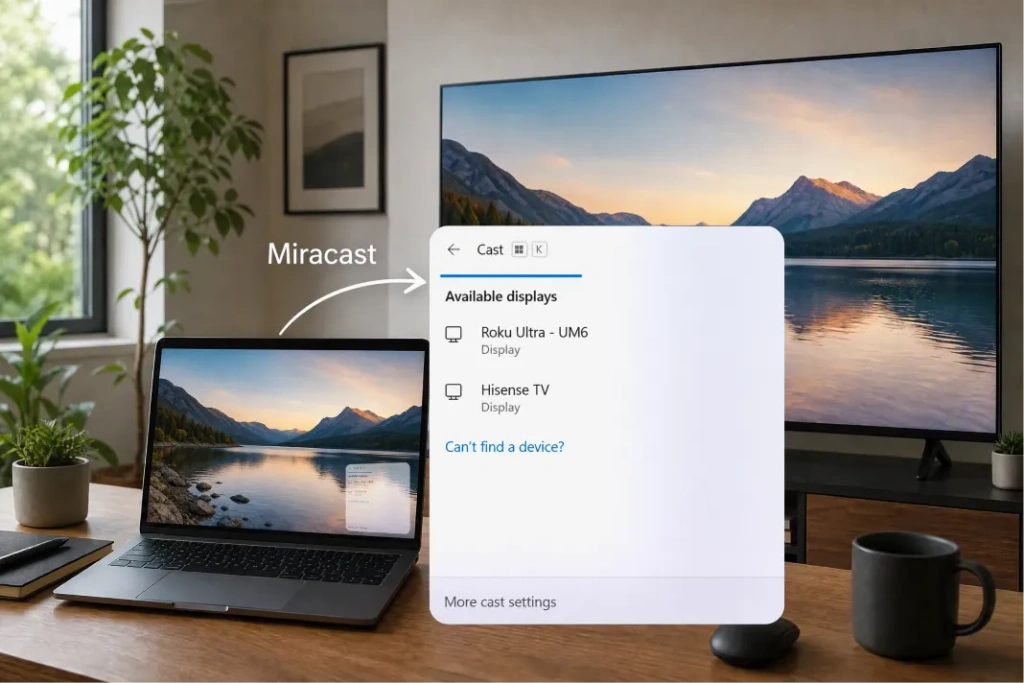
کے لیے ونڈوز لیپ ٹاپ, دباؤ ونڈوز + کے جب کمپیوٹر اور ٹی وی دونوں Miracast کو سپورٹ کرتے ہوں۔ ٹی وی کو منتخب کریں اور کنکشن کی منظوری دیں۔ اگر ضرورت ہو تو دبائیں۔ ونڈوز + پی اور منتخب کریں نقل.
گوگل کاسٹ ریسیور ونڈوز + K میں خود بخود ظاہر نہیں ہوتا۔ گوگل کاسٹ کے مطابقت پذیر ٹی وی کے ساتھ، کروم کی الگ کاسٹنگ فیچر استعمال کریں۔.
کے لیے میک, ، استعمال کریں کنٹرول سینٹر → اسکرین کی عکاسی جب Hisense ٹی وی AirPlay کو سپورٹ کرتی ہو۔ ورنہ، کسی سپورٹڈ رسیور ایپ یا HDMI کنکشن پر غور کریں۔.
۶۔ 1001 TVs کب استعمال کریں
1001 TVs اس وقت مدد کر سکتا ہے جب آپ کا فون اور ٹی وی کوئی مشترکہ ملکی میرورنگ طریقہ استعمال نہیں کرتے — مثال کے طور پر جب ایک آئی فون ایئر پلے کے بغیر ایک مطابقت رکھنے والی اینڈرائیڈ ٹی وی سے منسلک ہوتا ہے۔.
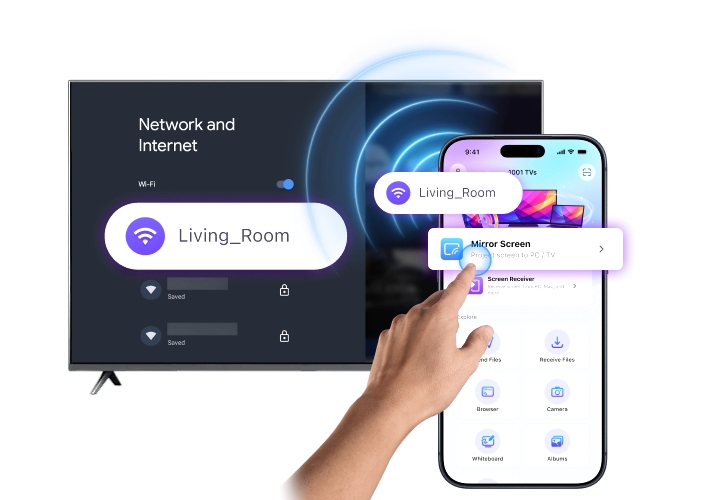
سب سے پہلے، تصدیق کریں کہ 1001 TVs وصول کرنے والے آلے پر چل سکتا ہے۔. چیک کریں سرکاری تنصیب رہنما مدد شدہ پلیٹ فارمز کے لیے۔ فائر ٹی وی کے صارفین الگ استعمال کر سکتے ہیں۔ 1001 TVs فائر ٹی وی گائیڈ.
پھر:
- دونوں ڈیوائسز پر 1001 TVs انسٹال کریں اور کھولیں۔.
- دونوں آلات کو ایک ہی Wi-Fi نیٹ ورک سے مربوط کریں۔.
- منتخب کریں۔ اسکرین مررنگ بھیجنے والے پر.
- ریسیور منتخب کریں، یا جہاں دستیاب ہو اس کا QR کوڈ اسکین کریں۔.
- کنکشن اور اسکرین شیئرنگ کے اشاروں کی منظوری دیں۔.
آئی فون پر، جب آپ سے کہا جائے تو براڈکاسٹ کی تصدیق مکمل کریں۔ دیکھیں آئی فون کے لیے 1001 TVs مدد یافتہ وصولی پلیٹ فارمز کے لیے.
اگر آپ کی Hisense ٹی وی ریسیور ایپ انسٹال نہیں کر سکتی تو HDMI کے ذریعے منسلک کوئی مطابقت رکھنے والا Android TV ڈیوائس یا Apple TV وصولی کا پلیٹ فارم فراہم کر سکتا ہے۔.

Hisense ٹی وی اسکرین مررنگ کام نہیں کر رہی؟
علامت سے شروع کریں:
| مسئلہ | کیا چیک کرنا ہے |
|---|---|
| ٹی وی ظاہر نہیں ہوتا | ایک مطابقت پذیر طریقہ، مشترکہ نیٹ ورک اور فعال وصول کنندہ کی تصدیق کریں۔ |
| آئی فون ٹی وی تلاش نہیں کر سکتا | چیک کریں کہ AirPlay دستیاب اور فعال ہے۔ |
| اینڈرائیڈ ٹی وی تلاش نہیں کر سکتا۔ | تصدیق کریں کہ آیا فون Google Cast استعمال کرتا ہے یا Miracast کو سپورٹ کرتا ہے۔ |
| 1001 TVs رسیور کو دریافت نہیں کر سکتا۔ | اجازت نامے، مہمان نیٹ ورک علیحدگی اور وی پی این کی ترتیبات چیک کریں۔ |
| آئینہ جمنا یا تاخیر | وائی فائی سگنل کو بہتر بنائیں، مقابلتی ٹریفک کو کم کریں اور دونوں آلات کو دوبارہ شروع کریں۔ |
| صرف ایک اسٹریمنگ ویڈیو سیاہ ہے | مواد کی حفاظت کیپچر کو بلاک کر سکتی ہے؛ سروس کی ٹی وی ایپ استعمال کریں۔ |
سب سے پہلے ایک تصویر یا اپنی ہوم اسکرین کے ساتھ ٹیسٹ کریں۔ اگر یہ کام کرے لیکن کوئی ویڈیو ایپ ناکام ہو جائے تو مسئلہ کنکشن کے بجائے مواد کی پابندیوں کی وجہ سے ہو سکتا ہے۔.
اکثر پوچھے جانے والے سوالات
کیا میں کسی ایپ کے بغیر Hisense ٹی وی پر اسکرین مرر کر سکتا ہوں؟
جی ہاں، جب دونوں آلات ایک ہی بلٹ ان طریقہ کار، جیسے AirPlay یا Miracast، کی حمایت کرتے ہوں۔ Google Home کے ذریعے اینڈرائیڈ اسکرین کاسٹ کرنے کے لیے اس ایپ کی ضرورت ہوتی ہے۔.
کیا ہر Hisense ٹی وی AirPlay کو سپورٹ کرتا ہے؟
نہیں۔ اپنے مخصوص ماڈل کی ترتیبات اور دستی کتابچہ دیکھیں۔ صرف Hisense برانڈ کا نام AirPlay کی حمایت کی تصدیق نہیں کرتا۔.
کیا میں بغیر وائی فائی کے اسکرین کو آئینہ کر سکتا ہوں؟
اگر آپ کا کمپیوٹر یا فون منتخب کیبل یا اڈاپٹر کے ذریعے ویڈیو آؤٹ پٹ کی حمایت کرتا ہے تو HDMI کنکشن Wi-Fi کے استعمال سے بچ سکتا ہے۔ ایک معیاری USB چارجنگ کیبل خود بخود ویڈیو کنکشن نہیں ہوتی۔.
سب سے آسان طریقہ کیا ہے؟
ٹی وی کے مطابقت پذیر مقامی آپشن سے آغاز کریں۔ اگر یہ آپ کے آلے سے مطابقت نہیں رکھتا تو چیک کریں کہ آیا کوئی سپورٹ شدہ 1001 TVs رسیور آپ کو مطلوبہ کنکشن فراہم کر سکتا ہے۔.

مزید پڑھیں
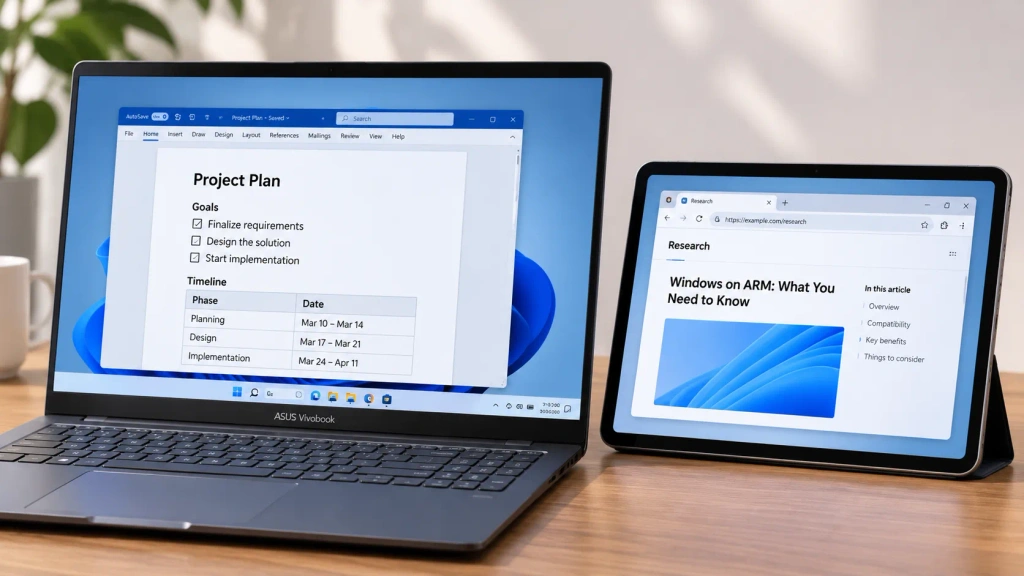 ونڈوز ARM پر اپنی اسکرین کو کیسے بڑھائیں
1001 TVs اب ونڈوز ARM پر بذاتِ خود چلتا ہے—صرف عکس نہیں بلکہ اسکرین توسیع کے ساتھ۔ اس کا Arm64 ایپ ARM پروسیسرز پر براہِ راست چلتا ہے، کسی درمیانی حل کے بجائے…
ونڈوز ARM پر اپنی اسکرین کو کیسے بڑھائیں
1001 TVs اب ونڈوز ARM پر بذاتِ خود چلتا ہے—صرف عکس نہیں بلکہ اسکرین توسیع کے ساتھ۔ اس کا Arm64 ایپ ARM پروسیسرز پر براہِ راست چلتا ہے، کسی درمیانی حل کے بجائے…
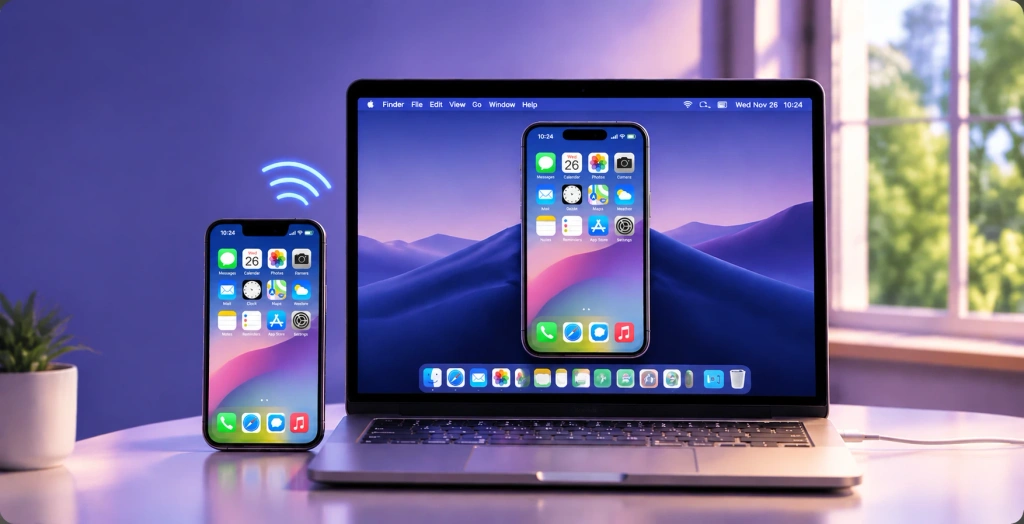 اپنے آئی فون کو میک پر کیسے عکس بنائیں: آسان وائرڈ اور وائرلیس طریقے
اپنے آئی فون کو میک پر آئینہ کرنے کے لیے، وائرلیس اسکرین شیئرنگ کے لیے ایئر پلے استعمال کریں، آئی فون مررنگ کے ذریعے اپنے آئی فون کو میک سے چلائیں، یا QuickTime…
اپنے آئی فون کو میک پر کیسے عکس بنائیں: آسان وائرڈ اور وائرلیس طریقے
اپنے آئی فون کو میک پر آئینہ کرنے کے لیے، وائرلیس اسکرین شیئرنگ کے لیے ایئر پلے استعمال کریں، آئی فون مررنگ کے ذریعے اپنے آئی فون کو میک سے چلائیں، یا QuickTime…

