ونڈوز ARM پر اپنی اسکرین کو کیسے بڑھائیں
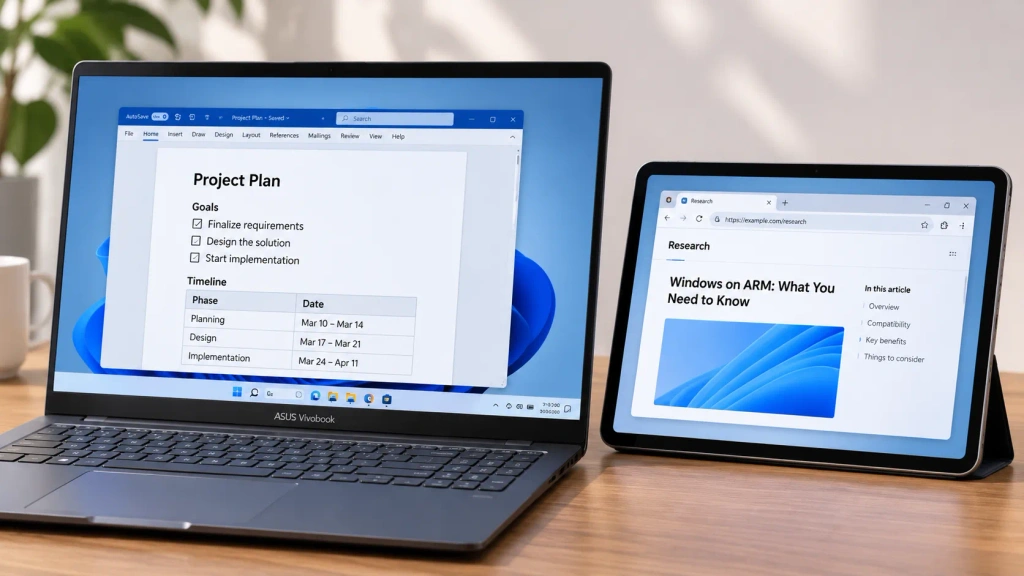
1001 TVs now runs natively on Windows ARM—with screen extension, not just mirroring. Its Arm64 app runs directly on ARM processors rather than through x86 or x64 emulation. You can use a compatible receiving device as a separate workspace, with different application windows on each screen.
To get started, install 1001 TVs from the Microsoft Store on your Windows ARM PC, connect your receiving device, and select بڑھانا. This guide covers native ARM support and wireless extension, rather than conventional USB-C or HDMI monitor setup.
What You Need Before You Start
Have your Windows ARM PC, a compatible device running the 1001 TVs receiver app, and a shared Wi-Fi network that allows the devices to communicate ready.
Not sure if your PC runs Windows on ARM? Go to Settings → System → About and check whether System type lists an ARM-based processor.
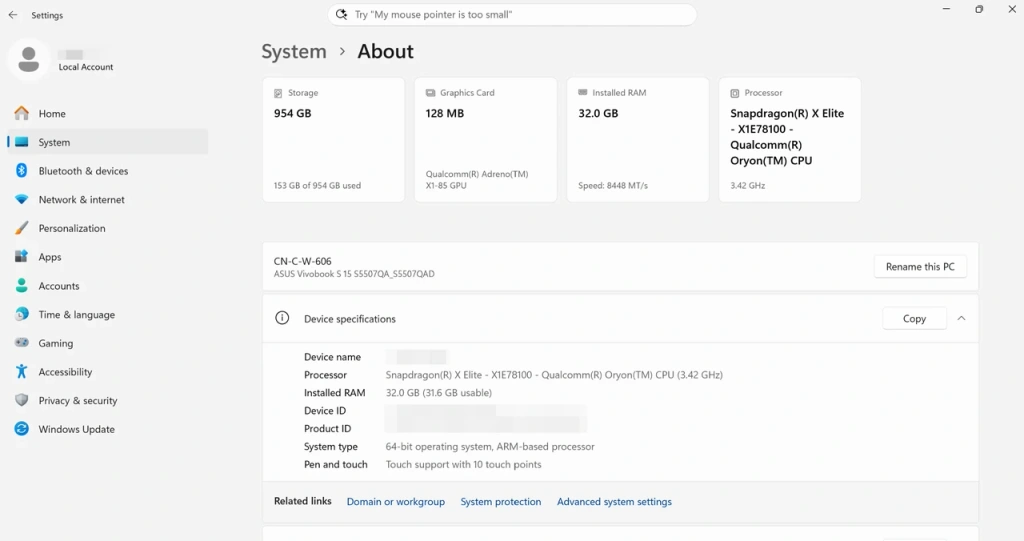
In System → About, the System type entry reads “64-bit operating system, ARM-based processor.”
Set Up Your Wireless Second Screen with 1001 TVs
1. Install the Native ARM App from the Microsoft Store
On your Windows ARM PC, open the مائیکروسافٹ اسٹور اور تلاش کریں 1001 TVs. Install 1001 TVs on the receiving device from its platform’s app store as well, then open both apps.
Native app execution and working screen extension are two distinct milestones on Windows ARM. Windows 11 can emulate x86 and x64 applications, but that emulation does not extend to drivers. Screen extension therefore requires more than getting an app to open: the components behind the additional display must also work on ARM.
1001 TVs has verified the complete extension workflow alongside native Arm64 app execution:
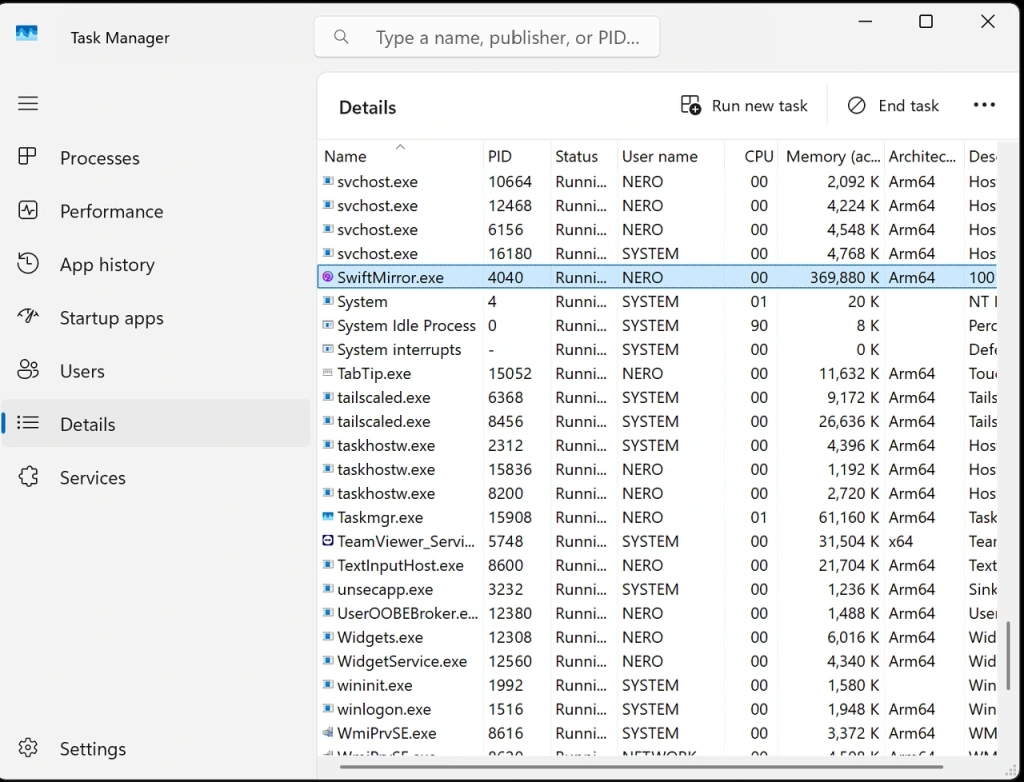
SwiftMirror.exe is listed as Arm64 in Task Manager’s Architecture column.
2. Connect Your ARM PC to the Receiving Device
With both devices on the same Wi-Fi network:
Accept the connection with اجازت دیں۔ on the receiver when prompted.
کھولیں۔ اسکرین ریسیور on the receiving device and leave it ready to connect.
On the ARM PC, choose Send → Extend, then select the receiving device.
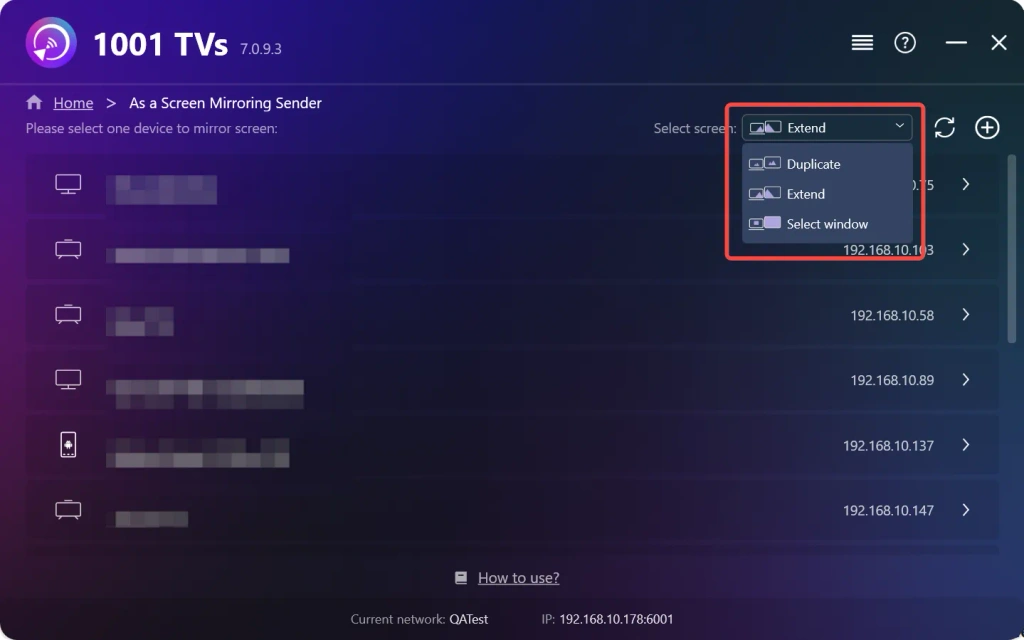
For the full connection walkthrough, see the Windows screen-extension tutorial.
Verify Your Extended Screen on Windows ARM
Keep one application window on the ARM PC and move another onto the receiving screen. Confirm that both display different content simultaneously and that you can move the second window back to the PC. This tests the extension workflow rather than just app launch or device discovery.
If Your Second Screen Is Not Working
Extend Is Missing or Cannot Be Enabled
First, check that you installed 1001 TVs from the مائیکروسافٹ اسٹور on your ARM PC. If you installed it from another source, use the Microsoft Store version. If Extend is still unavailable, contact 1001 TVs support with your PC model, Windows version, and app version.
If a component or driver error appears, include the exact error message so support can identify the affected part of the extension setup.
You Connect, but Do Not Get a Separate Workspace
Confirm that بڑھانا is selected. If the receiving device shows only a desktop background, move a window onto it before treating that as a failure. If it still cannot show a separate window, report the PC and receiver versions, installation source, and what happens when you select Extend.
For device-discovery and general connection setup, use the Windows screen-extension tutorial linked above.

مزید پڑھیں
 اپنے آئی فون کو میک پر کیسے عکس بنائیں: آسان وائرڈ اور وائرلیس طریقے
اپنے آئی فون کو میک پر آئینہ کرنے کے لیے، وائرلیس اسکرین شیئرنگ کے لیے ایئر پلے استعمال کریں، آئی فون مررنگ کے ذریعے اپنے آئی فون کو میک سے چلائیں، یا QuickTime…
 ٹی وی پر 2026/27 چیمپیئنز لیگ کیسے دیکھیں
ٹی وی پر 2026/27 یوفا چیمپیئنز لیگ دیکھنے کے لیے اپنے ملک کے سرکاری نشریاتی ادارے کا انتخاب کریں اور تصدیق کریں کہ آپ کی رکنیت میں یہ میچ شامل ہے۔

