
How to Improve Screen Mirroring Quality: Adjusting Resolution Settings
If you’re using 1001 TVs screen mirroring and the display quality appears blurry or less clear than expected, you can enhance the visual output by fine-tuning the resolution settings in the advanced options. This guide walks you through adjusting the max width and max height parameters to achieve sharper and more detailed image quality.
Detailed Setup Steps
❶ Access Mirror Settings
- Open the 1001 TVs app and tap the profile icon in the top-left corner.
- On the “Mine” page, locate and tap Mirror Settings.

❷ Enable Advanced Settings
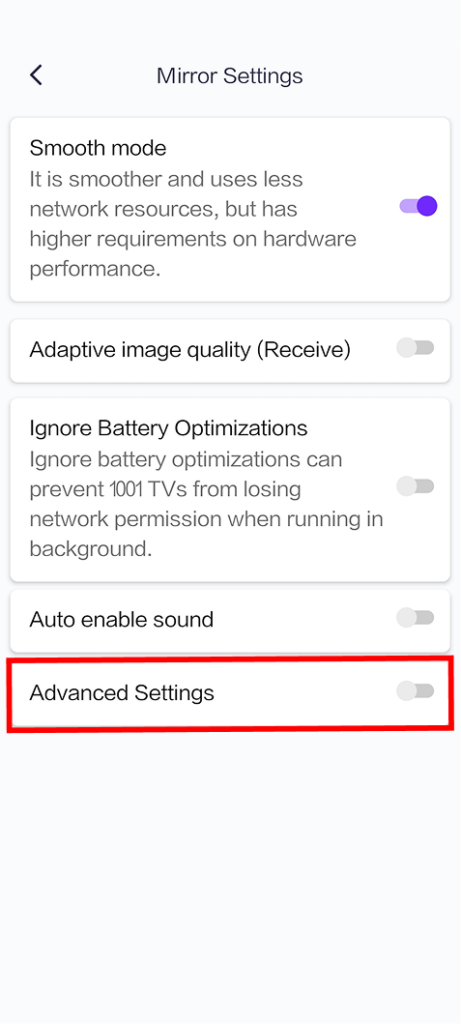
- In the Mirror Settings page, scroll down to find the Advanced Settings option.
- Tap the toggle switch on the right to turn it on (the switch turns purple when enabled).
- Once enabled, additional configuration options will appear below.
❸ Adjust Resolution Parameters
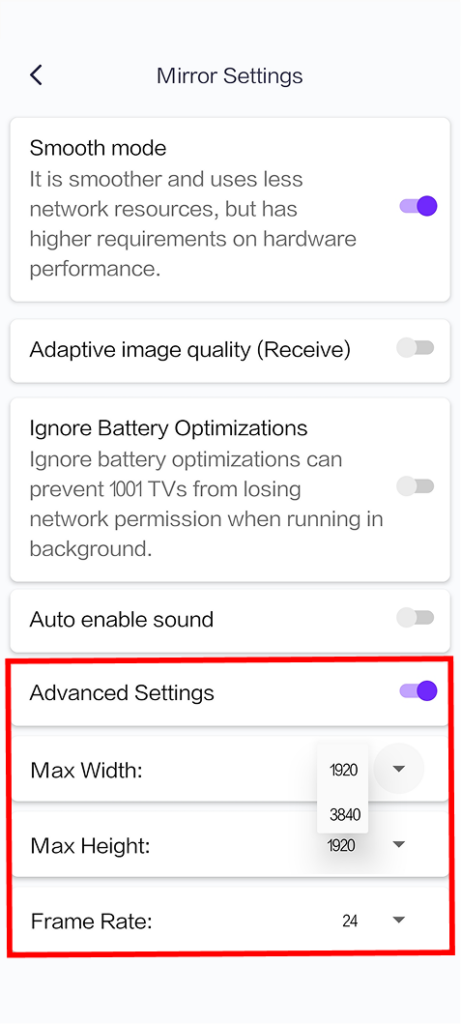
In the Advanced Settings section, you’ll see three important parameters. Higher values provide better image quality but require stronger network performance:
1. Max Width
- Default value: 1920 (pixels)
- Available options: 1920, 3840
2. Max Height
- Default value: 1080 (pixels)
- Available options: 1080, 1920, 3840
3. Frame Rate
- Default value: 24 fps
- Available options: 24/60 fps
Need Help?
If you encounter any issues while using the app, feel free to contact our support team:
- More Tutorials: Guidance
- Email: 1001tvs@nero.com
- Website: www.1001tvs.com