
Удаление чёрных полос: зеркальное отражение в вертикальной и горизонтальной ориентации

Видите чёрные полосы при дублировании экрана? Неважно, находитесь ли вы в портретном режиме с полосами по бокам или в альбомном режиме с полосами сверху, снизу или по бокам — не беспокойтесь. Обе проблемы можно устранить с помощью нескольких простых настроек в приложении 1001 TVs TV.
Для зеркального отображения в вертикальной ориентации предусмотрена специальная настройка, позволяющая убрать боковые полосы. (Узнайте, как настроить вертикальное зеркальное отображение 👉Вертикальное зеркальное отображение экрана)
При отображении в альбомной ориентации также есть способ значительно уменьшить черные полосы.
Выполните приведенные ниже действия, чтобы сделать ваш контент по-настоящему полноэкранным и полностью иммерсивным.
Для зеркального отображения портрета
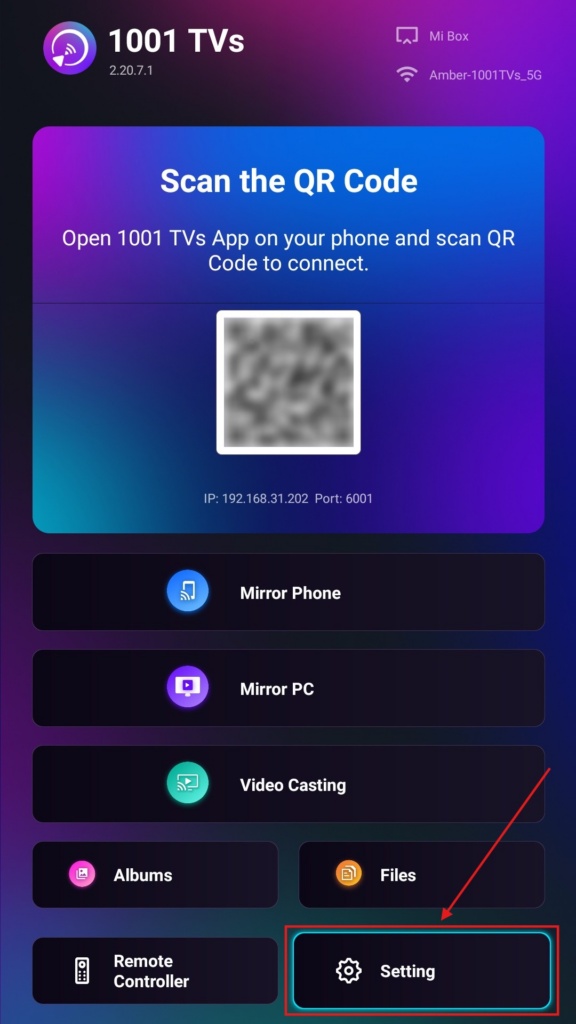
Шаг 1. Откройте на телевизоре приложение 1001 TVs и перейдите в раздел “Настройка".
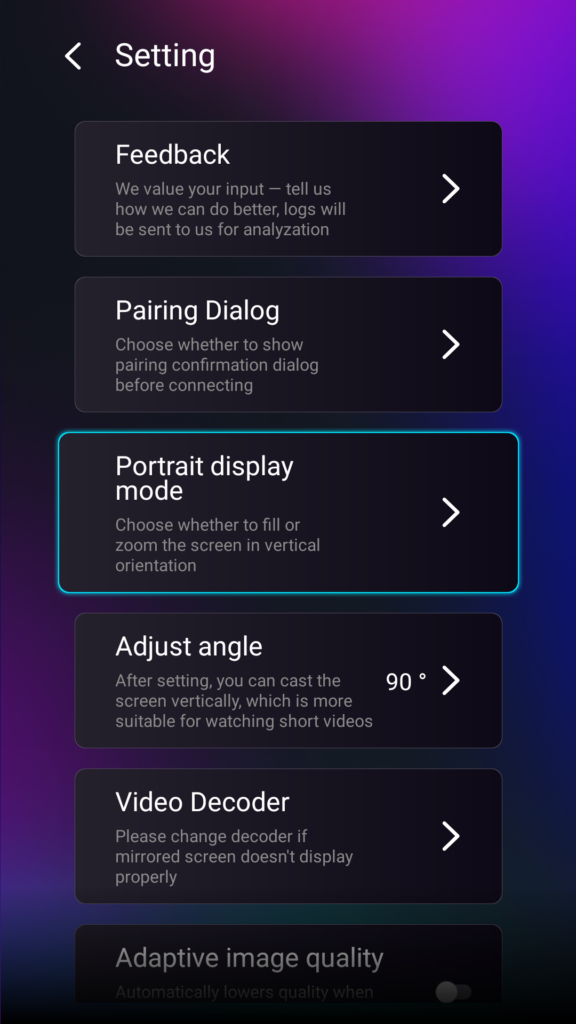
Шаг 2. Выберите “Портретный режим отображения”.
Шаг 3. Просто выберите режим отображения на телевизоре, который вам больше нравится.
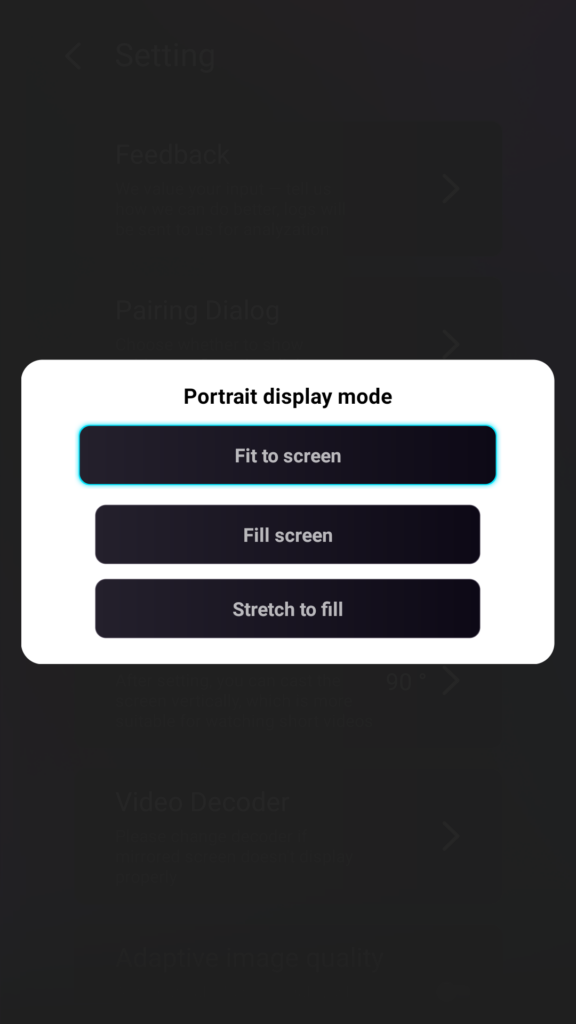
Советы по режимам отображения портрета
- Подходит для экрана
Расширяет контент так, чтобы он полностью заполнил экран вашего вертикального телевизора. После включения этой функции при следующем сеансе зеркалирования вы увидите совершенно иной результат. - Заполнить экран
Сохраняет исходное соотношение сторон. В зависимости от вашего устройства по бокам могут по-прежнему отображаться чёрные полосы. - Растянуть, чтобы заполнить
Заполняет одну сторону, сохраняя правильные пропорции.
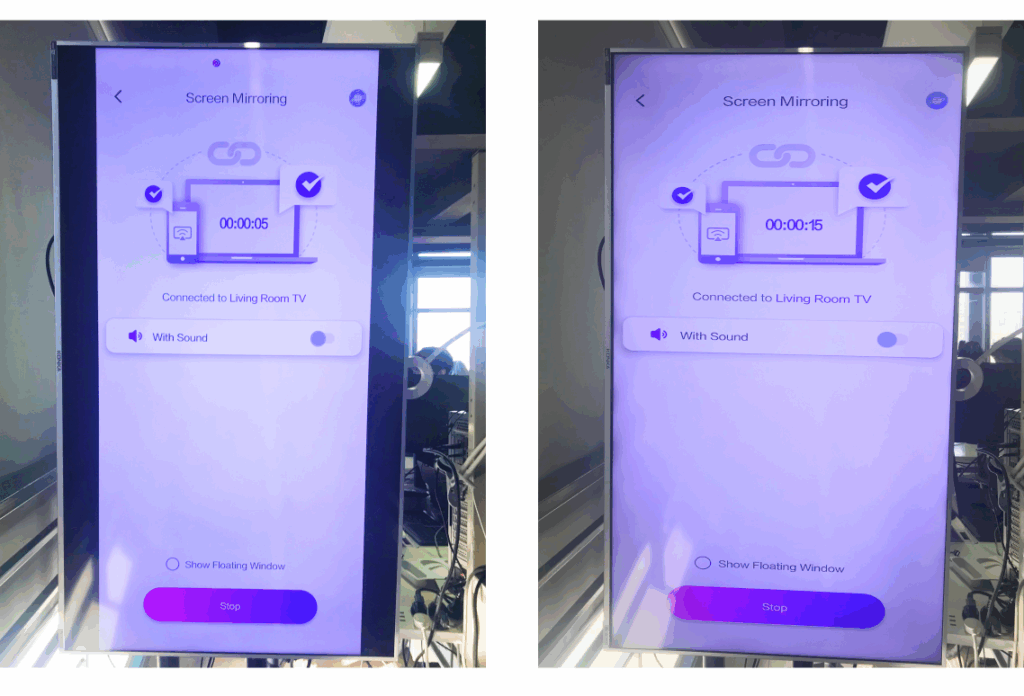
Ознакомьтесь с приведенным ниже сравнением (Растянуть, чтобы заполнить (показанный режим):
Когда эта функция может быть полезной?
Эта установка идеально подходит для:
- Магазины розничной торговли, использующие вертикальные цифровые вывески
- Домашние пользователи создают вертикальный экран
- Учителя демонстрируют вертикальные материалы для занятий
- Показ вертикальных фотографий или видео в портретном режиме
- Воспроизведение шортов TikTok/YouTube в полноэкранном режиме
- Оформление студий, галерей или художественных выставок
Для зеркального отображения пейзажа
Шаг 1. Откройте на телевизоре приложение 1001 TVs и перейдите в раздел “Настройка”.
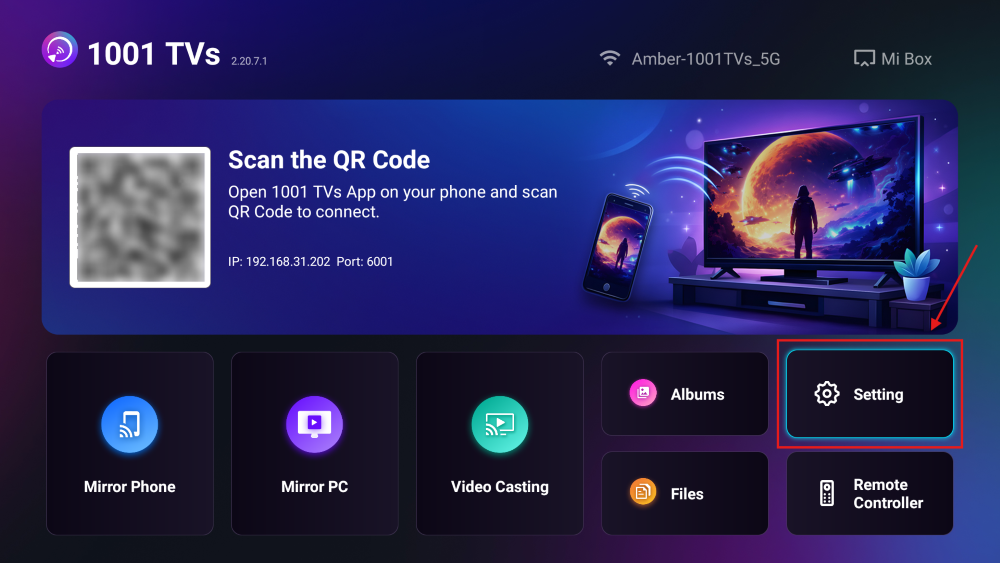
Шаг 2. Включите “Режим заполнения”.
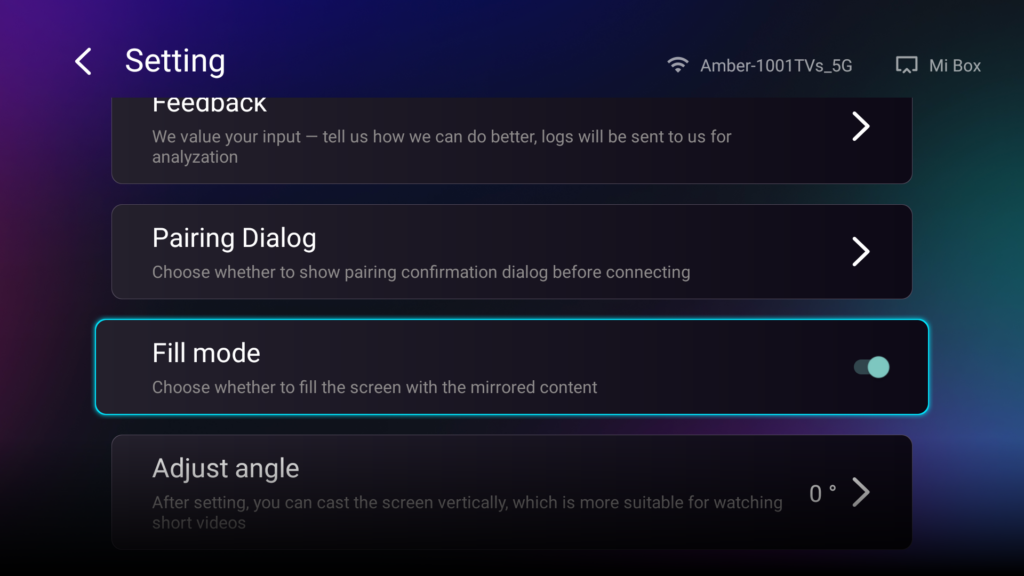
После включения этой опции используйте кнопки «вверх»/«вниз» на пульте ДУ телевизора для переключения между доступными режимами масштабирования: 1×, 2×, 3× и «По размеру экрана».
- 1× / 2× / 3×
увеличивать масштаб с фиксированным шагом - Подходит для экрана
автоматически масштабирует контент так, чтобы он занимал весь экран телевизора
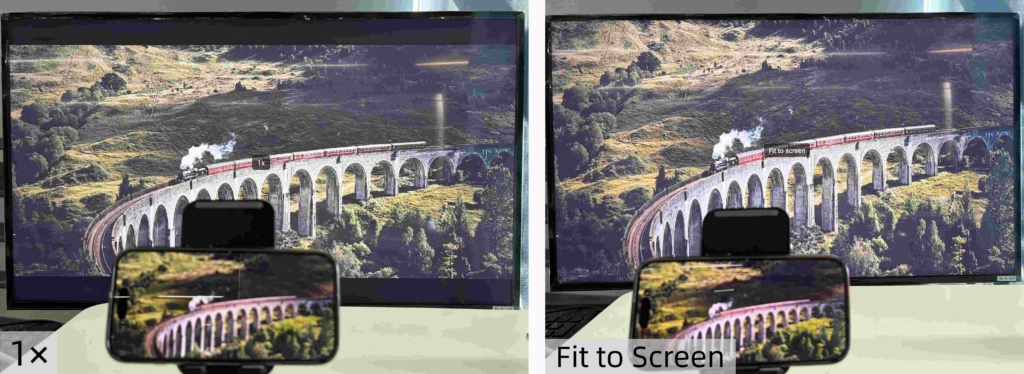
Теперь вы можете расслабиться и наслаждаться просмотром — в полноэкранном режиме, без чёрных полос, с полным погружением в просмотр.
Больше советов и руководств: