
Usuwanie czarnych pasów: odbicie w orientacji pionowej i poziomej

Widzisz czarne paski podczas wyświetlania obrazu z ekranu na telewizorze? Niezależnie od tego, czy korzystasz z trybu pionowego z paskami po bokach, czy z trybu poziomego z paskami u góry, u dołu lub po bokach — nie martw się. Oba problemy można rozwiązać za pomocą kilku prostych zmian w aplikacji 1001 TVs TV.
W przypadku odbicia w orientacji pionowej dostępne jest specjalne ustawienie pozwalające wyeliminować paski po bokach. (Zobacz, jak skonfigurować odbicie w orientacji pionowej 👉Pionowe odbicie lustrzane ekranu)
W przypadku wyświetlania w orientacji poziomej istnieje również sposób na znaczne zmniejszenie czarnych pasów.
Wykonaj poniższe kroki, aby Twoje treści wyświetlały się w trybie pełnoekranowym i zapewniały pełne wrażenia immersyjne.
W przypadku odbicia portretowego
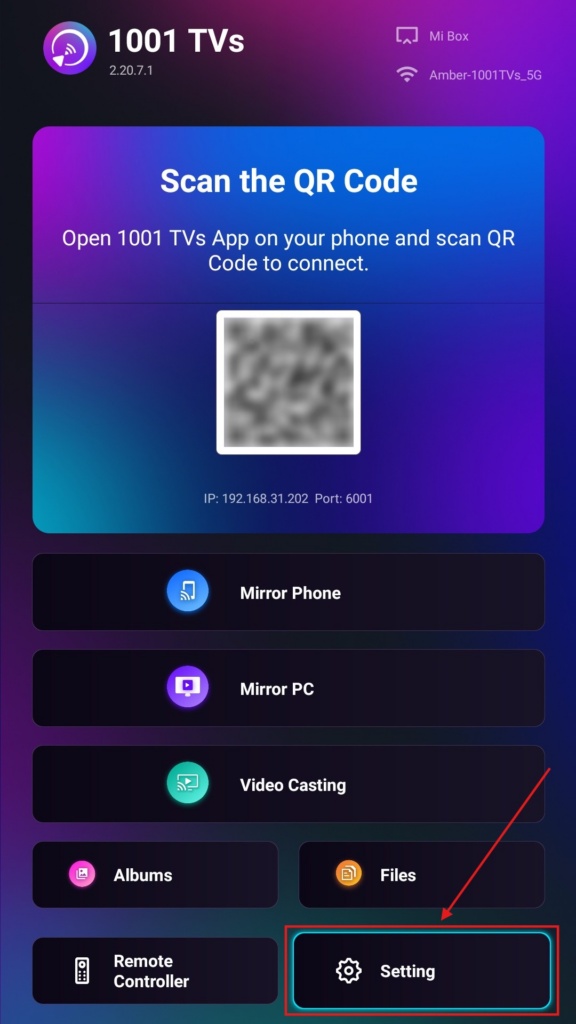
Krok 1. Otwórz na telewizorze aplikację 1001 TVs i przejdź do “Ustawienie".
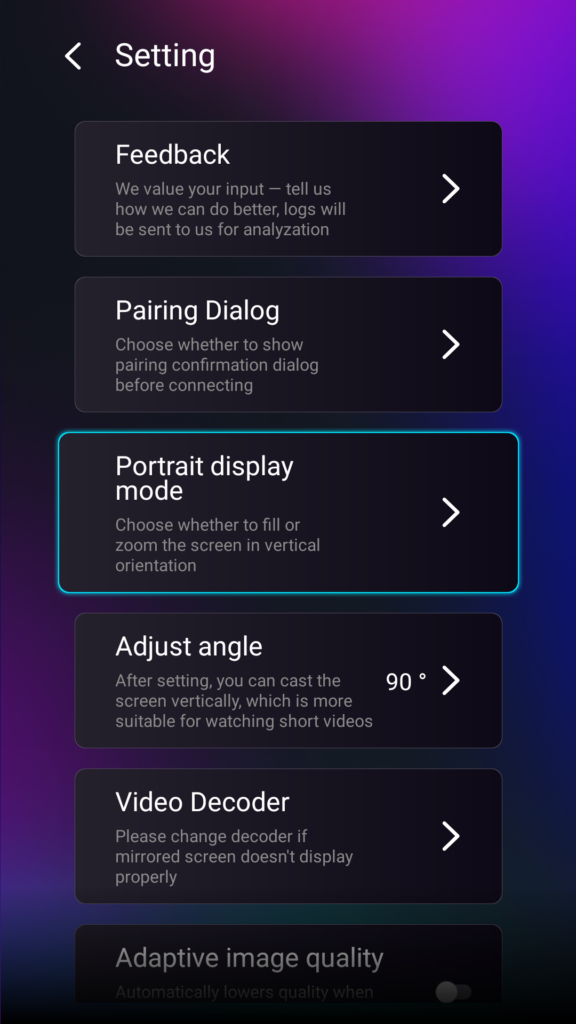
Krok 2. Wybierz opcję “Tryb wyświetlania pionowego”.
Krok 3. Wystarczy wybrać preferowany tryb wyświetlania na telewizorze.
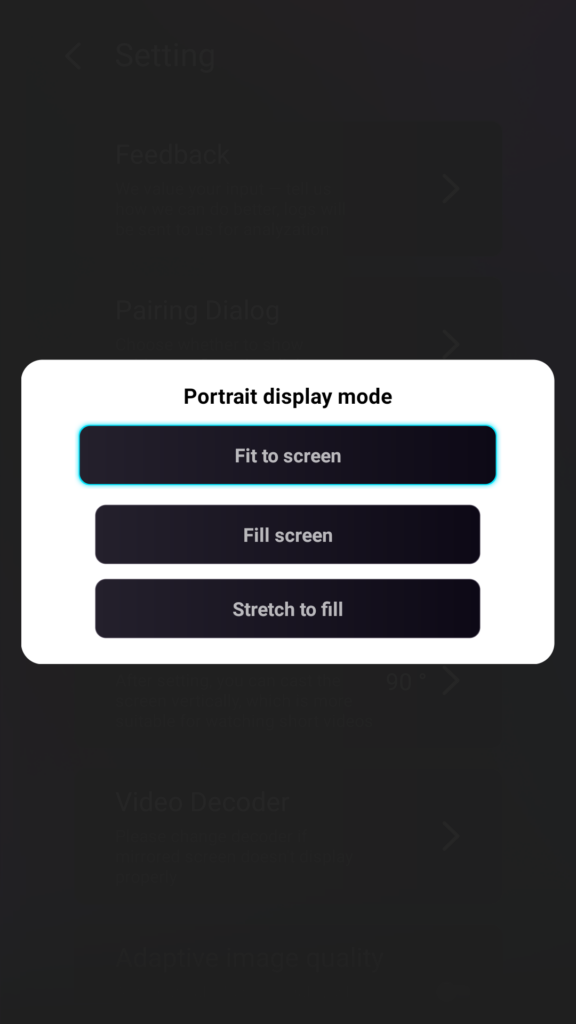
Wskazówki dotyczące trybów wyświetlania portretowego
- Dopasowanie do ekranu
Rozszerza treść tak, aby w pełni wypełniła ekran telewizora w pionie. Po włączeniu tej funkcji podczas następnej sesji wyświetlania lustrzanego zobaczysz zupełnie inny efekt. - Wypełnij ekran
Zachowuje oryginalne proporcje obrazu. W zależności od urządzenia po bokach mogą nadal pojawiać się czarne pasy. - Rozciągnij, aby wypełnić
Wypełnia jedną stronę, zachowując prawidłowe proporcje.
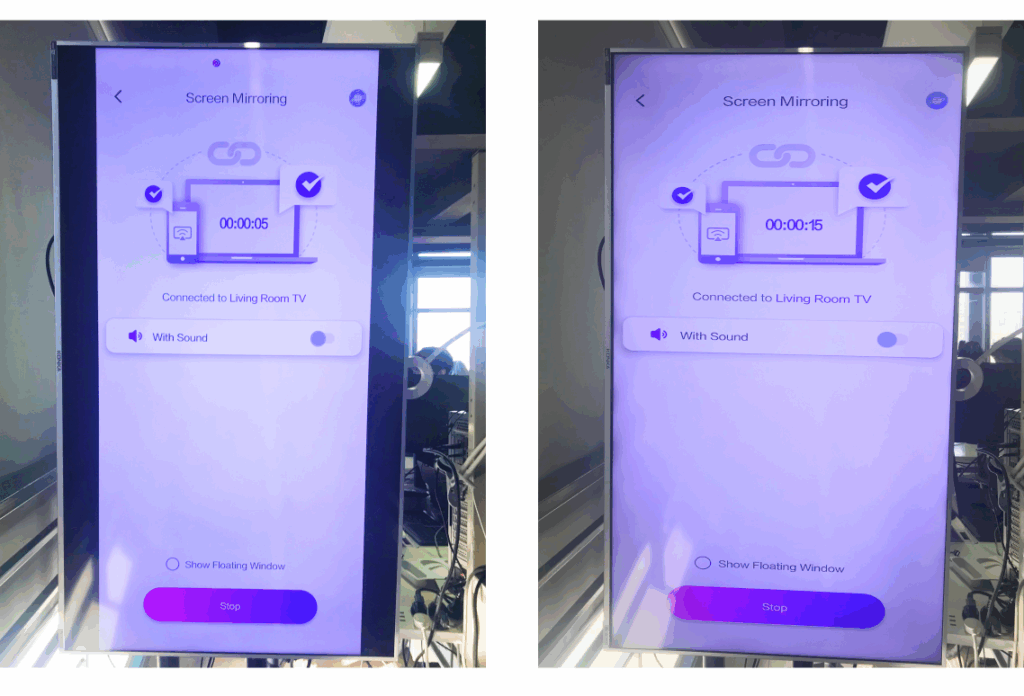
Zapoznaj się z poniższym zestawieniem porównawczym (Rozciągnij, aby wypełnić (pokazany tryb):
Kiedy ta funkcja jest przydatna?
To ustawienie jest idealne dla:
- Sklepy detaliczne wykorzystujące pionowe oznakowanie cyfrowe
- Użytkownicy domowi tworzący pionowy ekran atmosferyczny
- Nauczyciele prezentujący pionowe materiały klasowe
- Wyświetlanie pionowych zdjęć lub filmów w trybie portretowym
- Odtwarzanie filmów krótkometrażowych TikTok/YouTube na pełnym ekranie
- Konfiguracja studia, galerii lub ekspozycji dzieł sztuki
W przypadku odbicia krajobrazowego
Krok 1. Otwórz na telewizorze aplikację 1001 TVs i przejdź do “Ustawienie”.
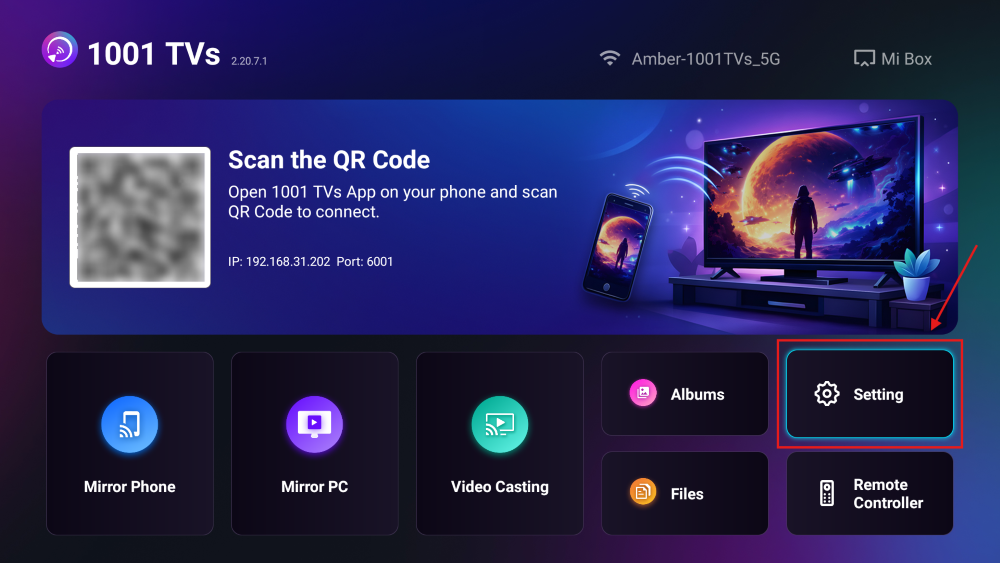
Krok 2. Włącz opcję “Tryb wypełniania”.
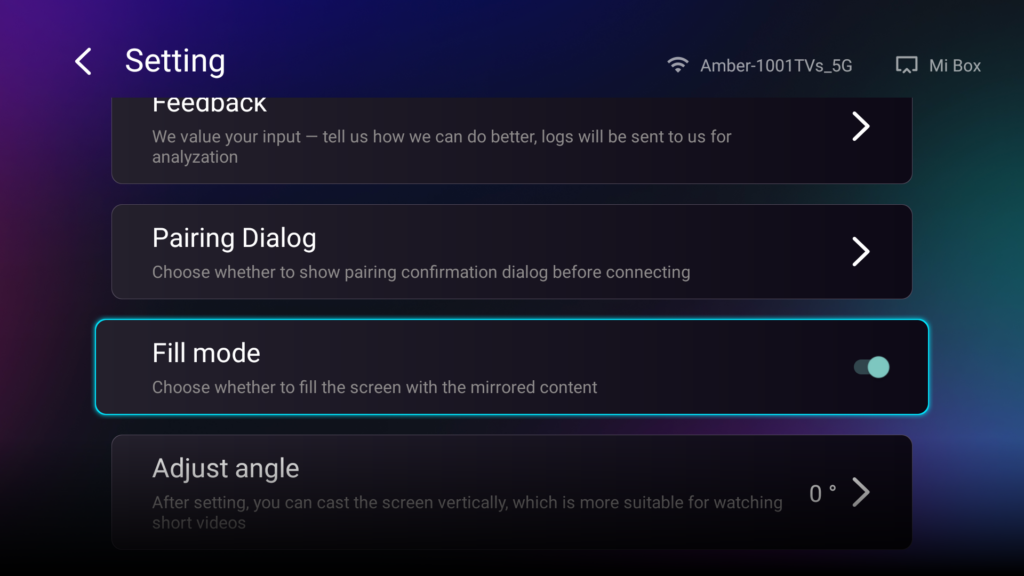
Po włączeniu tej opcji użyj przycisków strzałek w górę/w dół na pilocie telewizora, aby przełączać się między dostępnymi trybami skalowania: 1×, 2×, 3× oraz Dopasuj do ekranu.
- 1× / 2× / 3×
powiększanie w stałych krokach - Dopasowanie do ekranu
automatycznie dopasowuje rozmiar treści tak, aby wypełniła cały ekran telewizora
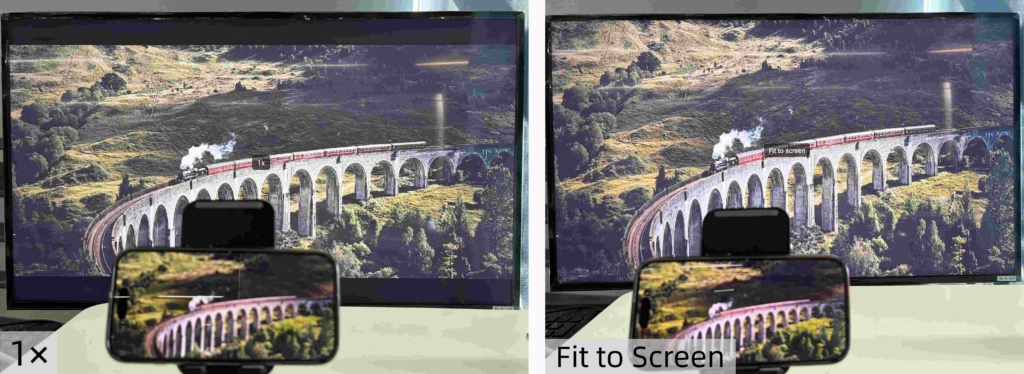
Teraz możesz się wygodnie rozsiąść i cieszyć się treściami — na pełnym ekranie, bez czarnych pasków, w pełni wciągających.
Więcej wskazówek i samouczków: