
Schwarze Balken bei vertikaler Spiegelung entfernen

Wenn Ihr Fernseher vertikal aufgestellt ist, aber der gespiegelte Bildschirm immer noch schwarze Balken auf der linken und rechten Seite zeigt, machen Sie sich keine Sorgen - dieses Problem kann dauerhaft behoben werden, indem Sie eine einfache Einstellung in der 1001 TVs TV App vornehmen. (Siehe wie man die vertikale Spiegelung einrichtet 👉.Vertikale Bildschirmspiegelung)
Befolgen Sie die nachstehenden Schritte, um Ihren vertikalen Inhalt wirklich zu gestalten Vollbild und völlig immersiv.
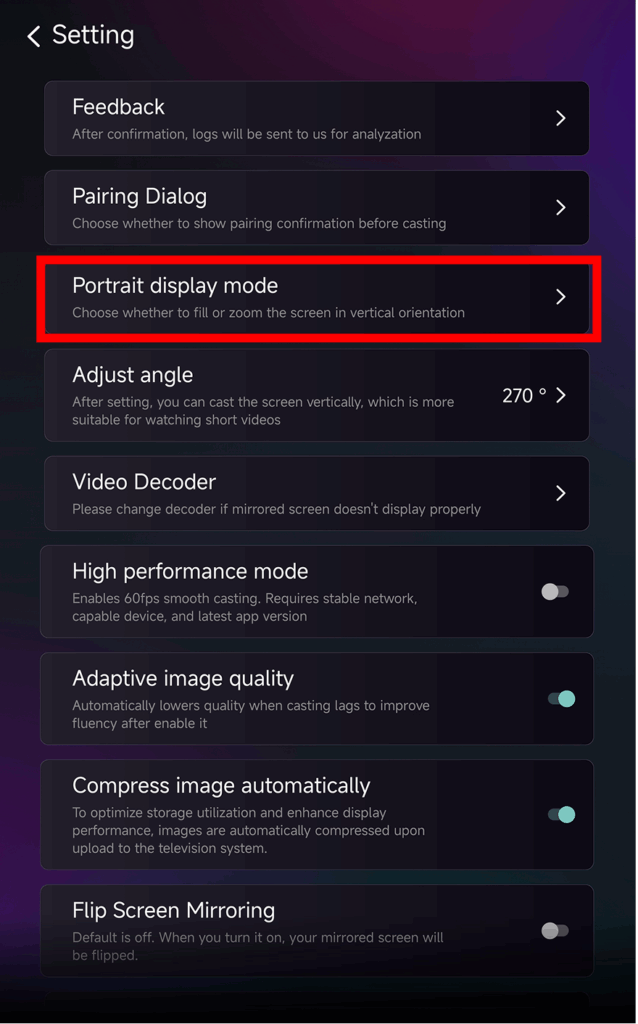
❶ Öffnen Sie die 1001 TVs TV App und gehen Sie zu “Einstellung"

❷ Tippen Sie auf “Hochformat-Anzeigemodus”.”
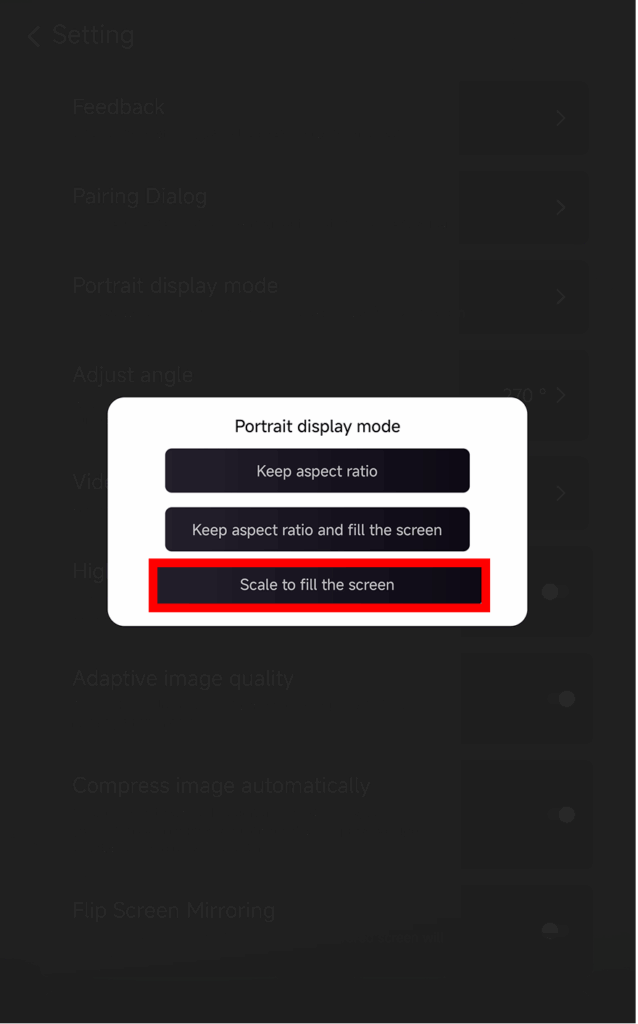
❸ Wählen Sie “Skalieren, um den Bildschirm zu füllen”, um die Anzeige zu erweitern.
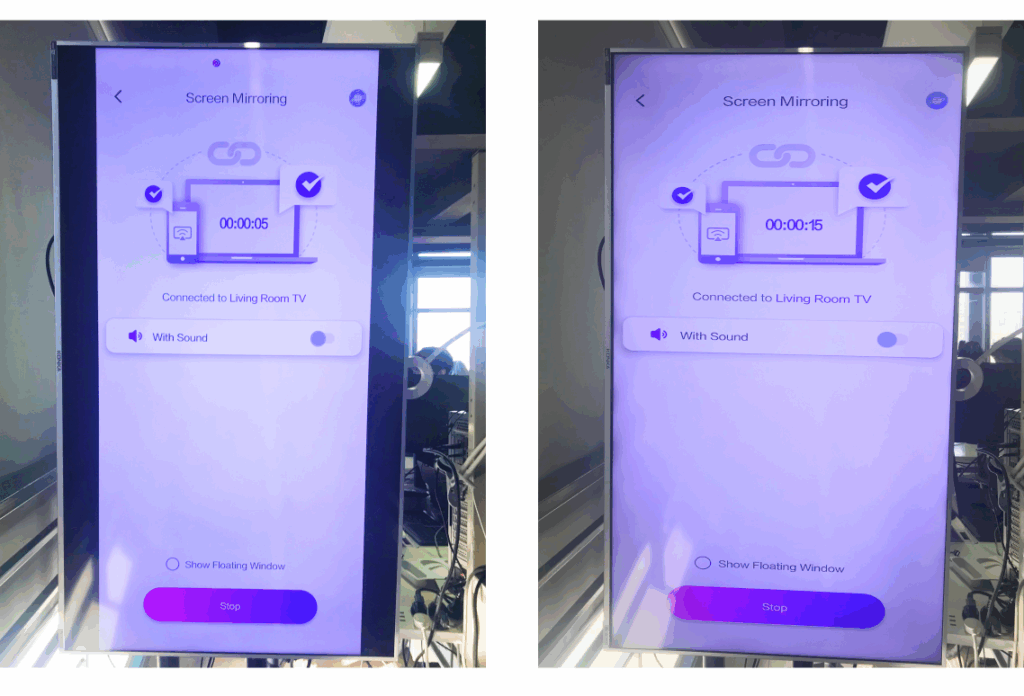
Nachdem Sie diese Einstellung aktiviert haben, wird die nächste Spiegelungssitzung völlig anders aussehen.
Sehen Sie sich den folgenden Vergleich an:
Tipps zu Anzeigeoptionen
Innerhalb Vertikaler Anzeigemodus sehen Sie drei Auswahlmöglichkeiten:
- Seitenverhältnis beibehalten
Behält die ursprünglichen Proportionen bei; je nach Gerät können schwarze Balken verbleiben. - Seitenverhältnis beibehalten und Bildschirm ausfüllen
Füllt eine Seite unter Einhaltung der richtigen Proportionen. - Skalieren, um den Bildschirm auszufüllen
Erweitert den Inhalt so, dass er das vertikale Fernsehgerät vollständig ausfüllt.
Wann ist diese Funktion nützlich?
Diese Einstellung ist ideal für:
- Einzelhandelsgeschäfte mit vertikaler digitaler Beschilderung
- Heimanwender, die einen vertikalen Ambienteschirm erstellen
- Lehrer, die vertikale Unterrichtsmaterialien ausstellen
- Vertikale Fotos oder Videos im Hochformat anzeigen
- TikTok/YouTube-Kurzfilme im Vollbildmodus abspielen
- Einrichtung von Ateliers, Galerien oder Kunstausstellungen
Weitere Tipps und Anleitungen: