
Supprimer les bandes noires : retournement en mode portrait et paysage

Vous voyez des barres noires lorsque vous diffusez votre écran en miroir ? Que vous soyez en mode portrait avec des barres sur les côtés, ou en mode paysage avec des barres en haut, en bas ou sur les côtés, ne vous inquiétez pas. Ces deux problèmes peuvent être résolus grâce à quelques réglages simples dans l'application 1001 TVs TV.
Pour la mise en miroir en mode portrait, un réglage spécifique permet de supprimer les barres latérales. (Découvrez comment configurer la mise en miroir verticale 👉Miroir d'écran vertical)
Pour la mise en miroir en mode paysage, il existe également un moyen de réduire considérablement les bandes noires.
Suivez les étapes ci-dessous pour que votre contenu s'affiche véritablement en plein écran et offre une expérience totalement immersive.
Pour la mise en miroir en mode portrait
Étape 1. Sur votre téléviseur, ouvrez l'application 1001 TVs et rendez-vous dans “Paramètres".
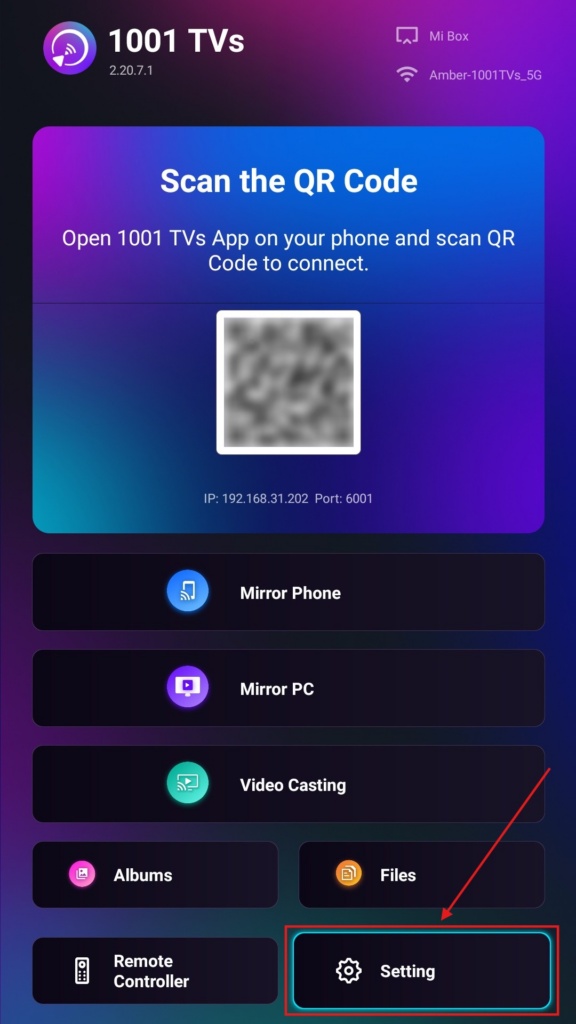
Étape 2. Sélectionnez “ Mode d'affichage portrait ”.
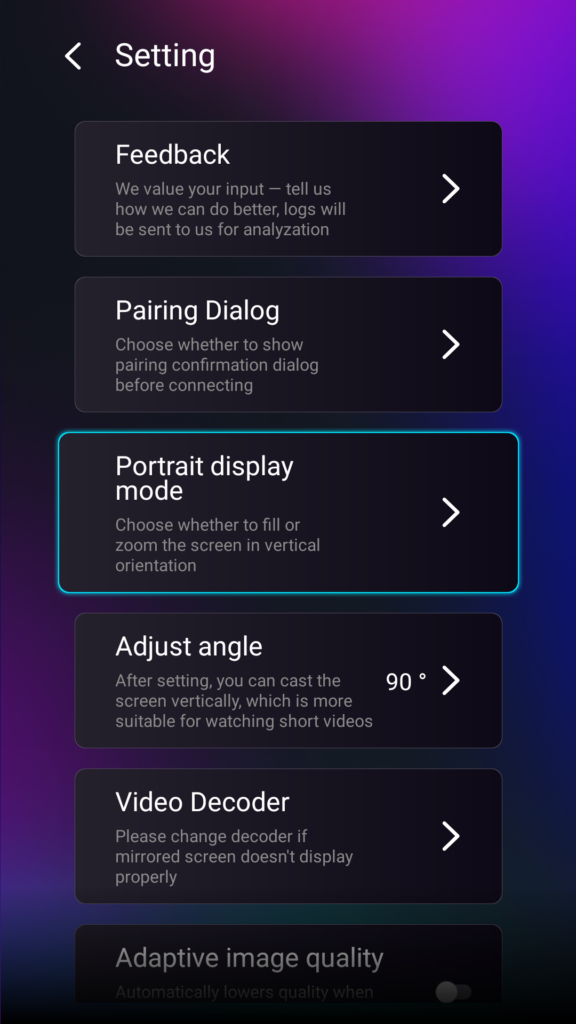
Étape 3. Il vous suffit de sélectionner le mode d'affichage de votre choix sur votre téléviseur.
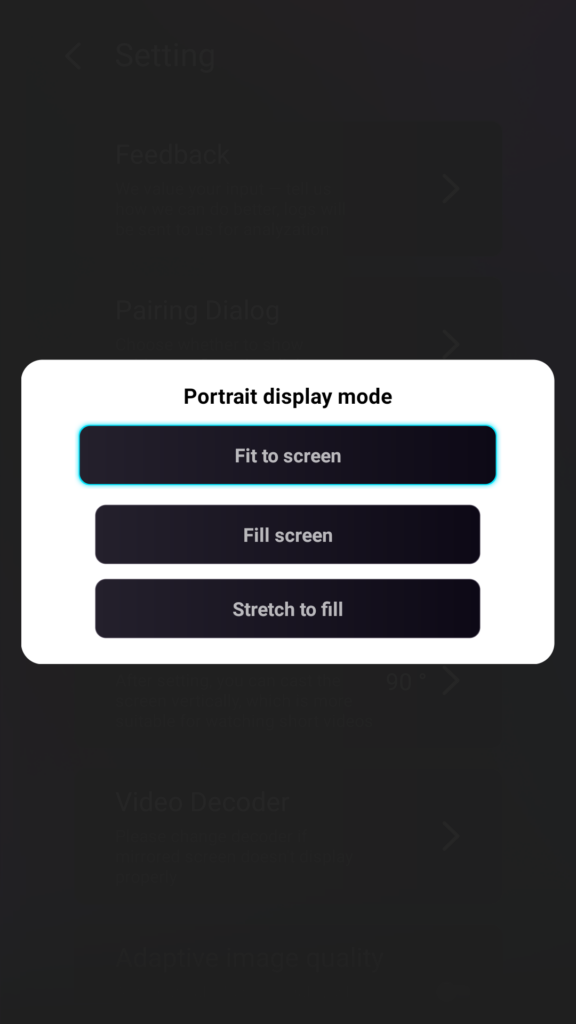
Conseils sur les modes d'affichage en mode portrait
- Adaptation à l'écran
Agrandit le contenu pour qu'il occupe tout l'écran vertical de votre téléviseur. Une fois cette option activée, vous constaterez un résultat totalement différent lors de votre prochaine session de mise en miroir. - Plein écran
Conserve le format d'origine. Des bandes noires peuvent toutefois apparaître sur les côtés selon votre appareil. - Ajustement par étirement
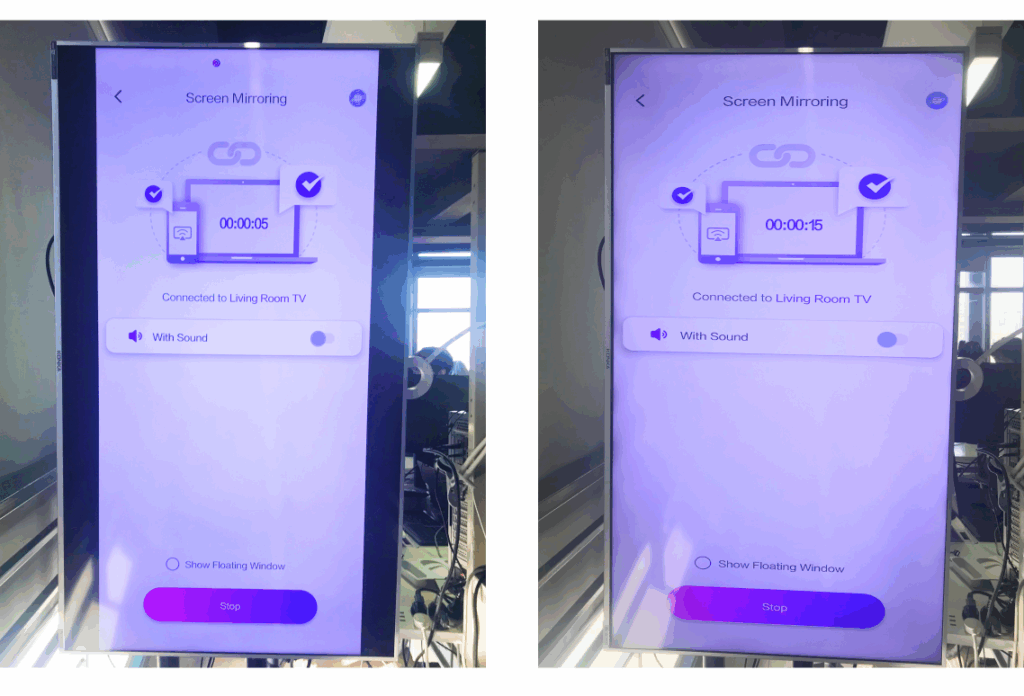
Remplit un côté tout en conservant les proportions correctes.
Consultez le tableau comparatif ci-dessous (Ajustement par étirement (mode affiché) :
Quand cette fonctionnalité est-elle utile ?
Cette configuration est parfaite pour :
- Magasins de détail utilisant l'affichage dynamique vertical
- Les utilisateurs domestiques créent un écran d'ambiance vertical
- Enseignants présentant des supports de cours verticaux
- Affichage de photos verticales ou de vidéos en mode portrait
- Lire les courts métrages TikTok/YouTube en plein écran
- Installation d'un studio, d'une galerie ou d'une exposition d'art
Pour la mise en miroir en mode paysage
Étape 1. Sur votre téléviseur, ouvrez l'application 1001 TVs et rendez-vous dans “Paramètres”.
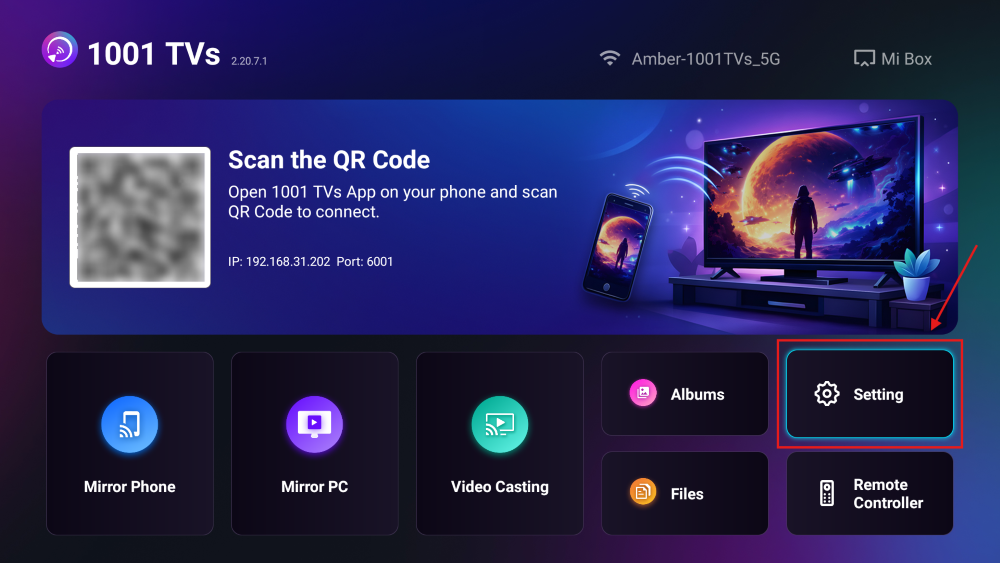
Étape 2. Activez le “ mode de remplissage ”.
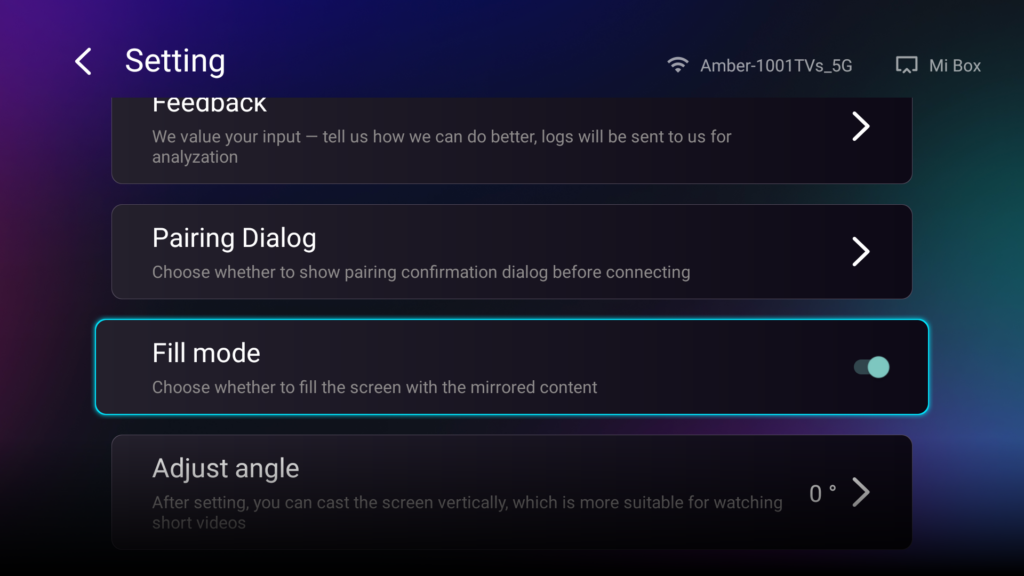
Une fois cette option activée, utilisez les touches haut/bas de la télécommande de votre téléviseur pour faire défiler les modes de mise à l'échelle disponibles : 1×, 2×, 3× et « Ajuster à l'écran ».
- 1× / 2× / 3×
zoomer par paliers fixes - Adaptation à l'écran
redimensionne automatiquement le contenu pour qu'il occupe tout l'écran du téléviseur
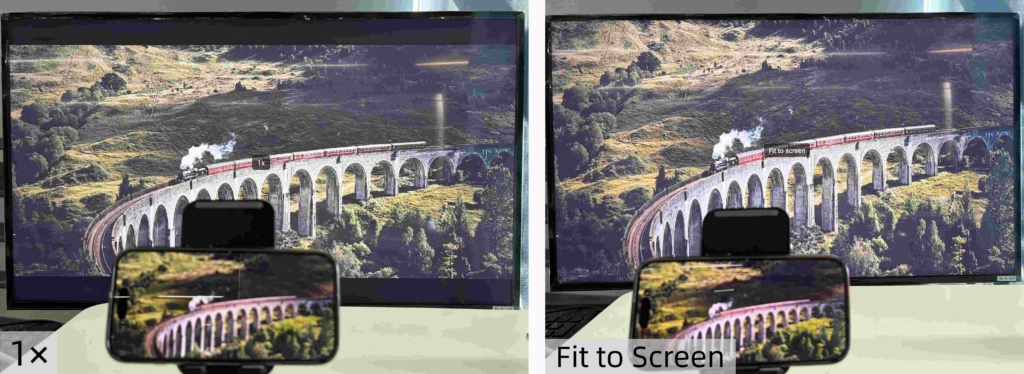
Vous pouvez désormais vous installer confortablement et profiter pleinement de votre contenu : en plein écran, sans bandes noires, pour une expérience totalement immersive.
Plus de conseils et de tutoriels: