
Siyah Çerçeveleri Kaldırma: Dikey ve Yatay Yansıtma

Ekranınızı yansıtirken siyah çubuklar mı görüyorsunuz? İster dikey modda yanlarda çubuklar olsun, ister yatay modda üstte, altta veya yanlarda çubuklar olsun — endişelenmeyin. Her iki durum da 1001 TVs TV Uygulamasında yapılacak birkaç basit ayarlamayla düzeltilebilir.
Dikey yansıtma için, yan çubukları ortadan kaldırmaya yarayan özel bir ayar bulunmaktadır. (Dikey yansıtmanın nasıl ayarlanacağını öğrenin 👉Dikey Ekran Yansıtma)
Yatay yansıtma durumunda, siyah çerçeveleri önemli ölçüde azaltmanın bir yolu da vardır.
İçeriğinizi tam anlamıyla tam ekran ve tamamen sürükleyici hale getirmek için aşağıdaki adımları izleyin.
Portre Yansıtma İçin
1. Adım. TV’nizde 1001 TVs uygulamasını açın ve “Ayar".
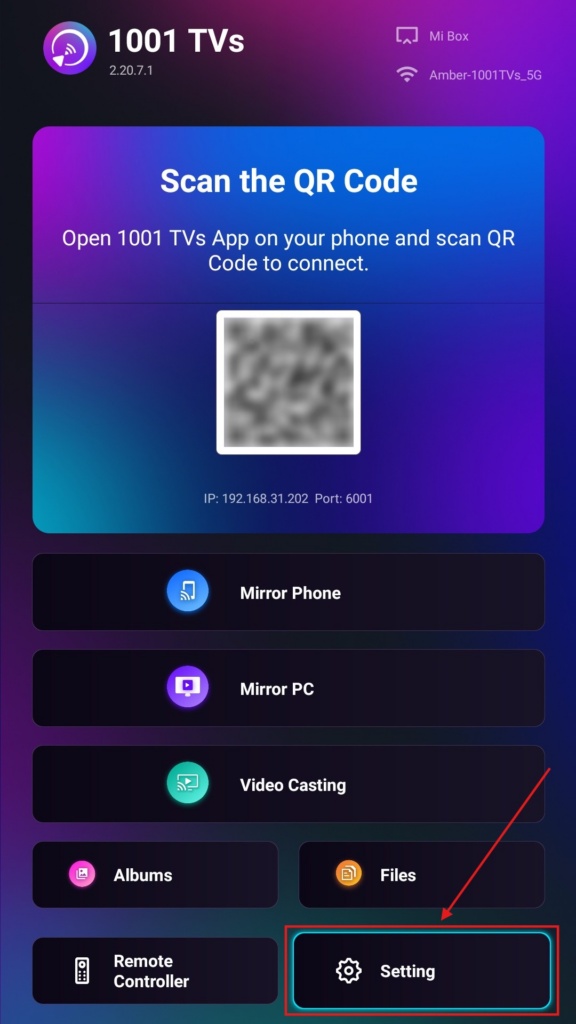
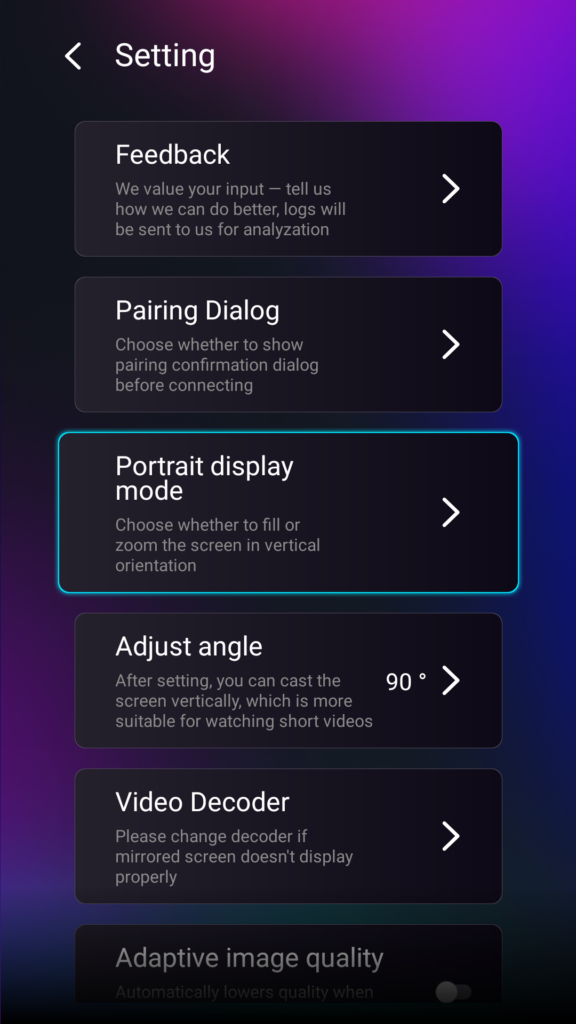
2. Adım. “Dikey ekran modu”nu seçin.
3. Adım. TV'nizde görüntülemek için tercih ettiğiniz modu seçmeniz yeterlidir.
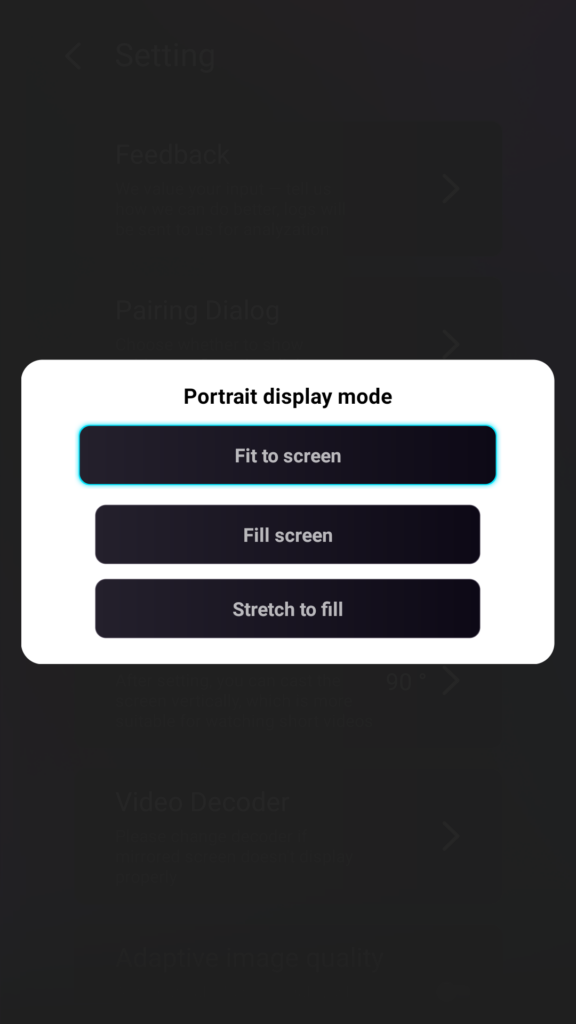
Portre Ekran Modları Hakkında İpuçları
- Ekrana Sığdır
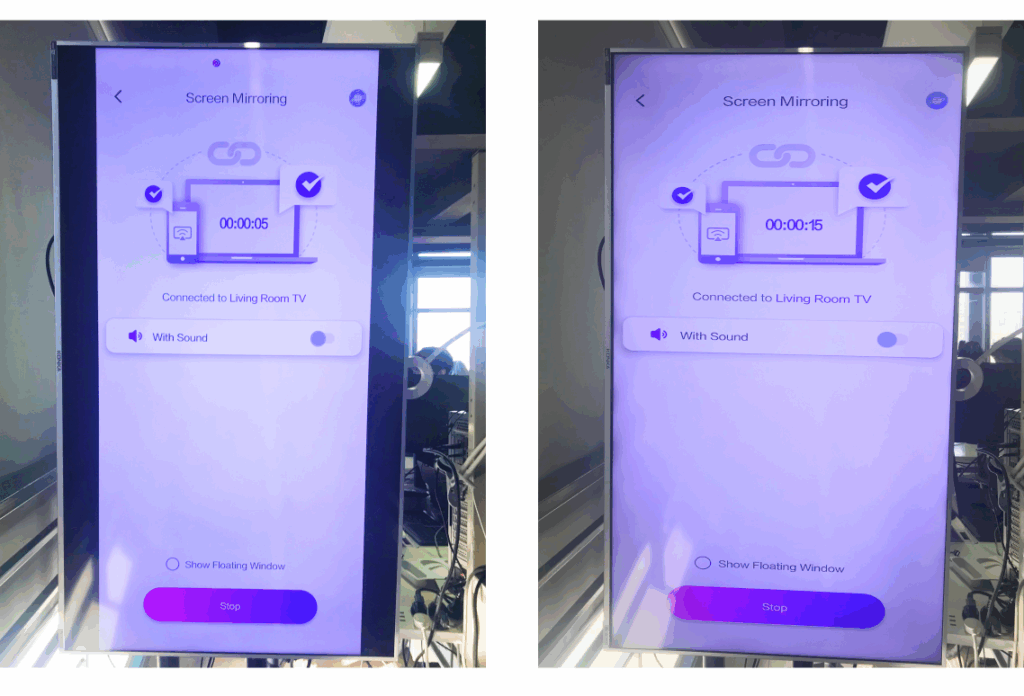
İçeriği, dikey TV ekranınızı tamamen dolduracak şekilde genişletir. Bu özellik etkinleştirildiğinde, bir sonraki ekran yansıtma oturumunuzda tamamen farklı bir sonuç göreceksiniz. - Ekranı Doldur
Orijinal en-boy oranını korur. Cihazınıza bağlı olarak yanlarda siyah çubuklar görünebilir. - Doldurmak için Genişlet
Doğru oranları koruyarak bir tarafı doldurur.
Aşağıdaki yan yana karşılaştırmaya göz atın (Doldurmak için Genişlet (gösterilen mod):
Bu Özellik Ne Zaman Kullanışlıdır?
Bu ayar aşağıdakiler için mükemmeldir:
- Dikey dijital tabela kullanan perakende mağazaları
- Ev kullanıcıları dikey bir ambiyans ekranı oluşturuyor
- Öğretmenler dikey sınıf materyallerini sergiliyor
- Dikey fotoğrafları veya portre modundaki videoları gösterme
- TikTok/YouTube Kısalarını tam ekranda oynatma
- Stüdyo, galeri veya sanat sergisi kurulumları
Manzara Yansıtma İçin
1. Adım. TV’nizde 1001 TVs uygulamasını açın ve “Ayar”.
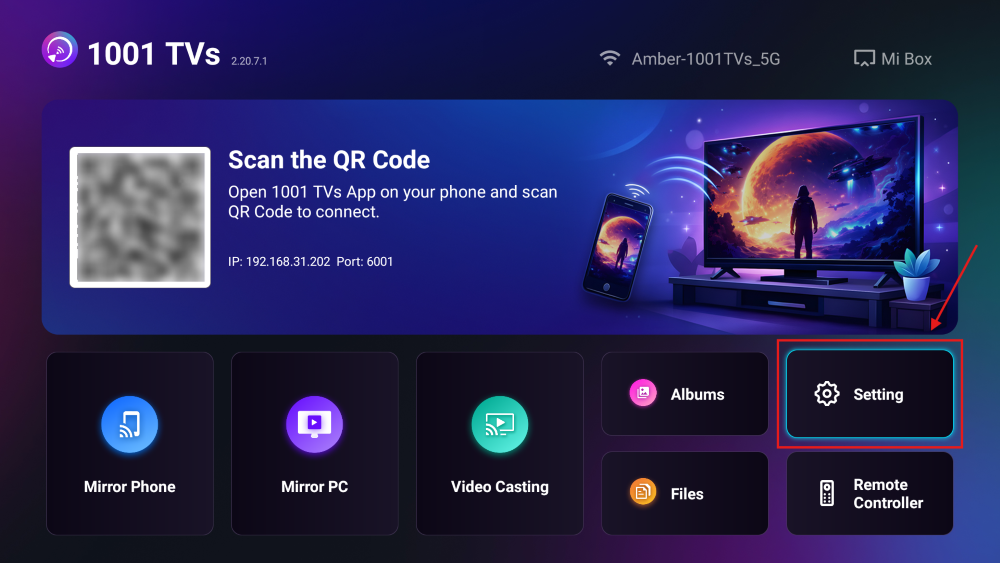
2. Adım. “Doldurma Modu”nu etkinleştirin.
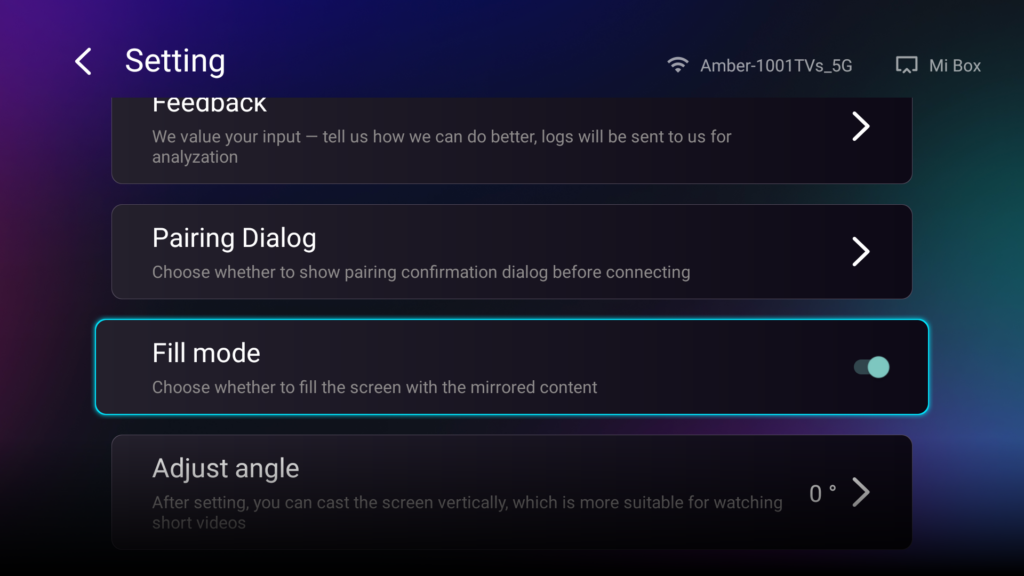
Bu seçeneği etkinleştirdikten sonra, TV uzaktan kumandanızdaki yukarı/aşağı düğmelerini kullanarak mevcut ölçeklendirme modları arasında geçiş yapabilirsiniz: 1×, 2×, 3× ve Ekrana Sığdır.
- 1× / 2× / 3×
sabit artışlarla yakınlaştır - Ekrana Sığdır
içeriği otomatik olarak ölçeklendirerek TV ekranının tamamını doldurur
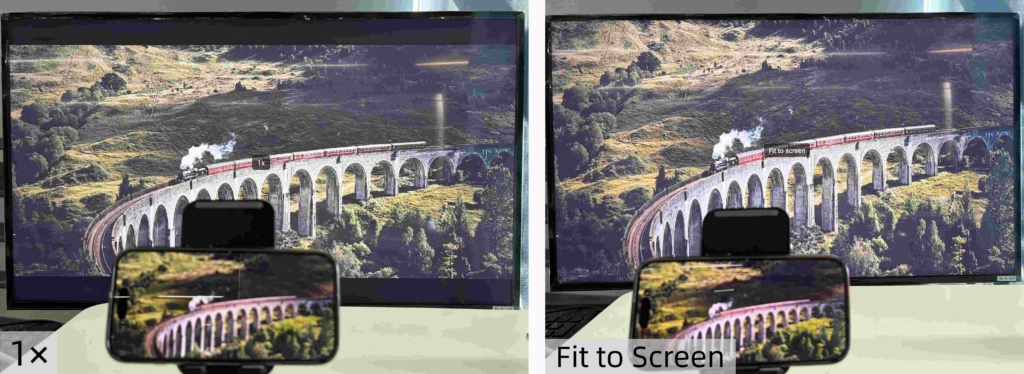
Artık arkanıza yaslanıp içeriğinizin keyfini çıkarabilirsiniz — tam ekran, siyah çerçeveler olmadan, tamamen sürükleyici bir deneyim.
Daha fazla ipucu ve öğretici: