
Remover barras pretas: Espelhamento na orientação vertical e horizontal

Está a ver barras pretas ao espelhar o ecrã? Quer esteja no modo retrato, com barras nas laterais, ou no modo paisagem, com barras na parte superior, inferior ou nas laterais — não se preocupe. Ambos os casos podem ser resolvidos com alguns ajustes simples na aplicação 1001 TVs TV.
Para o espelhamento na orientação vertical, existe uma configuração específica para eliminar as barras laterais. (Veja como configurar o espelhamento vertical 👉Espelhamento vertical do ecrã)
No caso do espelhamento na orientação paisagem, também existe uma forma de reduzir significativamente as barras pretas.
Siga os passos abaixo para tornar o seu conteúdo verdadeiramente em ecrã inteiro e totalmente envolvente.
Para espelhamento na orientação vertical
Passo 1. Na sua televisão, abra a aplicação 1001 TVs e aceda a “Definição".
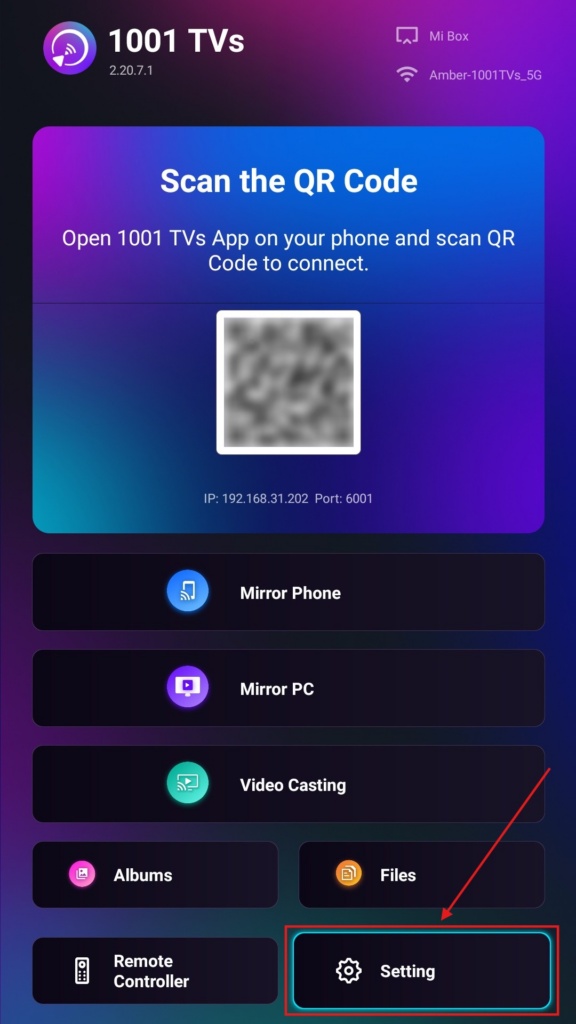
Passo 2. Selecione “Modo de visualização vertical”.
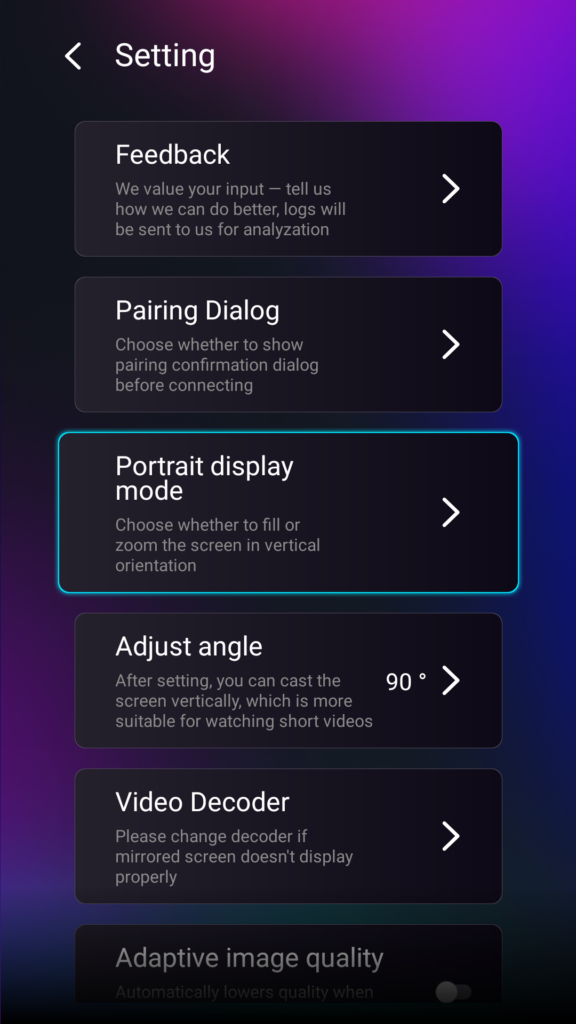
Passo 3. Basta selecionar o modo que preferir para a exibição na sua televisão.
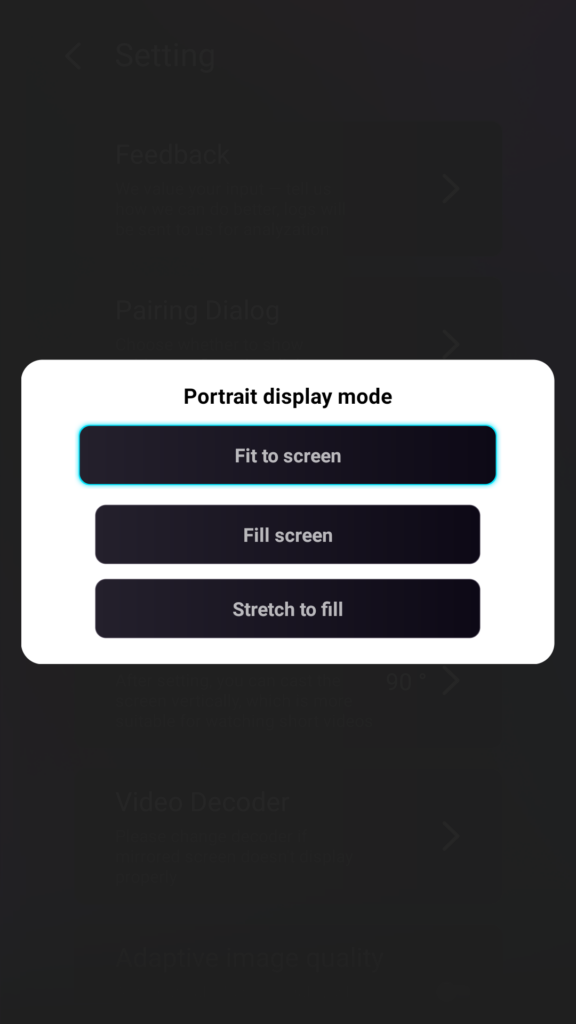
Dicas sobre os modos de visualização na orientação vertical
- Ajustar ao ecrã
Expande o conteúdo para preencher totalmente o ecrã vertical da sua televisão. Depois de ativada, irá ver um resultado completamente diferente na sua próxima sessão de espelhamento. - Ocupar o ecrã
Mantém a proporção original. Podem continuar a aparecer barras pretas nas laterais, dependendo do seu dispositivo. - Esticar para preencher
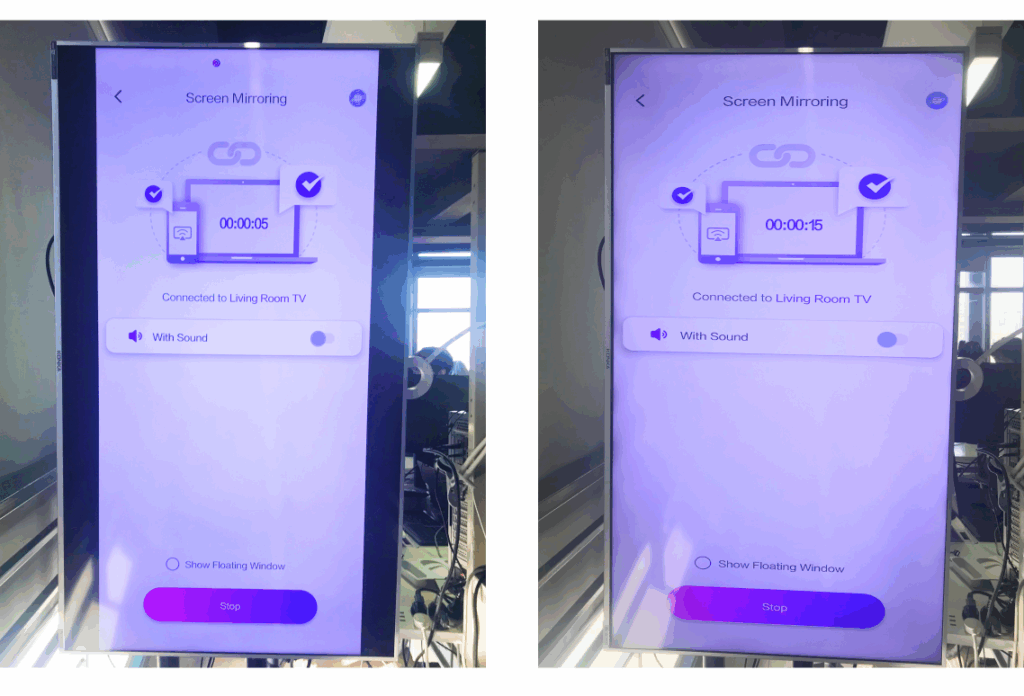
Preenche um dos lados, mantendo as proporções corretas.
Consulte a comparação lado a lado abaixo (Esticar para preencher (modo apresentado):
Quando é que esta funcionalidade é útil?
Esta definição é perfeita para:
- Lojas de retalho que utilizam sinalização digital vertical
- Utilizadores domésticos que criam um ecrã de ambiente vertical
- Professores exibindo materiais de aula verticais
- Mostrar fotografias verticais ou vídeos em modo retrato
- Reproduzir TikTok/YouTube Shorts em ecrã inteiro
- Montagem de estúdios, galerias ou exposições de arte
Para espelhamento na orientação paisagem
Passo 1. Na sua televisão, abra a aplicação 1001 TVs e aceda a “Definição”.
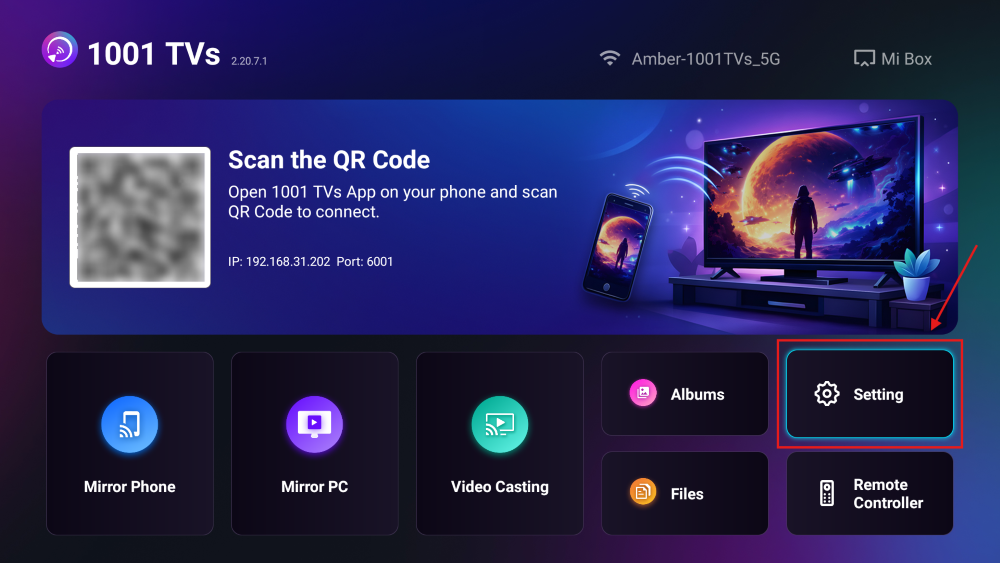
Passo 2. Ative o “Modo de preenchimento”.
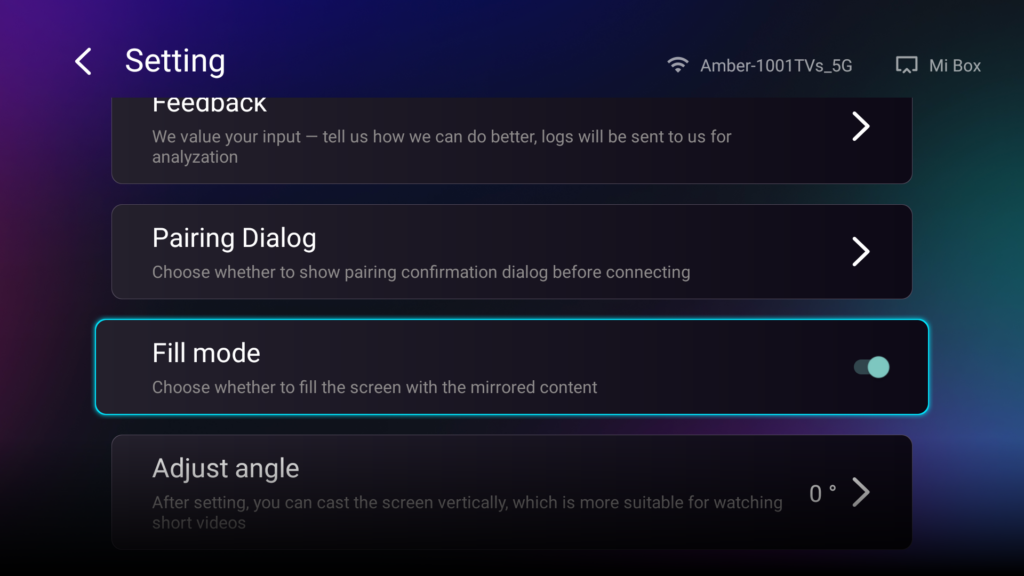
Depois de ativar esta opção, utilize os botões para cima/para baixo do comando da televisão para percorrer os modos de redimensionamento disponíveis: 1×, 2×, 3× e Ajustar ao ecrã.
- 1× / 2× / 3×
ampliar com incrementos fixos - Ajustar ao ecrã
ajusta automaticamente o conteúdo para preencher todo o ecrã da televisão
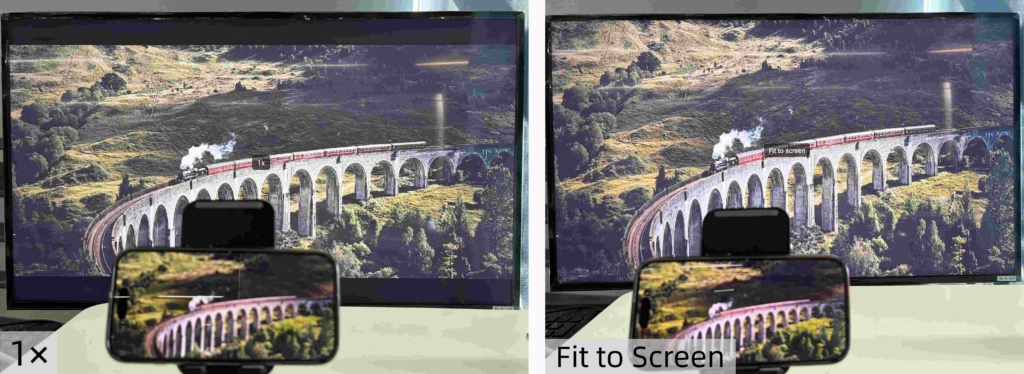
Agora já podes relaxar e desfrutar do teu conteúdo — em ecrã inteiro, sem barras pretas, com uma experiência totalmente envolvente.
Mais dicas e tutoriais: