
1001 TVsでmacOSの設定を使ってMacの画面を拡張する方法
macOSでは、システムのディスプレイ設定を使って、デスクトップを外部ディスプレイに拡張することができます。.
の助けを借りて 1001 TVs, この機能はさらに拡張することができ、Macの画面を次のように拡張することができます。 1つの物理ディスプレイと複数の仮想ディスプレイ より柔軟なマルチスクリーンセットアップのために。.
接続されているすべてのディスプレイには 同じ拡張デスクトップ マウスで完全に操作できるため、メインディスプレイをプライベートに保ちながら、もう1つ使える画面を追加したような感覚になる。.
1.macOSを使って物理ディスプレイを接続する
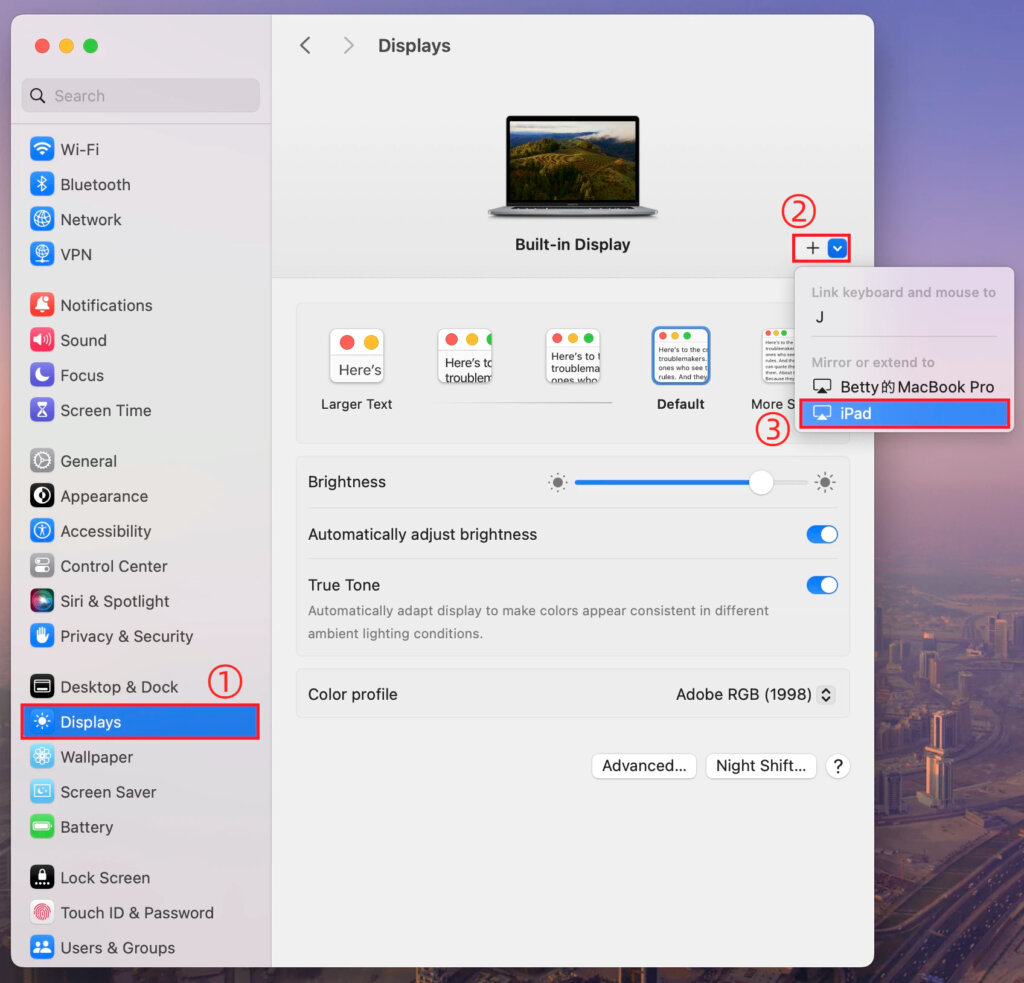
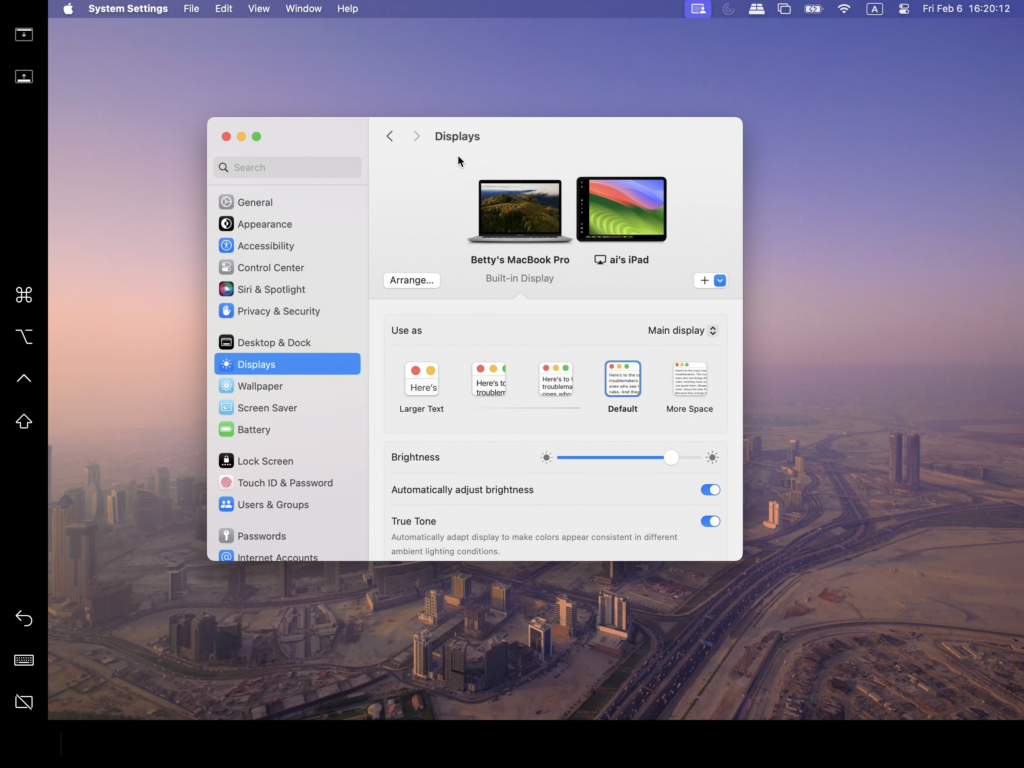
マックでは 設定 > ディスプレイ, をクリックしてください。 + アイコン, そして、物理的なディスプレイを追加する。.
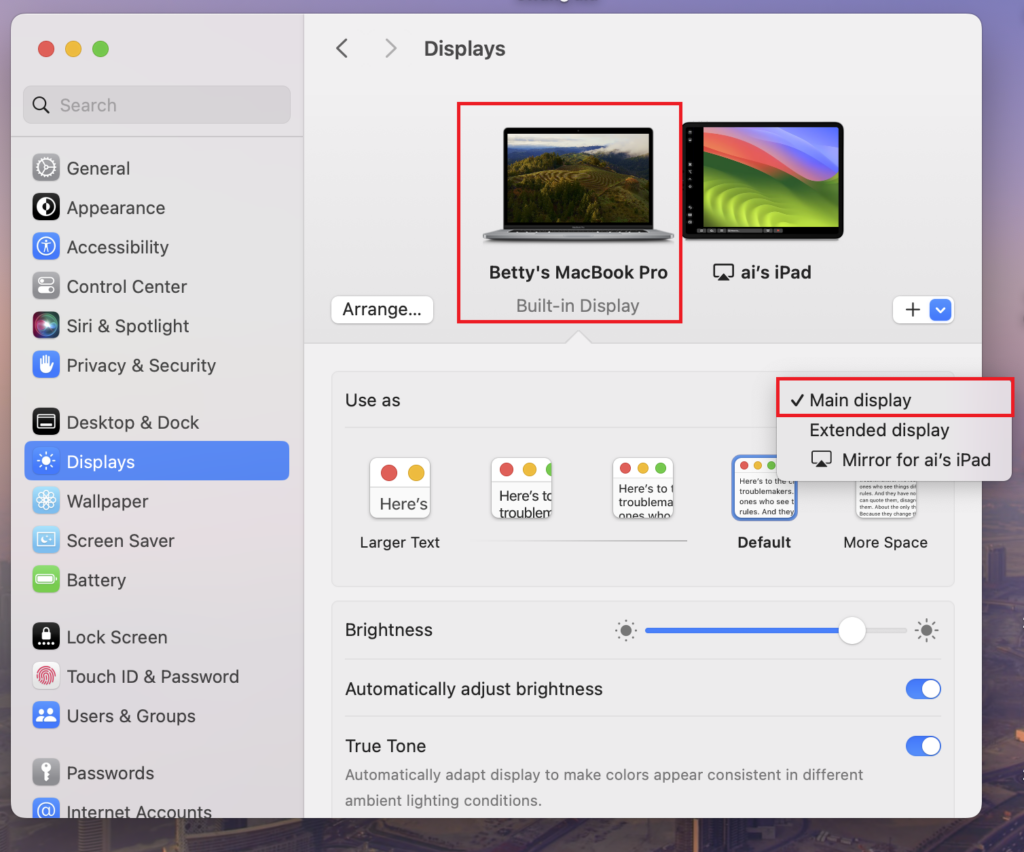
どちらかの画面をメイン・ディスプレイに設定すれば、もう一方は自動的に拡張ディスプレイになる。.
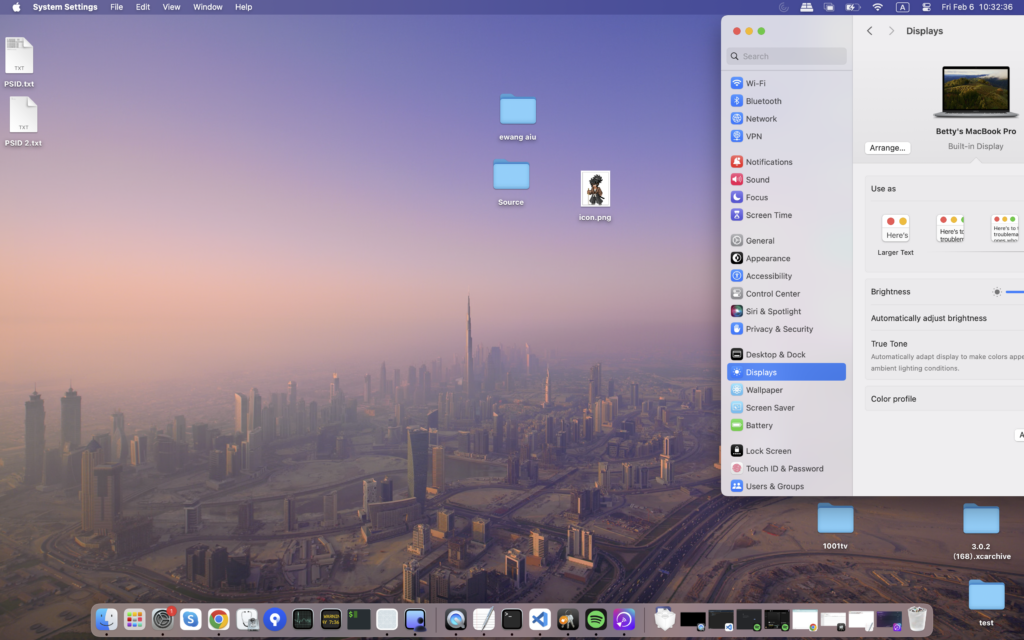
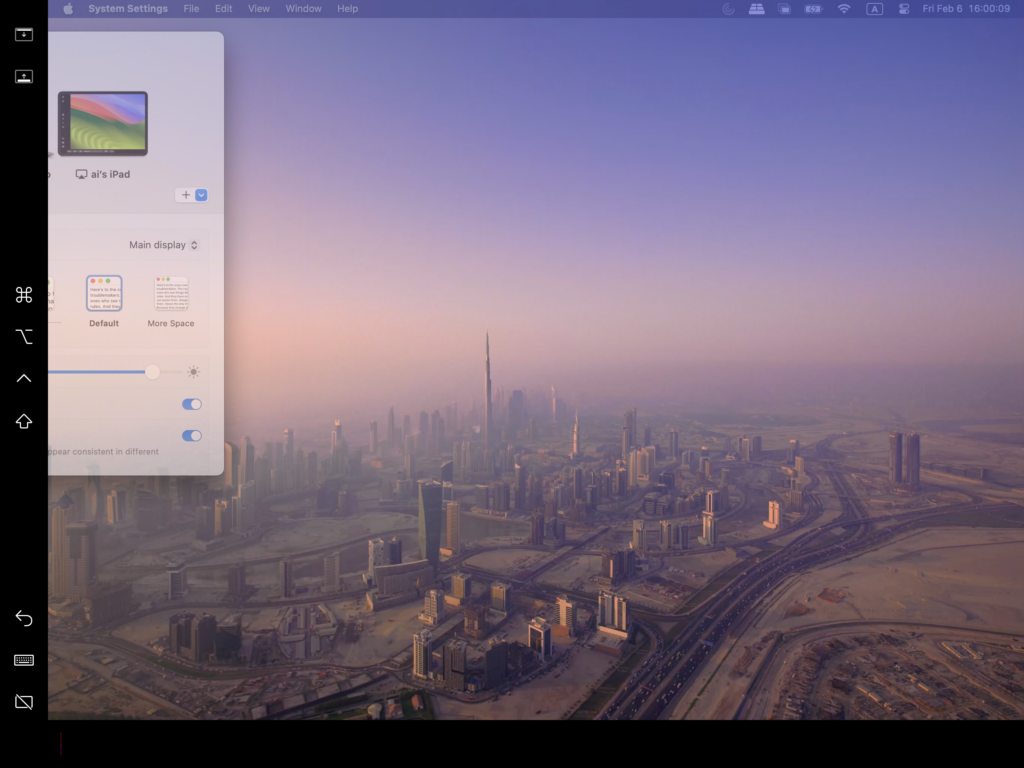
完了すると、Macのデスクトップが2画面目に拡張されます。.
2.1001 TVsで複数のバーチャルディスプレイを追加する
Macを物理ディスプレイに拡張した後は 1001 TVs を拡張する。 同じデスクトップ として追加デバイスに追加する。 バーチャルディスプレイ.
1) 同じWi-Fiネットワークに接続する
Macとすべてのターゲットデバイスが同じWi-Fiネットワークに接続されていることを確認してください。.
最高のパフォーマンスを得るには 5 GHz Wi-Fiネットワーク が推奨される。.
2) 1001 TVsをインストールして開く
インストールと起動 1001 TVs をお使いのMacと、仮想ディスプレイとして使用したいデバイスにインストールしてください。.
📥 Macアプリ: App Storeからダウンロード
📥 PCアプリ: ダウンロード Microsoft ストア
詳しい手順については PCインストールガイド.
📥 TVアプリ: テレビに1001 TVsをインストールする方法
3) Extend Displayモードの開始
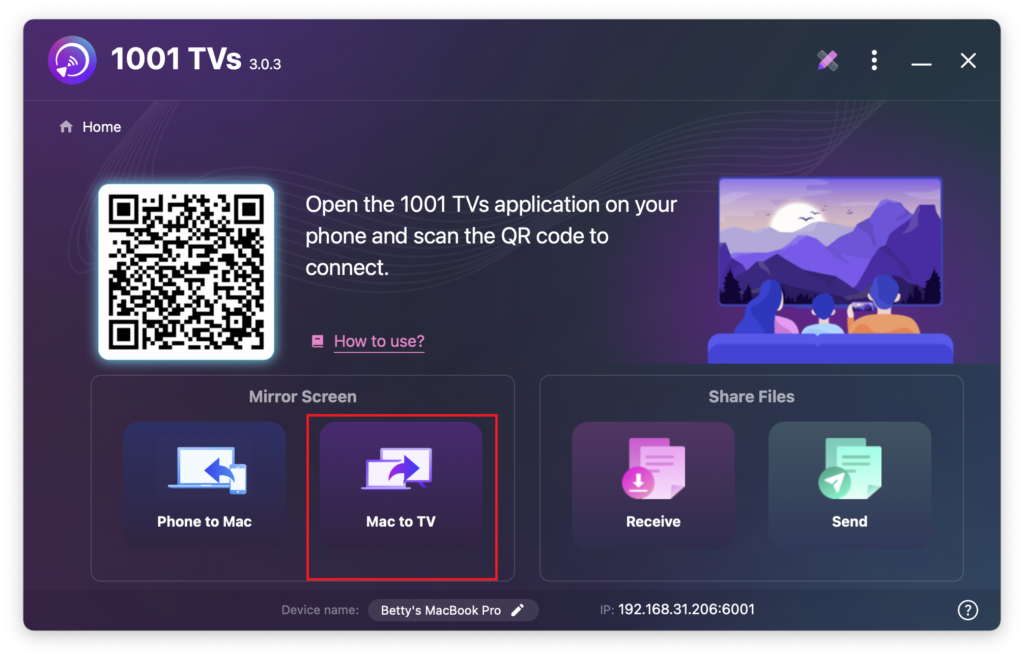
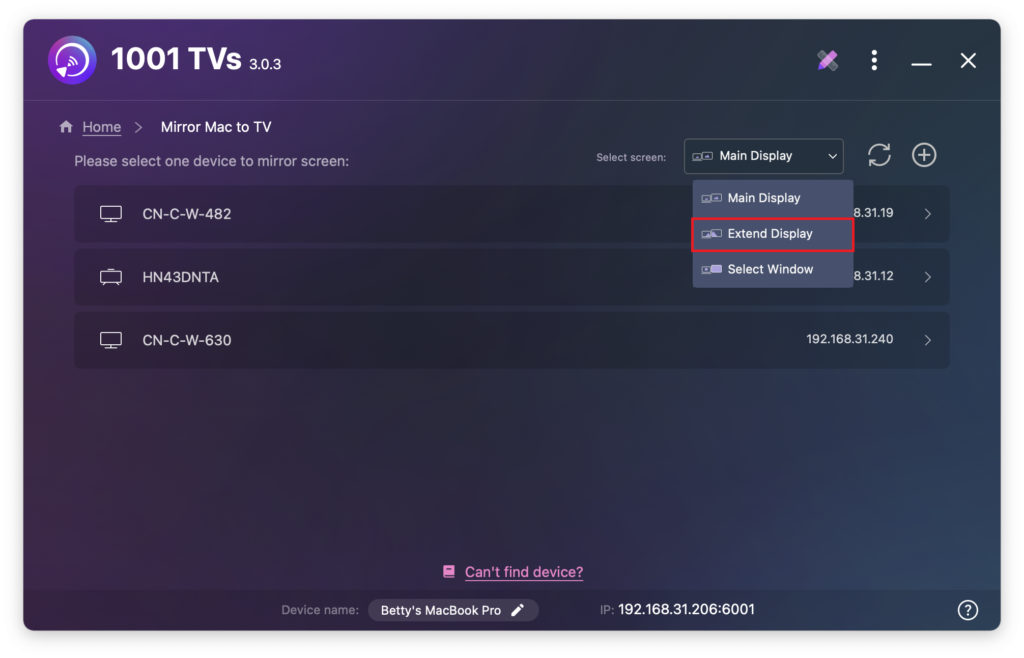
Macの1001 TVsで、以下を選択します。 マックからテレビへ, を選択する。 ディスプレイ拡張, をクリックし、ターゲットデバイス(PC、Mac、電話、テレビなど)を選択します。.
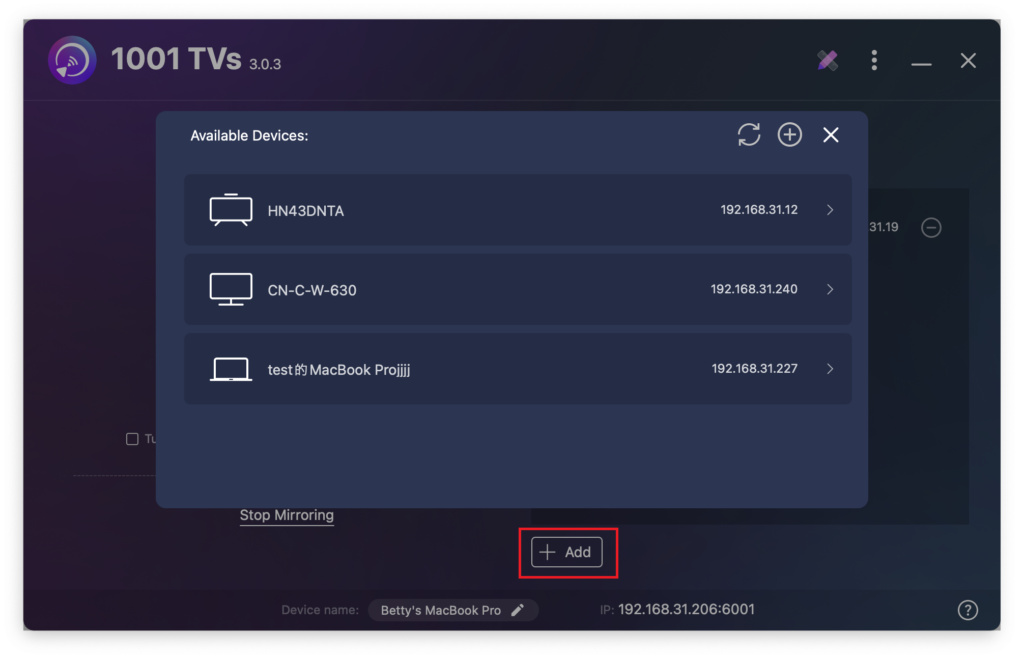
をクリックしてください。 + 追加 ボタンをクリックし、必要に応じてさらにデバイスを接続する。.
マック画面とプライマリ拡張画面のみがインタラクティブです。.
接続されている他のすべてのデバイスは、拡張画面をミラーリングし、同じコンテンツを表示する。.
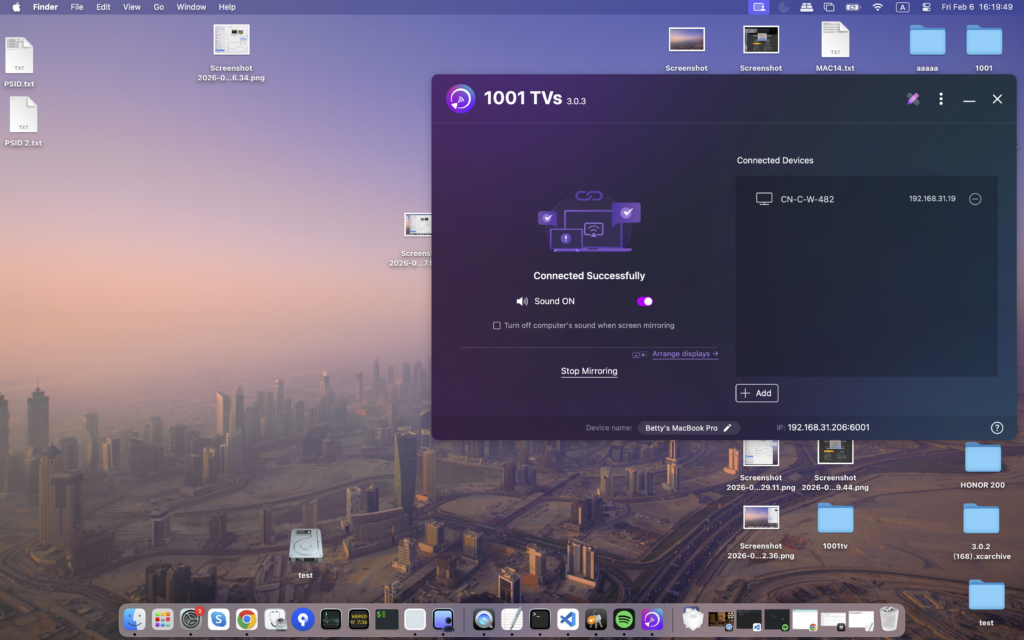
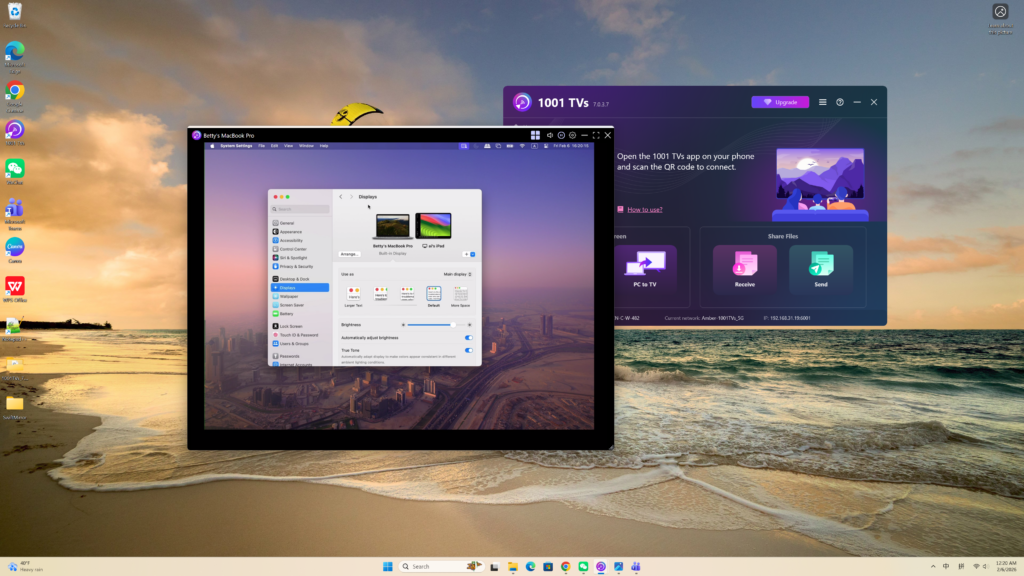
この設定により、拡張デスクトップ体験が提供され、メイン画面のコンテンツをプライベートに保ちながら、Macとプライマリ拡張画面の間でウィンドウを移動できる。.