Sådan spejler du skærmen fra en iPhone, Android-enhed eller pc til et Hisense-tv
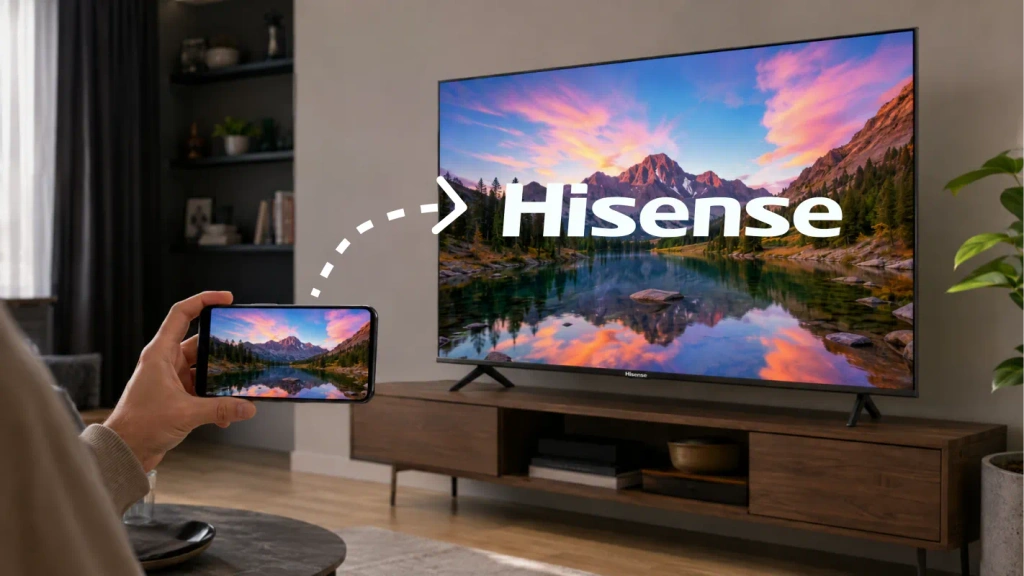
For at spejle skærmen til et Hisense-tv skal du først finde ud af, hvilket operativsystem det kører på, og derefter vælge en metode, der understøttes af begge enheder. Brug AirPlay til en iPhone og et AirPlay-kompatibelt tv, Google Cast til en kompatibel forbindelse mellem Android og Google TV, eller Miracast, når begge enheder understøtter denne teknologi.
Hvis de indbyggede indstillinger ikke stemmer overens, 1001 TVs kan udgøre en yderligere mulighed på understøttede modtagerenheder.
Hisense-tv’er bruger forskellige softwareplatforme, herunder Google TV, Android TV, Roku TV, VIDAA og Fire TV. En metode, der virker på én Hisense-model, er muligvis ikke tilgængelig på en anden. Se Oversigt over Hisenses platform for yderligere oplysninger.
1. Find ud af, hvilket operativsystem dit Hisense-tv bruger
Tryk på Hjem på fjernbetjeningen og se efter mærkerne Google TV, Roku TV, VIDAA eller Fire TV.
Hvis du er i tvivl, skal du følge disse trin:
- Åben Indstillinger.
- Se efter System, Omkring, Enhedsindstillinger eller Støtte.
- Find oplysninger om softwaren og modelnummeret.
- Se i modelvejledningen, hvis det stadig er uklart, hvilket operativsystem der skal bruges.
Menunavnene varierer alt efter model og region. Hvis der er tilsluttet en streaming-stick, skal du trykke på knappen »Home« på Hisense-fjernbetjening for at kontrollere tv’ets eget system i stedet for stickens system.
Brug denne tabel som udgangspunkt:
| Hisense-tv-system | Fra iPhone eller iPad | Fra Android |
|---|---|---|
| Google TV / Android TV | AirPlay, hvis det er inkluderet (Liste over tv-apparater med AirPlay 2-understøttelse); ellers en kompatibel modtagerapp | Google Cast |
| Roku TV | AirPlay er slået til understøttede modeller | Miracast-kompatibel Skærmspejling |
| VIDAA | AirPlay, hvis det er inkluderet i din model | Skærmdeling, hvis begge enheder understøtter denne funktion |
| Fire TV | AirPlay på understøttede modeller; ellers en kompatibel modtagerapp | Vis spejling, hvis denne funktion er tilgængelig |
| Andet eller ældre system | Se i brugervejledningen til modellen, eller brug en ekstern modtager | Se i brugervejledningen til modellen, eller brug en ekstern modtager |
2. Tjek disse indstillinger, inden du opretter forbindelse
Inden du bruger AirPlay, Google Cast eller en app-baseret spejlingsmetode:
- Tilslut tv’et og den enhed, der sender signalet, til det samme Wi-Fi-hjemmenetværk.
- Undgå gæstenetværk, der isolerer de tilsluttede enheder.
- Sørg for, at tv’et forbliver tændt, og aktiver dets modtagerfunktion eller skærmdelingsfunktion.
- Giv tilladelse til de anmodede rettigheder vedrørende det lokale netværk og skærmdeling.
- Opdater TV-softwaren og den app, du har tænkt dig at bruge.
Et VPN, der blokerer adgangen til det lokale netværk, kan forhindre, at tv’et vises. Afbryd forbindelsen midlertidigt, mens du udfører fejlfinding.
Du skal også beslutte, om du har brug for Skærmspejling eller videokasting. Ved spejling vises hele skærmbilledet fra din telefon eller computer. Ved casting sendes udvalgt indhold fra en app til en kompatibel modtager. Hvis du blot vil se en video, kan appens Cast- eller AirPlay-knap være nok.
3. Sådan spejler du skærmen fra en iPhone til et Hisense-tv
Brug AirPlay, hvis dit tv understøtter det
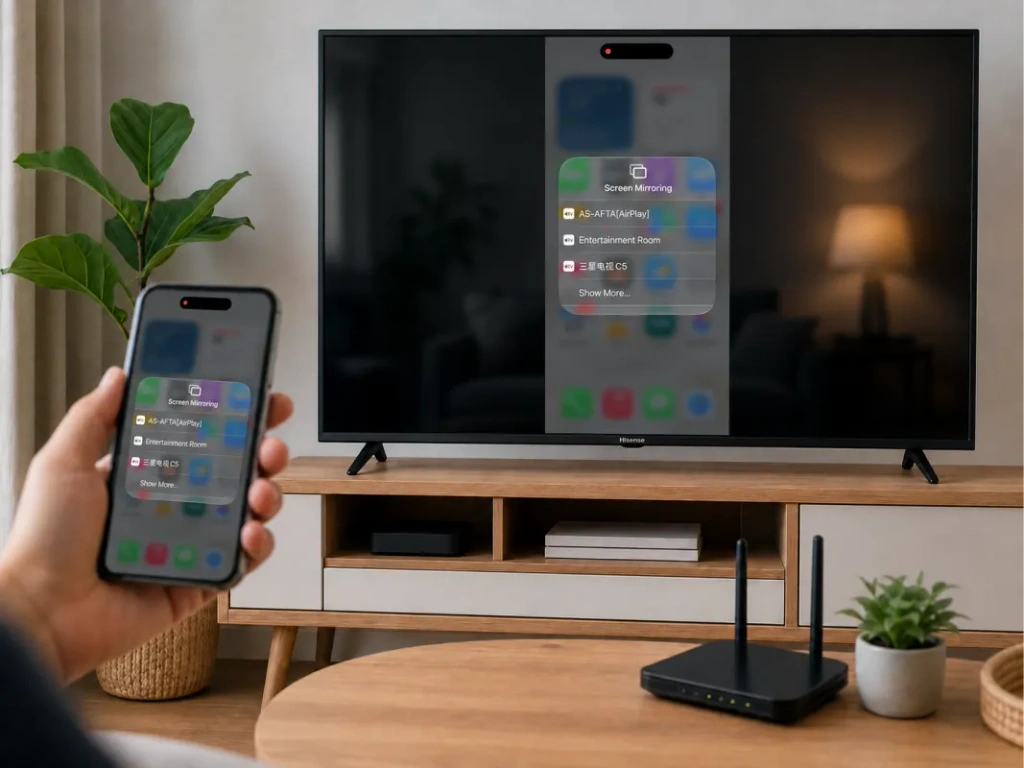
Se i tv’ets indstillinger eller indgangsliste efter AirPlay eller Apple AirPlay og HomeKit. Hisense angiver, at AirPlay understøttes på visse modeller, men tilgængeligheden varierer alt efter model og region. Se Vejledning til Hisense AirPlay.
Sådan tilslutter du din iPhone:
- Aktivér AirPlay på tv’et.
- Tilslut iPhone og tv’et til det samme Wi-Fi-netværk.
- Åben Kontrolcenter på iPhone.
- Tap Spejling af skærm.
- Vælg dit Hisense-tv.
- Indtast den kode, der vises på tv’et, hvis du bliver bedt om det.
For at afbryde spejlingen skal du åbne Spejling af skærm igen og tryk på Stop spejling. Den samme fremgangsmåde gælder også for iPad. Se Apples vejledning i skærmspejling.
Hvis dit Hisense-tv ikke har en AirPlay-funktion
En menu til skærmdeling, der ikke er relateret til dette, vil ikke få en iPhone til at oprette forbindelse. TV’ets modtagefunktion skal understøtte den metode, som iPhone’en bruger.
På en kompatibel Google TV- eller Android TV-model skal du kontrollere, om du kan installere 1001 TVs. For Roku eller VIDAA skal du ikke gå ud fra, at Android TV-appen kan installeres. Brug om nødvendigt en understøttet ekstern modtager.
4. Sådan spejler du skærmen fra en Android-enhed til et Hisense-tv
Google TV eller Android TV: Brug Google Cast
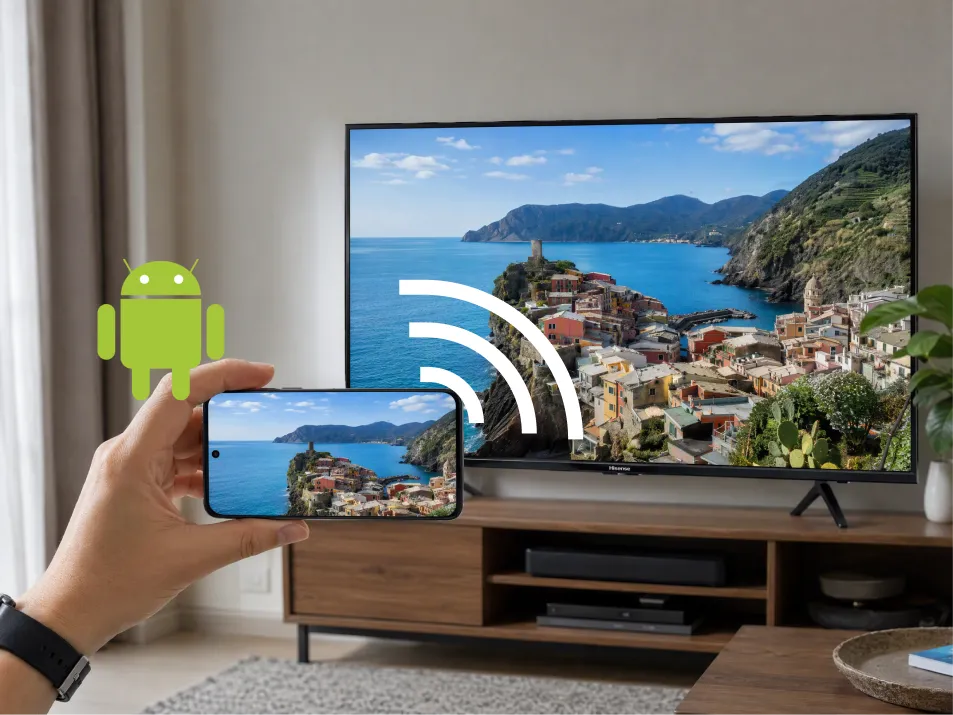
For et Hisense-tv med Google Cast:
- Tilslut Android-telefonen og tv’et til det samme Wi-Fi-netværk.
- Åben Google Home.
- Find og vælg tv’ets enhedsfelt.
- Se efter Vis min skærm eller funktionen til skærmoptagelse.
- Følg vejledningen for at dele skærmen eller en valgt app.
Formuleringen kan variere afhængigt af appen og Android-versionen. Googles aktuelle vejledning gælder for Android 8.0 og nyere. Se Vejledning til streaming via Google Home.
Roku, VIDAA eller Fire TV: Tjek først modtageren
På kompatible modeller skal du kigge efter følgende indstillinger:
- Roku TV: Indstillinger → System → Skærmspejling.
- VIDAA: Skærmdeling, ofte under »Indgange« eller »Apps«.
- Fire TV: Indstillinger → Skærm og lyde → Aktivér skærmspegling.
Åbn derefter appen til styring af den kompatible trådløse skærm på din telefon, vælg tv’et, og godkend forbindelsen.
Samsung-telefoner kalder muligvis denne funktion Smart visning. Andre telefoner bruger andre betegnelser, og en knap med teksten “Cast” anvender ikke altid den samme teknologi. Roku påpeger, at Google Pixel-telefoner ikke understøtter virksomhedens standardmetode til skærmspejling på Android. Se Vejledning i Roku-kompatibilitet.
På Fire TV oplyser Amazon, at hvis Aktivér skærmspejling mangler, er den indbyggede metode ikke tilgængelig. Se Amazons vejledning om kompatibilitet.
5. Sådan spejler du en bærbar computer til et Hisense-tv
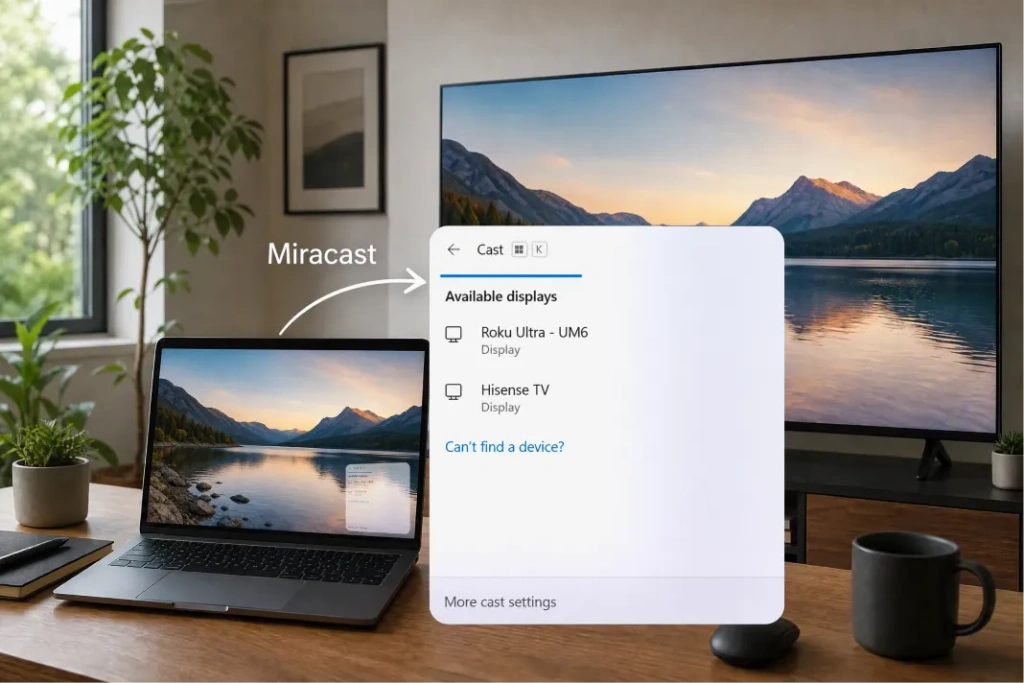
For en Windows-bærbar computer, tryk på Windows + K når både computeren og tv’et understøtter Miracast. Vælg tv’et, og godkend forbindelsen. Tryk om nødvendigt på Windows + P og vælg Duplikat.
En Google Cast-modtager vises ikke automatisk i Windows + K. Hvis du har et Google Cast-kompatibelt tv, skal du bruge Chromes separate casting-funktion.
For en Mac, brug Kontrolcenter → Skærmspejling hvis Hisense-tv’et understøtter AirPlay. Ellers kan du overveje at bruge en kompatibel modtagerapp eller en HDMI-forbindelse.
6. Hvornår skal man bruge 1001 TVs?
1001 TVs kan være en hjælp, når din telefon og dit tv ikke har en indbygget spejlingsfunktion — for eksempel når en iPhone opretter forbindelse til et kompatibelt Android TV uden AirPlay.
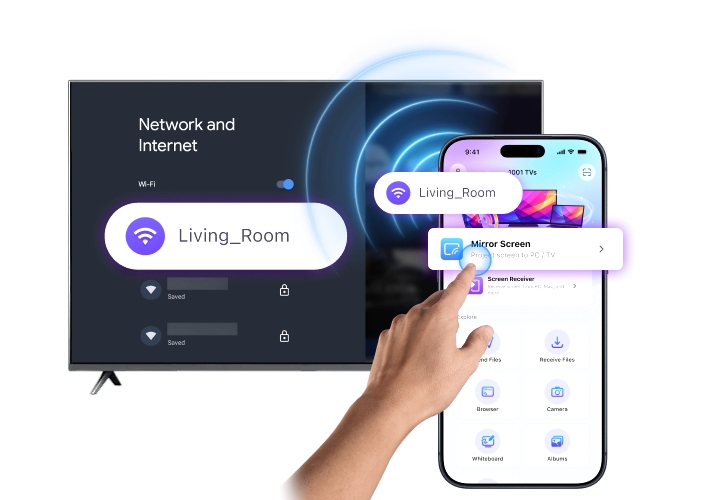
Først skal du kontrollere, at 1001 TVs kan køre på den modtagende enhed. Tjek officiel installationsvejledning for understøttede platforme. Fire TV-brugere kan benytte den separate 1001 TVs Fire TV-guide.
Derefter:
- Installer og åbn 1001 TVs på begge enheder.
- Slut begge enheder til det samme Wi-Fi-netværk.
- Vælg Spejling af skærm hos afsenderen.
- Vælg modtageren, eller scan dens QR-kode, hvis den er tilgængelig.
- Godkend anmodningerne om oprettelse af forbindelse og skærmdeling.
På iPhone skal du bekræfte udsendelsen, når du bliver bedt om det. Se 1001 TVs til iPhone til understøttede modtagerplatforme.
Hvis din Hisense-tv ikke kan installere modtagerappen, kan en kompatibel Android TV-enhed eller et Apple TV, der er tilsluttet via HDMI, fungere som modtagerplatform.

Fungerer skærmspejling på Hisense-tv’et ikke?
Start med symptomet:
| Problem | Hvad man skal tjekke |
|---|---|
| TV'et vises ikke | Sørg for, at der anvendes en kompatibel metode, et fælles netværk og en aktiv modtager |
| iPhone kan ikke finde tv’et | Kontroller, at AirPlay er tilgængeligt og aktiveret |
| Android kan ikke finde tv’et | Bekræft, om telefonen bruger Google Cast eller understøtter Miracast |
| 1001 TVs kan ikke finde modtageren | Kontroller tilladelser, isolering af gæstenetværk og VPN-indstillinger |
| Spejling fryser eller hakker | Forbedr Wi-Fi-signalet, reducer konkurrerende trafik og genstart begge enheder |
| Det er kun en streamingvideo, der er sort | Indholdsbeskyttelse kan forhindre optagelse; brug tjenestens TV-app |
Prøv først med et foto eller din startskærm. Hvis det virker, men en bestemt videoapp ikke fungerer, kan problemet skyldes indholdsbegrænsninger snarere end forbindelsen.
Ofte stillede spørgsmål
Kan jeg spejle min skærm til et Hisense-tv uden en app?
Ja, når begge enheder understøtter den samme indbyggede funktion, f.eks. AirPlay eller Miracast. For at kunne streame Android-skærmen via Google Home skal man bruge den pågældende app.
Understøtter alle Hisense-tv’er AirPlay?
Nej. Tjek indstillingerne og brugervejledningen for netop din model. Det er ikke nok, at det er et Hisense-produkt, for at det understøtter AirPlay.
Kan jeg spejle skærmen uden Wi-Fi?
En HDMI-forbindelse kan gøre det muligt at undgå at bruge Wi-Fi, hvis din computer eller telefon understøtter videoudgang via det valgte kabel eller den valgte adapter. Et standard USB-opladerkabel fungerer ikke automatisk som en videoforbindelse.
Hvad er den nemmeste metode?
Start med tv’ets indbyggede kompatible indstilling. Hvis den ikke passer til din enhed, skal du tjekke, om en understøttet 1001 TVs-modtager kan levere den forbindelse, du har brug for.

Læs mere
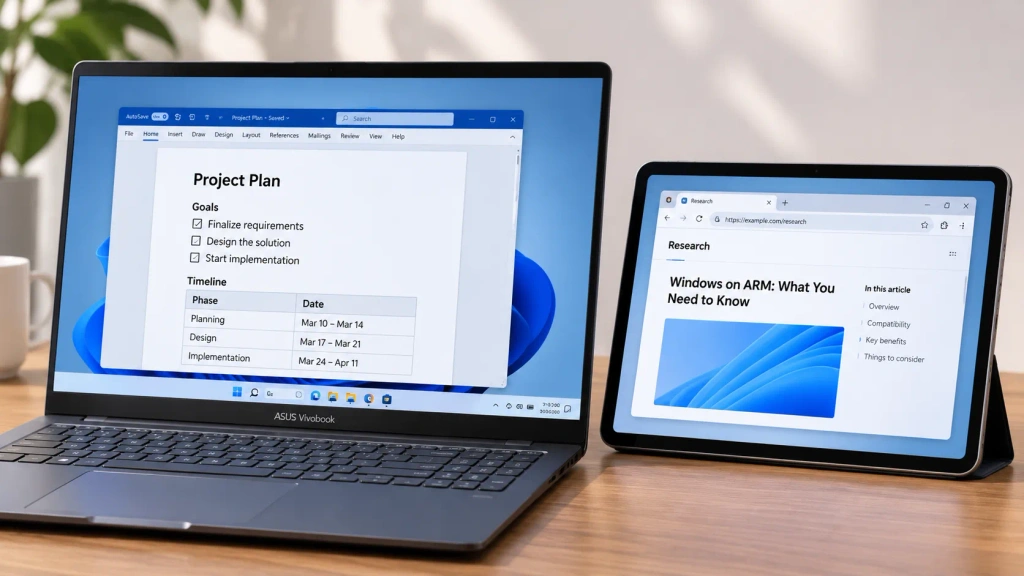 Sådan udvider du din skærm på Windows ARM
1001 TVs kører nu indbygget på Windows ARM – med skærmudvidelse, ikke blot spejling. Dens Arm64-app kører direkte på ARM-processorer i stedet for via...
Sådan udvider du din skærm på Windows ARM
1001 TVs kører nu indbygget på Windows ARM – med skærmudvidelse, ikke blot spejling. Dens Arm64-app kører direkte på ARM-processorer i stedet for via...
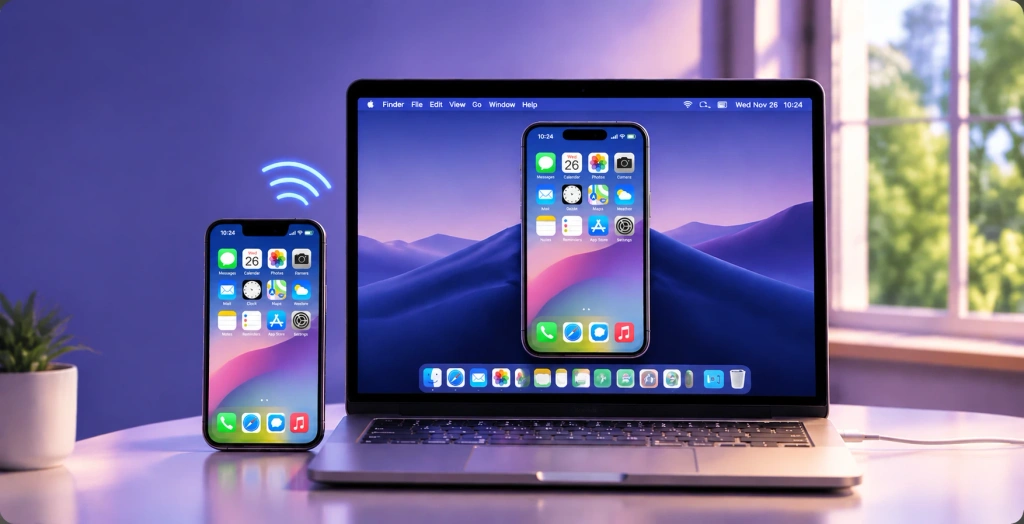 Sådan spejler du din iPhone til en Mac: Nemme kablede og trådløse metoder
Hvis du vil spejle din iPhone på en Mac, kan du bruge AirPlay til trådløs skærmdeling, iPhone Mirroring til at betjene din iPhone fra din Mac eller QuickTime...
Sådan spejler du din iPhone til en Mac: Nemme kablede og trådløse metoder
Hvis du vil spejle din iPhone på en Mac, kan du bruge AirPlay til trådløs skærmdeling, iPhone Mirroring til at betjene din iPhone fra din Mac eller QuickTime...

