Screen Mirroring vs Casting: What’s the Difference?
Screen mirroring and casting both send content from your phone or computer to a TV, and many device makers use the two terms interchangeably. In practice, they work very differently. When you cast a YouTube video, it plays in full quality on the TV while your phone stays free for other tasks. When you mirror your screen, the TV shows a slightly delayed copy of everything on your phone, including notifications and incoming messages.
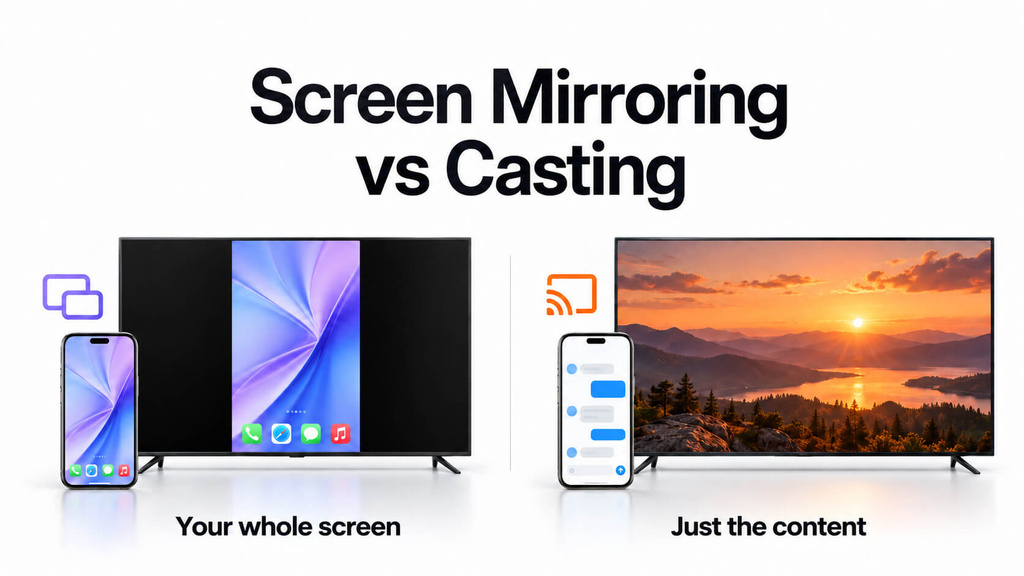
The short answer: Casting sends a specific video, song, or photo to the TV, which then plays it by itself while your phone works as a remote. Screen mirroring sends a live copy of your entire screen, so the TV shows exactly what your phone or computer shows. Cast when the app has a Cast or AirPlay button and you want to watch video or play music. Mirror when the content has no Cast button, such as slides, a web page, a game, a local file, or an app that doesn’t support casting.
Which method is available also depends on your devices. The compatibility chart below shows what works natively for each device combination.
Screen Mirroring vs Casting at a Glance
| Casting | Screen mirroring | |
|---|---|---|
| What the TV receives | One media item, such as a video, song, photo, or browser tab | A live video copy of your whole screen |
| Who fetches the content | The TV or streaming device pulls the stream itself | Your phone or computer captures and sends every frame |
| Your phone during playback | Free to use, lock, or take calls; acts as a remote | Has to stay on, and whatever it shows is on the TV |
| App requirement | The app must support Google Cast or AirPlay | Works with almost any app or screen |
| Picture quality | The original stream, up to what the service and TV support | A compressed copy of your screen, limited by your device and Wi-Fi |
| Lag | Not noticeable after playback starts | Slight delay; noticeable in fast games |
| Battery drain | Low | Higher, because the device encodes video the whole time |
| Privacy | Only the media shows | Notifications and messages can appear unless you limit it |
| Typical use | YouTube, music, photo albums, supported streaming apps | Presentations, websites, games, video calls, apps without casting |
How to Tell Whether You’re Casting or Mirroring
Device menus often use these terms loosely, so the button label alone isn’t reliable. On Android, the Quick Settings “Cast” or “Screen Cast” tile and the Google Home app’s Cast my screen button both mirror your whole display, notifications included (Android Police). Samsung calls its mirroring feature Smart View. On Windows, the Cast panel you open with Windows + K connects to a Miracast display and projects your desktop, which means it’s mirroring under another name (Microsoft Support).
Apple uses a single name, AirPlay, for both features. The AirPlay button inside a video player streams only that video to the TV, which is casting. Screen Mirroring in Control Center mirrors your entire iPhone screen (Apple Support).
A simple test tells the two apart. Start playback, then return to your phone’s home screen. If the TV shows the home screen too, you’re screen mirroring. If the video keeps playing on its own, you’re casting.
Key Differences Between Screen Mirroring and Casting
1. Casting needs a button; mirroring doesn’t
Casting only works when the app you’re using supports a casting protocol and shows a Cast or AirPlay icon. YouTube, Spotify, Google Photos, and most music apps do. Banking apps, many sports league sites, most mobile games, PowerPoint on your phone, and nearly every web page don’t. Without a Cast button, screen mirroring is the only wireless way to show that content on the TV.
2. Using your phone during playback
When you cast, your phone gives the TV a link and a set of instructions, and the TV handles playback from there. You can answer messages, browse, or lock the phone, and the video keeps going. With mirroring, your phone is the source, so it has to stay awake and on the screen you’re sharing. Any notification that appears, such as a text preview, a calendar reminder, or a password you’re typing, also appears on the TV for everyone in the room.
3. Picture quality and lag
When you cast, the TV streams the original file at the highest resolution that both the service and the TV support. With mirroring, your device compresses its own screen into video and sends it over Wi-Fi, which adds a small delay and ties picture quality to your device and network. The delay is negligible for presentations and photos but noticeable in fast-paced games. For the most stable screen mirroring, use 5 GHz Wi-Fi or a wired connection.
4. Battery, heat, and the internet connection
Casting uses very little battery because the TV handles downloading and decoding. Screen mirroring keeps your device’s screen, video encoder, and Wi-Fi radio active for the entire session, so it drains the battery faster and can make the device warm. On the network side, casting online content needs the TV to have internet access, while mirroring only needs both devices on the same local network, which helps in offices and classrooms with restricted internet.
5. Protected streaming apps: neither option is guaranteed
A black screen is one of the most common screen mirroring problems. Netflix, Disney+, Prime Video, and similar apps use content protection that often blocks mirrored or recorded output, so the TV may show black while the sound keeps playing. Apple’s own guidance says HDCP-protected video won’t play over a connection that doesn’t support HDCP (Apple Support).
Casting isn’t a guaranteed workaround anymore, either. Netflix dropped AirPlay support in 2019 (eCoustics). In late 2025 it also stopped supporting casting from its mobile app to most TVs and streaming devices, including Chromecast with Google TV and the Google TV Streamer. It now supports casting only on a short list of older Google Cast hardware that shipped without a remote, and not on ad-supported plans (Android Authority, The Verge). For Netflix, the most reliable option is the Netflix app on your TV or streaming device.
6. Your device pairing decides what’s possible
Built-in casting and mirroring only work when both devices speak the same protocol: AirPlay for Apple, Google Cast for Android, Chrome, Chromecast, and Google TV, and Miracast for many Android phones, Windows PCs, Roku devices, and smart TVs. If all your devices belong to the same ecosystem, the built-in options are usually enough. With mixed devices, such as an iPhone and a Google TV or a Windows laptop and an Apple TV, native casting and screen mirroring often don’t work.
Screen Mirroring or Casting: Which Should You Use?
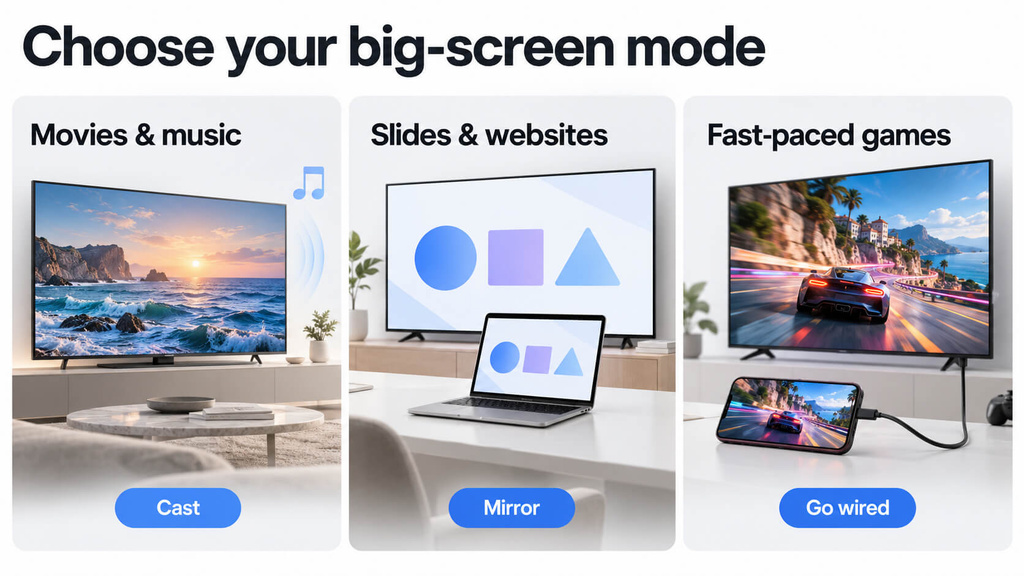
| What you want to do | Best choice | Why |
|---|---|---|
| Watch YouTube or play music on the TV | Cast | Full-quality stream, low battery use, phone stays free |
| Watch Netflix | The TV’s own Netflix app | Mobile casting and mirroring are restricted |
| Show slides, a spreadsheet, or a document | Mirror (or HDMI) | Presentation apps rarely have a Cast button |
| Watch a live stream or page that only plays in a browser | Mirror (or cast a Chrome tab from a computer) | No in-app Cast button to tap |
| Play a mobile game on the big screen | Mirror over a cable, or on 5 GHz Wi-Fi | Casting doesn’t apply, and wireless lag is most noticeable here |
| Watch TikTok, Shorts, or Reels on the TV | Mirror | Vertical feeds have no casting path in most cases |
| Share a screen in a classroom or office with no internet | Mirror over the local network | Casting online content needs internet on the receiver |
Screen Mirroring and Casting Compatibility by Device
Find your device in the left column and your TV setup across the top. “Cast” means in-app casting; “Mirror” means full-screen mirroring.
| Your device ↓ / Your screen → | Apple TV or AirPlay 2 TV | Chromecast or Google TV | Miracast TV or Roku | Windows PC |
|---|---|---|---|---|
| iPhone / iPad | ✅ Cast and mirror (AirPlay) | ⚠️ Cast only in apps with a Cast button; no native mirroring | ⚠️ Roku with AirPlay works; Miracast-only TVs don’t | ❌ No native option |
| Android phone | ❌ No native option | ✅ Cast, plus mirroring via Cast screen | ⚠️ Mirror on many non-Pixel phones (e.g., Samsung Smart View); not Pixel | ⚠️ Mirror via the Wireless Display app, if the phone supports Miracast |
| Windows PC | ❌ No native option | ✅ Cast a tab or your whole screen from Chrome | ✅ Mirror with Windows + K, if both support Miracast | ✅ Mirror with Windows + K |
| Mac | ✅ Mirror or extend (AirPlay) | ✅ Cast a tab or your whole screen from Chrome | ⚠️ Roku with AirPlay works; Miracast-only TVs don’t | ❌ No native option |
Many TVs from Samsung, LG, Sony, TCL, and others include AirPlay 2, so check your TV’s settings for an AirPlay menu before you assume an iPhone can’t connect. Roku supports AirPlay on devices running Roku OS 9.4 or later (Roku Support). If your combination has a green check, the built-in option is all you need.
When Native Casting and Mirroring Don’t Work: 1001 TVs
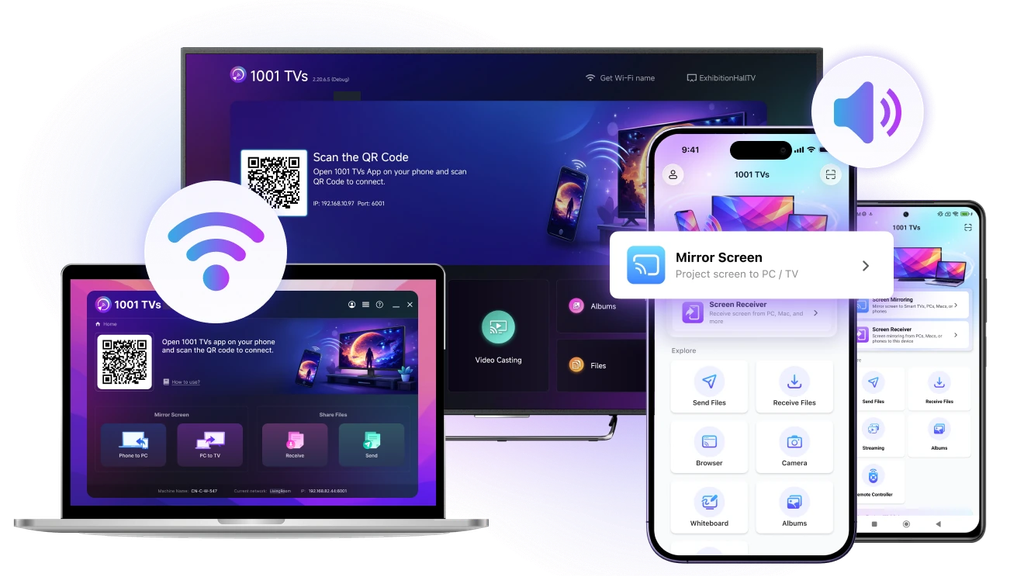
If your device combination shows ❌ or ⚠️ in the chart above, a cross-platform screen mirroring app can fill the gap. 1001 TVs runs on both the sending and the receiving device, so it mirrors between iPhone, Android, Windows, Mac, Apple TV, Android TV / Google TV, and Fire TV on the same Wi-Fi network, regardless of each device’s native protocol. Install it on both devices and start with the free trial. Like any mirroring tool, it can’t get around DRM in apps such as Netflix.
Step-by-Step Guides
Once you know which method fits your setup, these step-by-step guides cover the details:
- iPhone or iPad with AirPlay: Stream video or mirror your screen with AirPlay (Apple Support)
- Chrome to Chromecast or Google TV: Cast a Chrome tab or your screen (Google Support)
- Windows to a Miracast TV or another PC: Screen mirroring and projecting to your PC or wireless display (Microsoft Support)
- PC to TV, wired or wireless: How to Screen Mirror PC to TV
- Mac or Windows to a Samsung TV: How to Mirror Mac or Windows PC to Samsung TV
- Any device to Apple TV: How to Mirror to Apple TV from iPhone, Android, Mac, or PC
- Android phone to PC or Mac: How to Mirror Android Phone Screen to PC/Mac
- iPhone to TV with 1001 TVs: How to Mirror iOS Screen to TV
FAQ
Is “Cast screen” on Android the same as casting?
No. Despite the name, Cast screen (in Quick Settings or the Google Home app) mirrors your whole Android display to a Chromecast or Google TV. Casting means tapping the Cast icon inside an app like YouTube, which hands playback to the TV.
Is AirPlay casting or mirroring?
It can be either. Tapping the AirPlay icon inside a video app streams only that video to the TV while your iPhone remains free to use, which is casting. Choosing Screen Mirroring in Control Center displays your entire screen on the TV, which is screen mirroring.
Which has better picture quality, casting or mirroring?
Casting, in most cases. The TV plays the original stream, while mirroring sends a compressed live copy of your screen.
Why does my TV show a black screen when I mirror Netflix or Disney+?
Those apps use content protection that blocks mirrored or recorded output, so you often get audio with no picture. Use the streaming app installed on your TV or streaming device. Netflix has also stopped supporting casting from its mobile app to most current TVs and streaming devices.
Does screen mirroring need an internet connection?
Not necessarily. Wireless mirroring needs both devices on the same local network, but it doesn’t need internet access. Casting online content does need the receiver to be online.
Can I mirror an iPhone to a Chromecast or Google TV?
Not with built-in tools. iPhones can cast from apps that have a Cast button, but iOS can’t mirror the whole screen to Google Cast devices. Some Google TV televisions also include AirPlay 2, which does work. Otherwise, install a cross-platform app such as 1001 TVs on both the iPhone and the Google TV.

Read More
 Fire TV Casting Not Working? Quick Fixes and What to Try Next
If your Fire TV won't show up when you try to cast, or the connection fails, the problem is usually one of two things:…
Fire TV Casting Not Working? Quick Fixes and What to Try Next
If your Fire TV won't show up when you try to cast, or the connection fails, the problem is usually one of two things:…
 How to Watch NBA on TV in the US
Watching NBA games on your TV in the US is easiest when you make two decisions in order: first, confirm which authorized service carries…
How to Watch NBA on TV in the US
Watching NBA games on your TV in the US is easiest when you make two decisions in order: first, confirm which authorized service carries…

