
Jak wysyłać pliki z komputera PC/Mac do telewizora/PC/Mac
1001 TVs umożliwia przesyłanie plików z komputera PC/Mac do telewizora/PC/Mac za pośrednictwem tej samej sieci lokalnej.
I tak - komputery PC i Mac w tej samej sieci LAN mogą przesyłać pliki bezpośrednio do siebie, bez dodatkowej konfiguracji.
Bez przesyłania danych w chmurze. Żadnych kabli. Żadnych rejestracji - tylko szybkie, bezpieczne transfery lokalne.
Przed rozpoczęciem
- Upewnij się, że urządzenia są podłączone do tej samej sieci Wi-Fi.
- Zainstaluj i otwórz 1001 TVs na obu urządzeniach, aplikacja powinna być uruchomiona na urządzeniu odbierającym.
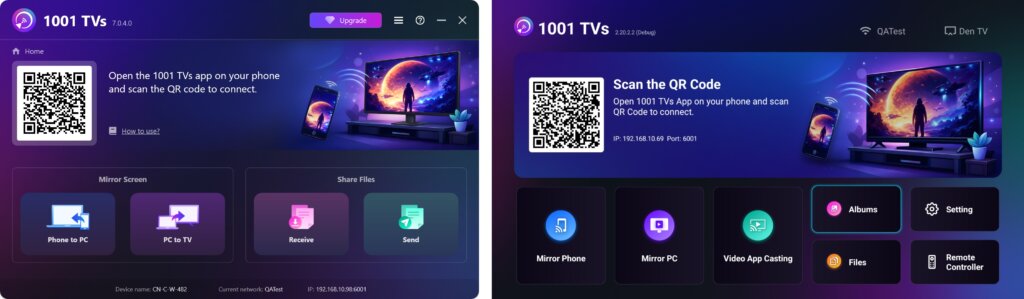
Rozpocznij wysyłanie
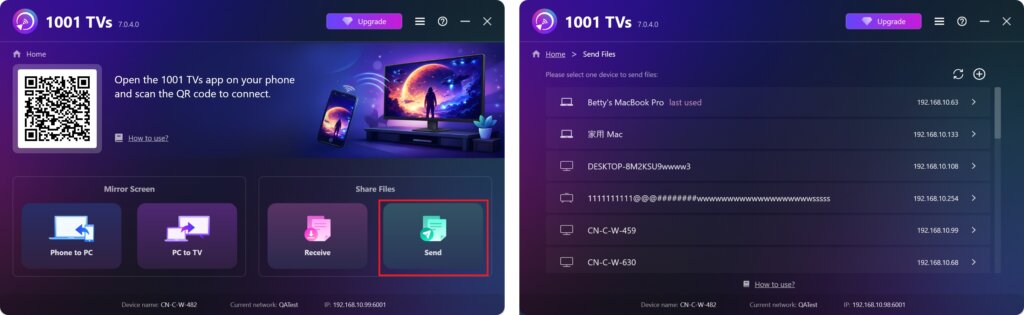
Na urządzeniu wysyłającym kliknij przycisk Wyślij a aplikacja automatycznie wyszuka dostępne urządzenia w tej samej sieci.
Wybierz urządzenie docelowe z listy. (np. telewizor/komputer PC/mac).
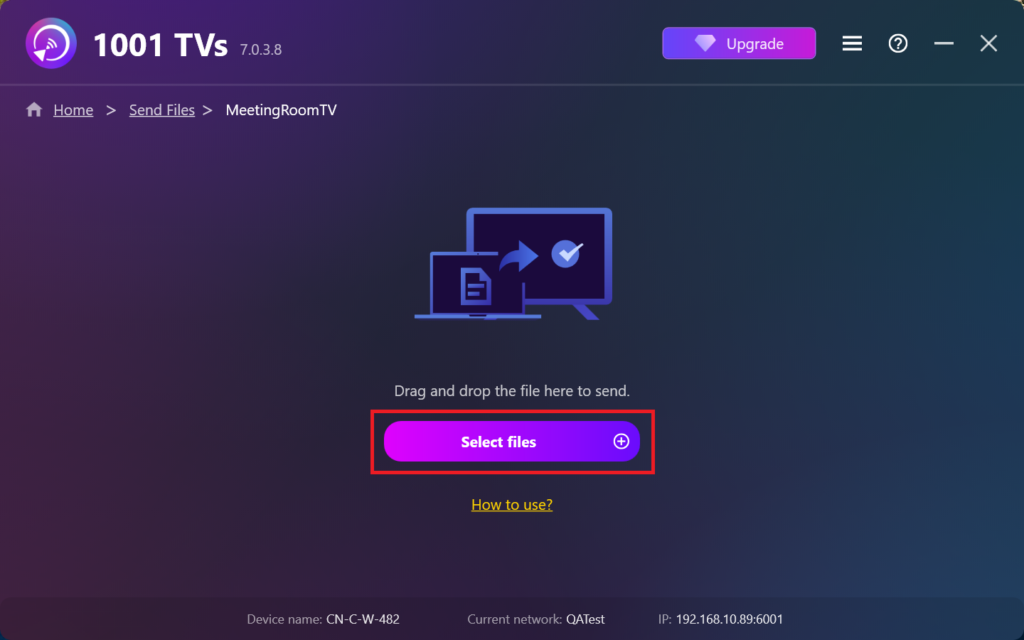
Wybierz pliki na komputerze (filmy, zdjęcia, muzykę, dokumenty i inne), a przesyłanie do urządzenia docelowego rozpocznie się automatycznie.
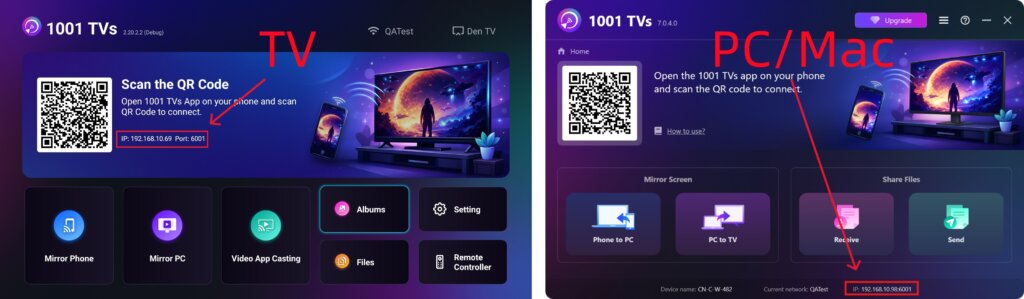
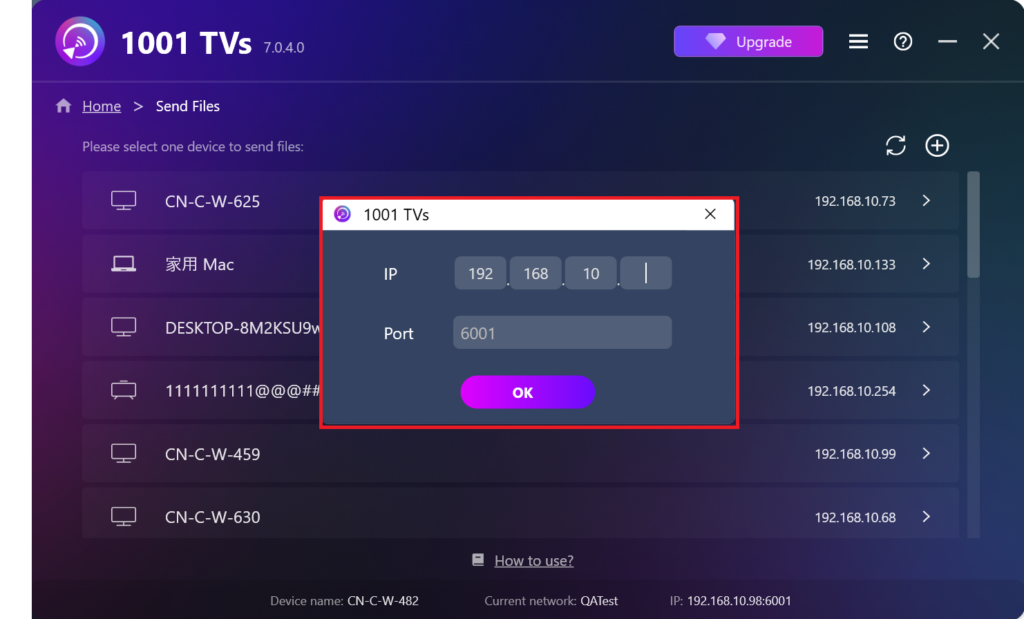
Nie możesz znaleźć urządzenia docelowego?
Jeśli urządzenie docelowe nie pojawi się na liście urządzeń, kliknij przycisk + ikona w prawym górnym rogu i użyj Parowanie adresów IP aby połączyć się szybko i bezpiecznie.
Wyświetlanie odebranych plików na komputerze PC/Mac
Kliknij Odbiór na komputerze PC/Mac, aby zobaczyć wszystkie przychodzące pliki.
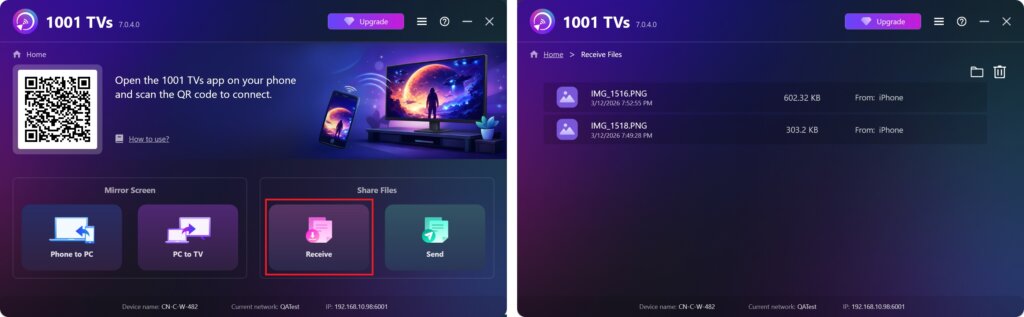
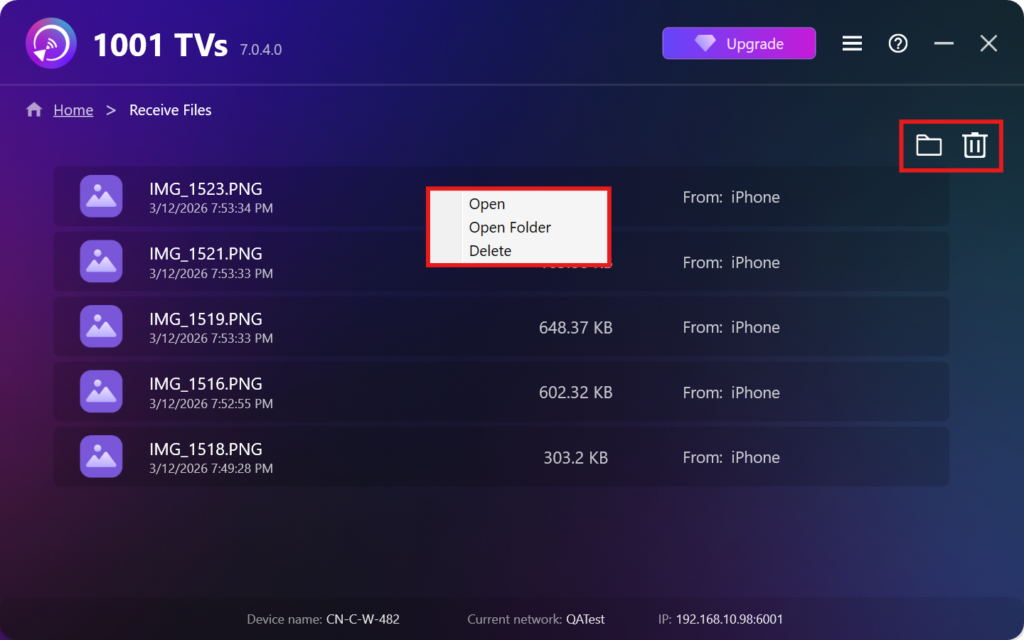
- Otwórz Wyświetl otrzymane pliki – Kliknij lub kliknięcie prawym przyciskiem myszy i wybierz “Otwórz folder”, aby wyświetlić wszystkie pliki z tego konkretnego urządzenia (np. iPhone 12123).
- Zlokalizuj je w Finderze (Mac) lub Eksploratorze plików (Windows). - Kliknij przycisk ikona folderu w prawym górnym rogu, aby uzyskać dostęp do wszystkich folderów urządzeń.
- Usuń opcje – Kliknij prawym przyciskiem myszy plik i wybierz “Usuń”, aby usunąć je pojedynczo, lub kliknij przycisk ikona kosza w prawym górnym rogu, aby usunąć wszystkie odebrane pliki naraz.
Wyświetlanie odebranych plików na ekranie telewizora
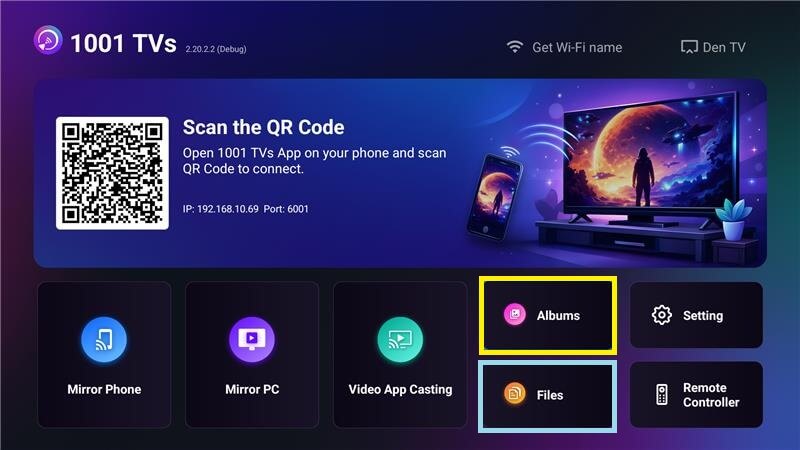
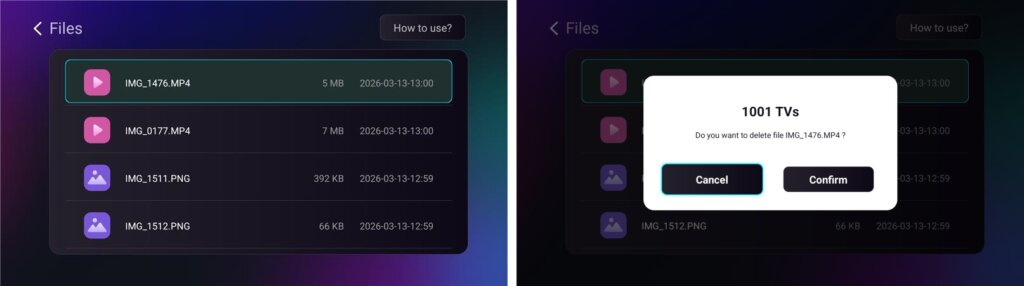
- Przejdź do Pliki aby wyświetlić odebrane pliki. Można wybrać plik i długo nacisnąć przycisk OK aby go usunąć.
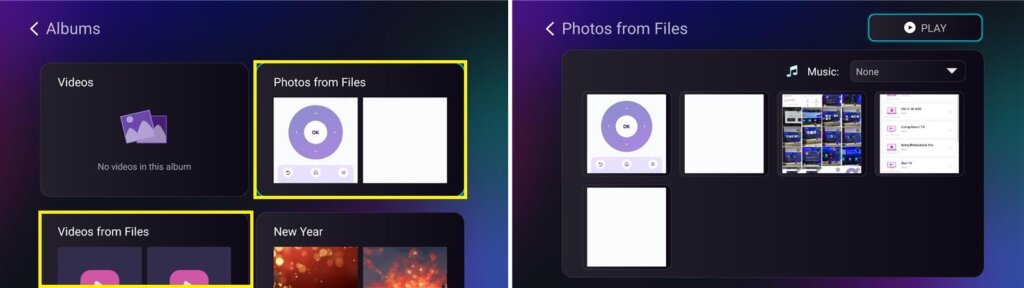
- Przejdź do Albumy > Zdjęcia/wideo z plików aby wyświetlić odebrane zdjęcia i filmy. Można wybrać plik i długo nacisnąć przycisk OK aby je usunąć lub odtworzyć jako pokaz slajdów.
Dlaczego warto korzystać z 1001 TVs?
- Szybki, prywatny i łatwy w użyciu
- Transfer lokalny - nie jest wymagana chmura
- Nie wymaga logowania ani konta
- Obsługuje transfery dużych plików
Potrzebujesz pomocy?
Jeśli napotkasz jakiekolwiek problemy, skontaktuj się z naszym zespołem pomocy technicznej:
E-mail: 1001tvs@nero.com
Strona internetowa: www.1001tvs.com
Więcej przewodników: Przewodnik