
PC/MacからTV/PC/Macへファイルを送信する方法
1001 TVsを使えば、PC/MacからTV/PC/Macへ、同じローカルネットワーク経由でファイルを送信することができます。.
また、同じLAN上にあるPCとMacは、直接ファイルを転送することができる。.
クラウドアップロードなし。ケーブルもありません。サインアップ不要 - 高速で安全なローカル転送だけです。.
始める前に
- を確認してください。 デバイスが同じWi-Fiネットワークに接続されている.
- インストールして開く 1001 TVs 受信側のデバイスでアプリを起動したままにしてください。.
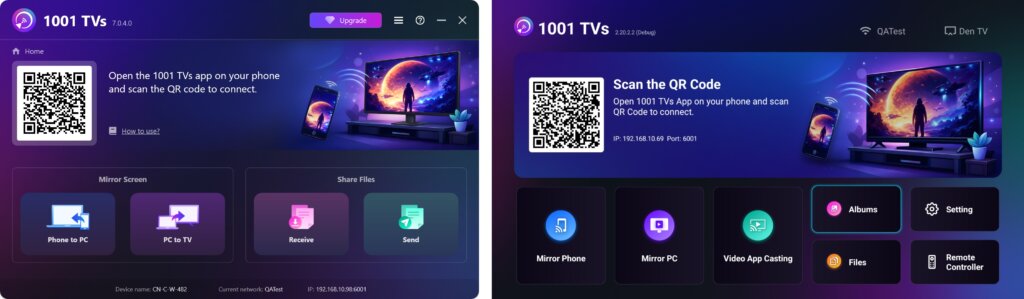
送信開始
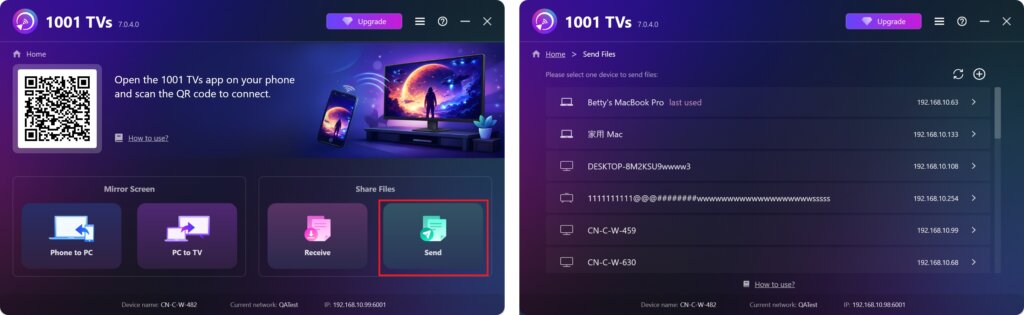
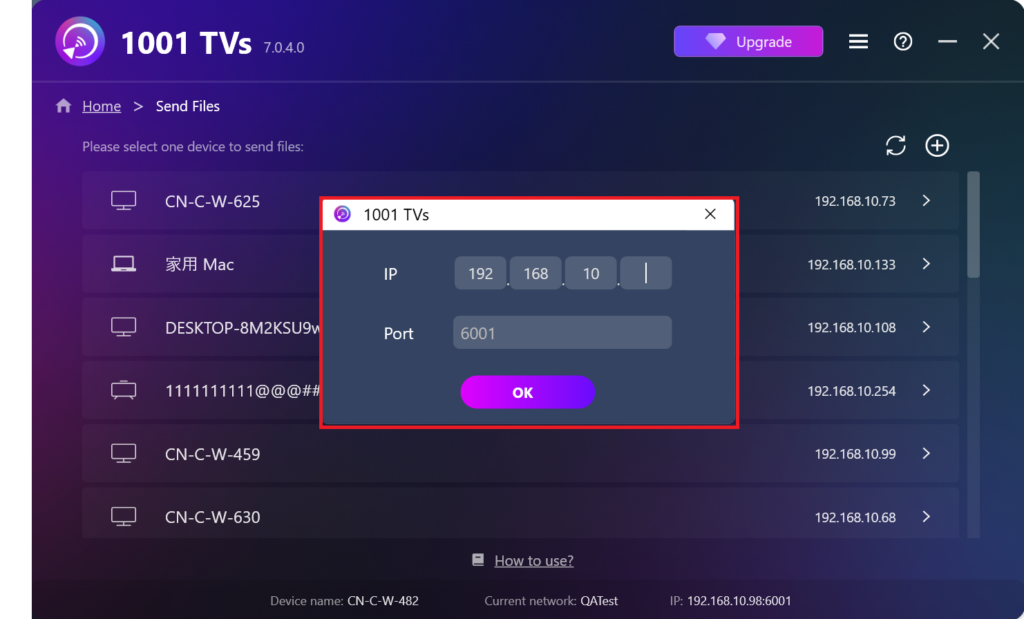
送信デバイスで 送信 アプリは自動的に同じネットワーク上の利用可能なデバイスを検索します。.
リストからターゲットデバイスを選択します。(例:テレビ/PC/Mac)
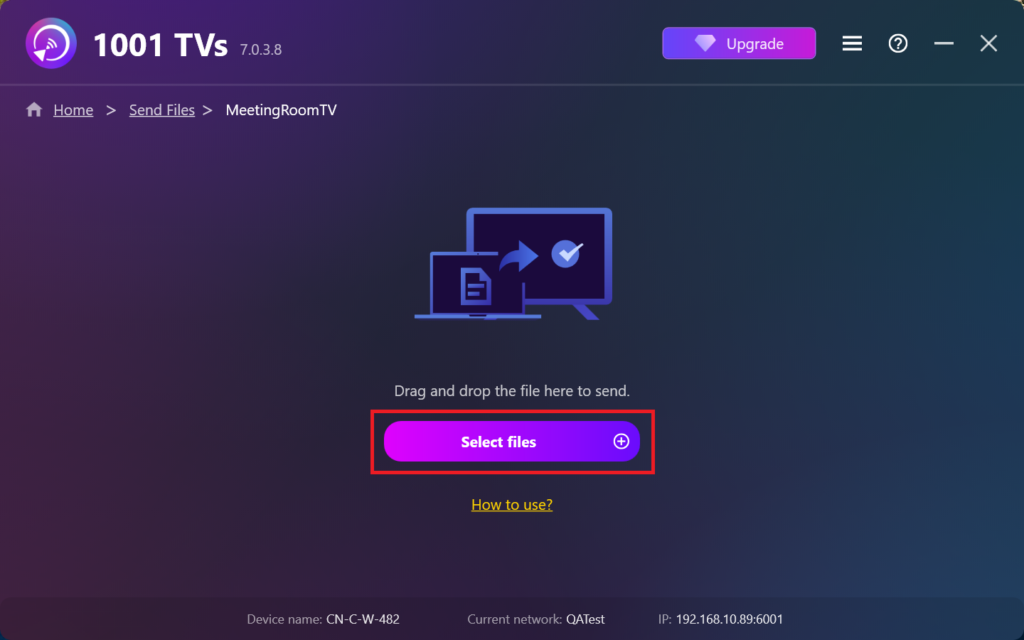
PC上のファイル(ビデオ、写真、音楽、ドキュメントなど)を選択すると、ターゲットデバイスへの転送が自動的に開始されます。.
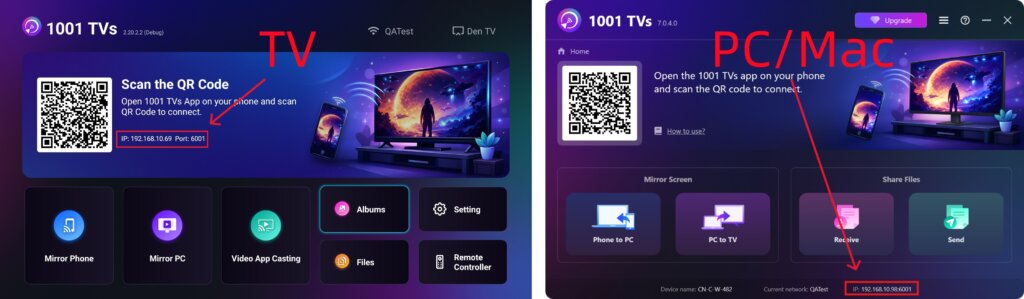
ターゲット・デバイスが見つかりませんか?
ターゲット・デバイスがデバイス・リストに表示されない場合は + アイコン を使用してください。 IPアドレスのペアリング 迅速かつ安全に接続できます。.
PC/Macで受信ファイルを見る
クリック 受け取る PC/Macですべての受信ファイルを見ることができます。.
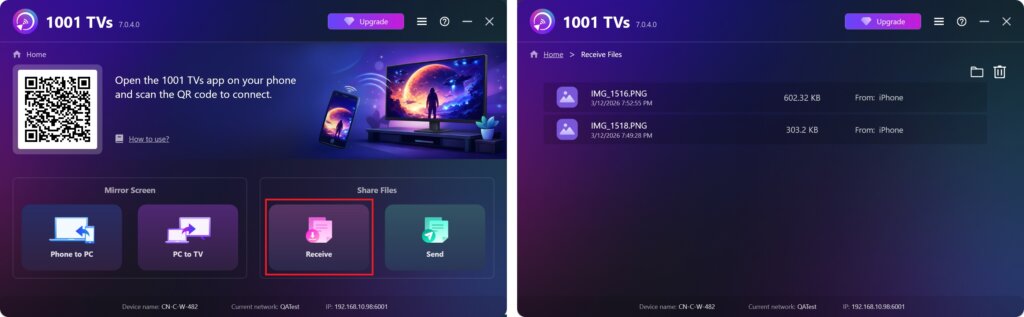
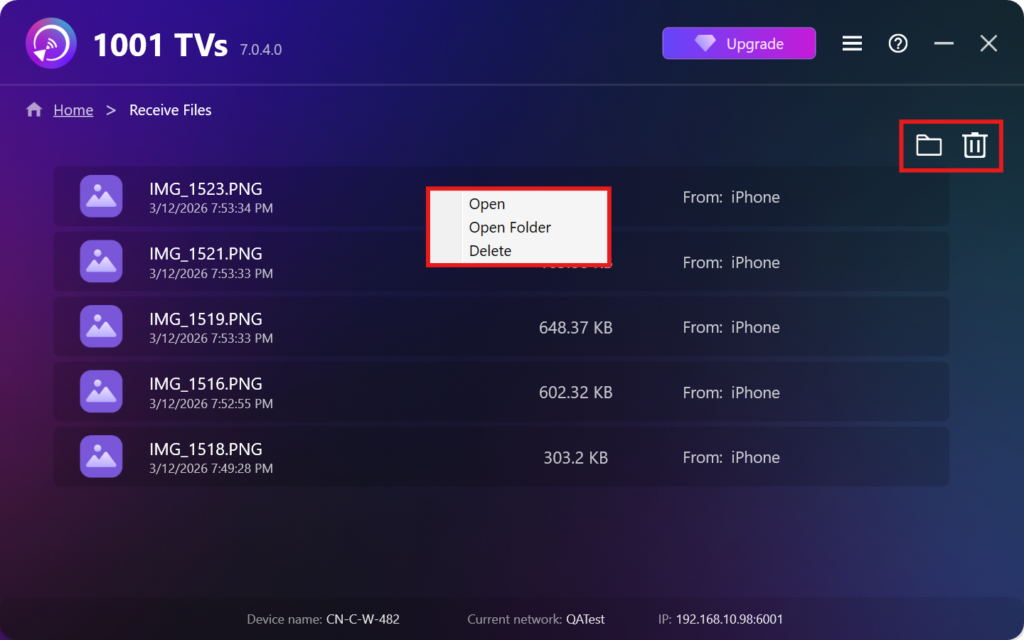
- 開く 受信したファイルを見る – クリック または 右クリック を選択してください。“フォルダを開く”をクリックすると、特定のデバイス(例:iPhone 12123)からのすべてのファイルを表示します。.
- Finder(Mac)またはファイルエクスプローラー(Windows)で探します。 - をクリックする。 フォルダアイコン をクリックします。.
- オプションの削除 – 右クリック を選択します。“削除”「をクリックして個別に削除するか ゴミ箱アイコン をクリックすると、受信したすべてのファイルを一度に削除できます。.
受信ファイルをテレビで見る
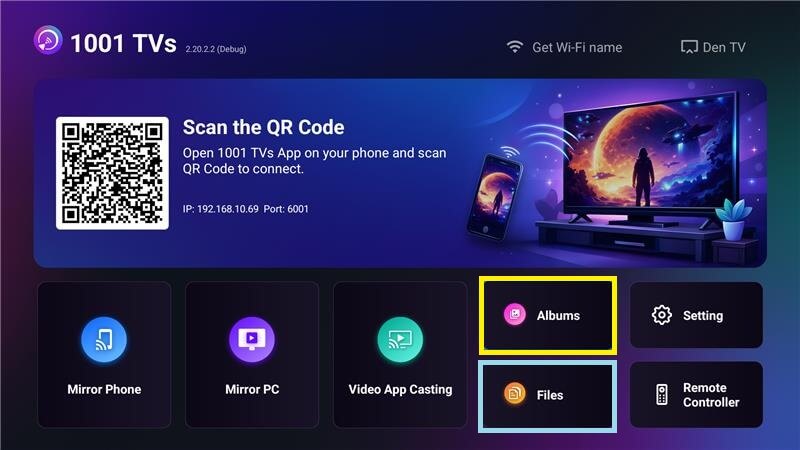
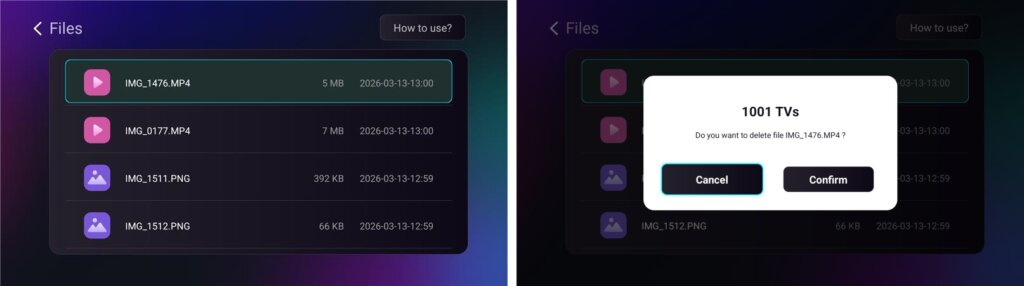
- に移動する。 ファイル をクリックして受信したファイルを表示します。ファイルを選択して OK で削除する。.
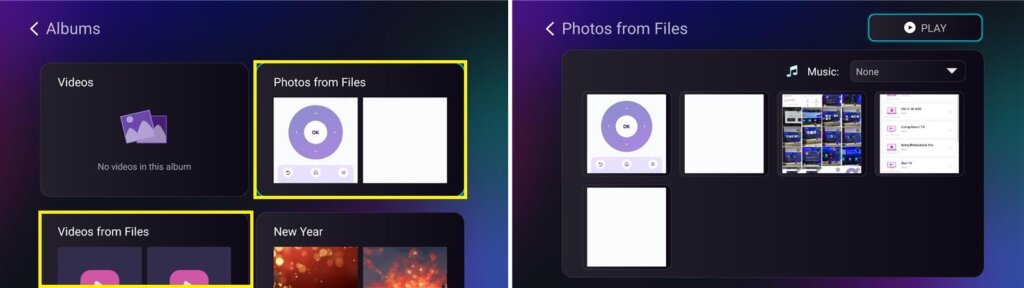
- に移動する。 アルバム > ファイルから写真/ビデオ で受信した写真やビデオを見ることができます。ファイルを選択して OK をクリックして削除するか、スライドショーとして再生する。.
1001 TVsを使う理由
- 高速、プライベート、使いやすい
- ローカル転送 - クラウド不要
- ログインもアカウントも不要
- 大容量ファイル転送に対応
お困りですか?
何か問題がありましたら、お気軽にサポートチームまでご連絡ください:
📧 Eメール: 1001tvs@nero.com
🌐 ウェブサイト: www.1001tvs.com
📖 その他のガイド: ガイダンス