Hogyan lehet képernyőt tükrözni egy Sony Bravia tévére (Google TV)
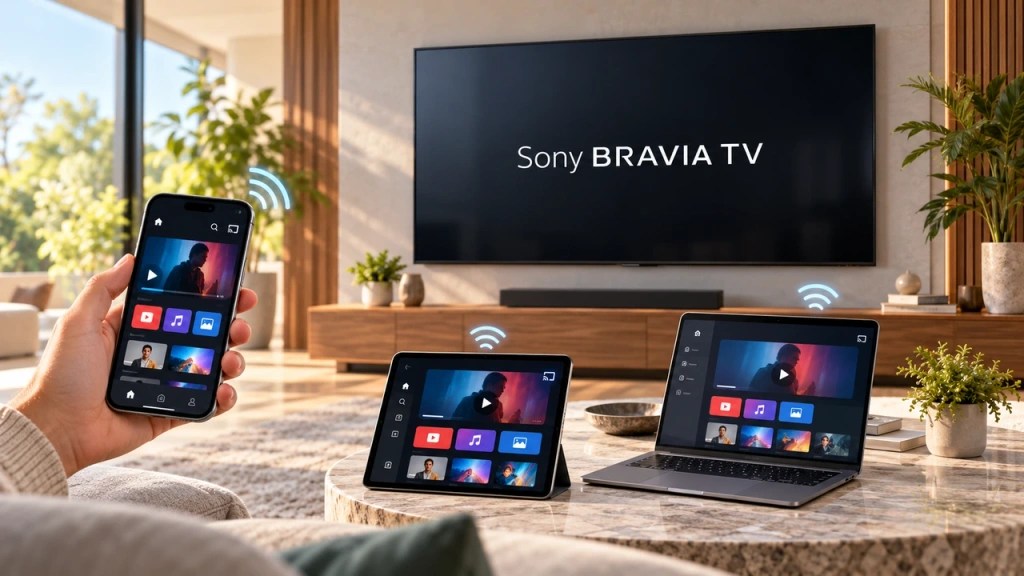
A Sony Bravia Google TV does not use one universal “Screen Mirroring” method for every phone and computer. The right choice depends on both your device and what you want to show. Apple devices use AirPlay for full-screen mirroring. Google Cast handles supported app content and can also cast a Chrome tab or screen from a computer. Sony’s own Képernyő tükrözés feature is based on Miracast, and Google TV models do not support it.
Use the table below to match your device and display goal with the right method.
Melyik módszert érdemes választani?
| Device or situation | Goal | Best-fit path |
| iPhone vagy iPad | Full screen | AirPlay on Google TV models |
| Mac | Full screen | AirPlay on Google TV models |
| Android-telefon vagy -tábla | Content from a Cast-enabled app | Google Cast — not Sony Miracast |
| Android-telefon vagy -tábla | Teljes képernyő | Device-dependent; use a compatible alternative if needed |
| Windows PC | Browser tab or desktop | Google Cast from Chrome — not Win + K |
| An older Sony tutorial says “Screen mirroring” | Full screen | Check the TV generation first; it may refer to an older BRAVIA or Android TV |
AirPlay, Google Cast, and Miracast are not interchangeable names for the same feature. If you only want to watch a video, view photos, or play music from a supported app, casting that content is usually simpler than mirroring the entire device. Full-screen tasks—such as showing a presentation, a browser window, or a phone-only app—need the route that supports the whole display.
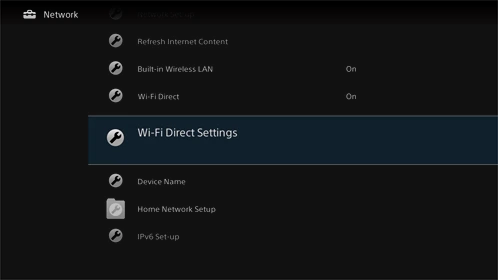
No internet? Some Sony BRAVIA models also support Wi-Fi Direct for sharing photos, videos, and music without an internet connection. This is not full-screen mirroring; see the Sony-specific note below.
Why You Can’t Find Sony’s “Screen Mirroring” on a Google TV
This is the Sony-specific trap behind many failed setup attempts. Sony uses Képernyő tükrözés as the name of a Miracast-based feature, but its availability changes by TV generation.
| Sony TV type | Sony Miracast “Screen mirroring” |
| Google TV | Nem |
| Android TV released in 2020 or later | Nem |
| Some Android TVs released in 2019 or earlier | May be supported |
This is why two Sony BRAVIA tutorials can give completely different instructions without necessarily referring to the same TV generation. An older BRAVIA or early Android TV guide may tell you to open Képernyő tükrözés, while the option is absent from a current Google TV.
For a Sony Bravia Google TV, use AirPlay for Apple-device screen mirroring or Google Cast for supported content and Chrome-based computer casting. If a guide tells you to start a Miracast session, check the TV generation before following it.
Method 1: Use AirPlay for iPhone, iPad, and Mac
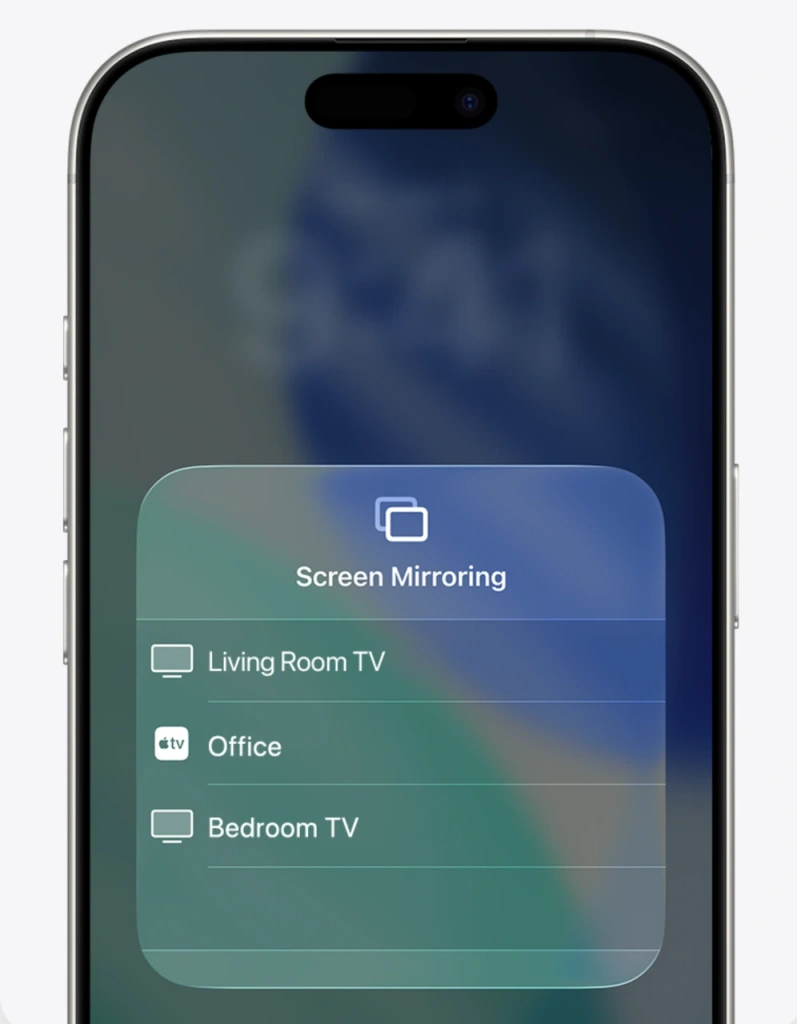
Google TV models support Apple AirPlay 2 and HomeKit, so AirPlay is the full-screen route for Apple devices on this TV generation. Make sure the TV is on, AirPlay is available in its settings, and the Apple device and TV are on the same Wi-Fi network.
iPhone vagy iPad
Nyissa meg a címet. Vezérlőközpont > Képernyő tükrözés, select your Sony BRAVIA, and enter the on-screen code if prompted.
Mac
Nyissa meg a címet. Vezérlőközpont > Képernyőtükrözés, then select the Sony TV and complete any pairing prompt.
If the TV does not appear, check the Wi-Fi connection, the TV’s AirPlay setting, and available software updates. Do not switch to a Miracast or Wireless Display instruction—those are not AirPlay alternatives.
Sony model note: W8K and X74K/X75K series require a software update for AirPlay 2 and HomeKit support. Check your model’s current support page before assuming AirPlay is ready to use.
Method 2: Use Google Cast for Android and Windows
Google Cast is the other core route on Sony Google TV. It is not Sony’s Miracast Screen mirroring feature. Instead, it lets a compatible app or Chrome browser send selected content, a tab, or—in supported computer setups—a screen to the TV.
Cast from an Android app
For videos, music, photos, and other content inside a Cast-enabled Android app:
- Connect the Android phone and Sony Bravia Google TV to the same Wi-Fi network.
- Open a Cast-enabled app and select the content you want to play.
- Érintse meg a Cast ikon.
- Choose your Sony Bravia Google TV.
The app sends its supported content to the TV, while the phone generally remains the controller. This does not automatically mean that every Android phone can mirror its entire interface to the TV. If your goal is to show a phone-only app, a presentation, or the full Android display, use a method verified for that phone and setup, or consider the full-screen alternative below.
Cast a tab or screen from a Windows PC
For a Sony Bravia Google TV, do not start with Win + K, Connect, or Wireless Display. These Windows features are associated with Miracast, while the route covered here uses Google Cast. Instead, Google Chrome can cast a browser tab or the entire computer screen to a TV with Google Cast.
- Connect the Windows PC and Sony Bravia Google TV to the same Wi-Fi network.
- Open Google Chrome.
- Válassza ki a címet. Több > Cast, save, and share > Cast.
- Nyissa meg a címet. Források, then choose either a browser tab or Cast screen.
- Select your Sony Bravia Google TV.
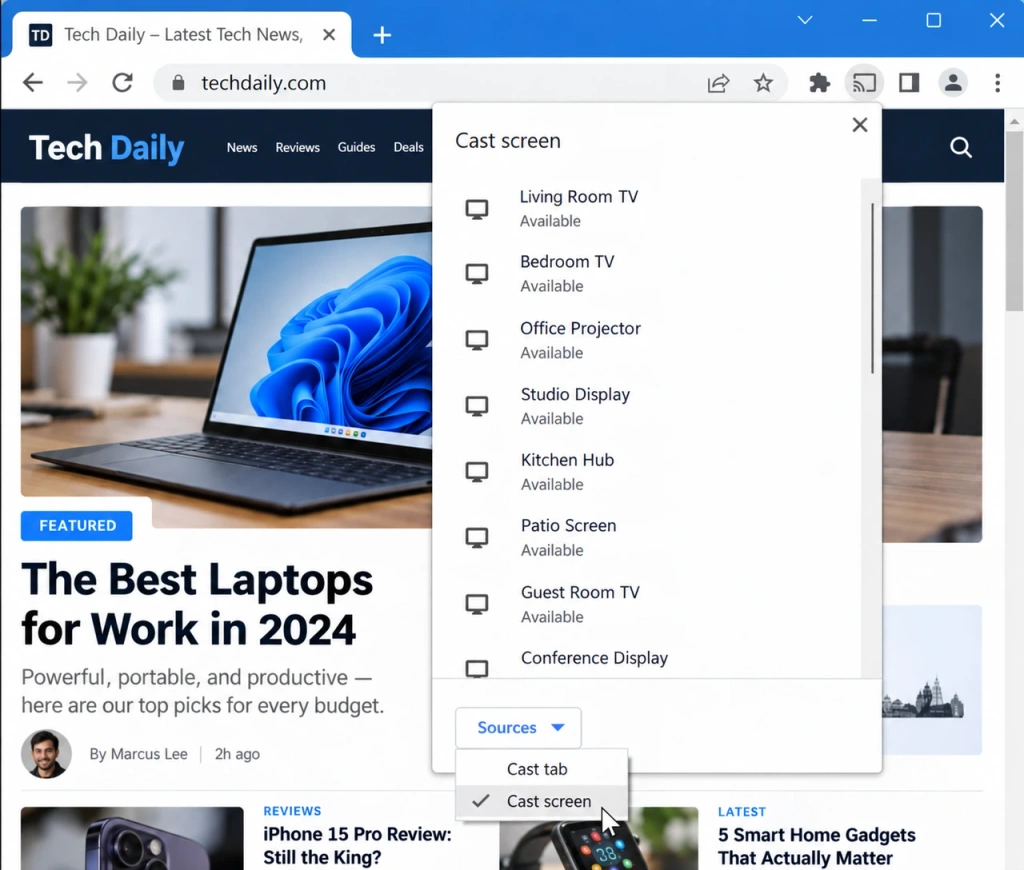
Choose a browser tab when you only need to share a website and want its audio on the TV. With Cast screen, Google notes that audio may continue playing on the computer. This is still a Google Cast connection, not native Windows Miracast.
Method 3: Use an Alternative When the Built-In Options Don’t Fit
Sometimes the available built-in path does not match the job. You may need to show an entire Android or Windows screen, but the sender does not offer a suitable verified route, or Chrome Cast screen is not the right fit for the setup.
In that situation, use a screen-mirroring tool that supports your actual sender and receiver combination. 1001 TVs is one option for compatible setups. Its Android TV page states that it can mirror from phones, tablets, and computers to Android TV, and it lists Google TV and Sony among compatible Android TV brands.
Check the current instructions and compatibility information for your specific model, operating system, and app version before using it. A third-party mirroring tool can provide another full-screen route when the built-in options do not match your devices. It is not a workaround for content protection, DRM, copyright restrictions, or every connection problem.
No Internet? Check Whether Your Sony TV Supports Wi-Fi Direct
If your Sony BRAVIA is not connected to the internet and you only need to send photos, videos, or music, check whether your model supports Wi-Fi Direct. This creates a direct wireless connection between a device and the TV without a home network or internet connection.
Wi-Fi Direct is not full-screen mirroring, so do not expect the same result as AirPlay screen mirroring or Chrome’s Cast screen. Sony says Wi-Fi Direct is not supported on models released in 2024 or later, or on the A95L, W8K, and X75K series. Check your TV’s model support page before relying on it.
What to Check If Your Sony TV Doesn’t Appear
- Use the route that matches the task: AirPlay for Apple-device mirroring, Google Cast for supported Android app content, Chrome’s „Szereplők” fül vagy Cast screen for Windows, and Wi-Fi Direct only for supported Sony models that need offline media sharing. Do not treat Miracast, Smart View, or
Win + Kas the default Sony Google TV path. - Check the network, TV power state, and the relevant AirPlay or Cast setting for the method you selected.
- Reopen AirPlay or Cast, then restart the TV and sending device if needed.
- Install available updates and confirm that both devices support the route you are trying.
If the TV still does not appear, use a Sony-specific troubleshooting guide or a general screen-sharing guide for the next diagnosis step rather than trying every wireless display option at random.
Choose the Right Route for Your Sony BRAVIA
Screen mirroring on a Sony BRAVIA Google TV is mainly about choosing a connection method that both your TV and source device support. Use AirPlay for full-screen mirroring from Apple devices, Google Cast for supported app content or Chrome casting, and a compatible alternative when the built-in options do not fit the task. Most importantly, do not confuse these routes with Sony’s older Miracast-based Képernyő tükrözés feature, which is not supported on Google TV models.
If a Sony mirroring guide starts with Miracast, check which BRAVIA generation it was written for before following it.

További információk
 Hogyan lehet tartalmat továbbítani az LG webOS TV-re
Az iPhone, iPad, Android-telefon, Windows-számítógép vagy Mac képernyőjét átviheti – vagy bizonyos esetekben tükrözheti – egy LG webOS TV-re. A megfelelő módszer attól függ, hogy...
Hogyan lehet tartalmat továbbítani az LG webOS TV-re
Az iPhone, iPad, Android-telefon, Windows-számítógép vagy Mac képernyőjét átviheti – vagy bizonyos esetekben tükrözheti – egy LG webOS TV-re. A megfelelő módszer attól függ, hogy...
 Hogyan streameljük a Super Bowl-t iPhone-ról, Androidról vagy Macről a TV-re 2027-ben?
Ha iPhone-ról, Android-telefonról vagy Mac-ről szeretnéd a tévében nézni a Super Bowlt, használd a műsorszolgáltató által támogatott AirPlay vagy Google Cast funkciót,...
Hogyan streameljük a Super Bowl-t iPhone-ról, Androidról vagy Macről a TV-re 2027-ben?
Ha iPhone-ról, Android-telefonról vagy Mac-ről szeretnéd a tévében nézni a Super Bowlt, használd a műsorszolgáltató által támogatott AirPlay vagy Google Cast funkciót,...

