How to Mirror and Record Phone Screen on PC via 1001 TVs and Nero Screen Recorder?
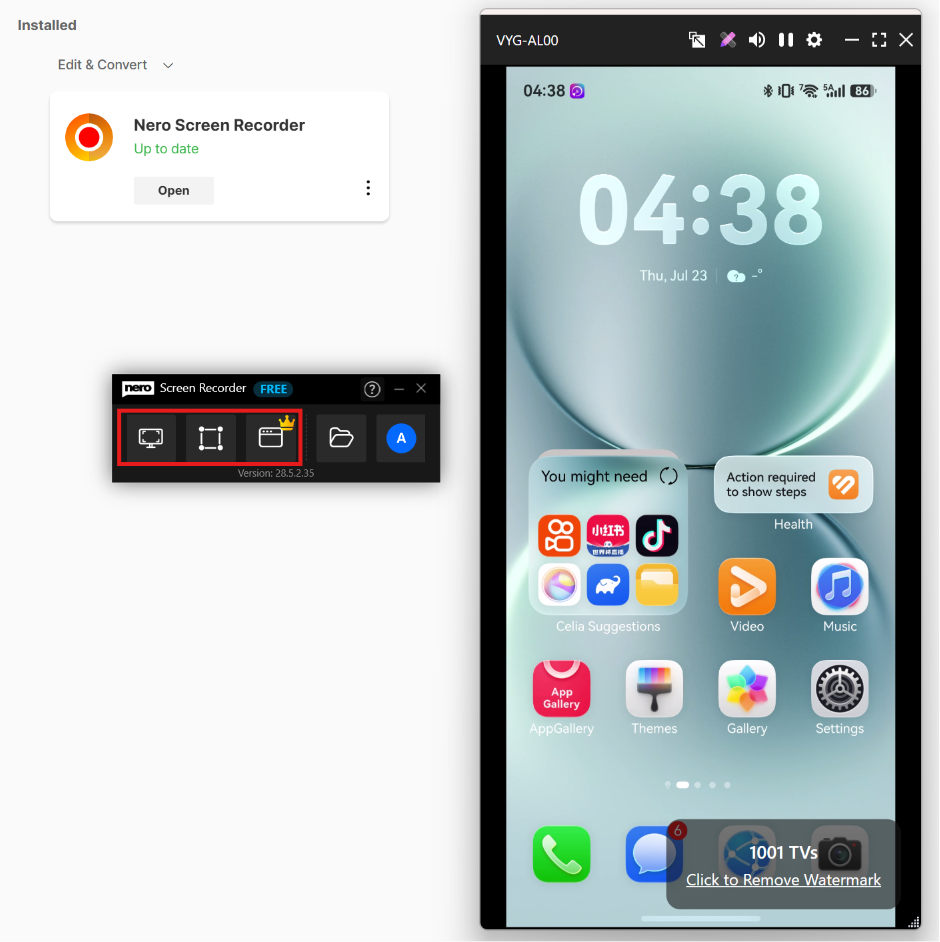
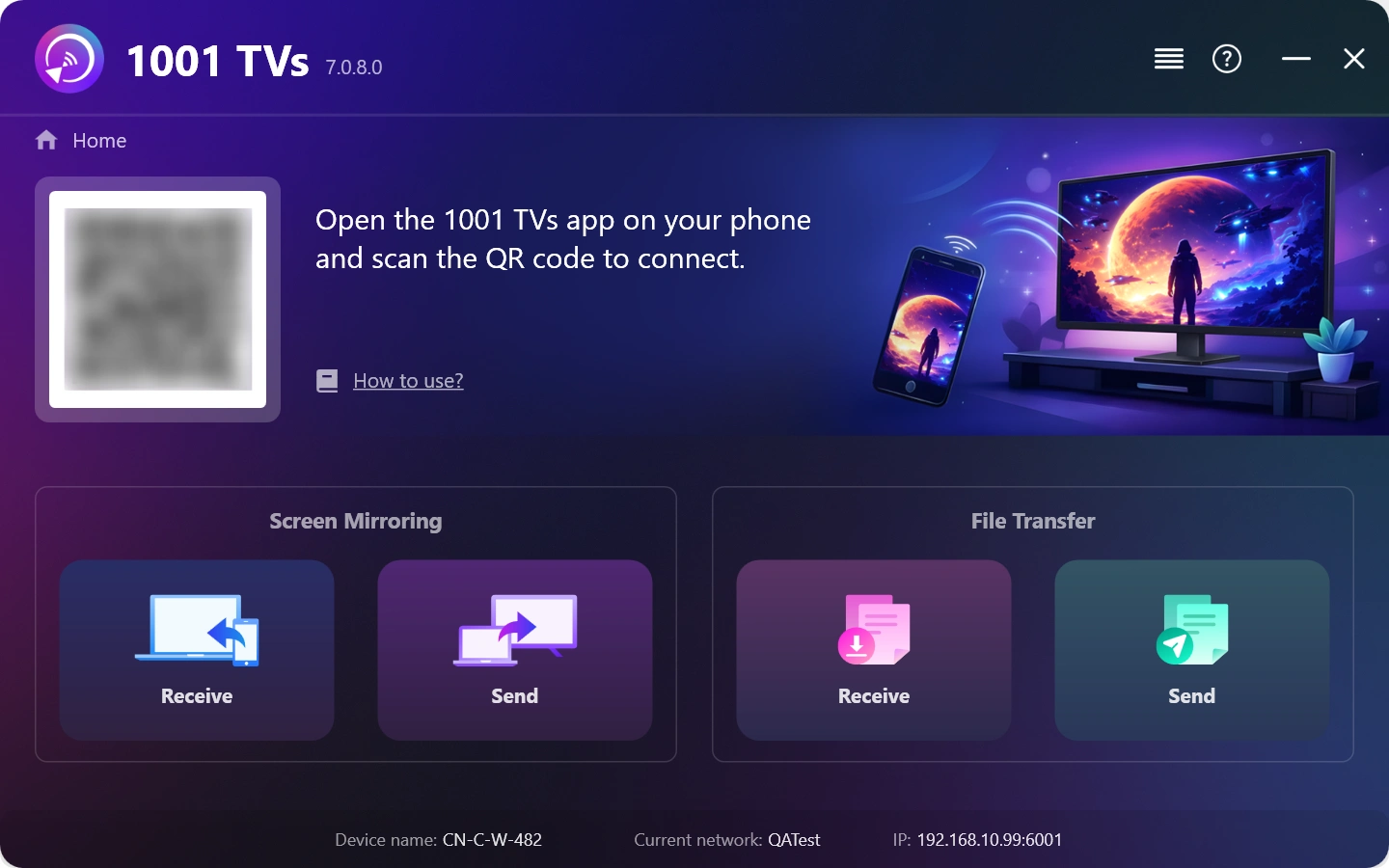
1. Install and Open 1001 TVs on your Windows PC.
PC App: Download from Microsoft Store
For detailed steps, refer to the PC Installation Guide.
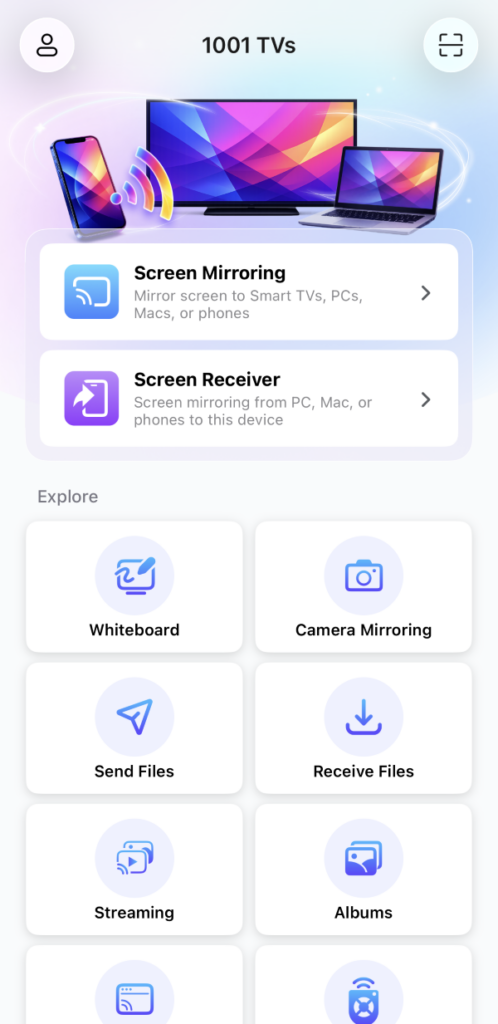
2. Install and open 1001 TVs on the Android / iOS Phone.
iOS App: Download from App Store
Android App: Download from Google Play
3. Connect to the Same Wi-Fi Network
Make sure both devices are connected to the same Wi-Fi network.
For the best performance, use a 5 GHz Wi-Fi network to reduce latency and improve stability.
4. Start screen mirroring
You can mirror your phone screen to Windows using one of these methods:
1) Scan the QR code
You can scan the QR code directly from the home screen or the Screen Mirroring page.
(Note: Camera access is required for the first scan and can be enabled in Settings.)
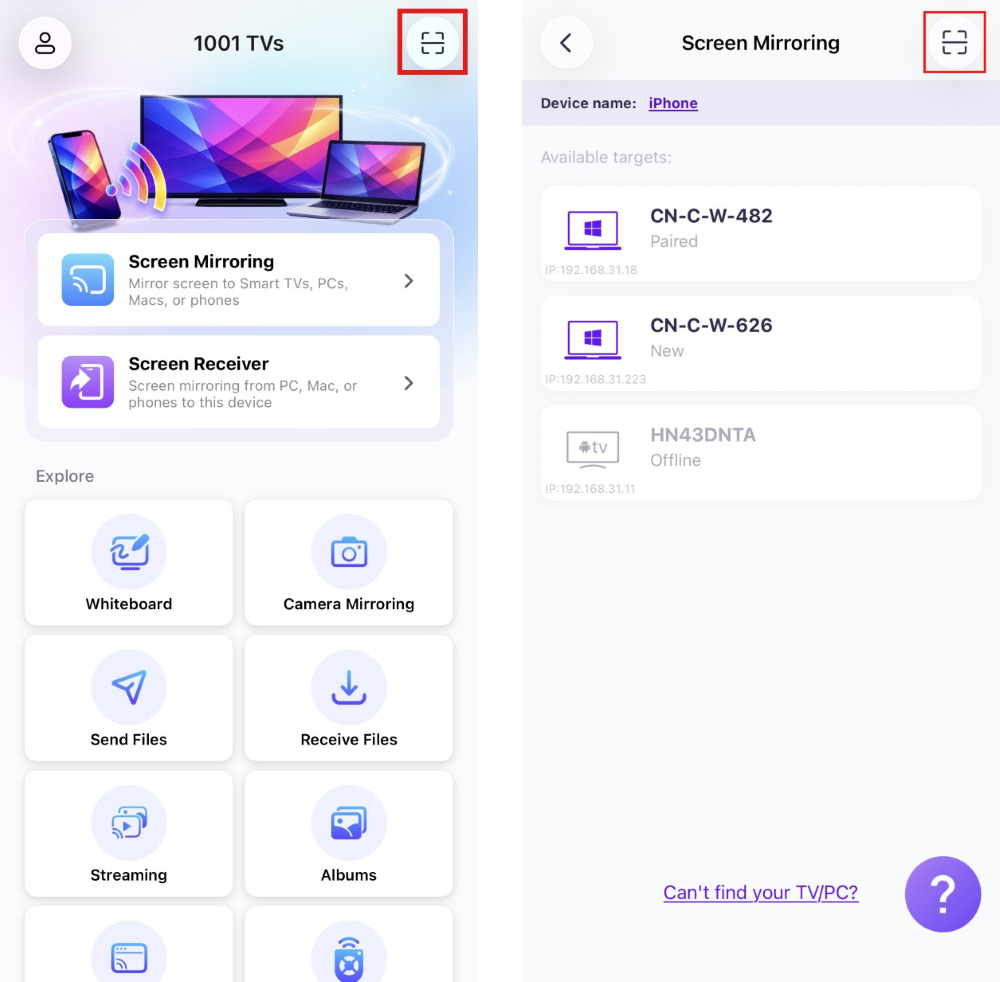
When prompted on the PC, select “OK” to confirm connection.
2) Select Nearby Devices
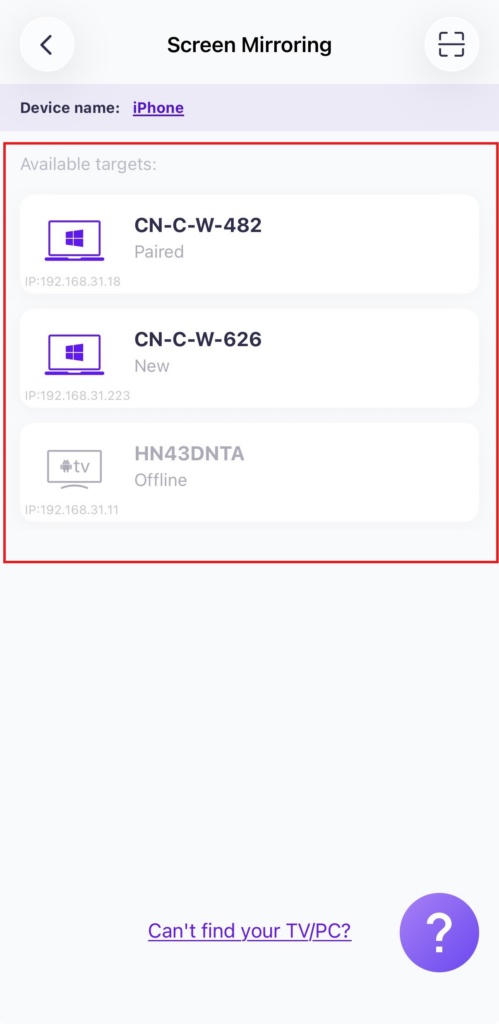
Tap “Screen Mirroring” in 1001 TVs app on your phone.
The app will automatically detect available devices on the same Wi-Fi network.
Select the PC you want to mirror to.
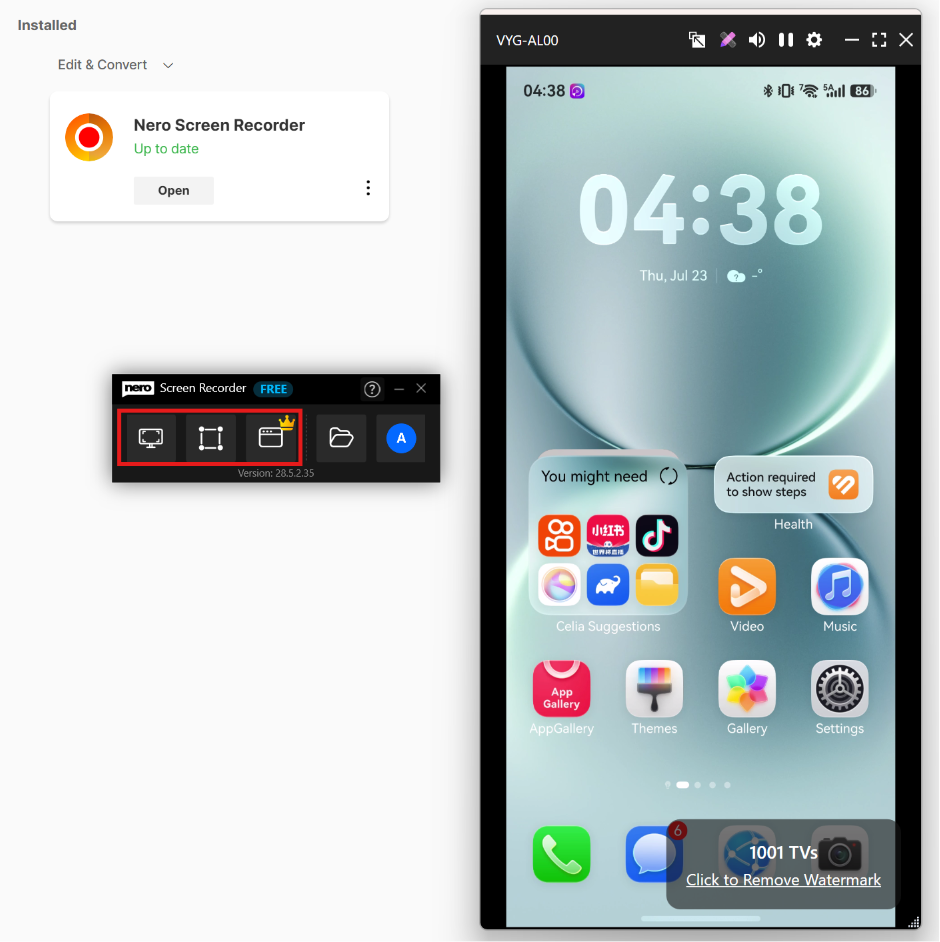
5. Launch Nero Screen Recorder to start recording.
Click here to download Nero Screen Recorder and get details.
Select Free Form Recording or Window Recording to capture the mirrored phone screen on your PC.
Get 1001 TVs Now!
PC App: Download from Microsoft Store
For detailed steps, refer to the PC Installation Guide.
iOS App: Download from App Store
Android App: Download from Google Play

Read More
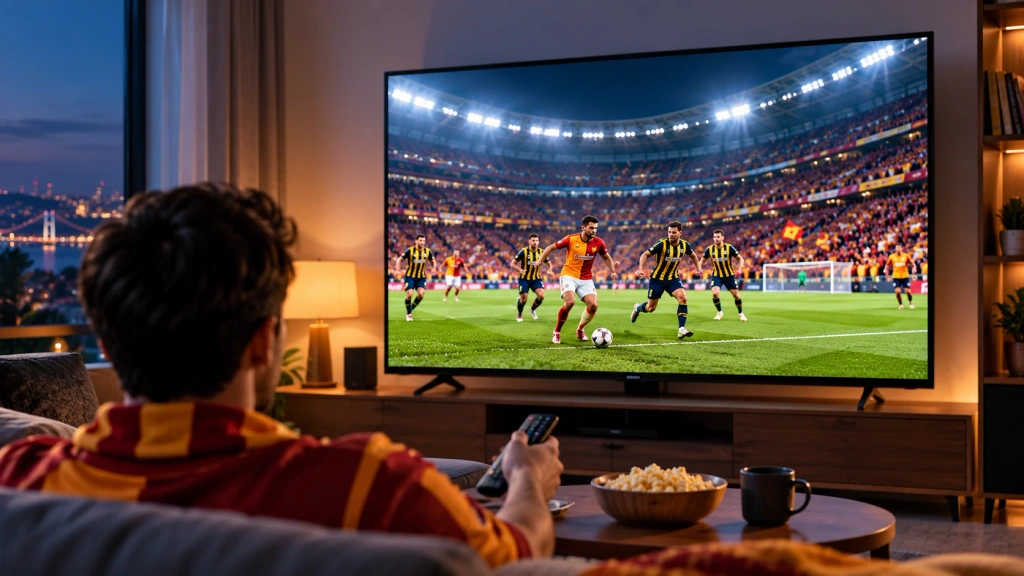 How to Watch Süper Lig on TV in Türkiye
To watch Süper Lig in Türkiye during the 2026–2027 season, start with beIN SPORTS coverage through Digiturk or TOD. The right TV viewing option…
How to Watch Süper Lig on TV in Türkiye
To watch Süper Lig in Türkiye during the 2026–2027 season, start with beIN SPORTS coverage through Digiturk or TOD. The right TV viewing option…
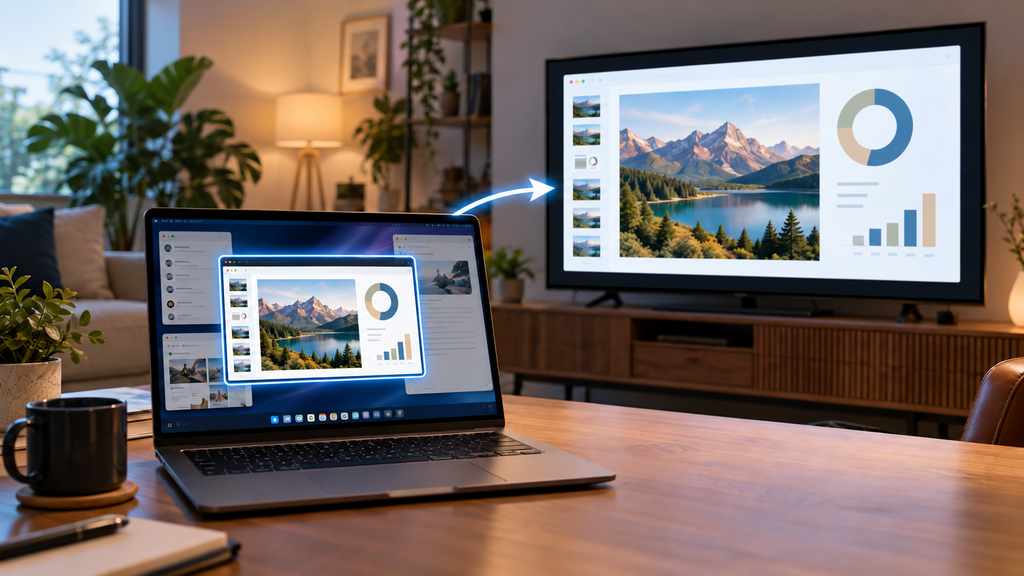 How to Share Only One Window to a TV During a Presentation
To share only one window to a TV, either use a tool that can mirror a single window, or set the TV up as…
How to Share Only One Window to a TV During a Presentation
To share only one window to a TV, either use a tool that can mirror a single window, or set the TV up as…

