检测到浏览器语言为中文,点此切换到中文页面

macOS 15+ 上屏幕镜像超时的解决方案

1001 TVs 團隊

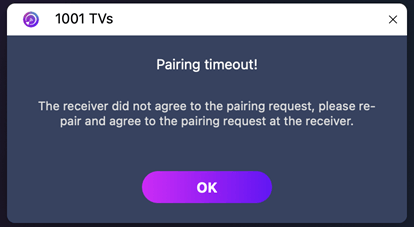
如果您使用 macOS 15 或更高版本 并遇到错误:

"配对超时!接收器不接受配对请求。请重试配对。

-即使两台设备都连接到了 同一 Wi-Fi 网络-问题可能是由以下原因造成的 macOS 15+ 的本地网络权限限制.
如何修复

For macOS 15 +:

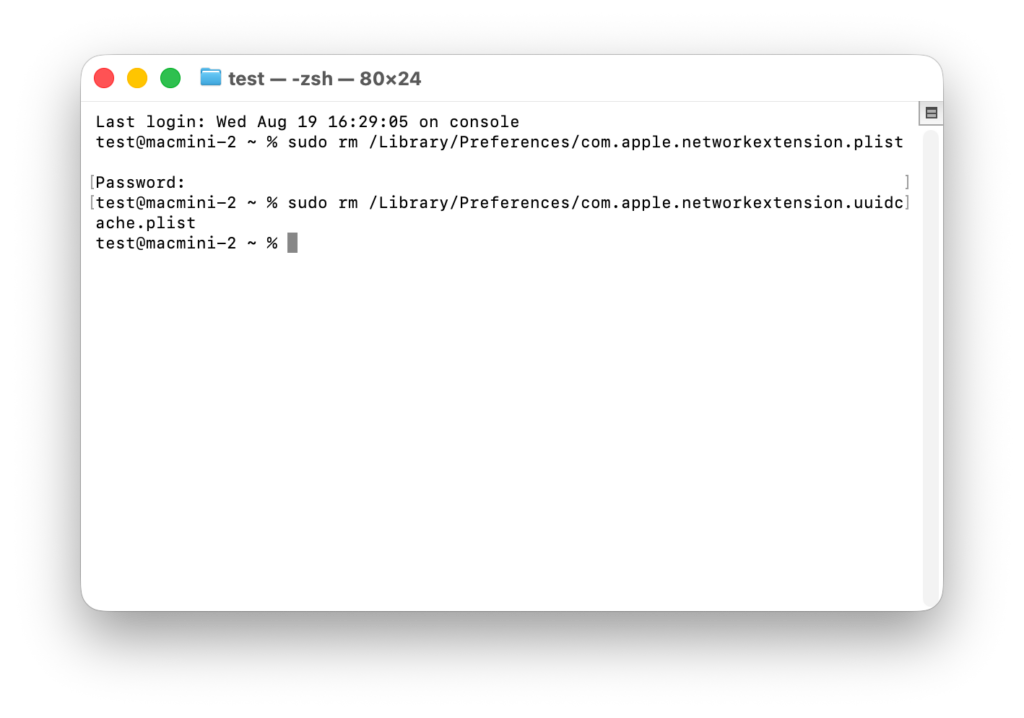
1. Open Terminal and run the following commands:

Enter the first command, then press 进入:

sudo rm /Library/Preferences/com.apple.networkextension.plist

When prompted, enter your 登录密码 and press 进入 again. (The password will not be shown on screen.)

Then enter the second command, and press 进入:

sudo rm /Library/Preferences/com.apple.networkextension.uuidcache.plist
2. Restart your Mac, open 1001 TVs, and try pairing again.

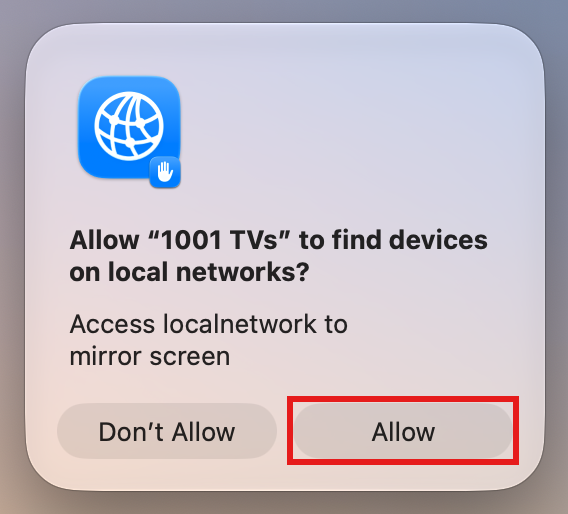
⚠️ Important: When you open the app, if a Local Network permission prompt appears, be sure to click "允许" to grant access.


For macOS 26+:

1. Create a New User Account

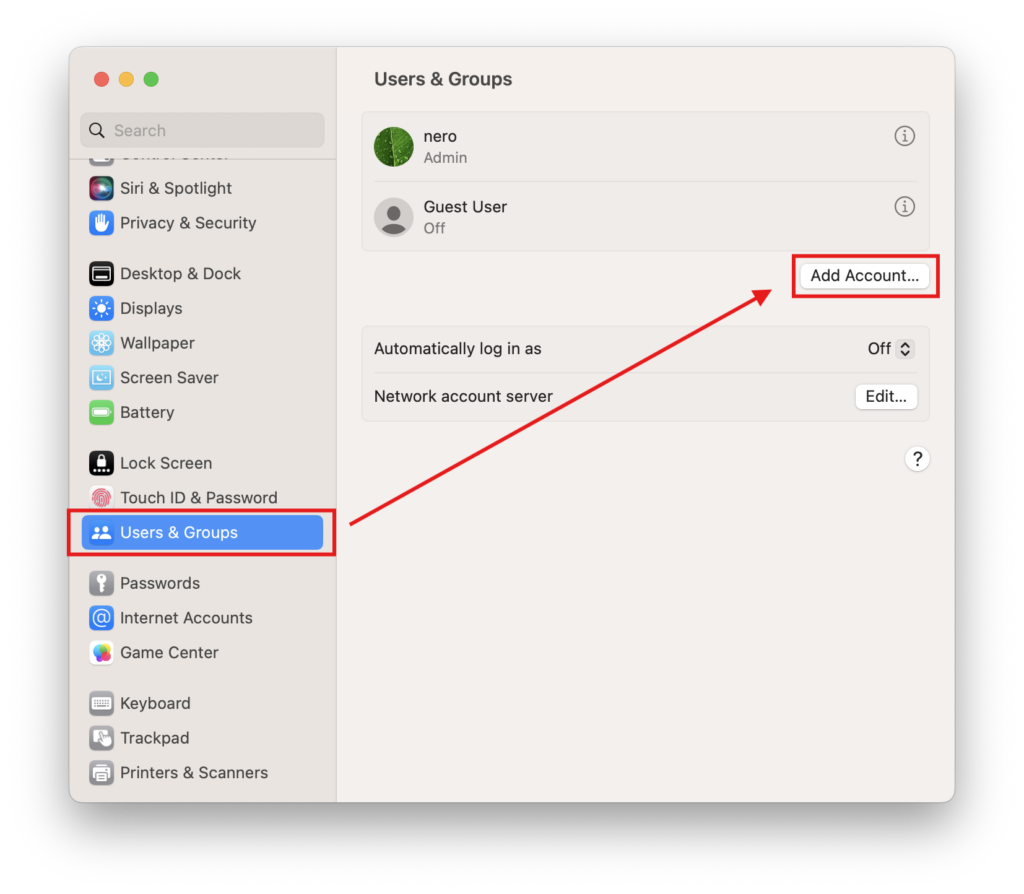
转到 System Settings > Users & Groups 并点击 Add Account.

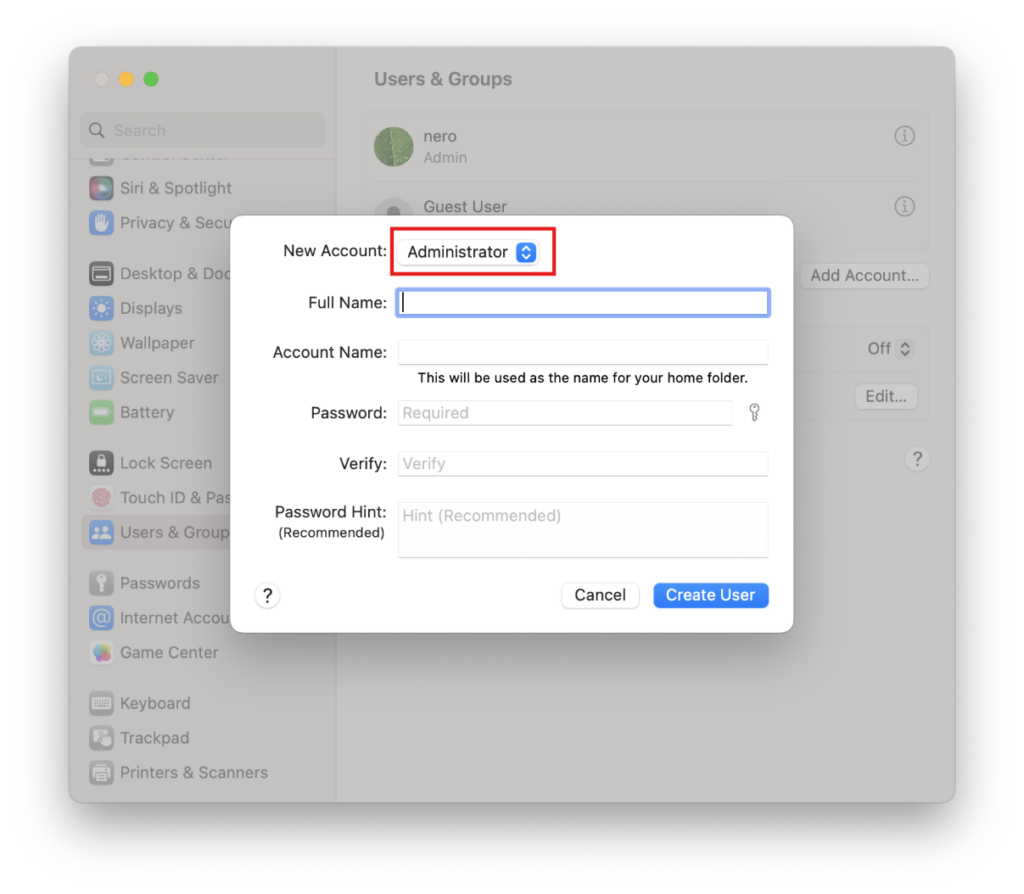
Set the new account type to Administrator, then enter the Full Name and Account Name, set a password, and click Create User.

2. Log In to the New Account

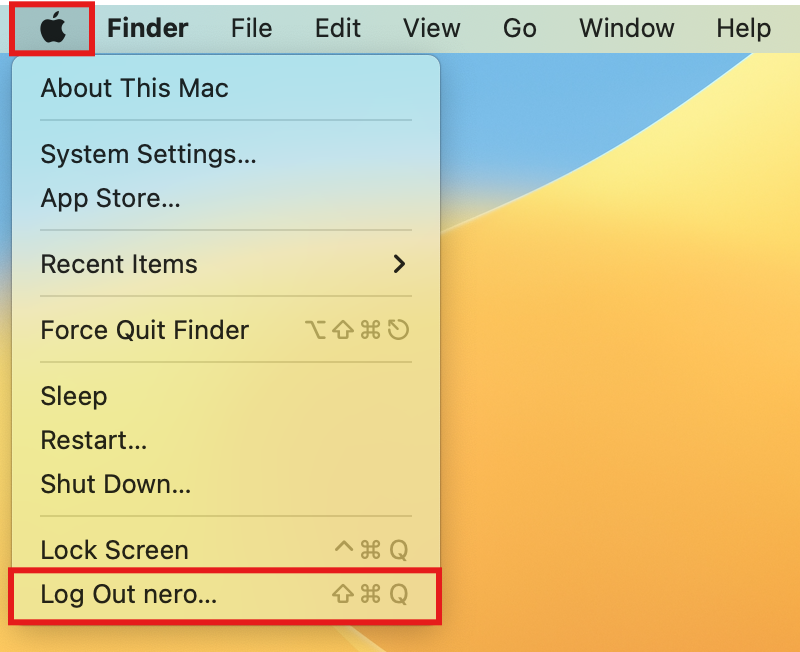
Click the Apple logo in the top-left corner and select Log Out to sign out of your current account.

Log in to the account you just created.

3. Retry Pairing

Restart your Mac, open 1001 TVs, and try pairing again.

⚠️ Important: When you open the app, if a Local Network permission prompt appears, be sure to click "允许" to grant access.


As a last resort, please follow the steps below.

1. Start up in Recovery Mode

Click the Apple logo in the top-left corner and select Shut Down.

Depending on your Mac’s chip type, do the following:

  • Apple Silicon Mac: After shutting down, press and hold the power button (Touch ID) until you see “Loading startup options”. Release the power button, then click Options.
  • Intel Mac: After shutting down, press the power button to turn on your Mac, then immediately press and hold Command (⌘) + R until the Apple logo or a progress bar appears on screen, then release the keys.

Once you are in Recovery Mode, select your account and enter your login password.

2. Turn off system protection temporarily

In the Recovery menu bar, click Utilities > 终端.

Type the following command and press 进入:

csrutil disable

When you see “Successfully disabled System Integrity Protection.”, click the Apple logo and select 重新啟動.

3. Delete the cached permission files

After your Mac restarts, open 终端 (found in Launchpad or Applications > Utilities).

Enter the first command and press 进入:

sudo rm /Library/Preferences/com.apple.networkextension.plist

When prompted, enter your 登录密码 and press 进入 again. (Your password will not be shown on screen — this is normal.)

Enter the second command and press 进入:

sudo rm /Library/Preferences/com.apple.networkextension.uuidcache.plist

4. Turn system protection back on

Shut down your Mac again.

Repeat 步骤1 to re-enter Recovery Mode.

开放 终端, type the following command, and press 进入:

csrutil enable

When you see the success message, click the Apple logo and select 重新啟動.

5. Try pairing again

Restart your Mac, open 1001 TVs, and try pairing again.

⚠️ Important: When you open the app, if a Local Network permission prompt appears, be sure to click "允许" to grant access.

1001 TVs Team

團隊

1001 TVs 團隊

1001 TVs 編輯團隊由科技愛好者、軟體專家及消費性電子產品專家組成,致力於協助使用者掌握螢幕鏡像與投射技術。我們的專業知識涵蓋 iOS、Android、Windows、Mac 及智慧電視等平台。我們對產品與解決方案進行嚴格測試,以提供可靠且實用的指引,協助使用者實現無縫的裝置連線。.

閱讀更多
使用 1001 TVs 進行螢幕鏡像顯示 iOS、Android、PC、Mac 及智慧電視。輕鬆進行螢幕鏡像投射。.
下載