USB ئارقىلىق ئايفوننى Mac قا قانداق ئەينەك قىلىش كېرەك
The wired screen mirroring feature for iOS devices is now available! Simply connect your iPhone or iPad to your Mac using a cable.
iPhone ياكى iPad قا 1001 TVs چۈشۈرۈشنىڭ ھاجىتى يوق!
In Three Simple Steps
1. Install and Open 1001 TVs on your MacBook
📥 Mac ئەپ: App Store دىن چۈشۈرۈڭ
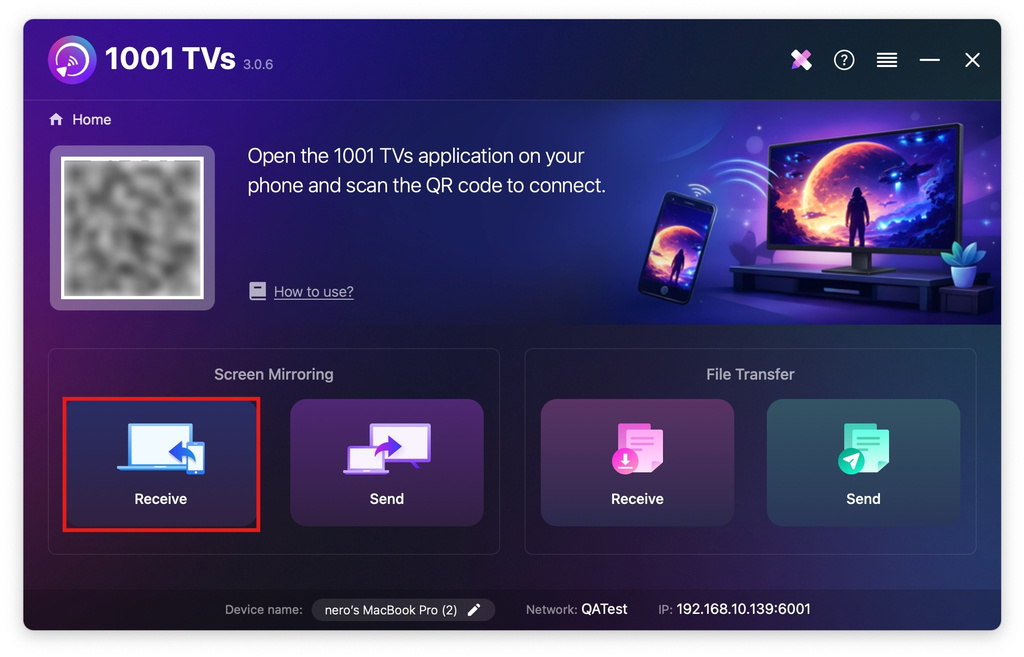
چېكىڭ “قوبۇل قىلىش”.
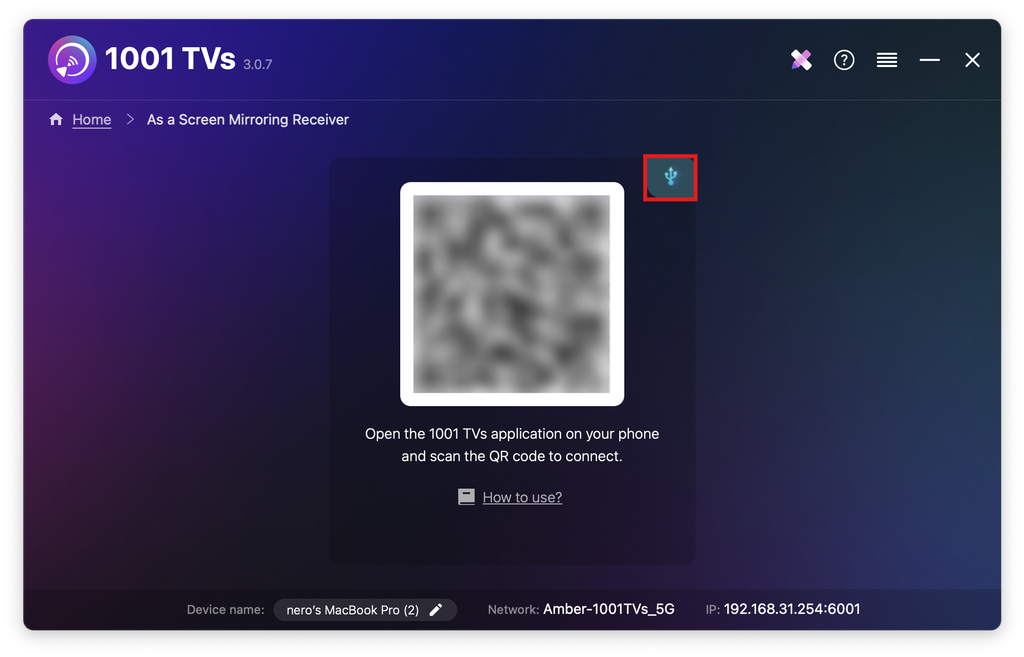
Tap the cable icon.
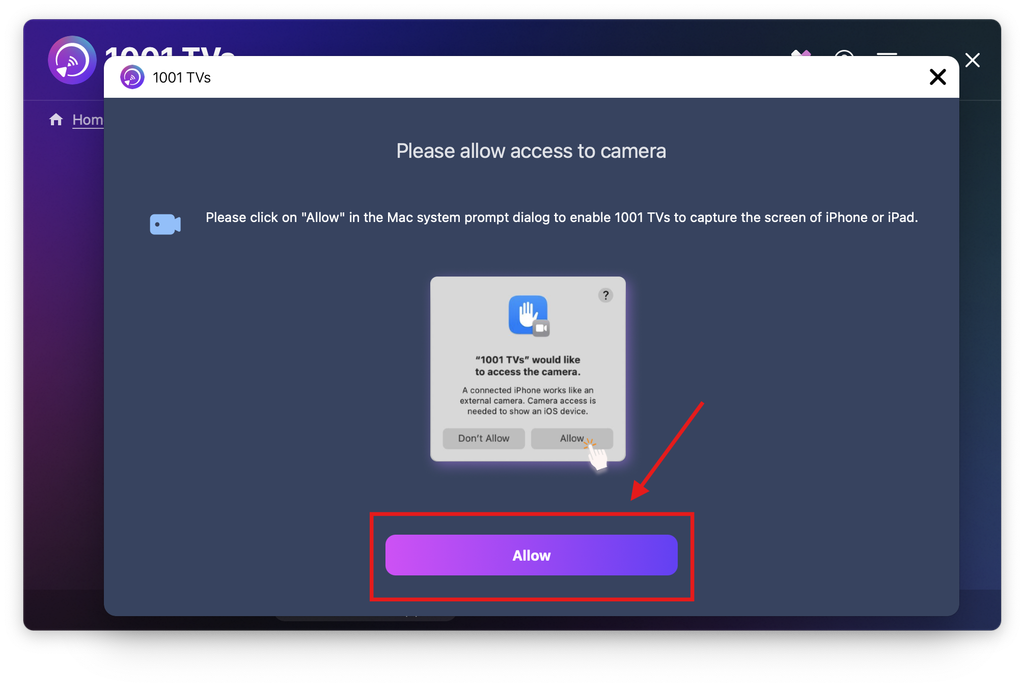
When the permission pop-up appears, click “رۇخسەت قىلىش” to grant access and ensure normal use.
The following screen will appear.
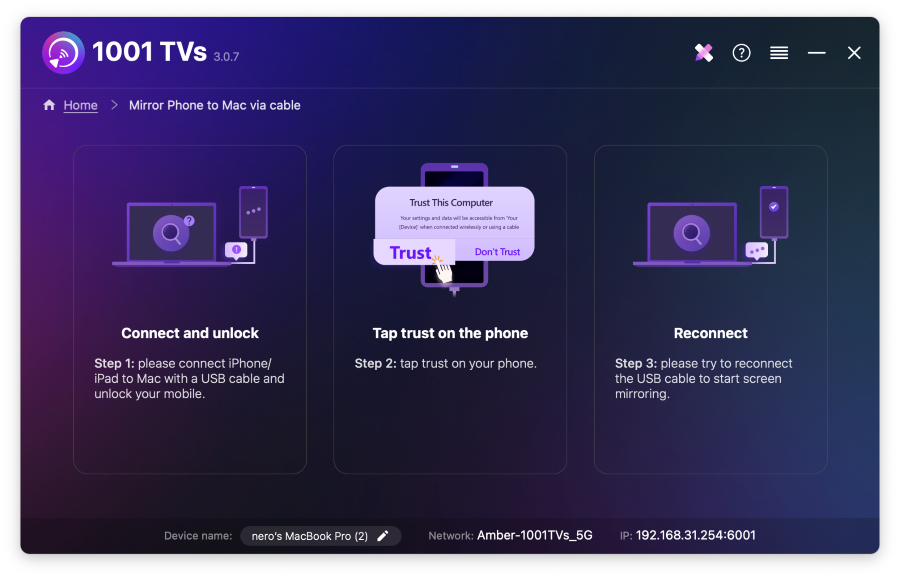
2. Connect your iPhone/iPad to Mac via cable
A permissions prompt will appear on your iPhone/iPad —select “ئىشەنچ” مۇۋاپىق ئىقتىدارنى ئىشقا ئاشۇرۇش ئۈچۈن.
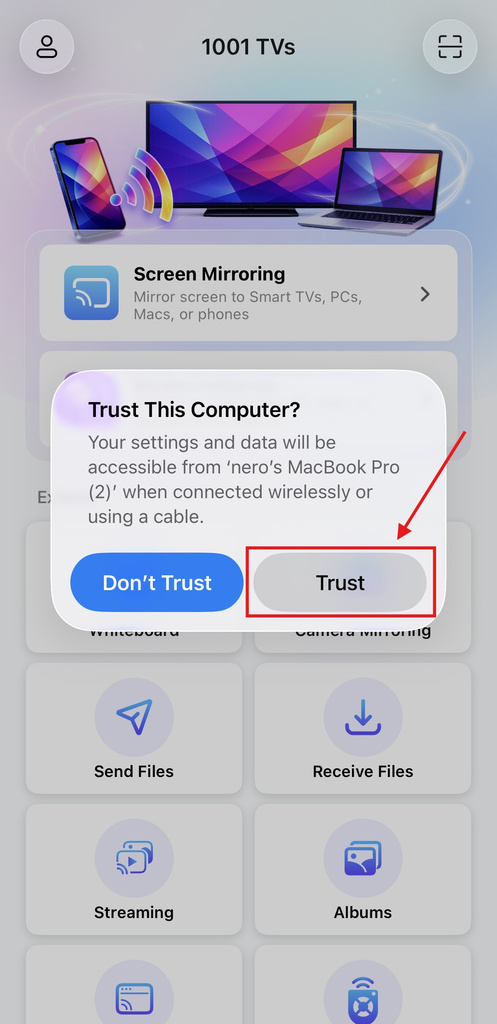
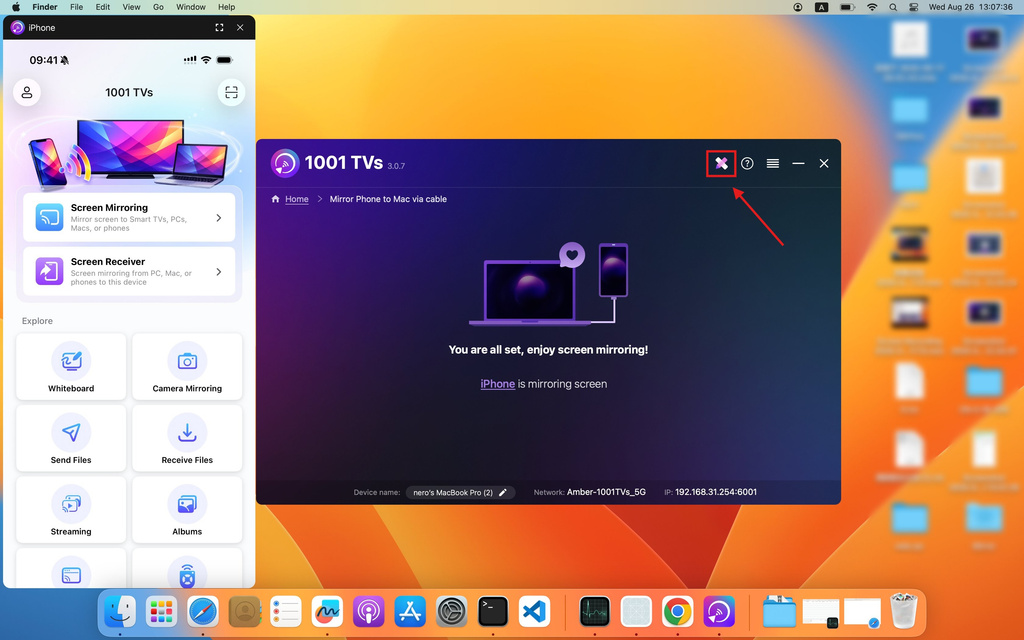
Unplug and re-plug the cable. Once successful, the interface will appear as shown below.
چېكىڭ annotation icon to bring up the tool menu.
3. Adjust Mirroring Settings
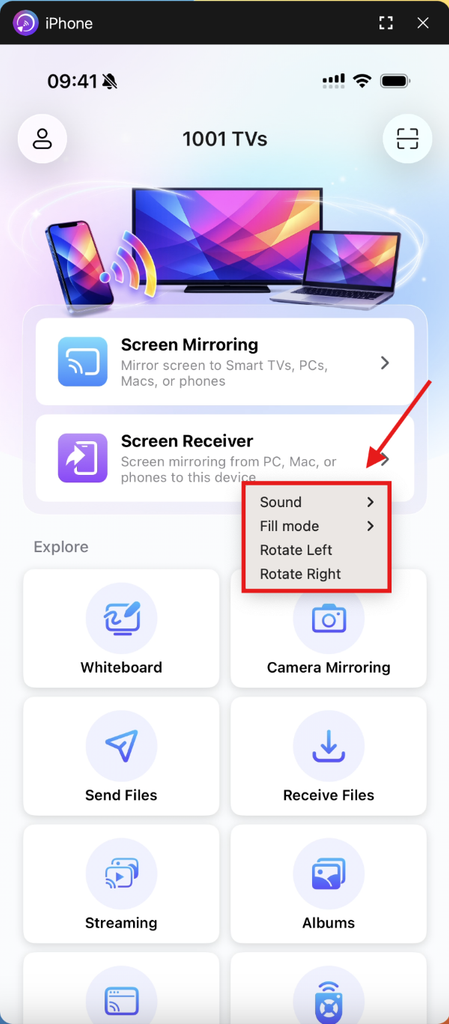
Double-click the mirroring screen to access Sound, Fill Mode, ۋە Rotation.
ئىزاھاتلار:
Screen mirroring loading in progress—please do not connect or disconnect the data cable during this time to avoid interruptions.
If you experience issues such as mirroring failure or a “no signal” message, try the following solutions:
· Reconnect the data cable.
· Restart 1001 TVs on your MacBook.
· Restart your MacBook.
ھازىر 1001 TVs نى ئېلىڭ!
📥 Mac ئەپ: App Store دىن چۈشۈرۈڭ

Read More
 New Setting: No More Pop-ups When Mirroring Ends
When you're mirroring your PC screen to a TV and stop the session using the TV remote, the 1001 TVs window pops back up…
New Setting: No More Pop-ups When Mirroring Ends
When you're mirroring your PC screen to a TV and stop the session using the TV remote, the 1001 TVs window pops back up…
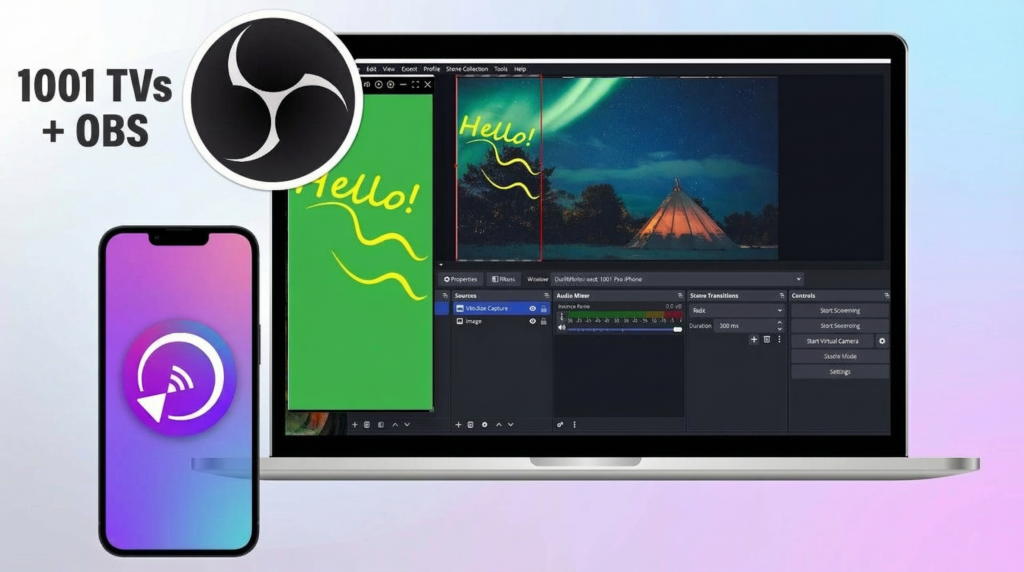 How to Capture Screen Mirroring in OBS (Android & iPhone)
Want to capture screen mirroring in OBS for mobile gameplay, tutorials, or live content? With 1001 TVs, you can easily mirror your phone screen…
How to Capture Screen Mirroring in OBS (Android & iPhone)
Want to capture screen mirroring in OBS for mobile gameplay, tutorials, or live content? With 1001 TVs, you can easily mirror your phone screen…

