AirPlay vs Screen Mirroring: Are They the Same?
AirPlay and screen mirroring overlap, but they mean different things. AirPlay is Apple’s wireless technology for sharing media and mirroring displays. Screen mirroring means duplicating a device’s screen on another display. On an iPhone or iPad, the built-in Screen Mirroring control uses AirPlay. Apple’s AirPlay overview describes both media sharing and display mirroring.
For a supported video, use the app’s AirPlay option. To show your apps, slides, or browsing on a larger screen, use Screen Mirroring. Both require a compatible receiver.
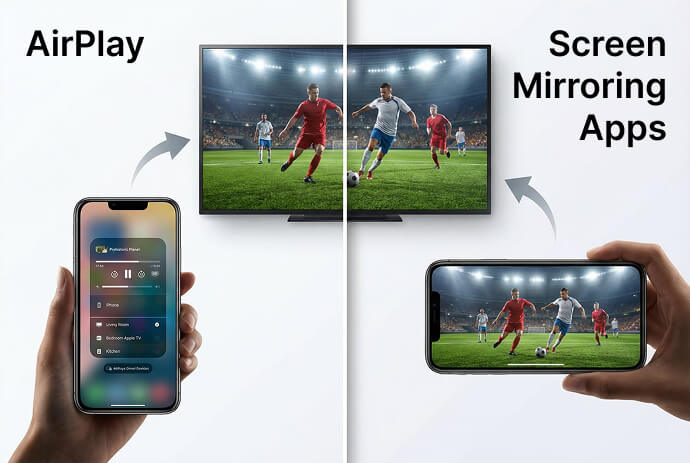
What is the difference between AirPlay and screen mirroring?
AirPlay describes the technology; screen mirroring describes what you are doing with the display. This is why comparing them as two competing connection methods can be confusing.
| Question | AirPlay | ئېكران ئەينىكى |
|---|---|---|
| What does it mean? | Apple’s technology for wireless media sharing and display mirroring | Duplicating a device’s display on another screen |
| What can it show? | Selected media, or the screen when mirroring | The screen being shared, subject to app restrictions |
| Is it specific to Apple? | It is an Apple technology requiring compatible senders and receivers | No. Different platforms implement mirroring differently |
| Where do the terms overlap? | AirPlay includes a mirroring function | iPhone and iPad use AirPlay for their built-in Screen Mirroring control |
Screen mirroring also exists outside AirPlay. For example, supported Windows wireless-display connections use Miracast. Two devices having a feature called “screen mirroring” does not guarantee that they use compatible technology. See Microsoft’s wireless-display guidance.
Is AirPlay better than screen mirroring?
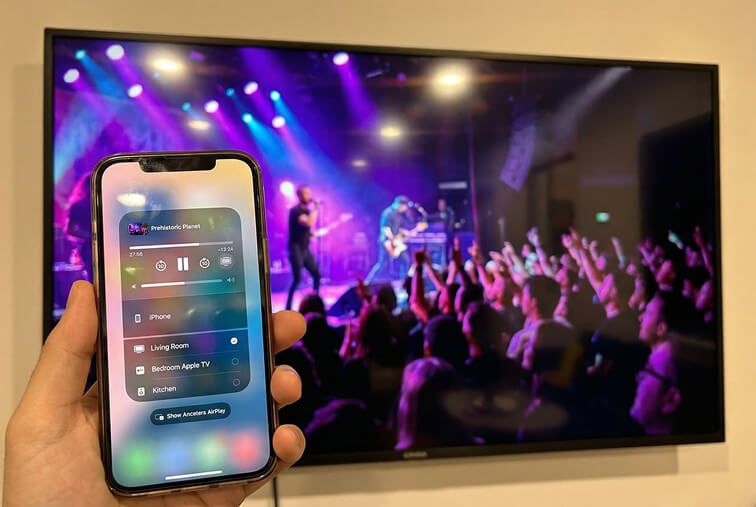
Neither is universally better: AirPlay already includes screen mirroring. If you mean AirPlay media streaming versus mirroring your display, choose streaming for a supported video or song, and mirroring for an app demonstration or presentation. ئالما AirPlay supports both uses.
There is no universal quality or latency winner across all devices and apps. For third-party mirroring, hardware, network traffic, resolution settings, and source content affect the result. 1001 TVs performance guidance
| Your task | Start with |
|---|---|
| Play a video from an app that supports AirPlay | The app’s AirPlay button |
| Show an app demonstration or switch between slides and a website | ئېكران ئەينىكى |
| Watch a service that blocks AirPlay or mirroring | The service’s TV app or another officially supported connection |
| Share to a receiver without AirPlay support | A compatible mirroring app or suitable wired connection |
When mirroring, prepare your screen before connecting: close private material and silence notifications. Anything visible on the shared display may be seen by your audience.
How to use AirPlay on an iPhone or iPad
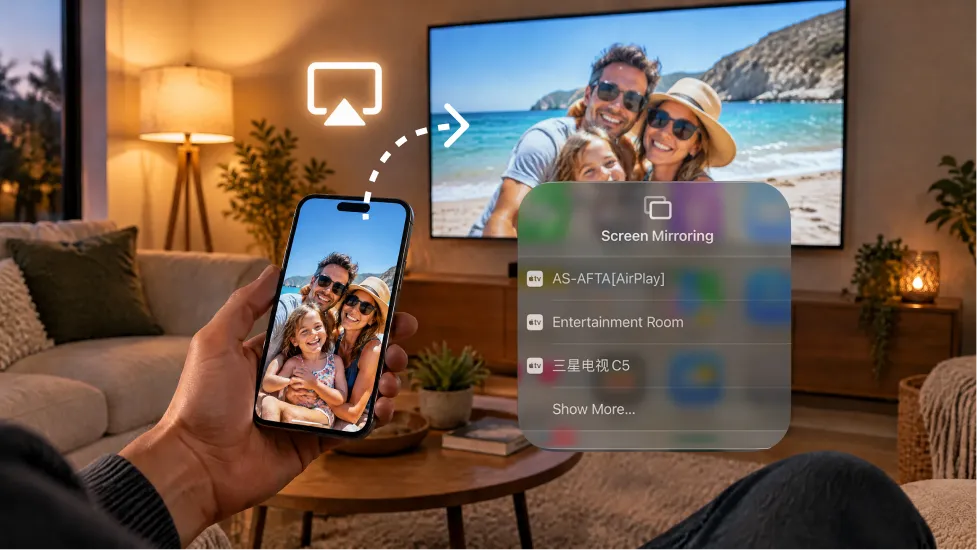
Use the app’s AirPlay button for media, or Control Center’s Screen Mirroring button for your display. Start with an Apple TV, AirPlay-compatible TV, or supported Mac on the same Wi-Fi network.
To mirror your screen:
- Open Control Center on your iPhone or iPad.
- چېكىڭ ئېكران ئەينىكى and select the receiver.
- Enter the onscreen AirPlay code if requested.
To finish, return to ئېكران ئەينىكى and choose Stop Mirroring.
To stream a video, open it in an app that supports AirPlay, tap its AirPlay button, and choose the receiver. Some apps place this option inside the sharing menu. Follow Apple’s illustrated AirPlay instructions for the full steps.
Why does my TV or PC not appear in Screen Mirroring?
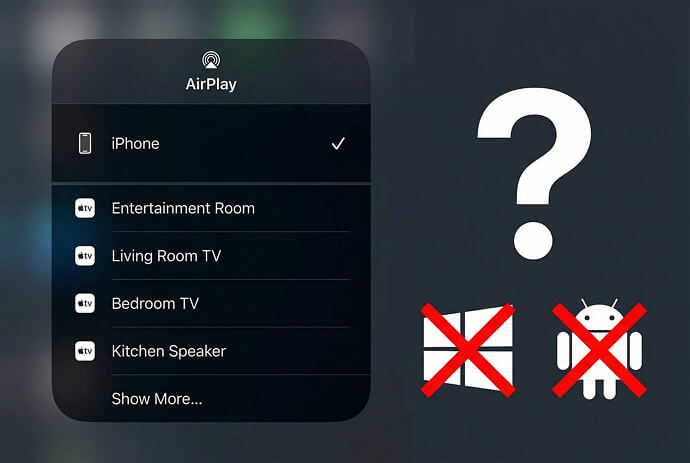
The receiver must support the connection method, and your devices must be able to discover each other. A shared Wi-Fi name alone does not establish compatibility.
| Problem | Possible cause | What to do |
|---|---|---|
| Your TV never appears | That model lacks AirPlay, or AirPlay is disabled | Check the exact model’s support and receiver settings |
| Windows wireless projection works, but the iPhone cannot find the PC | Windows wireless display uses Miracast, which is a different technology | Use suitable AirPlay receiver software or a compatible app on both devices |
| A supported receiver is missing | It is unavailable, outdated, or on a different network | Turn it on, update both devices, confirm the network, and restart |
| Discovery fails at a hotel, school, or office | Network restrictions may prevent discovery or local device communication | Ask the network administrator whether device-to-device sharing is allowed |
Apple recommends checking power, software, network connectivity, and AirPlay settings in its connection troubleshooting guide. Its deployment documentation explains how local discovery depends on network configuration.
Windows is not permanently excluded from AirPlay: third-party receiver software can add support. Some third-party mirroring products themselves use AirPlay, so “third-party” does not automatically mean a different protocol. AirPlay receiver software documentation
What if the TV connects but the video is black?
If menus or photos mirror correctly but one video app shows a black screen, check that app’s playback restrictions before changing your network. The connection may already be working.
Protected video and app restrictions can limit what a mirroring session displays. For example, Netflix states that it does not support AirPlay or Screen Mirroring and lists this among the causes of a black screen with sound.
Use the service’s TV app or follow its supported connection instructions. A different mirroring app is not a guaranteed fix. Wired playback also depends on device, adapter, and service support; Netflix provides specific connection requirements.
When can 1001 TVs help?
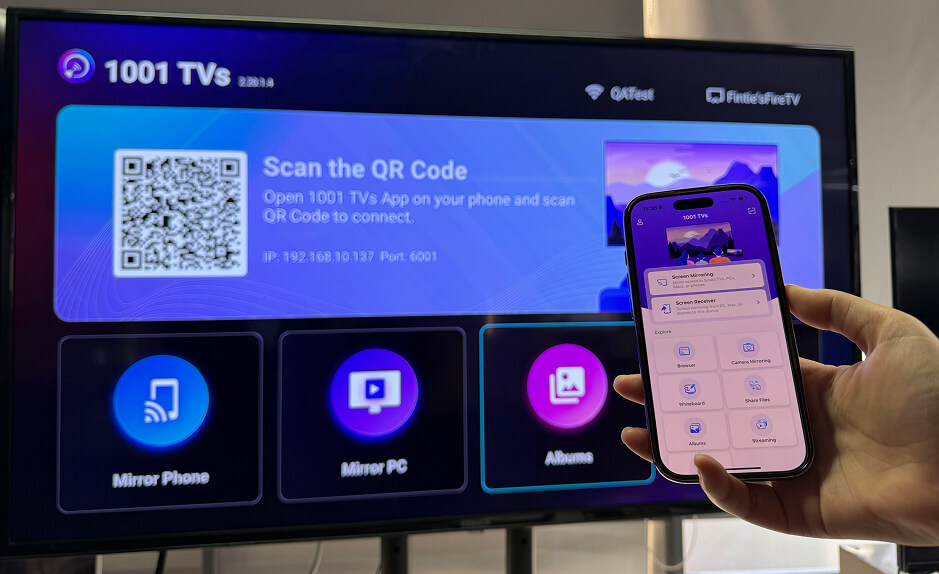
1001 TVs is an option when you need to mirror between supported devices that do not share a built-in AirPlay connection. Examples include an iPhone and a compatible Android TV or Windows PC running the receiving app.
Check 1001 TVs for iPhone and iPad for supported destinations. For the app-to-app workflow, install and open 1001 TVs on both devices, connect them to the same local network, then select the receiver inside 1001 TVs and complete the permission prompts.
Follow the iPhone-to-TV setup guide for the full process. This workflow starts inside the app, so do not assume the receiver must appear in Apple’s Control Center list.
Features, audio support, and performance depend on the device combination, operating system, network, and source app. See the 1001 TVs mirroring details. Content-protection restrictions still apply.
Frequently asked questions
Does AirPlay require an Apple TV box?
No. Compatible smart TVs and supported Macs can receive AirPlay without an Apple TV box. Check the exact model and software requirements. Apple AirPlay guidance
Can AirPlay work without Wi-Fi?
Supported Apple devices can use peer-to-peer AirPlay with a compatible Apple TV without joining an existing Wi-Fi network. This does not mean every AirPlay TV supports that setup, or that online video works without internet access. For ordinary home setups, putting both devices on the same network is the simplest starting point. Apple’s peer-to-peer AirPlay documentation

Read More
 How to Cast Photos from Your Phone to a TV
You can cast phone photos to a compatible TV using AirPlay on iPhone, Google Photos with Chromecast, or 1001 TVs Streaming and Albums. The…
How to Cast Photos from Your Phone to a TV
You can cast phone photos to a compatible TV using AirPlay on iPhone, Google Photos with Chromecast, or 1001 TVs Streaming and Albums. The…
 How to Turn On AirPlay on iPhone in iOS 26 (Screen Mirroring Guide)
To turn on AirPlay screen mirroring in iOS 26, open Control Center, tap the Screen Mirroring button (two overlapping rectangles), and choose your TV…
How to Turn On AirPlay on iPhone in iOS 26 (Screen Mirroring Guide)
To turn on AirPlay screen mirroring in iOS 26, open Control Center, tap the Screen Mirroring button (two overlapping rectangles), and choose your TV…

