AirPlay กับ Screen Mirroring: ทั้งสองอย่างนี้เหมือนกันหรือไม่?
AirPlay และ Screen Mirroring มีจุดทับซ้อนกัน แต่มีความหมายที่แตกต่างกัน AirPlay เป็นเทคโนโลยีไร้สายของ Apple สำหรับการแชร์สื่อและสะท้อนหน้าจอ ส่วน Screen Mirroring หมายถึงการคัดลอกหน้าจอของอุปกรณ์หนึ่งไปยังหน้าจออื่น บน iPhone หรือ iPad ระบบควบคุม Screen Mirroring ที่มาพร้อมเครื่องใช้เทคโนโลยี AirPlay. ภาพรวมของ AirPlay ของ Apple อธิบายทั้งการแชร์สื่อและการสะท้อนหน้าจอ.
สำหรับวิดีโอที่รองรับ ให้ใช้ตัวเลือก AirPlay ของแอป เพื่อแสดงแอป สไลด์ หรือหน้าเว็บที่คุณกำลังดูอยู่บนหน้าจอที่ใหญ่กว่า ให้ใช้ Screen Mirroring ทั้งสองวิธีนี้จำเป็นต้องมีอุปกรณ์รับสัญญาณที่รองรับ.
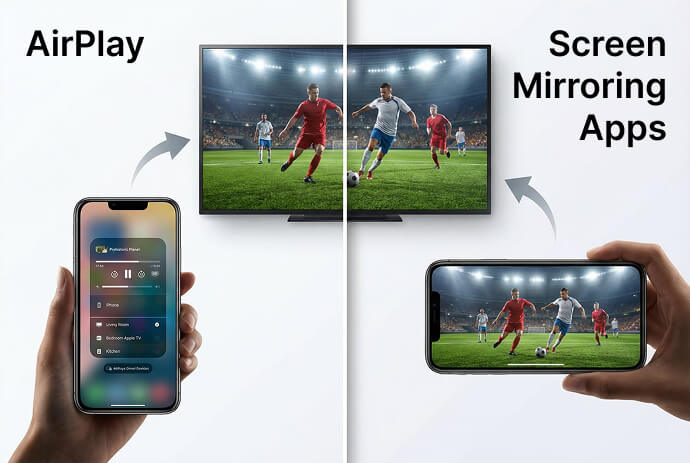
ความแตกต่างระหว่าง AirPlay และ screen mirroring คืออะไร?
AirPlay หมายถึงเทคโนโลยี ส่วน "screen mirroring" หมายถึงสิ่งที่คุณกำลังทำกับหน้าจอ. นี่คือเหตุผลที่การเปรียบเทียบทั้งสองวิธีนี้ในฐานะวิธีการเชื่อมต่อที่แข่งขันกันอาจก่อให้เกิดความสับสน.
| คำถาม | แอร์เพลย์ | การสะท้อนหน้าจอ |
|---|---|---|
| หมายความว่าอย่างไร? | เทคโนโลยีของ Apple สำหรับการแบ่งปันสื่อแบบไร้สายและการสะท้อนหน้าจอ | การคัดลอกหน้าจอของอุปกรณ์ไปยังหน้าจออื่น |
| มันสามารถแสดงอะไรได้บ้าง? | สื่อที่เลือกไว้ หรือหน้าจอเมื่อทำการสะท้อนภาพ | หน้าจอถูกแชร์อยู่ แต่ต้องตามข้อจำกัดของแอป |
| นี่เป็นปัญหาเฉพาะของ Apple หรือไม่? | นี่เป็นเทคโนโลยีของ Apple ที่ต้องการอุปกรณ์ส่งและรับที่รองรับ | ไม่ครับ แพลตฟอร์มต่าง ๆ มีวิธีการทำงานของการสะท้อนหน้าจอที่แตกต่างกัน |
| คำศัพท์เหล่านี้มีจุดทับซ้อนกันที่ไหน? | AirPlay มีฟังก์ชันการสะท้อนหน้าจอ | iPhone และ iPad ใช้ AirPlay เป็นระบบควบคุมการสะท้อนหน้าจอที่มาพร้อมเครื่อง |
การสะท้อนหน้าจอมีอยู่ทั้งนอกระบบ AirPlay เช่น การเชื่อมต่อหน้าจอไร้สายของ Windows ที่ได้รับการสนับสนุนนั้นใช้ Miracast อุปกรณ์สองเครื่องที่มีคุณสมบัติที่เรียกว่า “การสะท้อนหน้าจอ” ไม่ได้รับประกันว่าทั้งสองเครื่องนั้นใช้เทคโนโลยีที่เข้ากันได้ ดู คู่มือการใช้หน้าจอไร้สายของ Microsoft.
AirPlay ดีกว่าการสะท้อนหน้าจอหรือไม่?
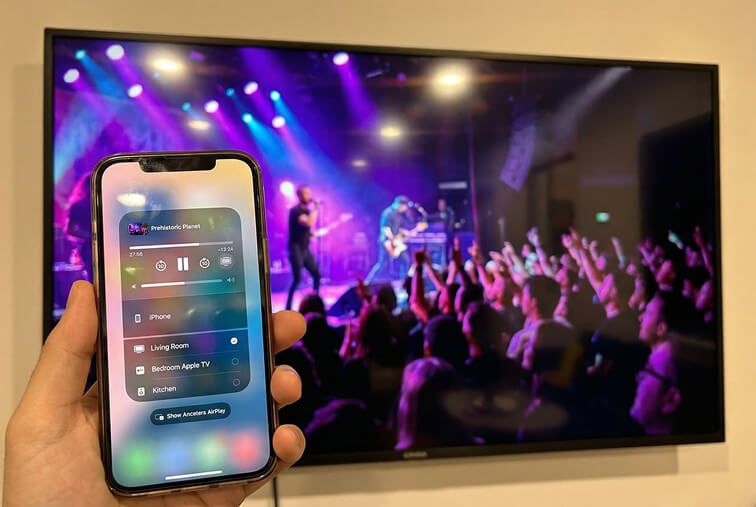
ไม่มีตัวเลือกใดที่ดีกว่าอย่างเด็ดขาด: AirPlay มีฟังก์ชันการสะท้อนหน้าจออยู่แล้ว หากคุณกำลังเปรียบเทียบระหว่างการสตรีมสื่อผ่าน AirPlay กับการสะท้อนหน้าจอ ให้เลือกการสตรีมสำหรับวิดีโอหรือเพลงที่รองรับ และเลือกการสะท้อนหน้าจอสำหรับการสาธิตแอปหรือการนำเสนอ. แอปเปิล แอร์เพลย์ รองรับทั้งสองวิธีใช้งาน.
ไม่มีอุปกรณ์หรือแอปใดที่สามารถรับประกันคุณภาพหรือความหน่วงต่ำที่สุดได้สำหรับทุกอุปกรณ์และแอป สำหรับการสะท้อนหน้าจอจากอุปกรณ์ของบุคคลที่สาม ผลลัพธ์จะขึ้นอยู่กับฮาร์ดแวร์ ปริมาณการรับส่งข้อมูลในเครือข่าย การตั้งค่าความละเอียด และเนื้อหาต้นทาง. แนวทางด้านประสิทธิภาพของ 1001 TVs
| งานของคุณ | เริ่มด้วย |
|---|---|
| เล่นวิดีโอจากแอปที่รองรับ AirPlay | ปุ่ม AirPlay ของแอป |
| แสดงการสาธิตแอป หรือสลับระหว่างสไลด์กับเว็บไซต์ | การมิเรอร์หน้าจอ |
| ดูบริการที่บล็อก AirPlay หรือการสะท้อนหน้าจอ | แอป TV ของบริการนี้ หรือวิธีการเชื่อมต่ออื่นที่ได้รับการสนับสนุนอย่างเป็นทางการ |
| ส่งไปยังอุปกรณ์ที่ไม่รองรับ AirPlay | แอปสะท้อนหน้าจอที่รองรับ หรือการเชื่อมต่อแบบมีสายที่เหมาะสม |
เมื่อทำการสะท้อนหน้าจอ ให้เตรียมหน้าจอของคุณก่อนเชื่อมต่อ: ปิดเนื้อหาส่วนตัวและปิดเสียงการแจ้งเตือน ทุกสิ่งที่ปรากฏบนหน้าจอที่แชร์อาจถูกผู้ชมเห็นได้.
วิธีใช้ AirPlay บน iPhone หรือ iPad
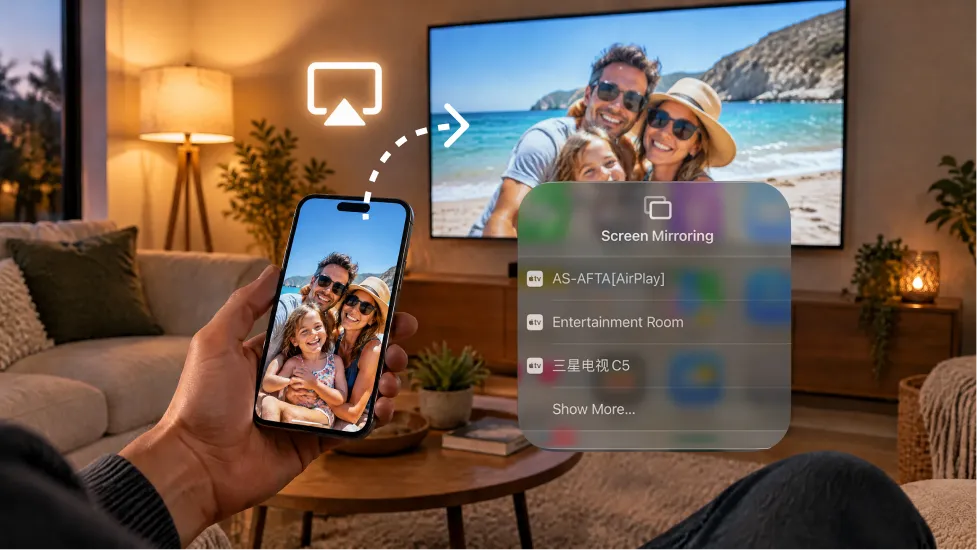
ใช้ปุ่ม AirPlay ในแอปสำหรับสื่อ หรือปุ่ม Screen Mirroring ใน Control Center สำหรับหน้าจอของคุณ. เริ่มด้วย Apple TV, TV ที่รองรับ AirPlay หรือ Mac ที่ได้รับการสนับสนุน ซึ่งทั้งหมดต้องอยู่ในเครือข่าย Wi-Fi เดียวกัน.
เพื่อแสดงหน้าจอของคุณแบบมิเรอร์:
- เปิดศูนย์ควบคุมบน iPhone หรือ iPad ของคุณ.
- แตะ การมิเรอร์หน้าจอ และเลือกผู้รับ.
- หากมีคำขอให้ป้อนรหัส AirPlay ที่ปรากฏบนหน้าจอ.
สุดท้าย ให้กลับไปยัง การมิเรอร์หน้าจอ และเลือก หยุดการสะท้อน.
เพื่อสตรีมวิดีโอ ให้เปิดวิดีโอในแอปที่รองรับ AirPlay แล้วแตะที่ แอร์เพลย์ ปุ่ม และเลือกผู้รับ บางแอปจะวางตัวเลือกนี้ไว้ในเมนูการแชร์ ทำตาม คู่มือ AirPlay ของ Apple พร้อมภาพประกอบ เพื่อดูขั้นตอนทั้งหมด.
ทำไมทีวีหรือคอมพิวเตอร์ของฉันไม่ปรากฏใน Screen Mirroring?
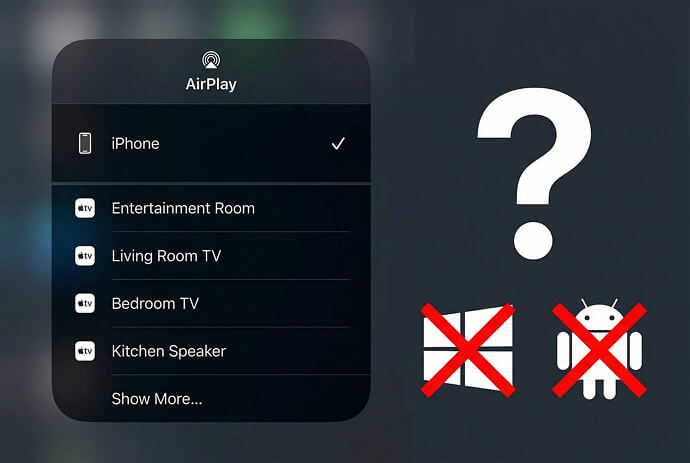
เครื่องรับต้องรองรับวิธีการเชื่อมต่อ และอุปกรณ์ของคุณต้องสามารถตรวจพบกันได้. ชื่อ Wi-Fi ที่ใช้ร่วมกันเพียงอย่างเดียว ยังไม่เพียงพอที่จะยืนยันความเข้ากันได้.
| ปัญหา | สาเหตุที่อาจเกิดขึ้น | ควรทำอย่างไร |
|---|---|---|
| ทีวีของคุณไม่ปรากฏขึ้นเลย | รุ่นนั้นไม่มี AirPlay หรือ AirPlay ถูกปิดใช้งาน | ตรวจสอบการรองรับและตั้งค่าตัวรับสัญญาณของรุ่นที่ถูกต้อง |
| ฟังก์ชันการฉายภาพแบบไร้สายของ Windows ทำงานได้ แต่ iPhone ไม่สามารถค้นหา PC ได้ | Windows Wireless Display ใช้ Miracast ซึ่งเป็นเทคโนโลยีที่ต่างกัน | ใช้ซอฟต์แวร์รับ AirPlay ที่เหมาะสม หรือแอปที่รองรับได้บนทั้งสองอุปกรณ์ |
| ขาดตัวรับสัญญาณที่ได้รับการสนับสนุน | ไม่สามารถใช้งานได้, ล้าสมัย หรืออยู่บนเครือข่ายอื่น | เปิดเครื่อง อัปเดตทั้งสองอุปกรณ์ ตรวจสอบเครือข่าย และรีสตาร์ท |
| การค้นหาไม่สำเร็จที่โรงแรม โรงเรียน หรือสำนักงาน | ข้อจำกัดของเครือข่ายอาจทำให้ไม่สามารถค้นหาหรือสื่อสารกับอุปกรณ์ในเครือข่ายท้องถิ่นได้ | ถามผู้ดูแลระบบเครือข่ายว่า การแชร์ข้อมูลระหว่างอุปกรณ์กับอุปกรณ์นั้นได้รับอนุญาตหรือไม่ |
Apple แนะนำให้ตรวจสอบแหล่งจ่ายไฟ ซอฟต์แวร์ การเชื่อมต่อเครือข่าย และการตั้งค่า AirPlay ใน คู่มือแก้ไขปัญหาการเชื่อมต่อ. ของมัน เอกสารการติดตั้ง อธิบายว่าการค้นพบอุปกรณ์ในเครือข่ายท้องถิ่นขึ้นอยู่กับโครงสร้างเครือข่ายอย่างไร.
Windows ไม่ได้ถูกยกเว้นอย่างถาวรจาก AirPlay: ซอฟต์แวร์รับสัญญาณจากผู้พัฒนาภายนอกสามารถเพิ่มการรองรับได้ บางผลิตภัณฑ์การสะท้อนหน้าจอจากผู้พัฒนาภายนอกเองก็ใช้ AirPlay ดังนั้นคำว่า “ผู้พัฒนาภายนอก” จึงไม่ได้หมายความว่าต้องใช้โปรโตคอลที่ต่างกันโดยอัตโนมัติ. เอกสารคู่มือซอฟต์แวร์เครื่องรับ AirPlay
หากทีวีเชื่อมต่อได้ แต่ภาพเป็นสีดำแล้วจะทำอย่างไร?
หากเมนูหรือรูปภาพแสดงอย่างถูกต้อง แต่แอปวิดีโอหนึ่งแสดงหน้าจอสีดำ ให้ตรวจสอบข้อจำกัดการเล่นของแอปนั้นก่อนที่จะเปลี่ยนเครือข่าย. การเชื่อมต่ออาจกำลังทำงานอยู่แล้ว.
การจำกัดวิดีโอและแอปพลิเคชันที่ได้รับการคุ้มครองสามารถจำกัดเนื้อหาที่แสดงในเซสชันการสะท้อนหน้าจอได้ ตัวอย่างเช่น Netflix ระบุว่าไม่สนับสนุน AirPlay หรือ Screen Mirroring และระบุเรื่องนี้ว่าเป็นหนึ่งในสาเหตุของ หน้าจอสีดำแต่มีเสียง.
ใช้แอป TV ของบริการนี้ หรือทำตามคำแนะนำการเชื่อมต่อที่บริการนี้รองรับ การใช้แอป mirroring อื่น ๆ ไม่ได้รับประกันว่าจะแก้ปัญหาได้ การเล่นผ่านสายยังขึ้นอยู่กับอุปกรณ์ อะแดปเตอร์ และการสนับสนุนจากบริการ; Netflix ให้ ข้อกำหนดการเชื่อมต่อเฉพาะ.
1001 TVs สามารถช่วยได้เมื่อใด?
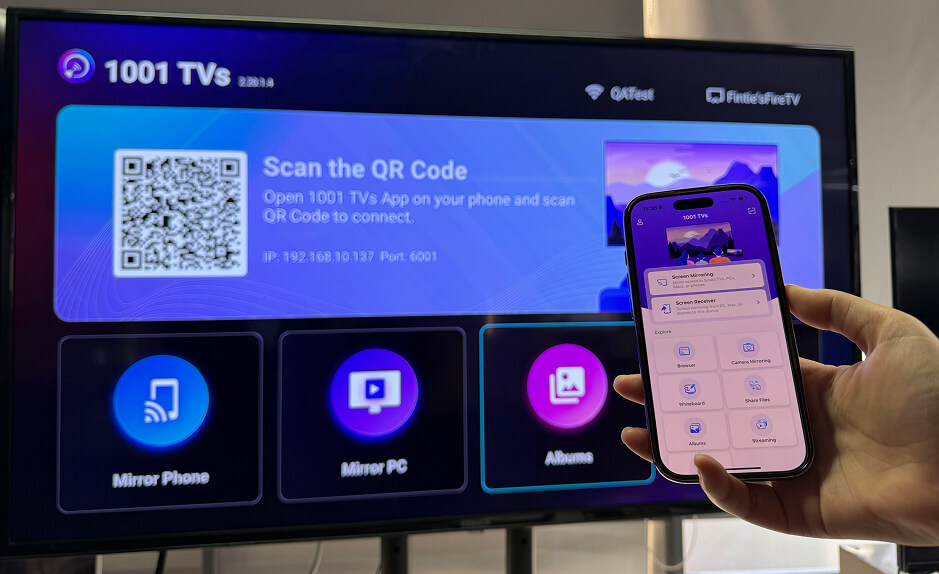
1001 TVs เป็นตัวเลือกหนึ่งเมื่อคุณต้องการสะท้อนภาพระหว่างอุปกรณ์ที่รองรับ แต่ไม่มีฟังก์ชัน AirPlay ในตัว. ตัวอย่าง ได้แก่ iPhone และ Android TV หรือคอมพิวเตอร์ Windows ที่รองรับ และติดตั้งแอปรับสัญญาณไว้.
ตรวจสอบ 1001 TVs สำหรับ iPhone และ iPad สำหรับจุดหมายปลายทางที่รองรับ สำหรับกระบวนการทำงานระหว่างแอป ให้ติดตั้งและเปิด 1001 TVs บนทั้งสองอุปกรณ์ เชื่อมต่ออุปกรณ์ทั้งสองเข้ากับเครือข่ายท้องถิ่นเดียวกัน จากนั้นเลือกผู้รับภายใน 1001 TVs และดำเนินการตามคำขอสิทธิ์.
ทำตาม คู่มือการตั้งค่า iPhone ให้เชื่อมต่อกับทีวี เพื่อดูขั้นตอนทั้งหมด กระบวนการนี้เริ่มต้นภายในแอป ดังนั้นอย่าคิดว่าผู้รับต้องปรากฏในรายชื่อของ Control Center ของ Apple.
คุณสมบัติ การสนับสนุนเสียง และประสิทธิภาพการทำงานขึ้นอยู่กับความเข้ากันได้ของอุปกรณ์ ระบบปฏิบัติการ เครือข่าย และแอปพลิเคชันต้นทาง ดู รายละเอียดการสะท้อนภาพ 1001 TVs. ข้อจำกัดในการป้องกันเนื้อหายังคงมีผลบังคับใช้อยู่.
คำถามที่มักถูกถาม
AirPlay ต้องใช้กล่อง Apple TV หรือไม่?
ไม่ครับ ทีวีอัจฉริยะที่รองรับและเครื่อง Mac ที่ได้รับการสนับสนุนสามารถรับสัญญาณ AirPlay ได้โดยไม่ต้องใช้กล่อง Apple TV โปรดตรวจสอบรุ่นที่แน่นอนและข้อกำหนดด้านซอฟต์แวร์. คู่มือ Apple AirPlay
AirPlay สามารถทำงานได้โดยไม่ต้องใช้ Wi-Fi ได้หรือไม่?
อุปกรณ์ Apple ที่รองรับสามารถใช้ AirPlay แบบ peer-to-peer กับ Apple TV ที่เข้ากันได้ โดยไม่ต้องเชื่อมต่อกับเครือข่าย Wi-Fi ที่มีอยู่ ซึ่งไม่ได้หมายความว่า Apple TV ทุกเครื่องที่รองรับ AirPlay จะรองรับการตั้งค่านี้ หรือว่าวิดีโอออนไลน์จะทำงานได้โดยไม่ต้องมีการเชื่อมต่ออินเทอร์เน็ต สำหรับการตั้งค่าในบ้านทั่วไป การเชื่อมต่ออุปกรณ์ทั้งสองเครื่องเข้ากับเครือข่ายเดียวกันเป็นจุดเริ่มต้นที่ง่ายที่สุด. เอกสารคู่มือ AirPlay แบบ peer-to-peer ของ Apple

อ่านเพิ่มเติม
 How to Cast Photos from Your Phone to a TV
You can cast phone photos to a compatible TV using AirPlay on iPhone, Google Photos with Chromecast, or 1001 TVs Streaming and Albums. The...
How to Cast Photos from Your Phone to a TV
You can cast phone photos to a compatible TV using AirPlay on iPhone, Google Photos with Chromecast, or 1001 TVs Streaming and Albums. The...
 How to Turn On AirPlay on iPhone in iOS 26 (Screen Mirroring Guide)
To turn on AirPlay screen mirroring in iOS 26, open Control Center, tap the Screen Mirroring button (two overlapping rectangles), and choose your TV...
How to Turn On AirPlay on iPhone in iOS 26 (Screen Mirroring Guide)
To turn on AirPlay screen mirroring in iOS 26, open Control Center, tap the Screen Mirroring button (two overlapping rectangles), and choose your TV...

