
TV Flip Screen Mirroring Feature
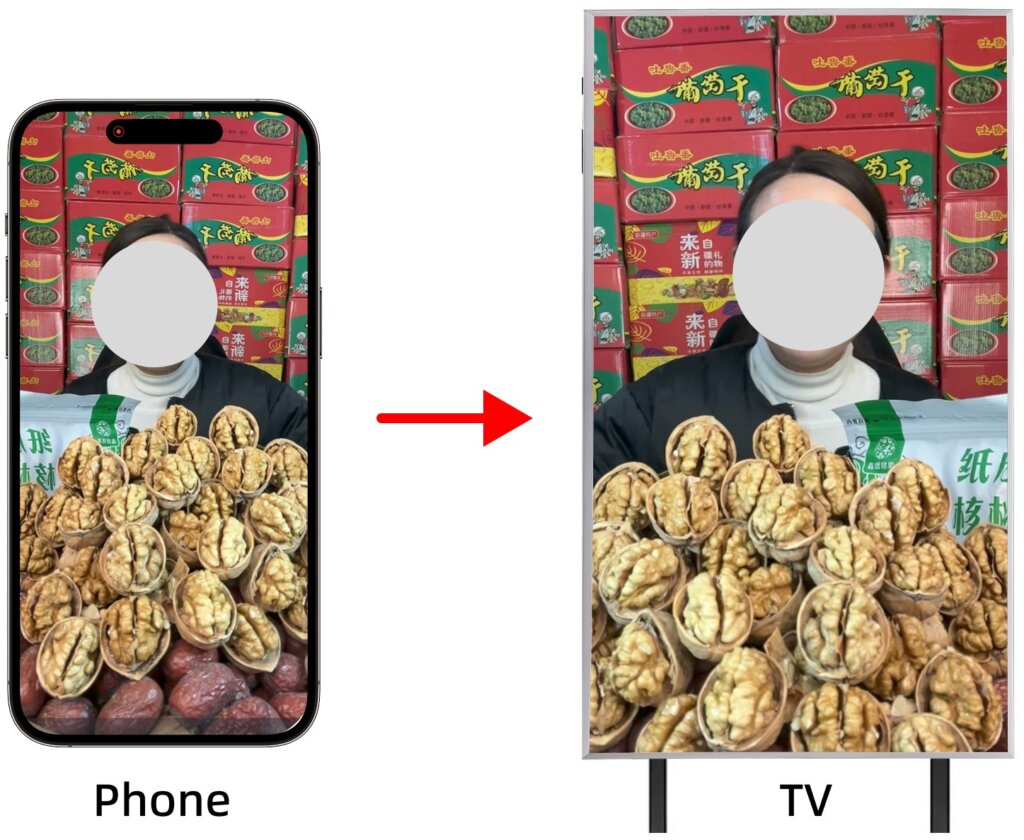
The Flip Screen Mirroring feature lets you display your device’s screen in a flipped orientation on your TV. This is particularly useful for live streaming, professional presentations, and educational content where a reversed view is required. Easily enable this feature for a seamless mirroring experience.
How to Use
1. Open 1001 TVs on your TV and go to Settings.
2. Find Flip Screen Mirroring and turn it on.
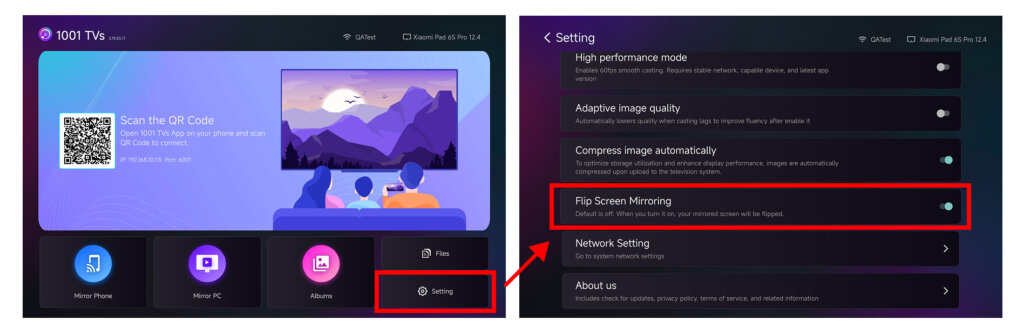
3. Make sure your device (phone, computer, or tablet) is properly connected to the TV via 1001 TVs.
4. Once screen mirroring is active, the content on the TV will appear in a flipped orientation.
Supported Casting Mode
- Screen mirroring
Notes
1. This feature affects only the mirrored display on the TV and does not change the screen on your phone, computer, or tablet.
2.To disable flip screen mirroring, go to Settings → Flip Screen Mirroring and turn the option off.
3. For the best experience, ensure that the TV version of 1001 TVs is updated to the latest version.
Need Help?
If you encounter any issues, feel free to contact our support team:
- More Guides: Guidance
- Email: 1001tvs@nero.com
- Website: www.1001tvs.com