
วิธีส่งไฟล์จากคอมพิวเตอร์ของคุณไปยังทีวี/คอมพิวเตอร์/แมค
ด้วย 1001 TVs คุณสามารถส่งไฟล์จากคอมพิวเตอร์ของคุณ (PC/Mac) ไปยังโทรทัศน์/คอมพิวเตอร์/Mac ของคุณผ่านเครือข่ายท้องถิ่นเดียวกันได้.
และใช่ — คอมพิวเตอร์พีซีและแมคบนเครือข่าย LAN เดียวกันสามารถถ่ายโอนไฟล์ถึงกันโดยตรงได้โดยไม่ต้องตั้งค่าเพิ่มเติม.
ไม่มีการอัปโหลดผ่านคลาวด์ ไม่มีสายเคเบิล ไม่ต้องลงทะเบียน — เพียงการถ่ายโอนข้อมูลในเครื่องที่รวดเร็วและปลอดภัย.
ก่อนที่คุณจะเริ่มต้น
- ตรวจสอบให้แน่ใจว่า อุปกรณ์เชื่อมต่ออยู่กับเครือข่าย Wi-Fi เดียวกัน.
- ติดตั้งและเปิด 1001 TVs บนทั้งสองอุปกรณ์ของคุณ ให้แอปทำงานอยู่บนอุปกรณ์ที่รับข้อความ.
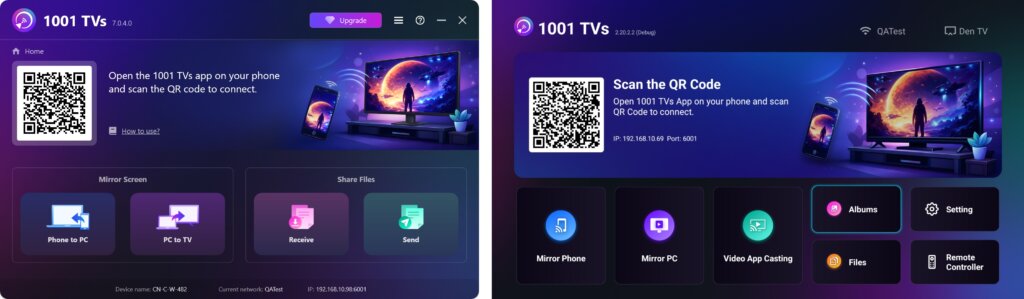
เริ่มส่ง
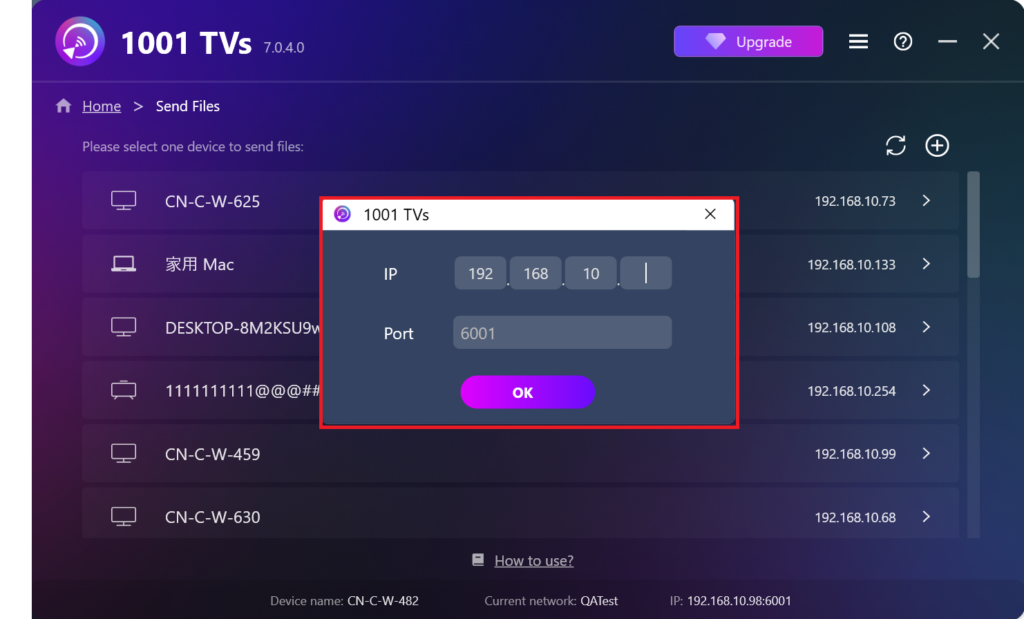
บนอุปกรณ์ที่คุณส่ง คลิก ส่ง และแอปจะค้นหาอุปกรณ์ที่พร้อมใช้งานบนเครือข่ายเดียวกันโดยอัตโนมัติ.
เลือกอุปกรณ์เป้าหมายของคุณจากรายการ (เช่น ทีวี/พีซี/แมคของคุณ)
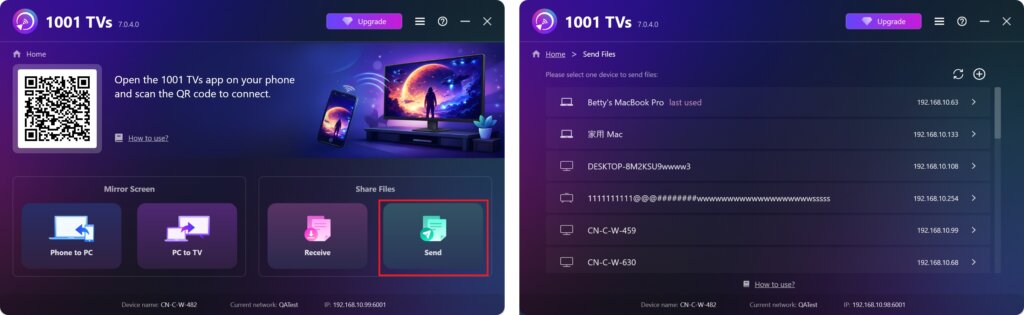
เลือกไฟล์บนคอมพิวเตอร์ของคุณ (วิดีโอ, รูปภาพ, เพลง, เอกสาร, และอื่น ๆ) และการโอนถ่ายจะเริ่มโดยอัตโนมัติไปยังอุปกรณ์เป้าหมาย.
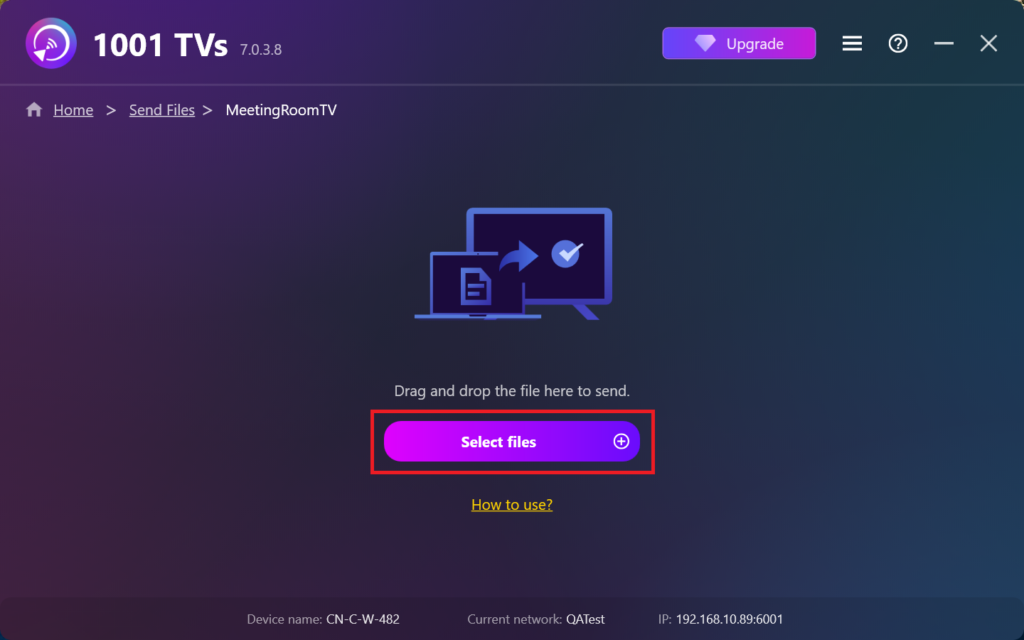
ไม่พบอุปกรณ์เป้าหมายของคุณใช่หรือไม่?
หากอุปกรณ์เป้าหมายไม่ปรากฏในรายการอุปกรณ์ ให้คลิกที่ ไอคอนบวก ที่มุมขวาบน และใช้ การจับคู่ที่อยู่ IP เพื่อเชื่อมต่ออย่างรวดเร็วและปลอดภัย.
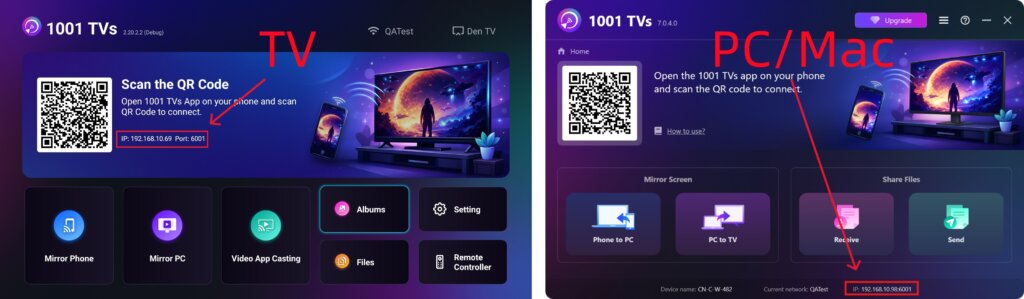
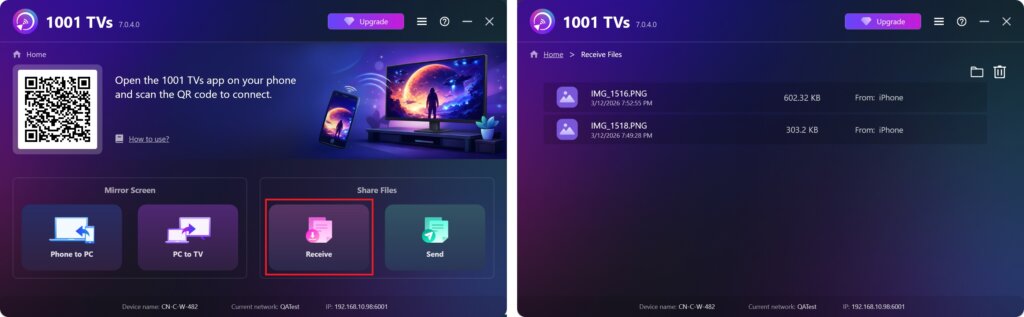
ดูไฟล์ที่รับแล้วบนพีซี/แมค
คลิก รับ บนคอมพิวเตอร์ของคุณ (PC/Mac) เพื่อดูไฟล์ทั้งหมดที่เข้ามา.
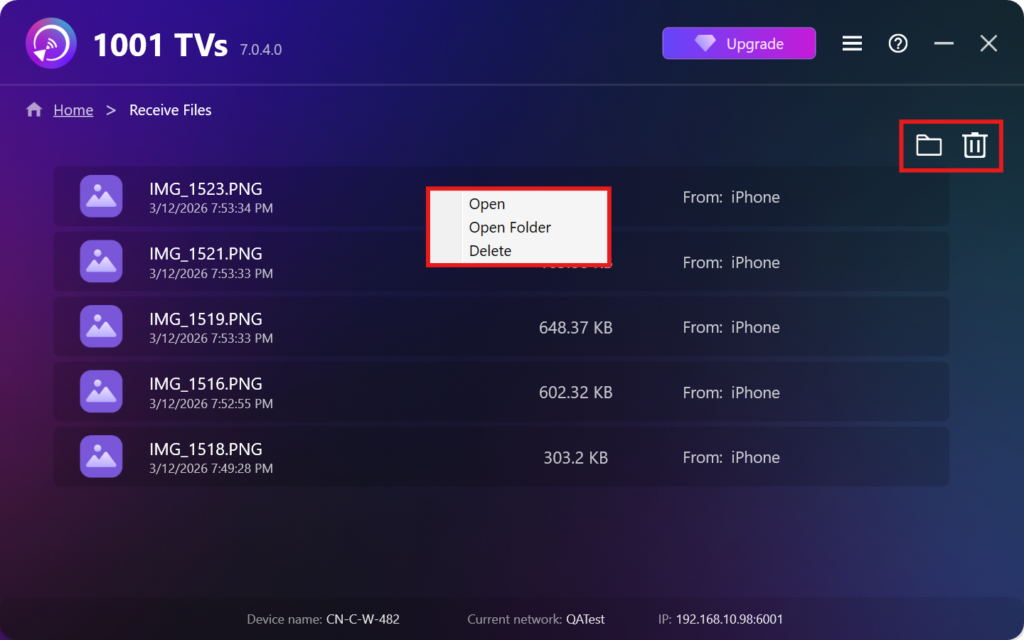
- เปิดดูไฟล์ที่ได้รับ – คลิก หรือ คลิกขวา และเลือก “เปิดโฟลเดอร์”เพื่อดูไฟล์ทั้งหมดจากอุปกรณ์นั้นโดยเฉพาะ (เช่น iPhone 12123).
- ค้นหาพวกเขาใน Finder (Mac) หรือ File Explorer (Windows) – คลิกที่ ไอคอนโฟลเดอร์ ที่มุมขวาบนเพื่อเข้าถึงโฟลเดอร์อุปกรณ์ทั้งหมด.
- ตัวเลือกการลบ – คลิกขวา ไฟล์ แล้วเลือก “ลบ”เพื่อลบออกทีละรายการ หรือคลิกที่ ไอคอนขยะ ที่มุมขวาบนเพื่อลบไฟล์ที่ได้รับทั้งหมดในครั้งเดียว.
ดูไฟล์ที่รับแล้วบนทีวี
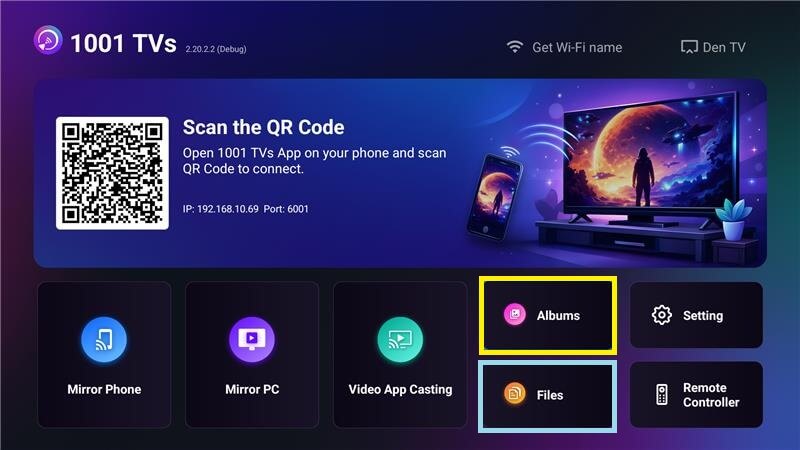
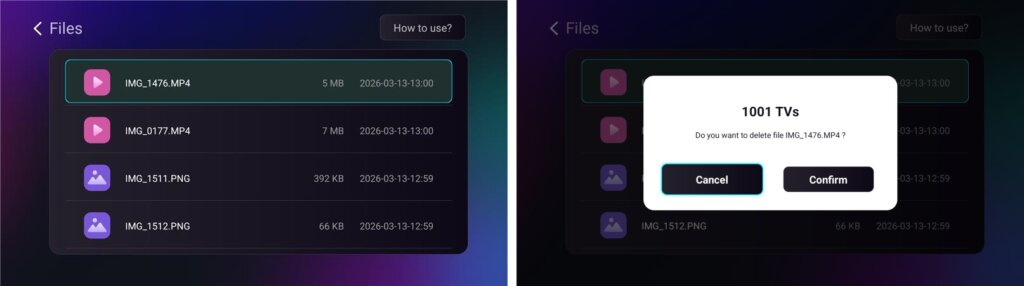
- ไปที่ ไฟล์ เพื่อดูไฟล์ที่ได้รับ คุณสามารถเลือกไฟล์และกดค้าง โอเค ลบมัน.
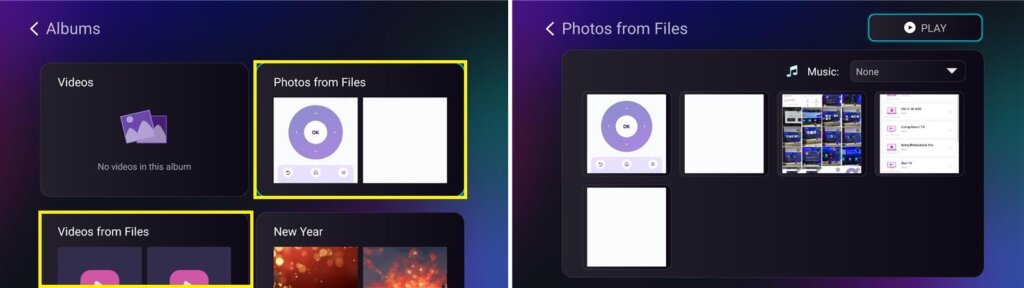
- ไปที่ อัลบั้ม > รูปภาพ/วิดีโอจากไฟล์ เพื่อดูรูปภาพและวิดีโอที่ได้รับ คุณสามารถเลือกไฟล์และกดค้าง โอเค ลบมัน หรือเล่นเป็นสไลด์โชว์.
ทำไมต้องใช้ 1001 TVs?
- รวดเร็ว เป็นส่วนตัว และใช้งานง่าย
- การถ่ายโอนข้อมูลภายในพื้นที่ — ไม่จำเป็นต้องใช้คลาวด์
- ไม่ต้องเข้าสู่ระบบหรือสร้างบัญชี
- รองรับการถ่ายโอนไฟล์ขนาดใหญ่
ต้องการความช่วยเหลือหรือไม่?
หากคุณพบปัญหาใด ๆ โปรดอย่าลังเลที่จะติดต่อทีมสนับสนุนของเรา:
📧 อีเมล: 1001tvs@nero.com
🌐 เว็บไซต์: www.1001tvs.com
📖 คู่มือเพิ่มเติม: คำแนะนำ