
Så här skickar du filer från din PC/Mac till TV/PC/Mac
Med 1001 TVs kan du skicka filer från din PC/Mac till din TV/PC/Mac över samma lokala nätverk.
Och ja - PC- och Mac-datorer på samma LAN kan överföra filer direkt till varandra, utan extra inställningar.
Inga uppladdningar i molnet. Inga kablar. Inga registreringar - bara snabba, säkra lokala överföringar.
Innan du börjar
- Se till att din enheterna är anslutna till samma Wi-Fi-nätverk.
- Installera och öppna 1001 TVs på båda dina enheter, låt appen vara igång på den mottagande enheten.
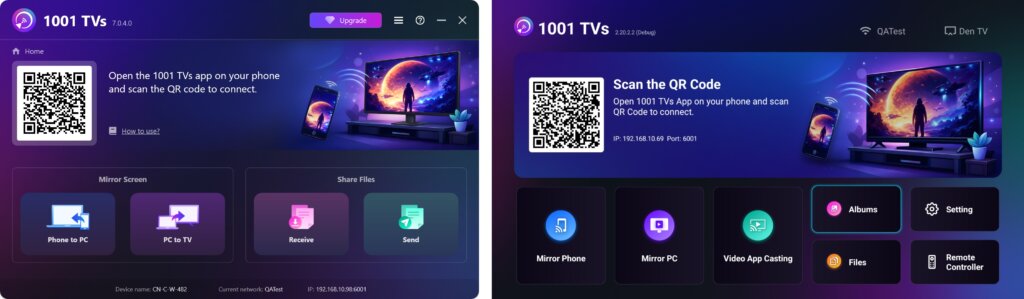
Börja skicka
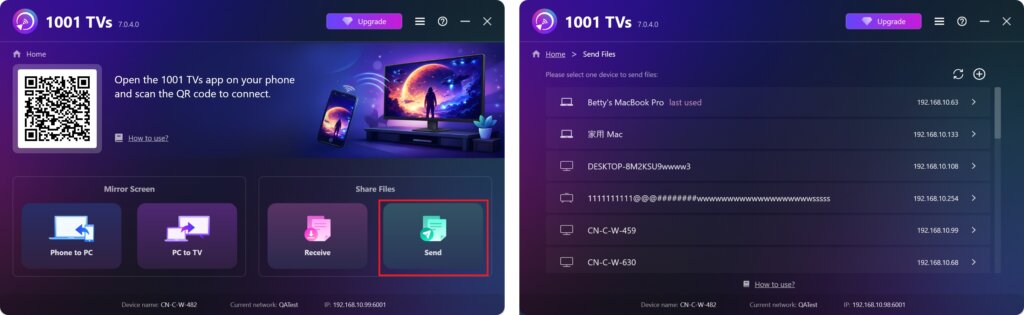
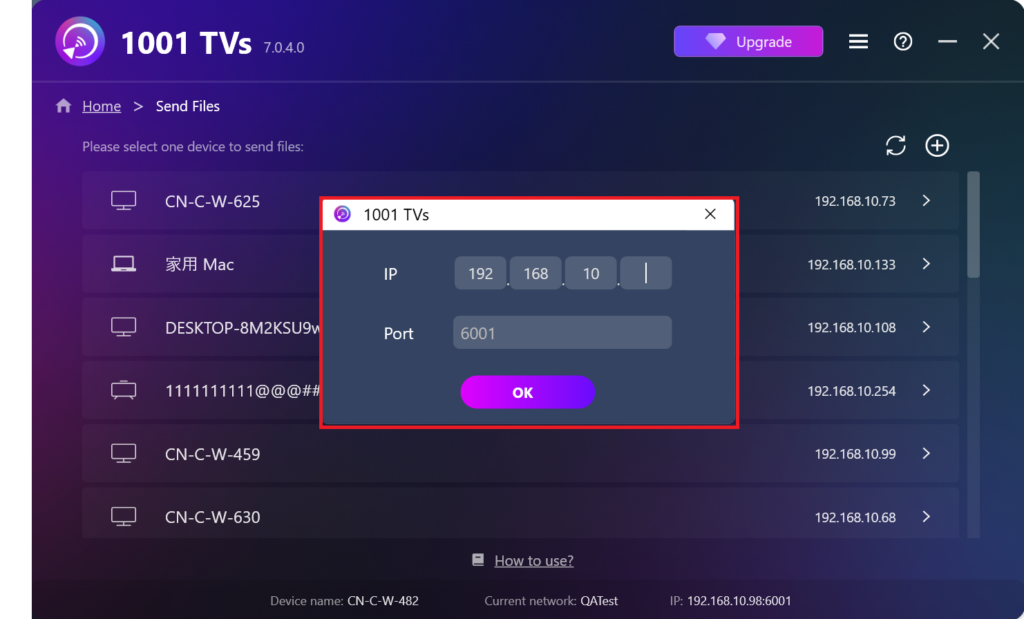
På din sändande enhet klickar du på Skicka så söker appen automatiskt efter tillgängliga enheter i samma nätverk.
Välj din målenhet från listan. (t.ex. din TV/PC/Mac)
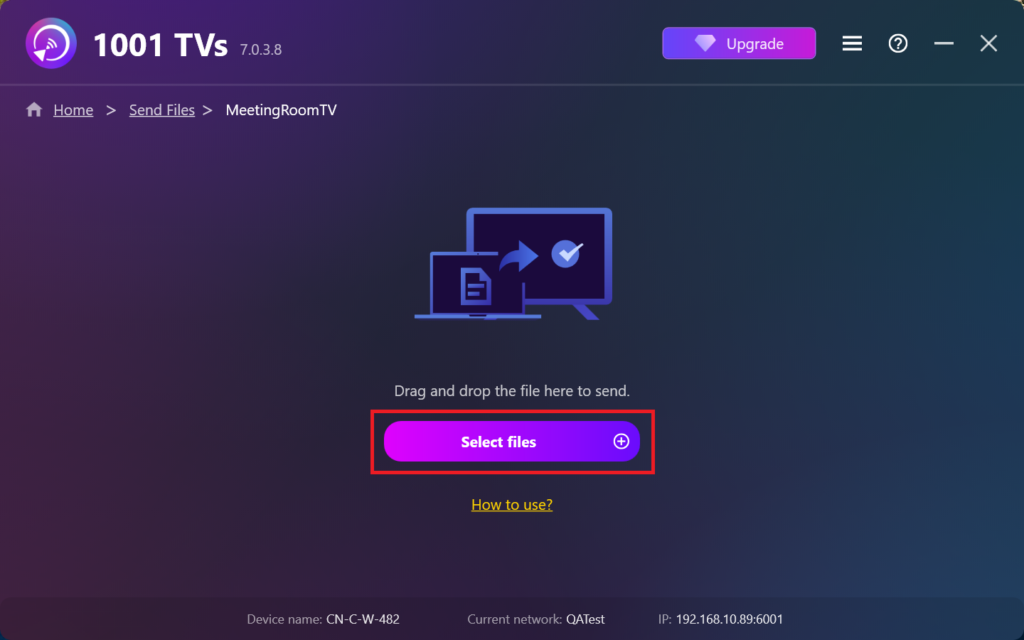
Välj filer på din dator (videor, foton, musik, dokument m.m.) så startar överföringen automatiskt till målenheten.
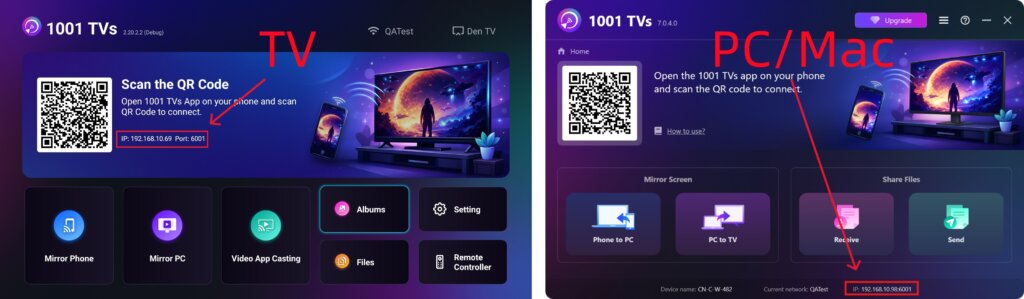
Hittar du inte din målenhet?
Om målenheten inte visas i enhetslistan klickar du på + ikon i det övre högra hörnet och använd Parning av IP-adress för att ansluta snabbt och säkert.
Visa mottagna filer på PC/Mac
Klicka på Ta emot på din PC/Mac för att se alla inkommande filer.
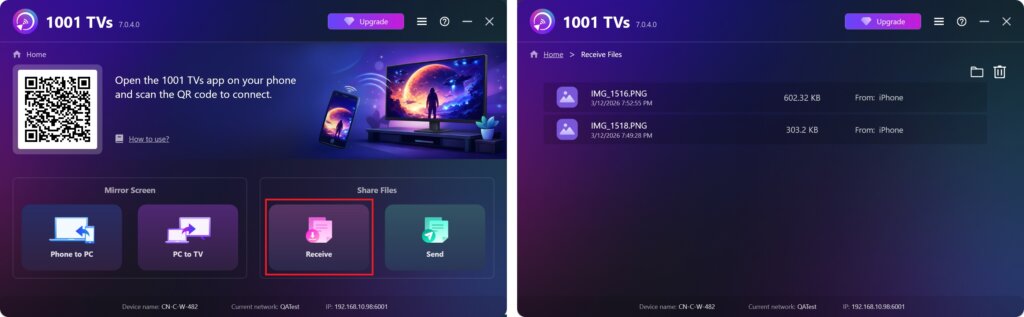
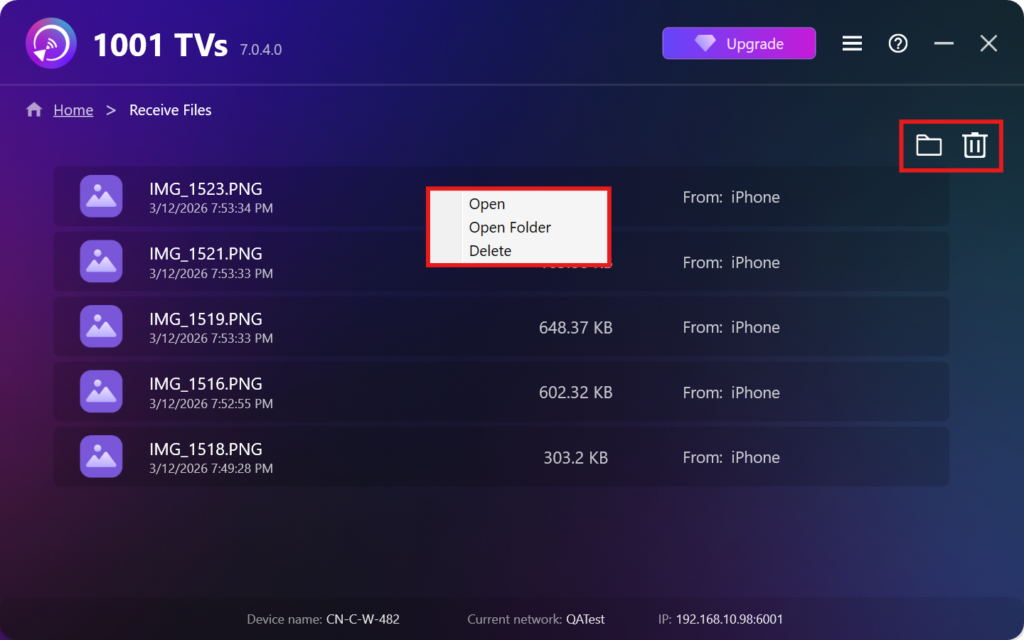
- Öppna Visa de mottagna filerna – Klicka på eller högerklicka och välj “Öppna mapp” för att visa alla filer från den specifika enheten (t.ex. iPhone 12123).
- Leta reda på dem i Finder (Mac) eller File Explorer (Windows) - Klicka på mapp-ikon längst upp till höger för att komma åt alla enhetsmappar.
- Radera alternativ – Högerklicka på en fil och välj “Radera” för att ta bort den individuellt, eller klicka på papperskorgsikon längst upp till höger för att radera alla mottagna filer på en gång.
Visa mottagna filer på TV
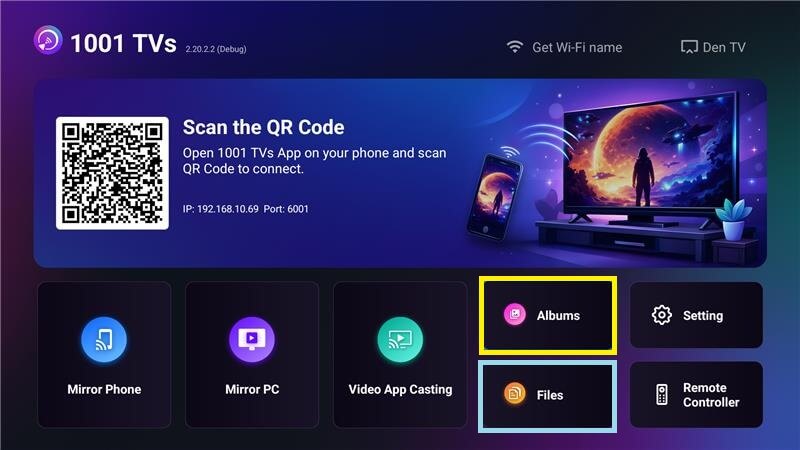
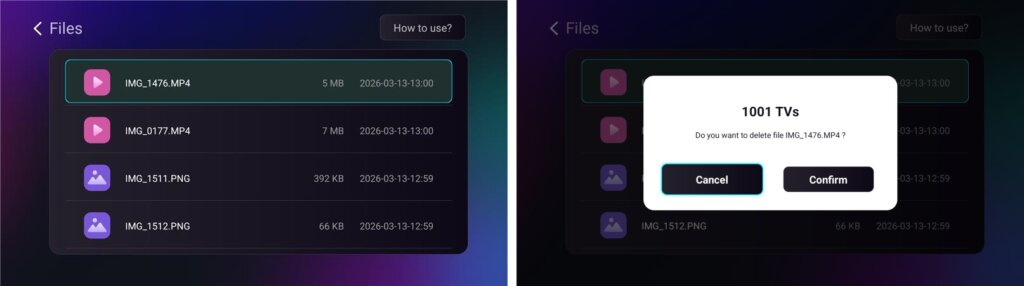
- Navigera till Filer för att visa mottagna filer. Du kan välja en fil och trycka länge på OK för att radera den.
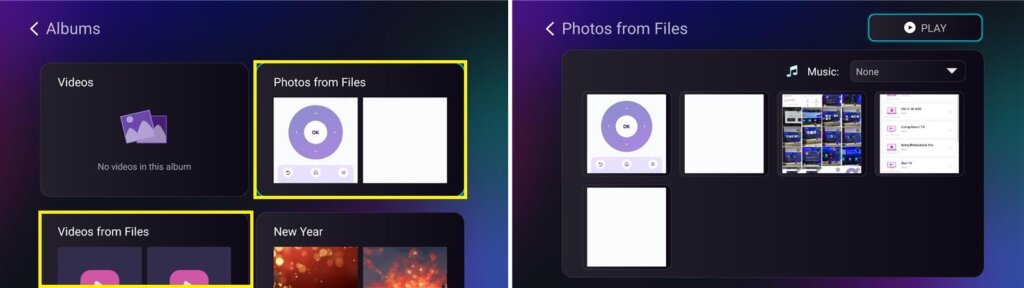
- Navigera till Album > Foton/Videor från filer för att visa mottagna foton och videoklipp. Du kan välja en fil och trycka länge på OK för att radera dem eller spela upp dem som ett bildspel.
Varför använda 1001 TVs?
- Snabb, privat och enkel att använda
- Lokal överföring - inget moln krävs
- Ingen inloggning eller konto behövs
- Stöd för överföring av stora filer
Behöver du hjälp?
Om du stöter på några problem är du välkommen att kontakta vårt supportteam:
📧 E-post: 1001tvs@nero.com
🌐 Webbplats: www.1001tvs.com
📖 Fler guider: Vägledning