
Как отправить файлы с ПК/Mac на телевизор/ПК/Mac
С помощью 1001 TVs вы можете передавать файлы с вашего ПК/Mac на ваш телевизор/ПК/Mac по одной локальной сети.
И да - компьютеры PC и Mac в одной локальной сети могут передавать файлы друг другу напрямую, без дополнительных настроек.
Никаких облачных загрузок. Никаких кабелей. Никаких регистраций - только быстрая и безопасная локальная передача данных.
Прежде чем начать
- Убедитесь, что ваш устройства подключены к одной сети Wi-Fi.
- Установите и откройте 1001 TVs на обоих устройствах, сохраните приложение запущенным на принимающем устройстве.
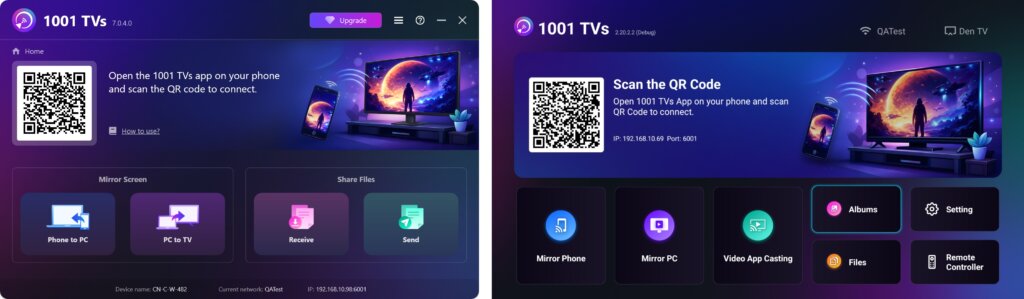
Начать отправку
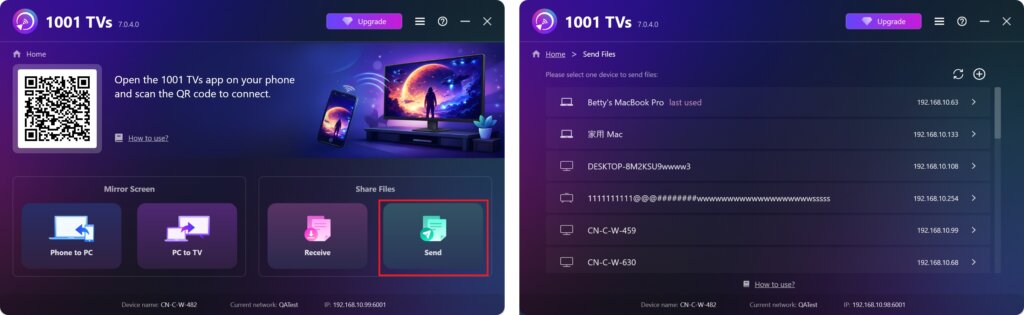
На устройстве отправки нажмите Отправить и приложение автоматически выполнит поиск доступных устройств в той же сети.
Выберите целевое устройство из списка. (например, телевизор/ПК/Mac)
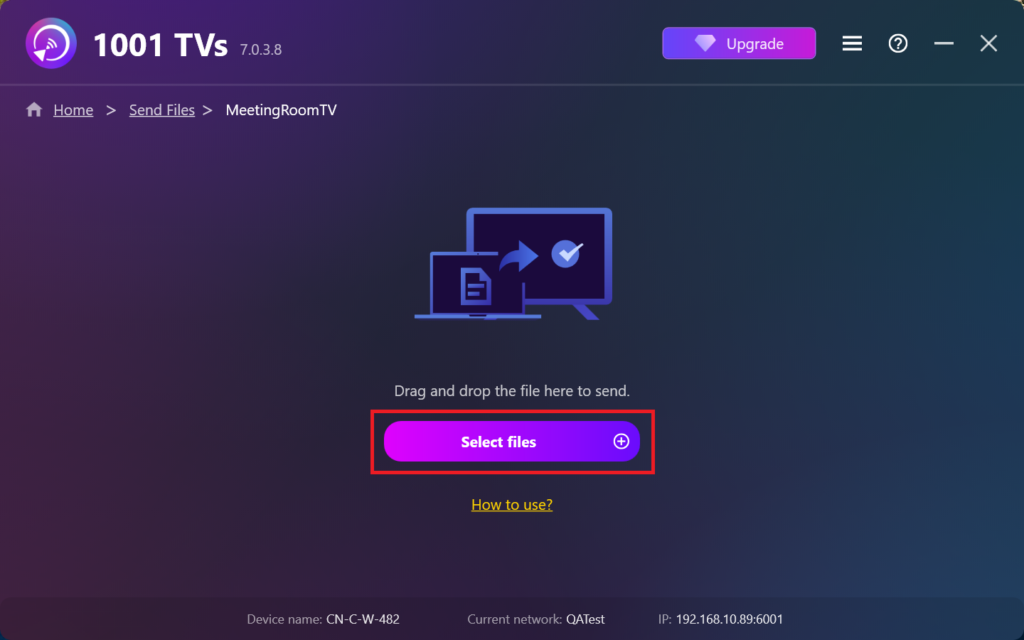
Выберите файлы на компьютере (видео, фотографии, музыку, документы и другие), и передача на целевое устройство начнется автоматически.
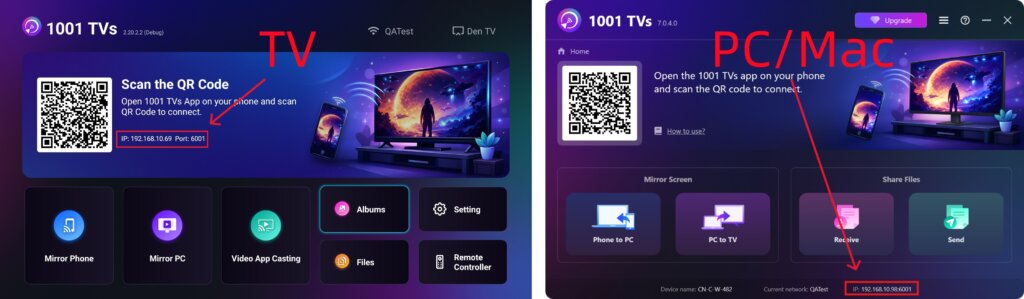
Не можете найти целевое устройство?
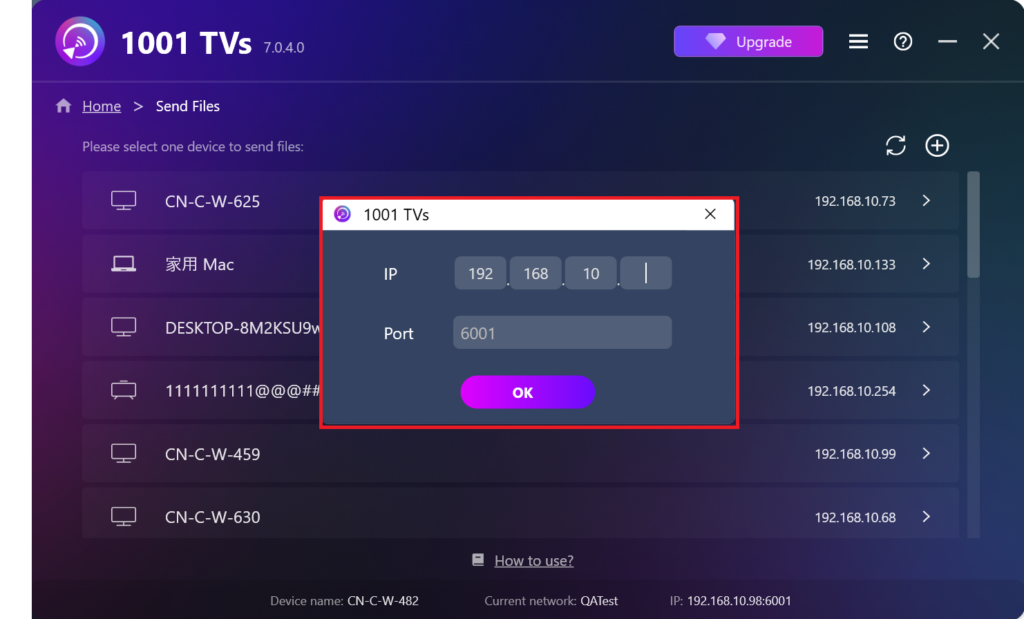
Если целевое устройство не отображается в списке устройств, нажмите кнопку + икона в правом верхнем углу и используйте Сопряжение IP-адресов для быстрого и надежного подключения.
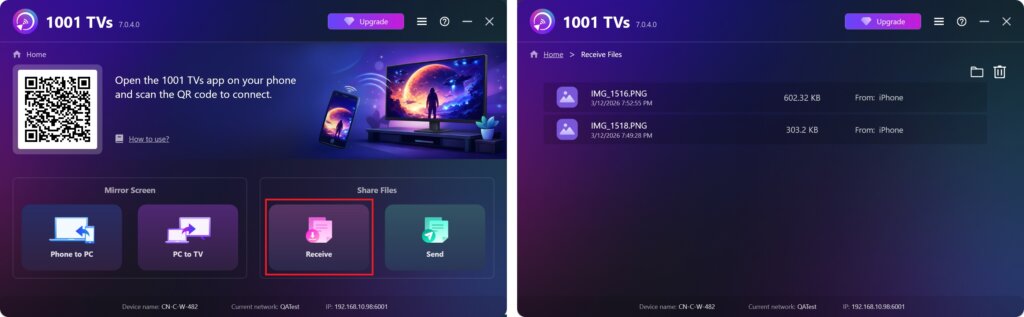
Просмотр полученных файлов на ПК/Mac
Нажмите Получить на вашем ПК/Mac, чтобы увидеть все входящие файлы.
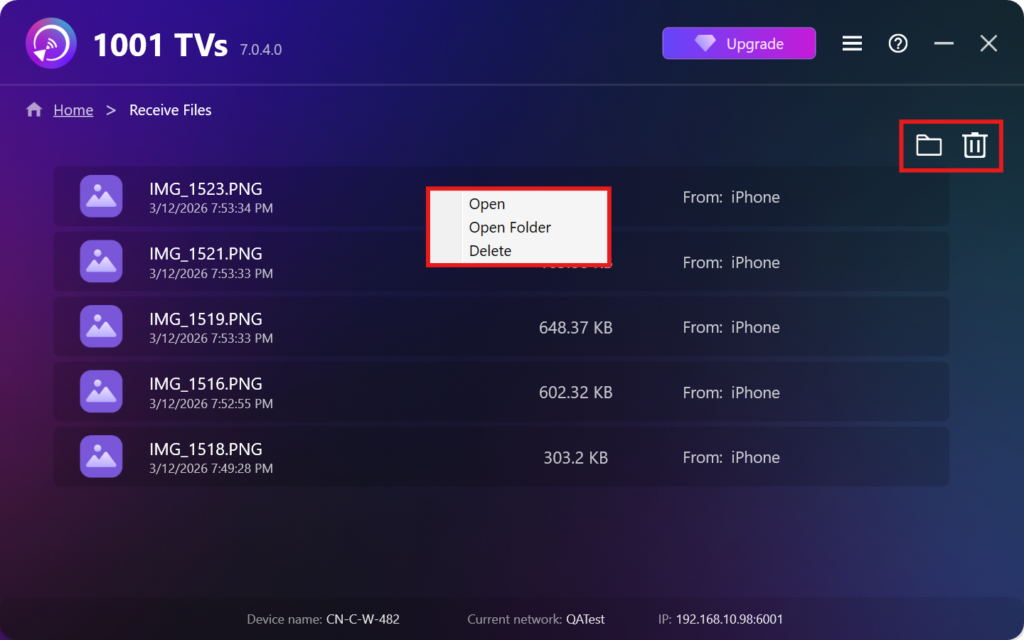
- Открыть Просмотр полученных файлов – Нажмите или щелкните правой кнопкой мыши и выберите “Открыть папку”, чтобы просмотреть все файлы с конкретного устройства (например, iPhone 12123).
- Найдите их в Finder (Mac) или File Explorer (Windows). - Нажмите на кнопку значок папки в правом верхнем углу, чтобы получить доступ ко всем папкам устройства.
- Удалить параметры – Щелкните правой кнопкой мыши на . файл и выберите “Удалить”, чтобы удалить его по отдельности, или нажмите кнопку значок корзины в правом верхнем углу, чтобы удалить все полученные файлы сразу.
Просмотр полученных файлов на телевизоре
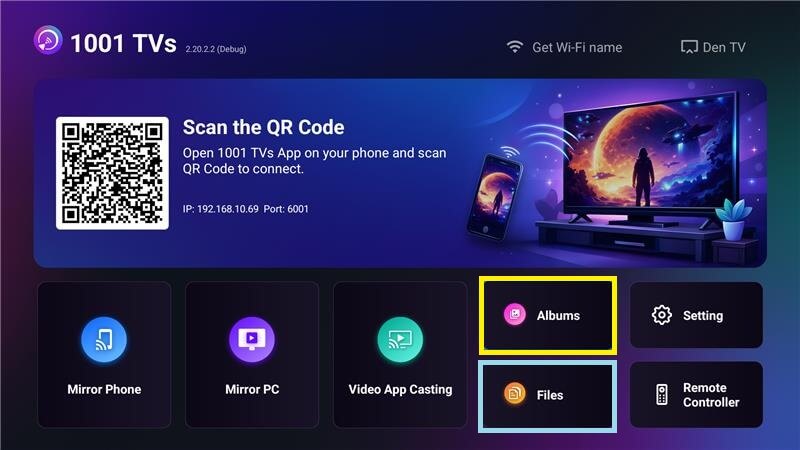
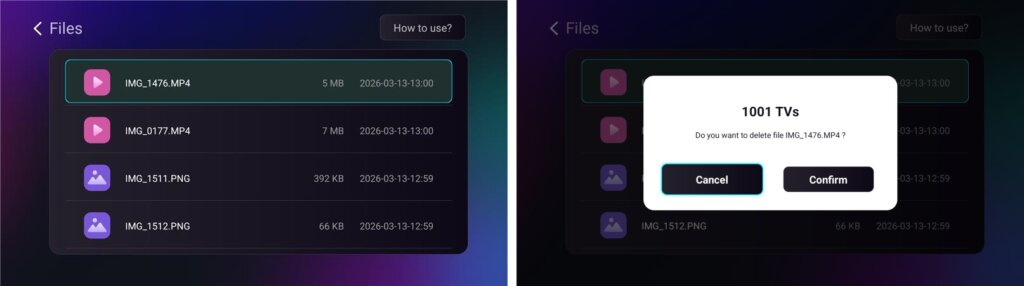
- Перейдите в раздел Файлы для просмотра полученных файлов. Можно выбрать файл и долго нажимать на него OK чтобы удалить его.
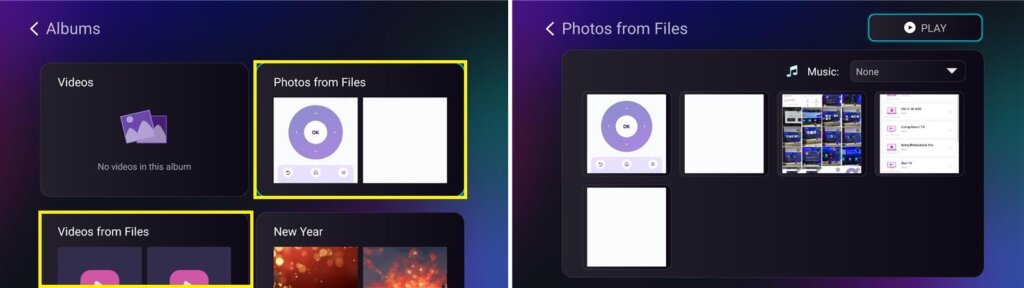
- Перейдите в раздел Альбомы > Фото/видео из файлов для просмотра полученных фотографий и видео. Можно выбрать файл и долго нажимать на него OK чтобы удалить их или воспроизвести в виде слайд-шоу.
Почему стоит использовать 1001 TVs?
- Быстро, конфиденциально и просто в использовании
- Локальная передача - облако не требуется
- Не требуется вход в систему или учетная запись
- Поддержка передачи больших файлов
Нужна помощь?
Если у вас возникнут какие-либо проблемы, не стесняйтесь обращаться в нашу службу поддержки:
📧 Электронная почта: 1001tvs@nero.com
🌐 Веб-сайт: www.1001tvs.com
📖 Больше гидов: Руководство