
Hoe stuur ik bestanden van mijn PC/Mac naar mijn TV/PC/Mac?
Met 1001 TVs kun je bestanden van je PC/Mac naar je TV/PC/Mac sturen via hetzelfde lokale netwerk.
En ja - pc's en Mac's op hetzelfde LAN kunnen direct bestanden naar elkaar overzetten, zonder extra instellingen.
Geen cloud uploads. Geen kabels. Geen aanmeldingen - alleen snelle, veilige lokale overdrachten.
Voordat u begint
- Zorg ervoor dat je apparaten zijn verbonden met hetzelfde Wi-Fi-netwerk.
- Installeren en openen 1001 TVs op beide apparaten, houd de app actief op het ontvangende apparaat.
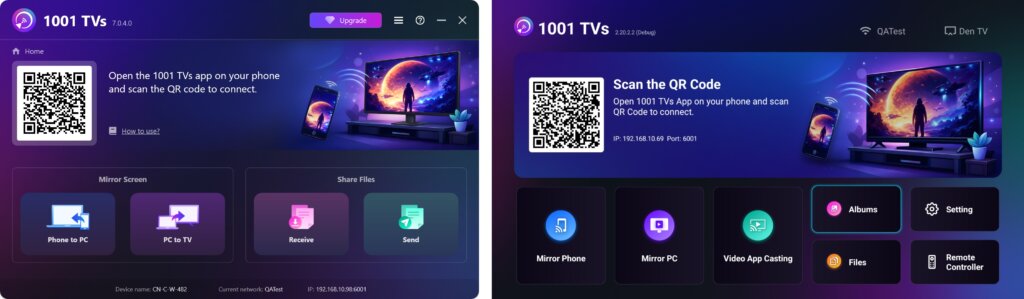
Beginnen met verzenden
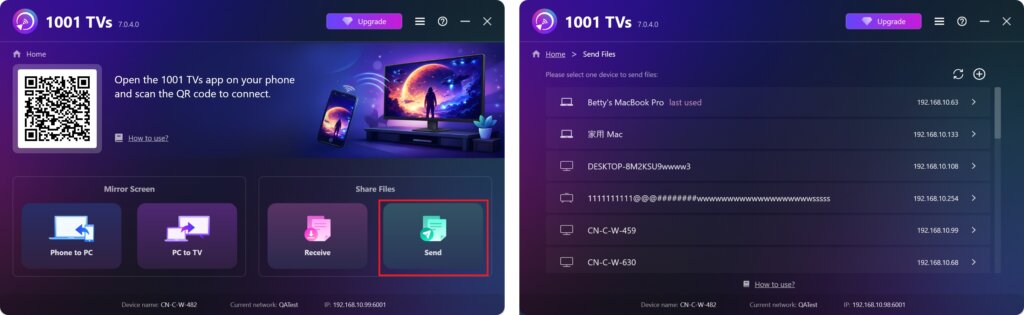
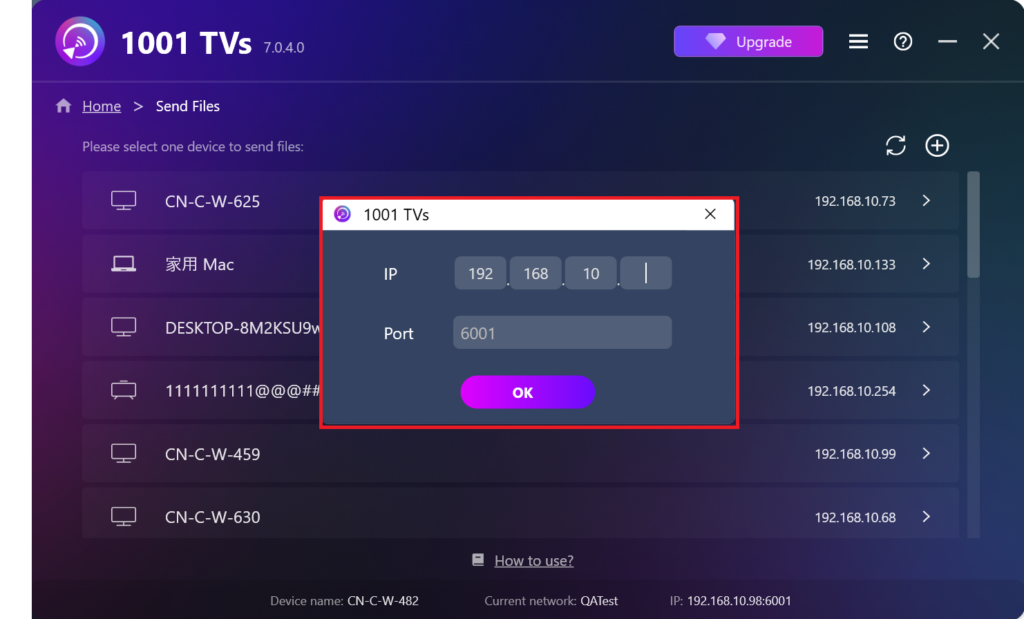
Klik op je verzendapparaat op Stuur en de app zal automatisch zoeken naar beschikbare apparaten in hetzelfde netwerk.
Kies je doelapparaat uit de lijst. (bijv. je TV/PC/Mac)
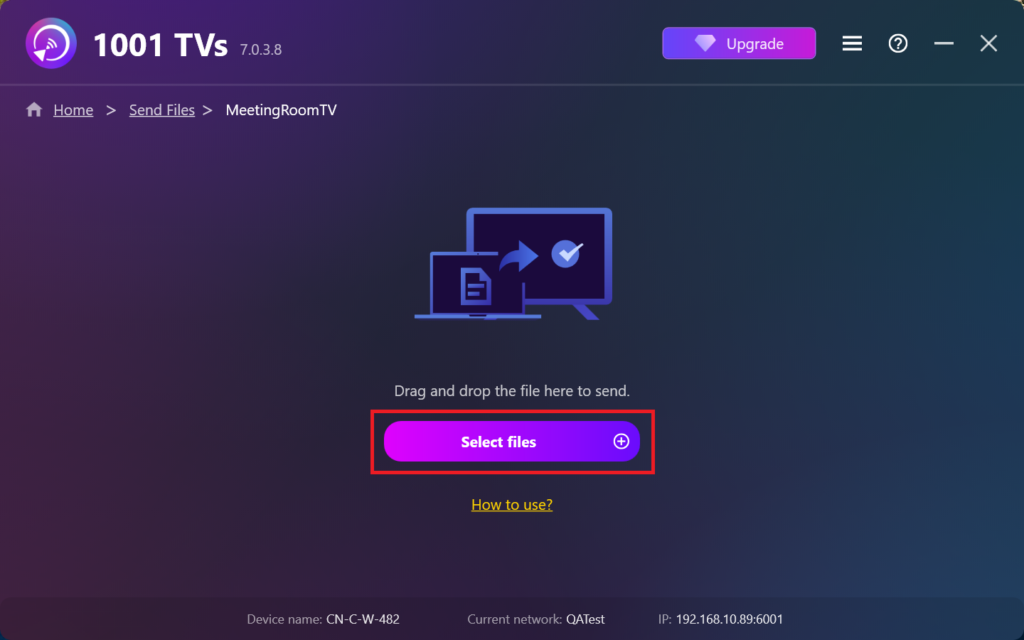
Selecteer bestanden op je pc (video's, foto's, muziek, documenten en meer) en de overdracht begint automatisch naar het doelapparaat.
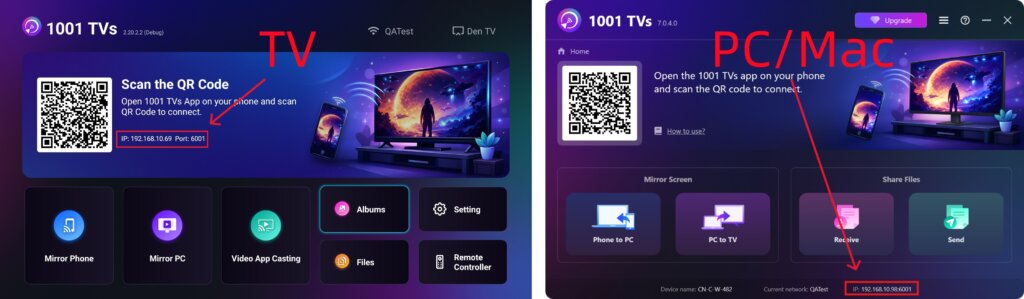
Kunt u uw doelapparaat niet vinden?
Als het doelapparaat niet wordt weergegeven in de apparatenlijst, klik dan op de knop + pictogram in de rechterbovenhoek en gebruik IP-adres koppelen om snel en veilig verbinding te maken.
Ontvangen bestanden bekijken op PC/Mac
Klik op Ontvang op je PC/Mac om alle inkomende bestanden te zien.
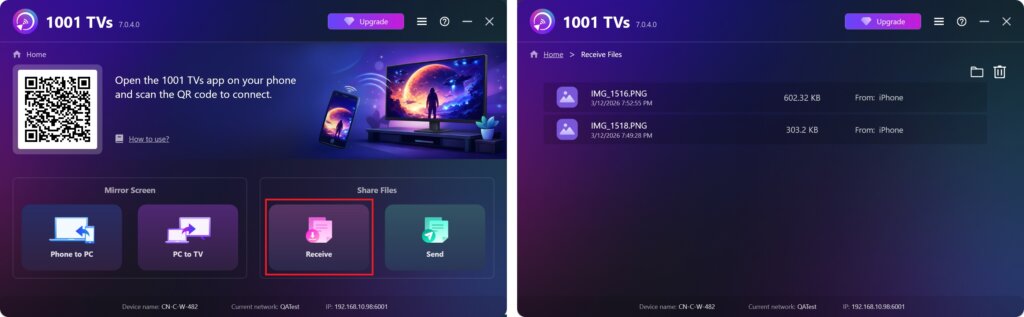
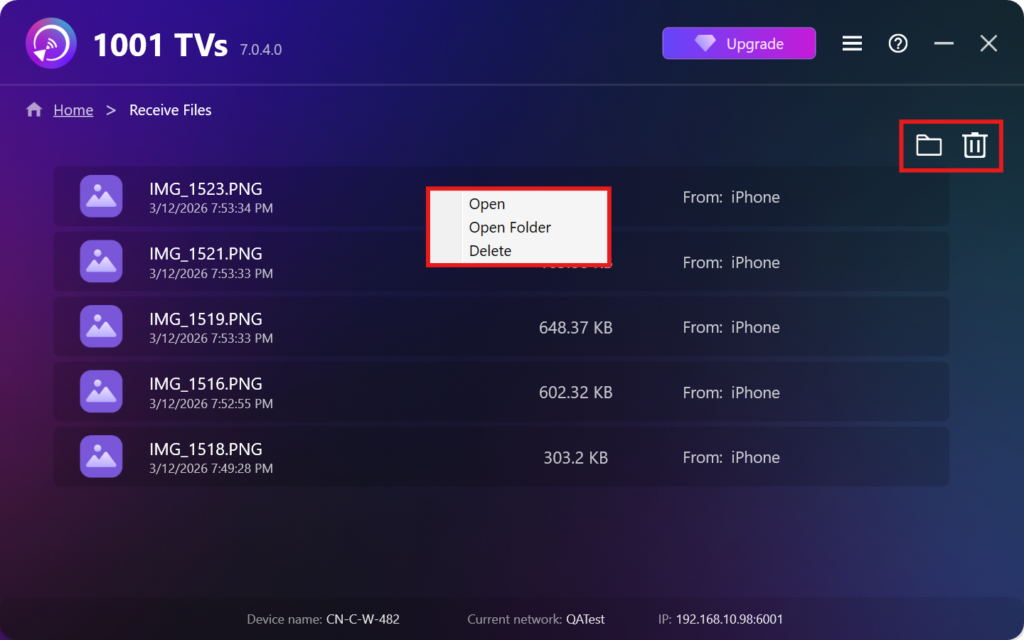
- Openen Bekijk de ontvangen bestanden – Klik op of klik met de rechtermuisknop op en selecteer “Map openen” om alle bestanden van dat specifieke apparaat te bekijken (bijvoorbeeld iPhone 12123).
- Zoek ze in Finder (Mac) of Verkenner (Windows) - Klik op de map-icoon rechtsboven om toegang te krijgen tot alle apparaatmappen.
- Opties verwijderen – Klik met de rechtermuisknop op een bestand en selecteer “Verwijder” om deze afzonderlijk te verwijderen, of klik op de knop prullenbakpictogram rechtsboven om alle ontvangen bestanden in één keer te verwijderen.
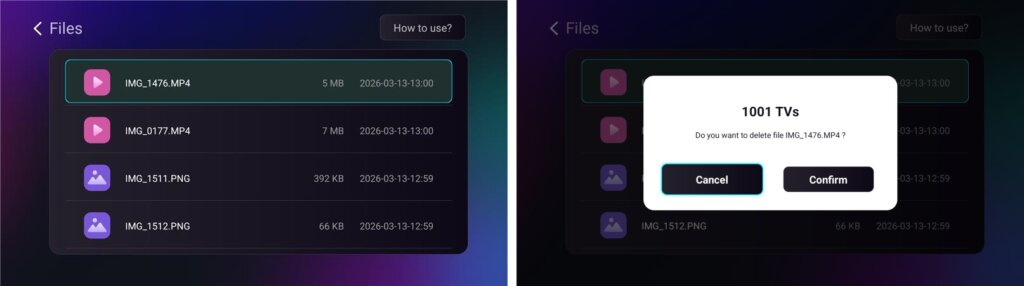
Bekijk ontvangen bestanden op TV
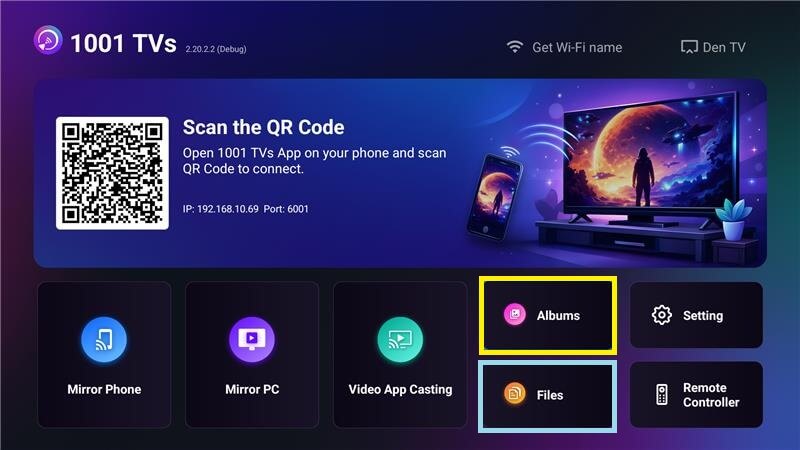
- Navigeer naar Bestanden om ontvangen bestanden te bekijken. U kunt een bestand selecteren en lang indrukken OK om het te verwijderen.
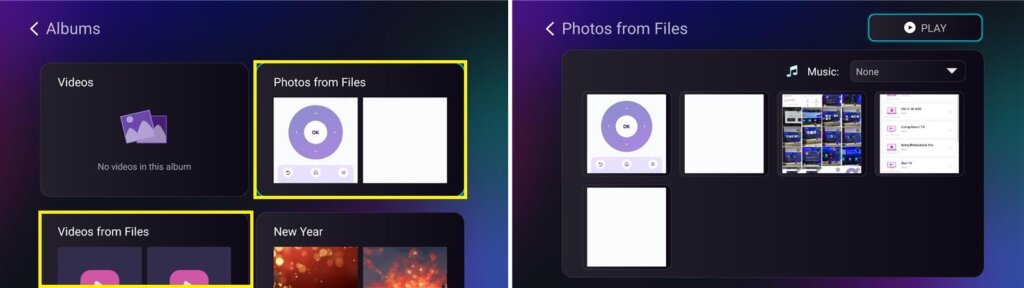
- Navigeer naar Albums > Foto's/Video's uit bestanden om ontvangen foto's en video's te bekijken. U kunt een bestand selecteren en lang indrukken OK om ze te verwijderen of ze af te spelen als diavoorstelling.
Waarom 1001 TVs gebruiken?
- Snel, privé en gebruiksvriendelijk
- Lokale overdracht - geen cloud nodig
- Geen login of account nodig
- Ondersteunt overdracht van grote bestanden
Hulp nodig?
Als je problemen ondervindt, kun je contact opnemen met ons ondersteuningsteam:
E-mail: 1001tvs@nero.com
Website: www.1001tvs.com
Meer gidsen: Handleiding