
1001 TVs로 macOS 설정을 사용하여 Mac 화면을 확장하는 방법
macOS에서는 시스템 디스플레이 설정을 사용하여 데스크탑을 외부 디스플레이로 확장할 수 있습니다.
의 도움으로 1001 TVs, 이 기능을 더 확장하여 Mac 화면을 다음과 같이 확장할 수 있습니다. 하나의 물리적 디스플레이와 여러 개의 가상 디스플레이 를 사용하여 보다 유연한 멀티스크린 설정을 할 수 있습니다.
연결된 모든 디스플레이에는 동일한 확장 데스크톱 마우스로 완벽하게 제어할 수 있으므로 메인 디스플레이를 비공개로 유지하면서 사용 가능한 화면을 하나 더 추가한 것과 같은 느낌을 줍니다.
1. MacOS를 사용하여 물리적 디스플레이 연결
Mac에서는 다음으로 이동합니다. 설정 > 디스플레이, 을 클릭하고 + 아이콘, 를 클릭하고 실제 디스플레이를 추가합니다.
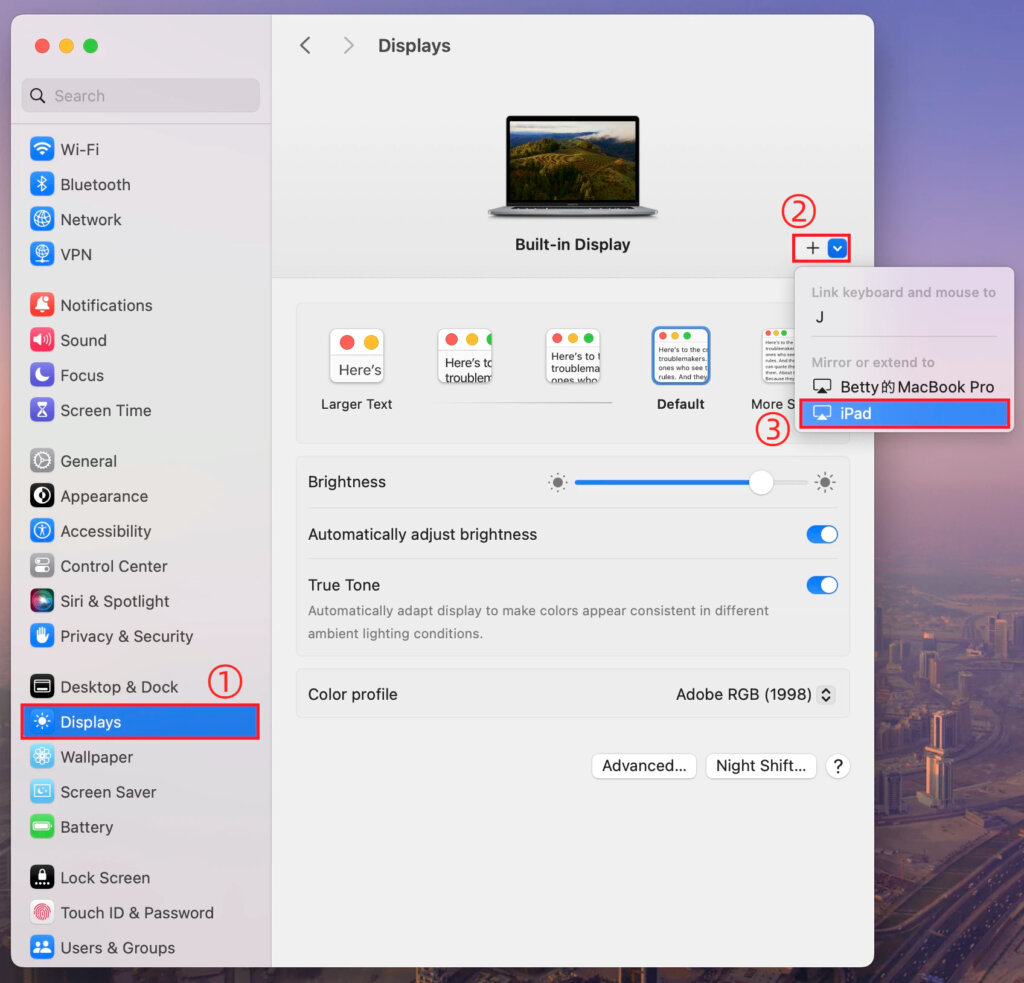
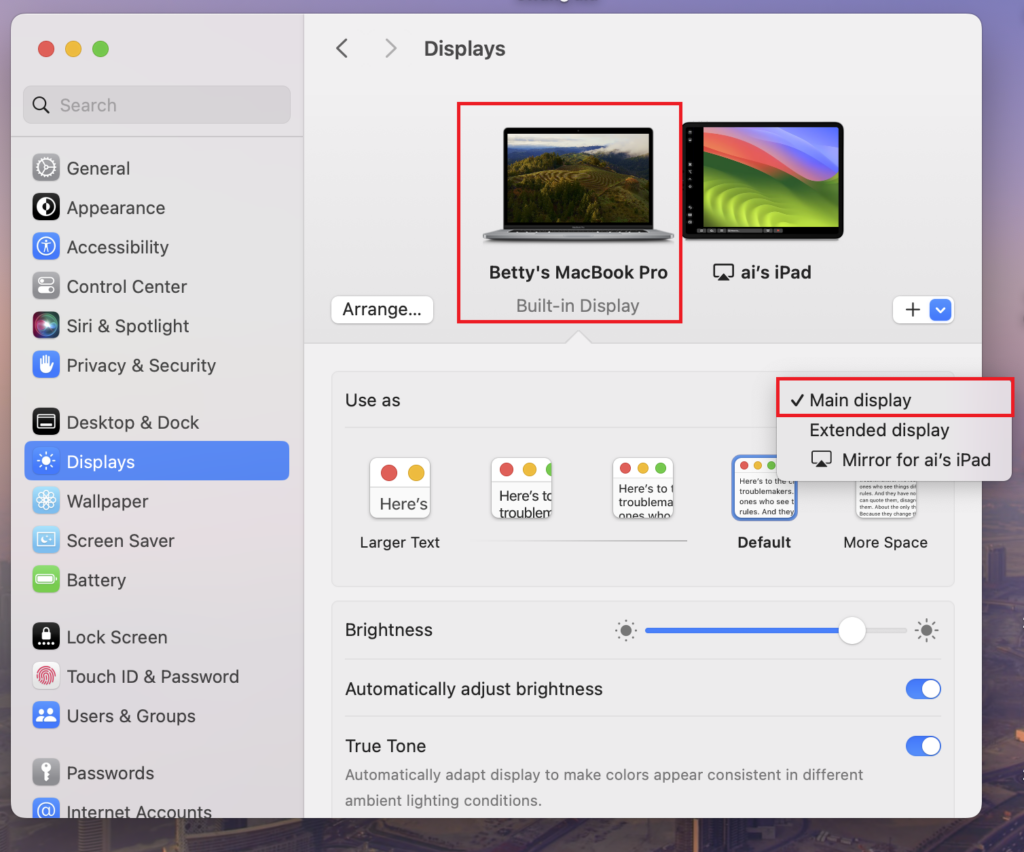
두 화면 중 하나를 기본 디스플레이로 설정하면 다른 화면이 자동으로 확장 디스플레이가 됩니다.
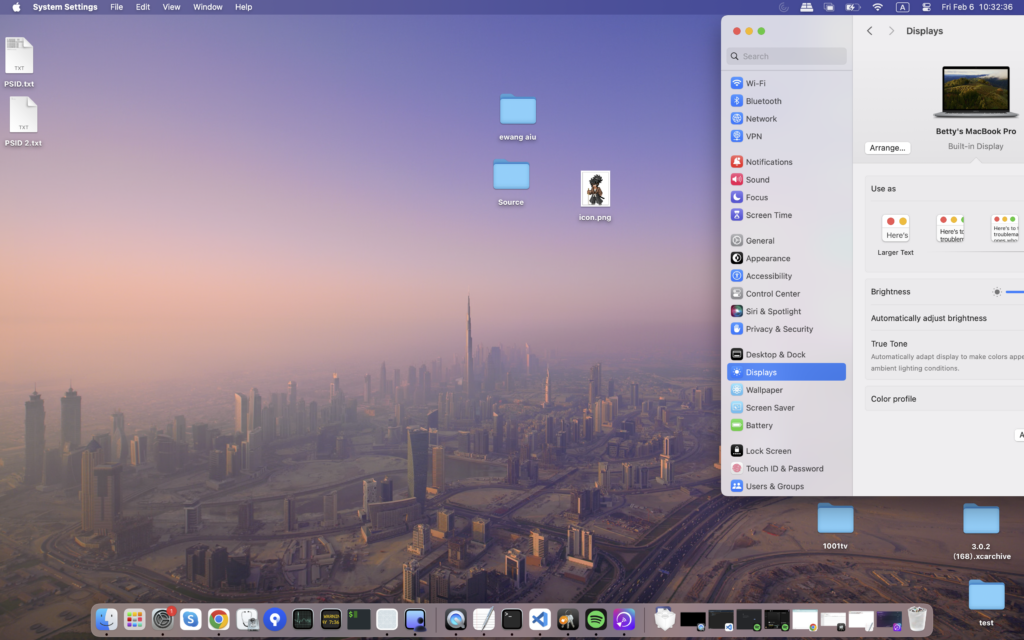
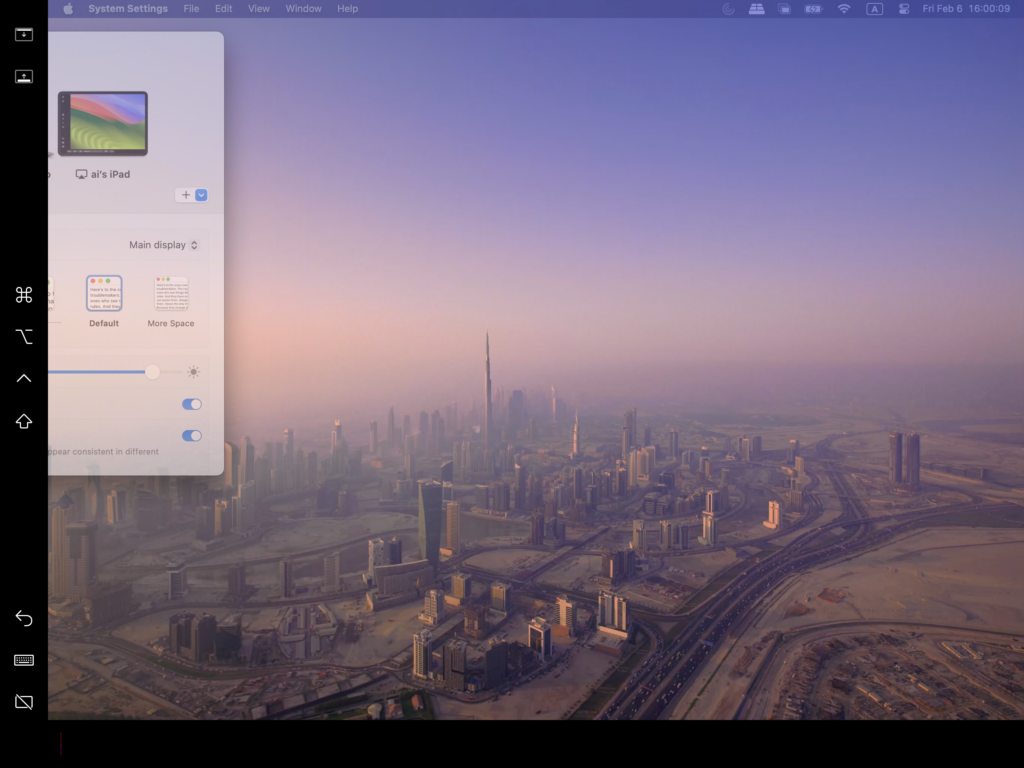
완료되면 Mac 데스크톱이 두 번째 화면으로 성공적으로 확장됩니다.
2. 1001 TVs로 여러 가상 디스플레이 추가하기
Mac을 물리적 디스플레이로 확장한 후에는 다음을 사용할 수 있습니다. 1001 TVs 를 확장하여 동일한 데스크톱 를 다음과 같이 추가 장치에 가상 디스플레이.
1) 동일한 Wi-Fi 네트워크에 연결
Mac과 모든 대상 장치가 동일한 Wi-Fi 네트워크에 연결되어 있는지 확인합니다.
최상의 성능을 위해 5GHz Wi-Fi 네트워크 를 사용하는 것이 좋습니다.
2) 1001 TVs 설치 및 열기
설치 및 실행 1001 TVs 를 Mac과 가상 디스플레이로 사용하려는 모든 기기에서 사용할 수 있습니다.
📥 Mac 앱: App Store에서 다운로드
📥 PC 앱: 다음에서 다운로드 Microsoft 스토어
자세한 단계는 PC 설치 가이드.
📥 TV 앱: TV에 1001 TVs를 설치하는 방법
3) 디스플레이 확장 모드 시작
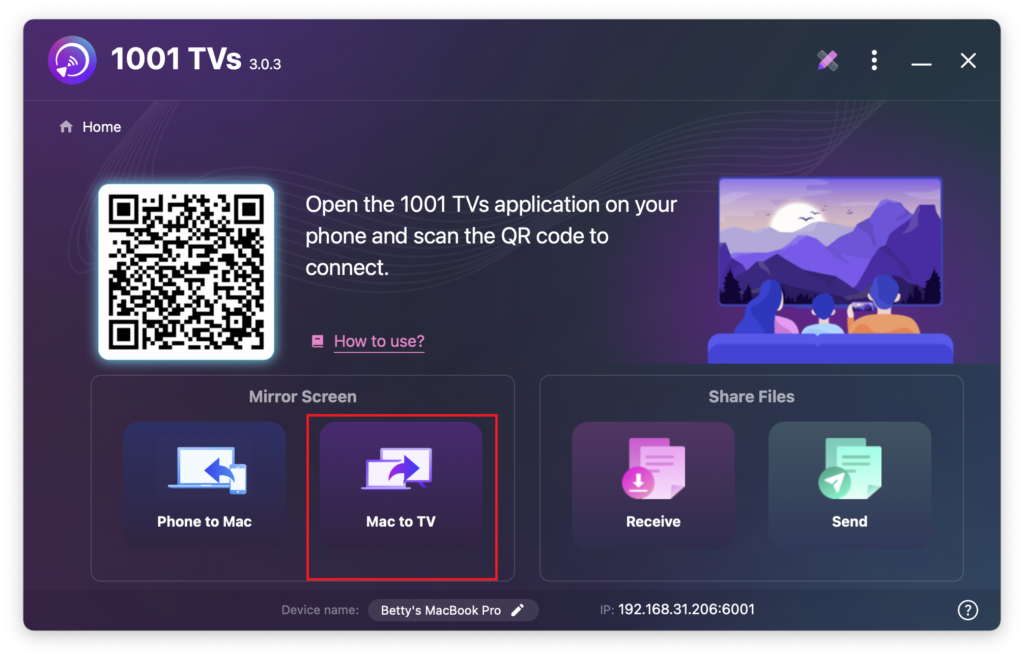
Mac의 1001 TVs에서 다음을 선택합니다. Mac에서 TV로, 를 선택하고 확장 디스플레이, 을 클릭한 다음 대상 디바이스(예: PC, Mac, 휴대폰 또는 TV)를 선택합니다.
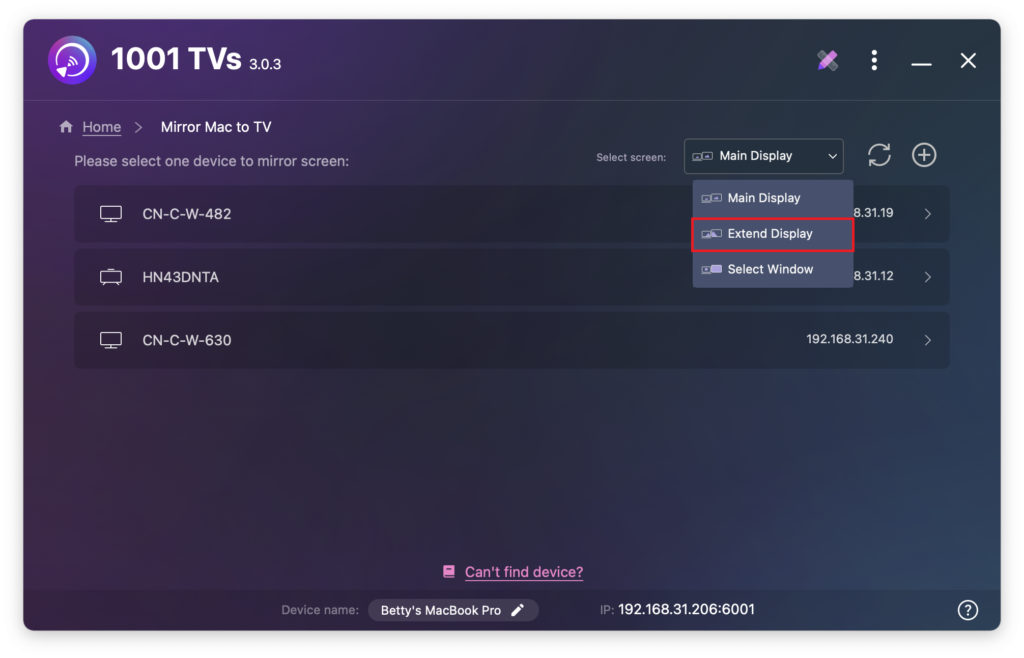
클릭할 수 있습니다. + 추가 버튼을 눌러 필요에 따라 더 많은 장치를 연결할 수 있습니다.
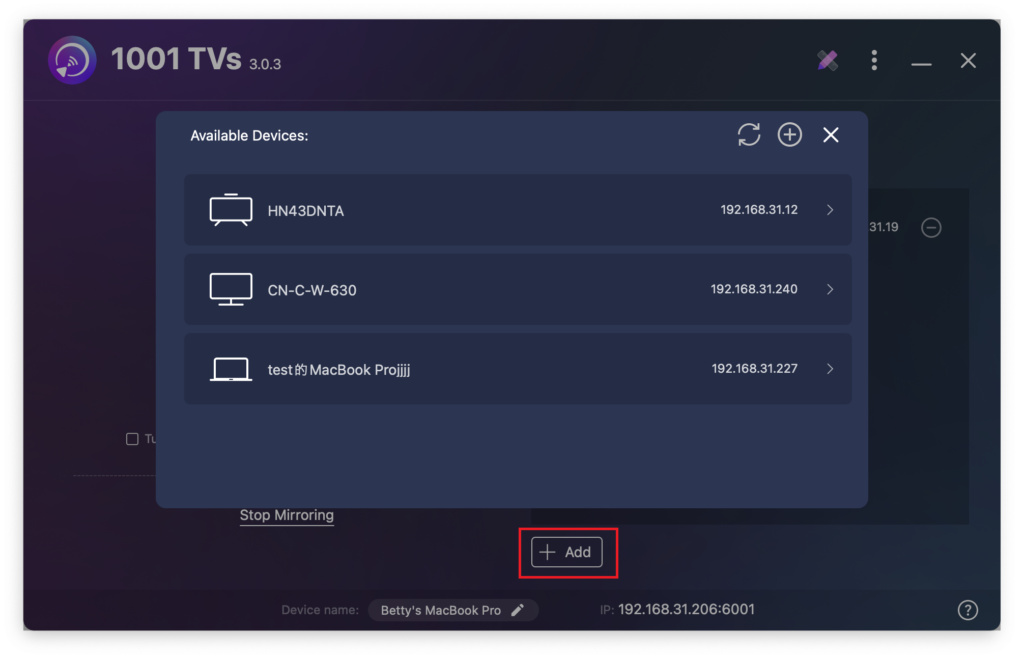
Mac 화면과 기본 확장 화면만 상호 작용할 수 있습니다.
연결된 다른 모든 장치는 확장된 화면을 미러링하여 동일한 콘텐츠를 표시합니다.
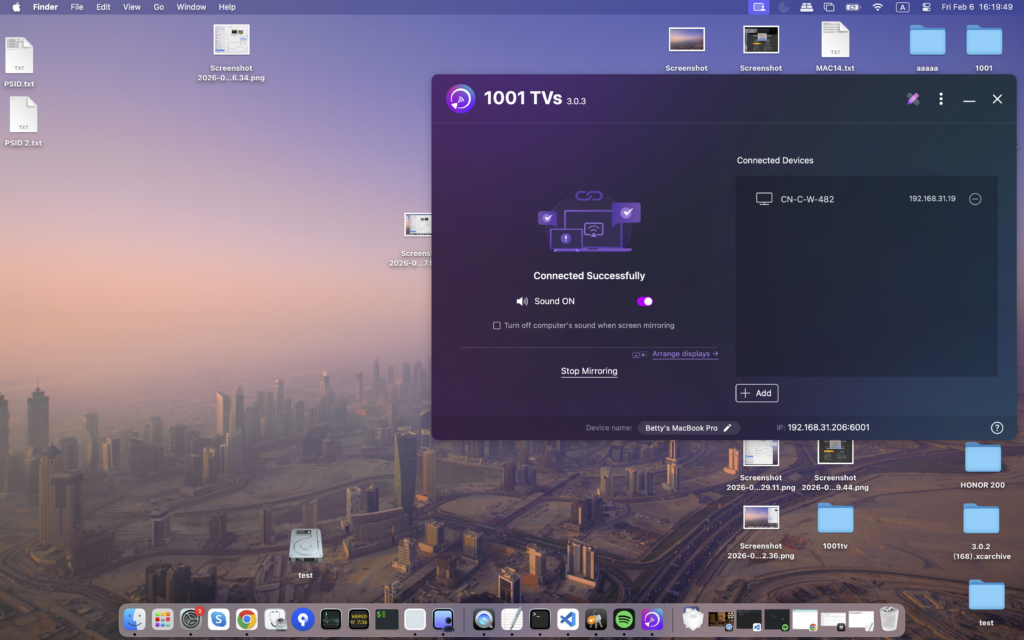
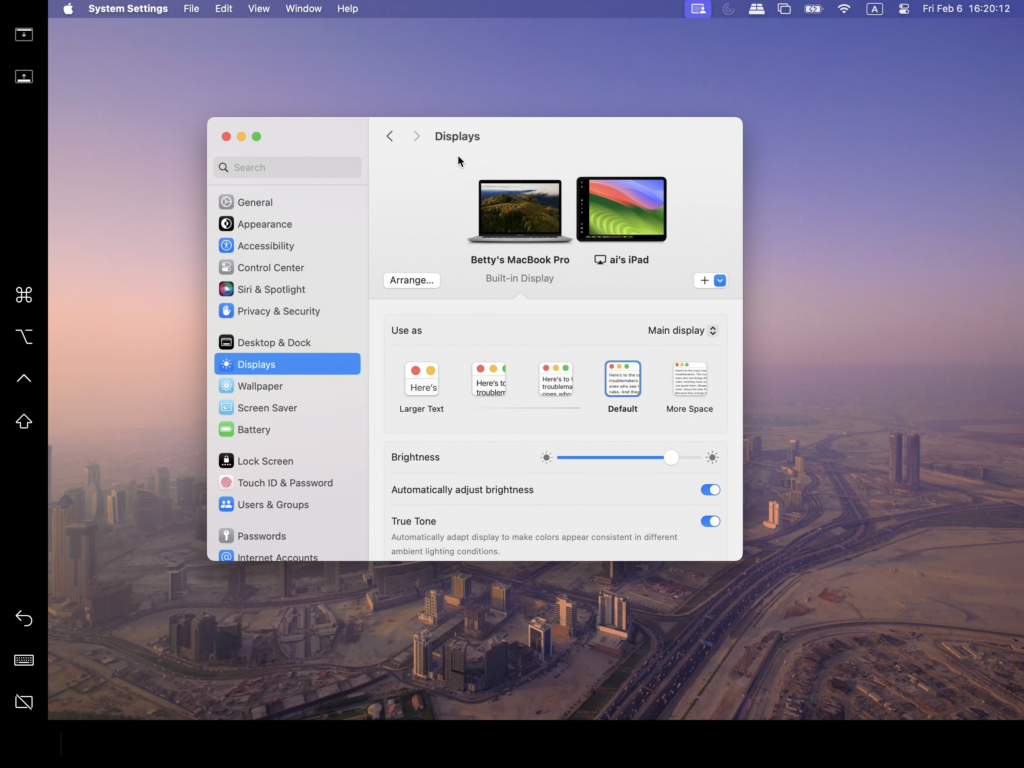
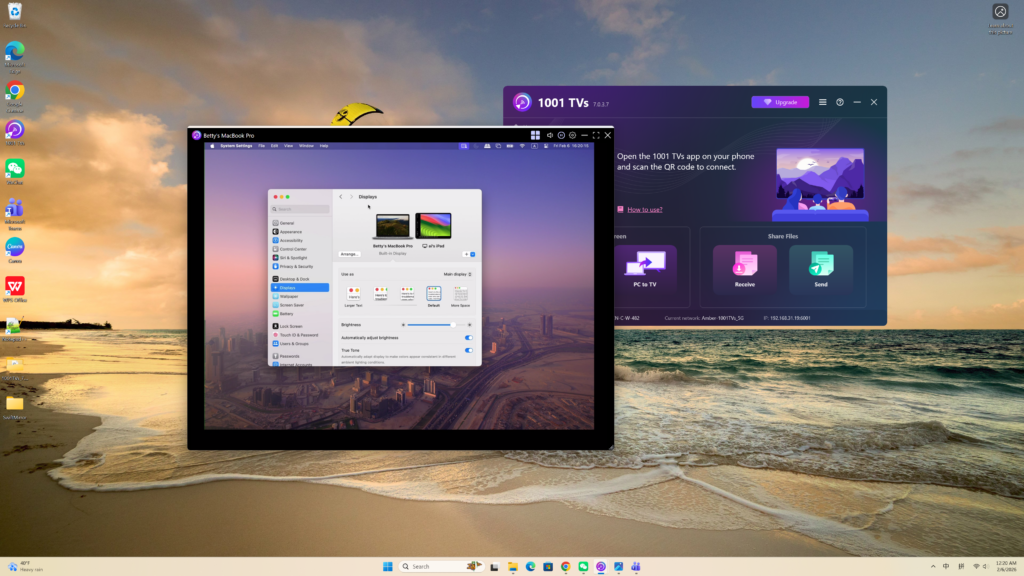
이 설정은 확장된 데스크톱 환경을 제공하여 Mac과 기본 확장 화면 간에 창을 이동하면서도 기본 화면 콘텐츠를 비공개로 유지할 수 있습니다.