
iPhone Camera Mirroring Guide|Use 1001 TVs for Real-Time Preview
Tired of guessing the right angle when filming vlogs or taking selfies?
Want to preview your iPhone camera on a bigger screen—TV, PC, or iPad—while you shoot?
With 1001 TVs and its Camera Mirroring feature, you can mirror your iPhone’s camera in real time to another screen. See yourself as you record, make instant adjustments, and get the perfect shot every time!
⚠️ This feature is currently available on iPhone only. Android support is coming soon.
✨ What is Camera Mirroring?
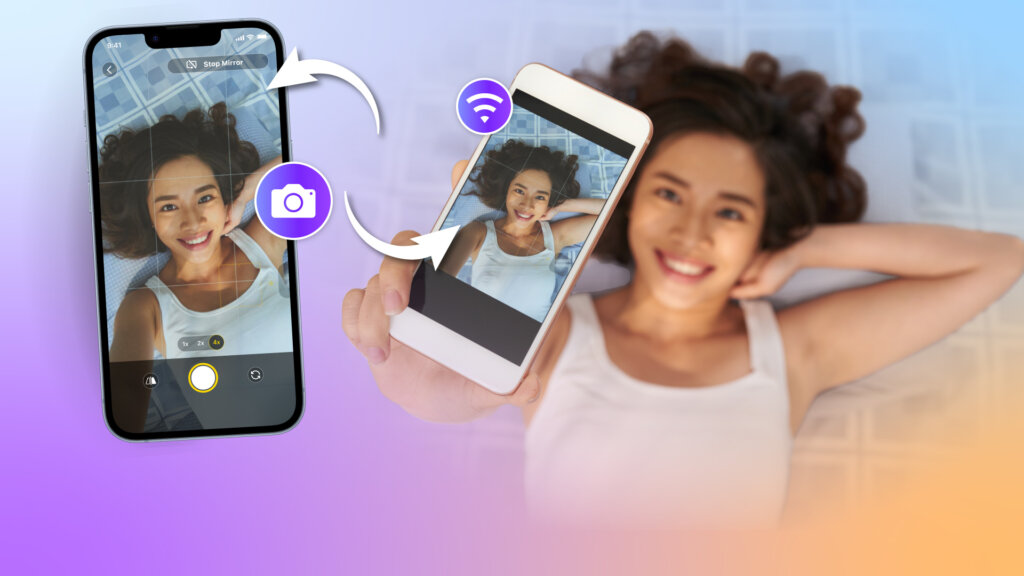
Camera Mirroring lets you stream your iPhone’s live camera feed to a larger display—no cables needed.
Whether you’re filming solo or working with someone else, you can preview the shot on a TV, laptop, or tablet as you go.
Perfect for:
- Selfies or vlogs with live preview—no more blind recording
- Outfit videos, product shoots, or tutorials—shoot solo with confidence
- Remote photo assistance—preview while someone else holds the camera
- Turn your TV into a live monitor while recording content
✅ What You’ll Need
- An iPhone (to act as the camera)
- The 1001 TVs app installed from the App Store
- A second device to receive the mirrored feed: TV, iPad, Windows PC, Mac, or Android
- Both devices are connected to the same Wi-Fi network
🧭 How to Set It Up (5 Easy Steps)
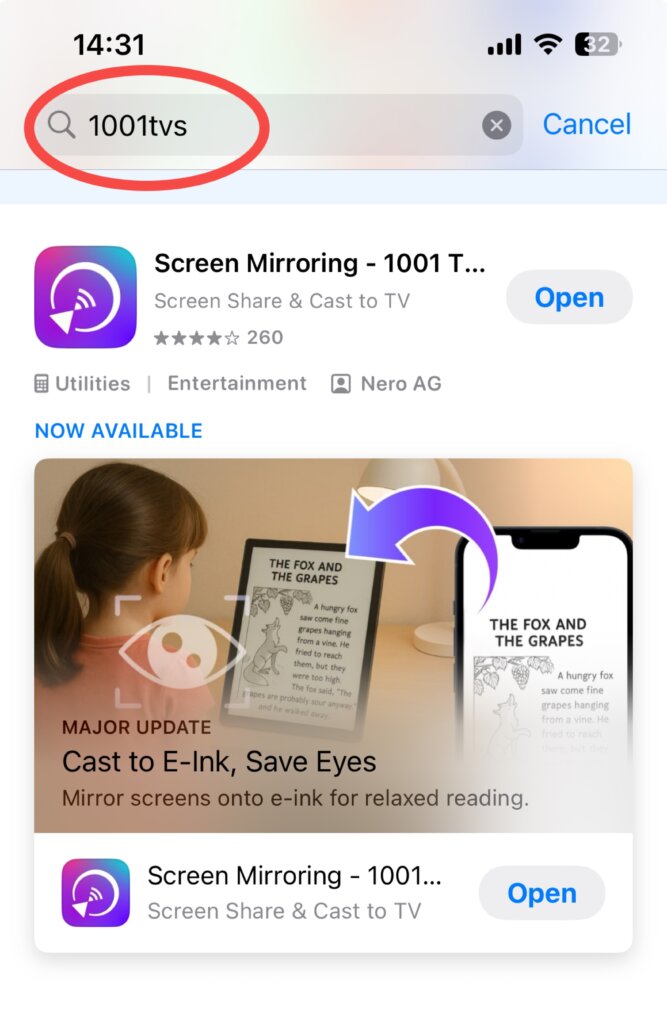
① Search for 1001 TVs in the App Store, download and install it on your iPhone.
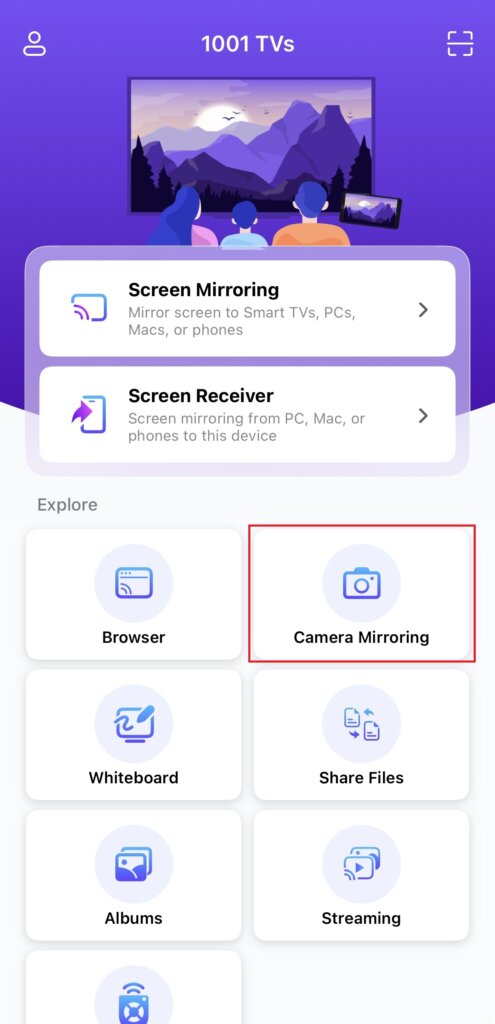
② Launch the app and tap Camera Mirroring from the home screen.
③ Install and open 1001 TVs on the receiving device as well. Depending on your device, install the corresponding version for Android, iPhone, PC, Mac, or TV.
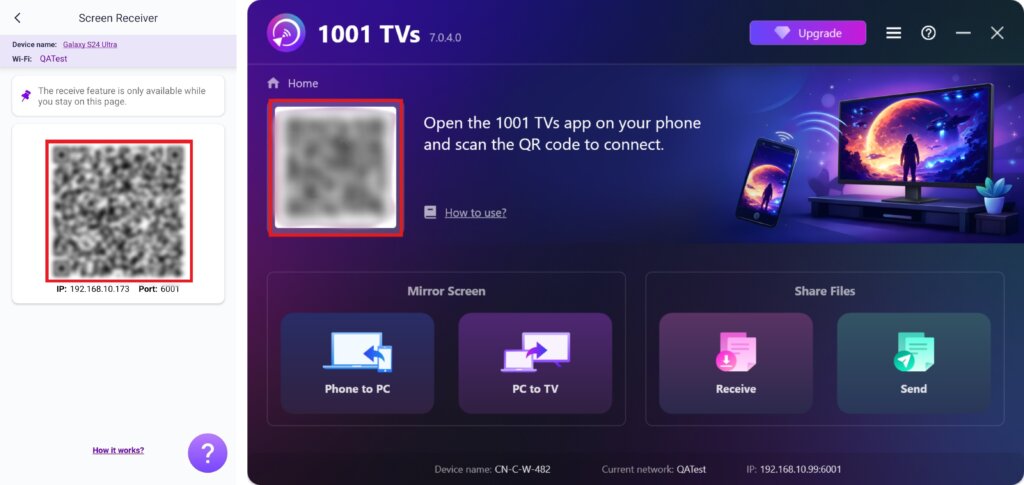
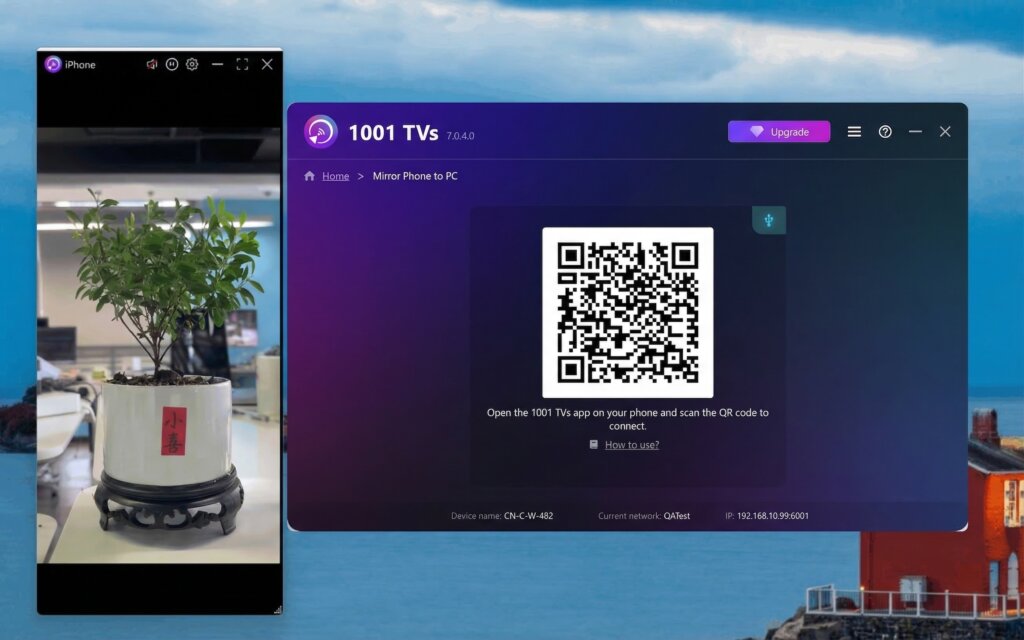
④ To connect, use your iPhone to scan the QR code displayed on the receiving device:
On a Phone: Navigate to the Screen Receiver, and you’ll find the code there.
On a PC/Mac/TV: The QR code is on the home screen.
⑤ Once you tap Start on your phone, your camera feed will instantly appear on the big screen.
From there, you can mirror the image, switch to the front camera, zoom in up to 12x, adjust the angle, and shoot with confidence.
💡 Pro Tips
- Works in both portrait and landscape orientation
- For best results, use a tripod and timer app
- Great for recording tutorials, fashion content, or live demos
- Screen preview is smooth and near-instant
🎯 Final Thoughts
Camera Mirroring turns your iPhone into a wireless camera setup with real-time monitoring.
It’s perfect for creators, vloggers, teachers, and anyone who needs to see what they’re filming—as they’re filming it.
👉 Try 1001 TVs now and elevate your filming workflow in minutes!