
Cómo extender la pantalla de tu Mac usando los ajustes de macOS con 1001 TVs
macOS permite ampliar el escritorio a una pantalla externa mediante la configuración de pantalla del sistema.
Con la ayuda de 1001 TVs, esta capacidad puede ampliarse aún más, permitiéndote extender la pantalla de tu Mac a una pantalla física y varias pantallas virtuales para una configuración multipantalla más flexible.
Todas las pantallas conectadas muestran el mismo escritorio ampliado y son totalmente controlables con el ratón, por lo que es como añadir otra pantalla utilizable mientras mantienes tu pantalla principal en privado.
1. Conectar una pantalla física con macOS
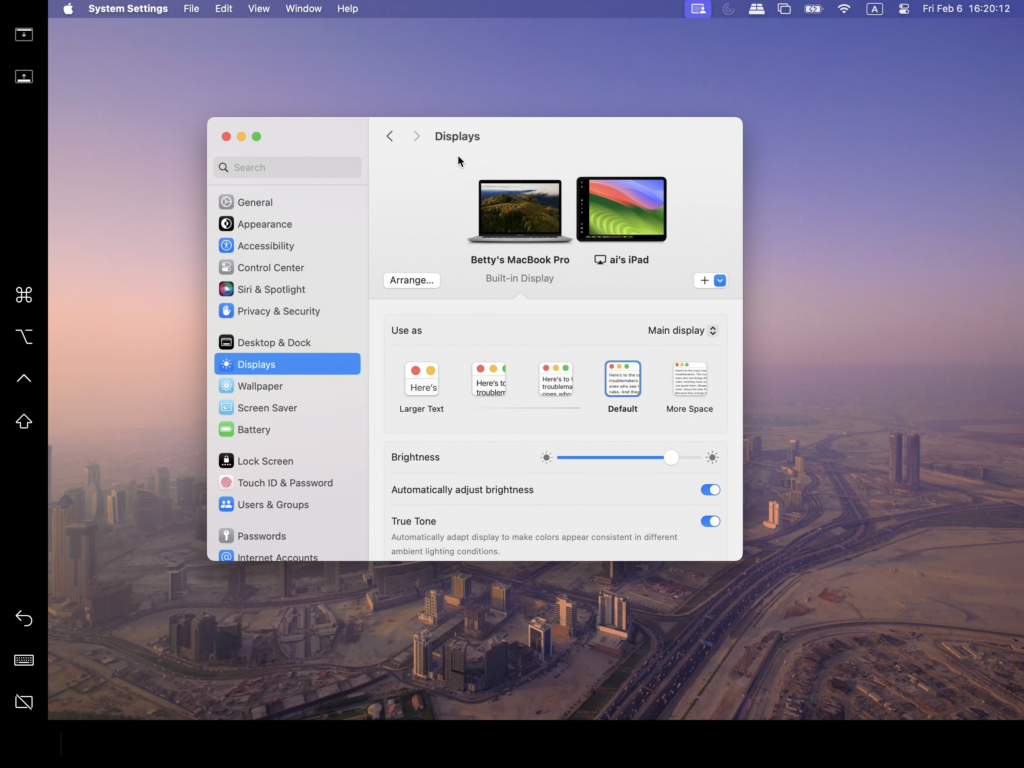
En su Mac, vaya a Configuración > Pantallas, pulse el botón + icono, y añade tu pantalla física.
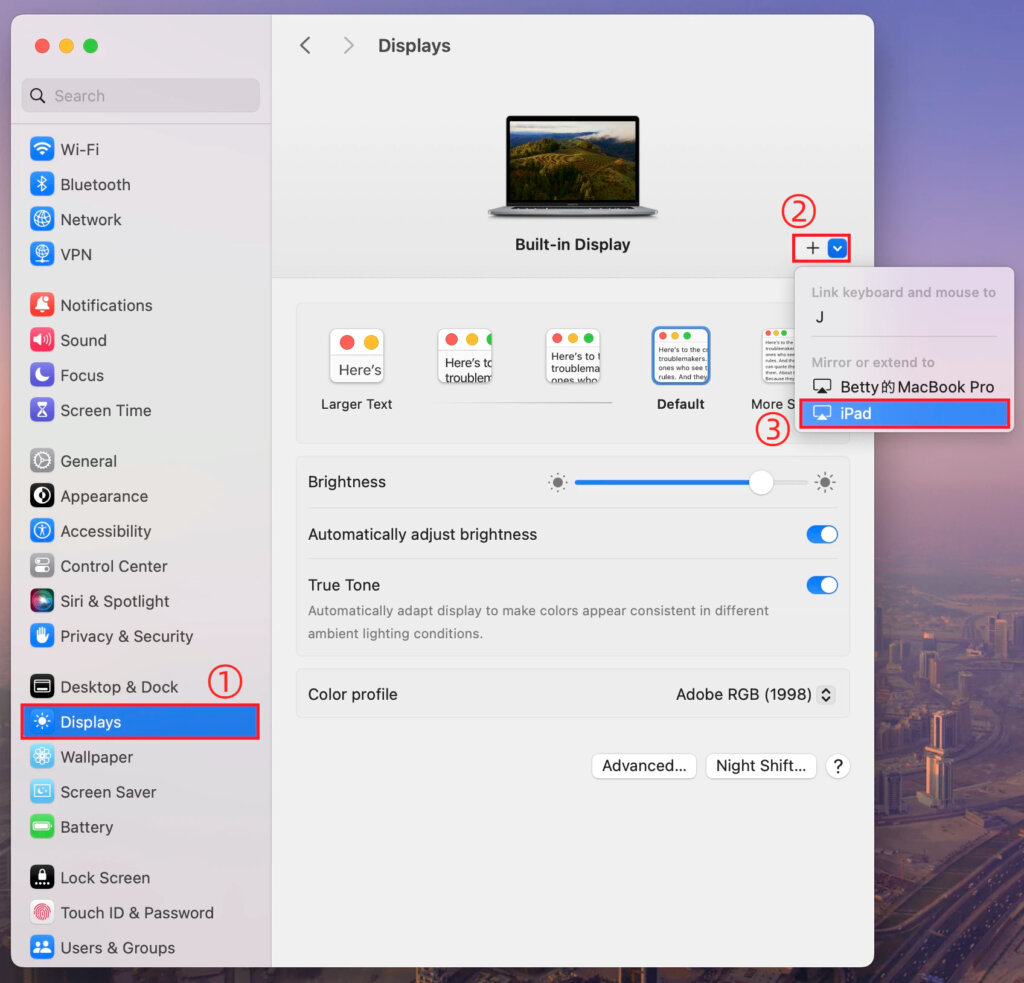
Puedes establecer cualquiera de las dos pantallas como pantalla principal, y la otra se convertirá automáticamente en la pantalla extendida.
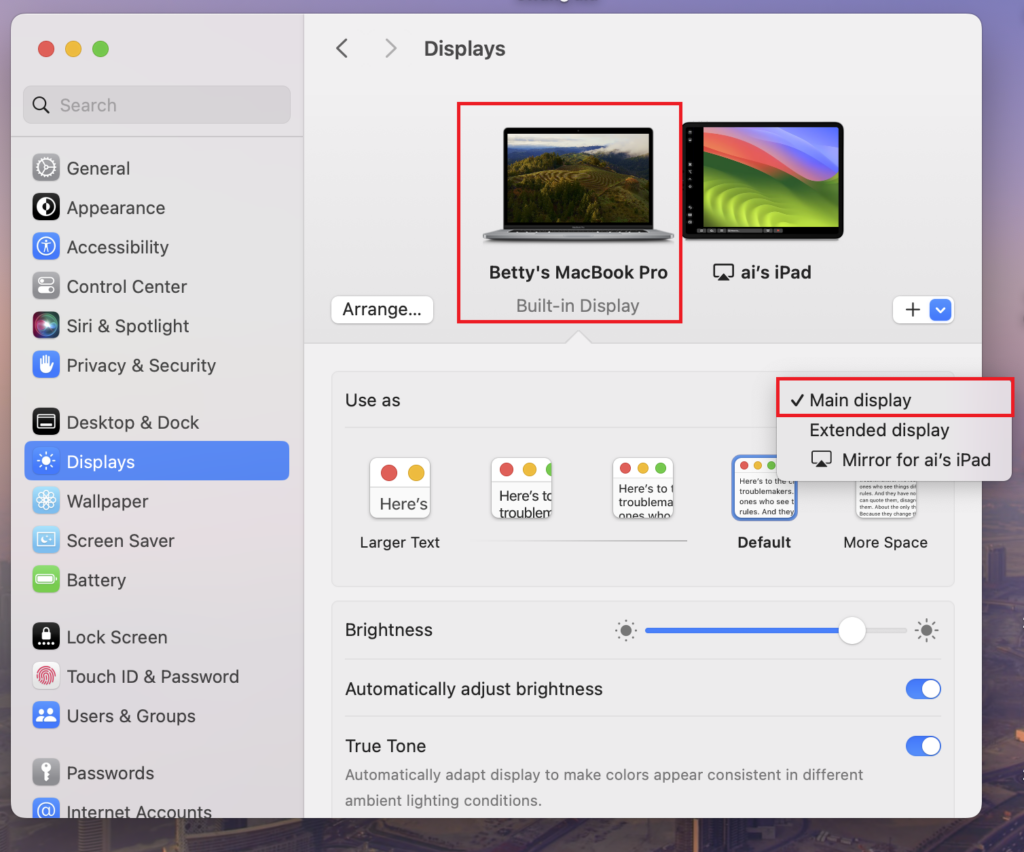
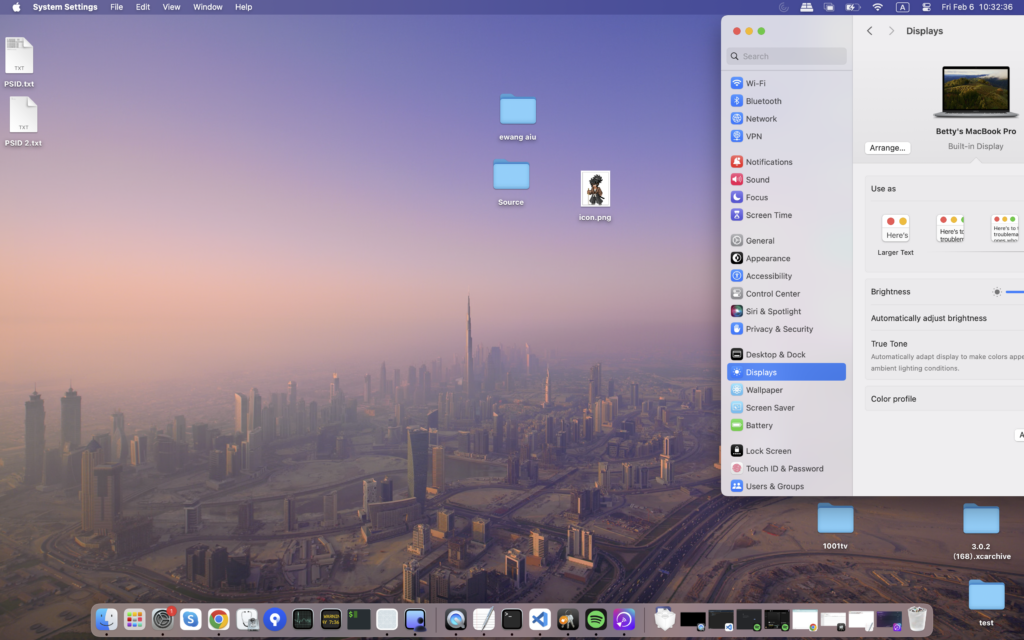
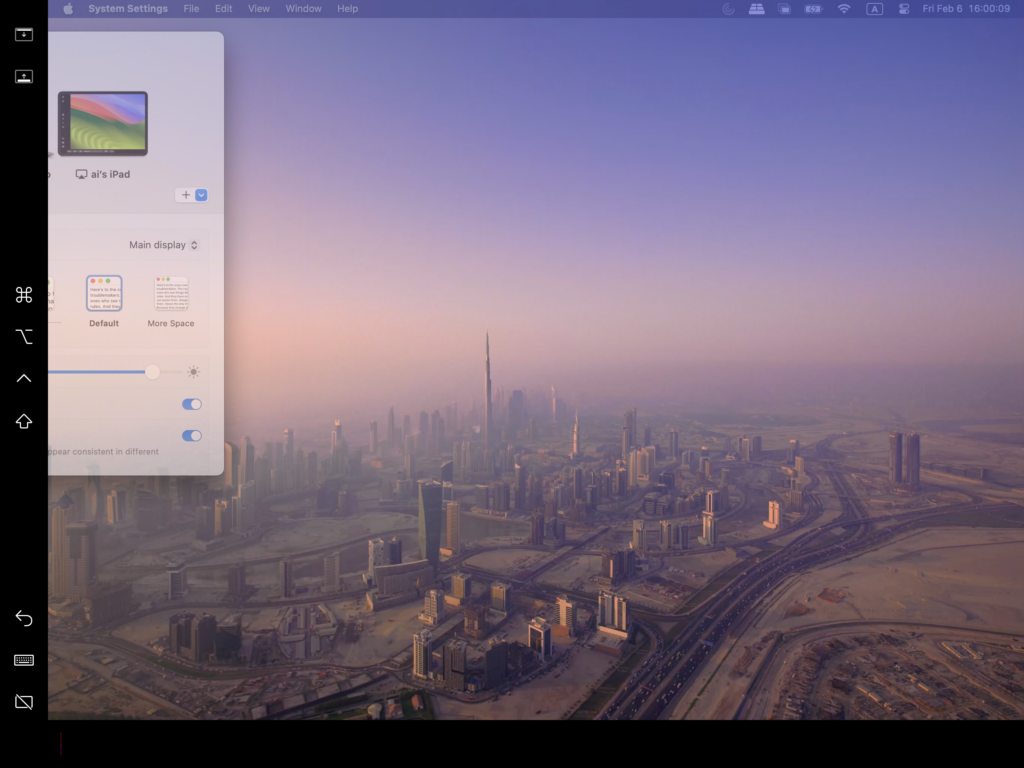
Una vez completado, el escritorio de tu Mac se extenderá con éxito a una segunda pantalla.
2. Añadir varias pantallas virtuales con 1001 TVs
Después de ampliar su Mac a una pantalla física, puede utilizar 1001 TVs para ampliar el mismo escritorio a dispositivos adicionales como pantallas virtuales.
1) Conectarse a la misma red Wi-Fi
Asegúrese de que su Mac y todos los dispositivos de destino están conectados a la misma red Wi-Fi.
Para un mejor rendimiento, se recomienda un Red Wi-Fi de 5 GHz se recomienda.
2) Instale y abra 1001 TVs
Instalar y poner en marcha 1001 TVs en su Mac y en los dispositivos que desee utilizar como pantallas virtuales.
📥 Aplicación para Mac: Descargar desde App Store
📥 Aplicación para PC: Descargar desde Microsoft Store
Para obtener información detallada, consulte el Guía de instalación en PC.
📥 TV App: Cómo instalar 1001 TVs en tu televisor
3) Iniciar el modo Ampliar pantalla
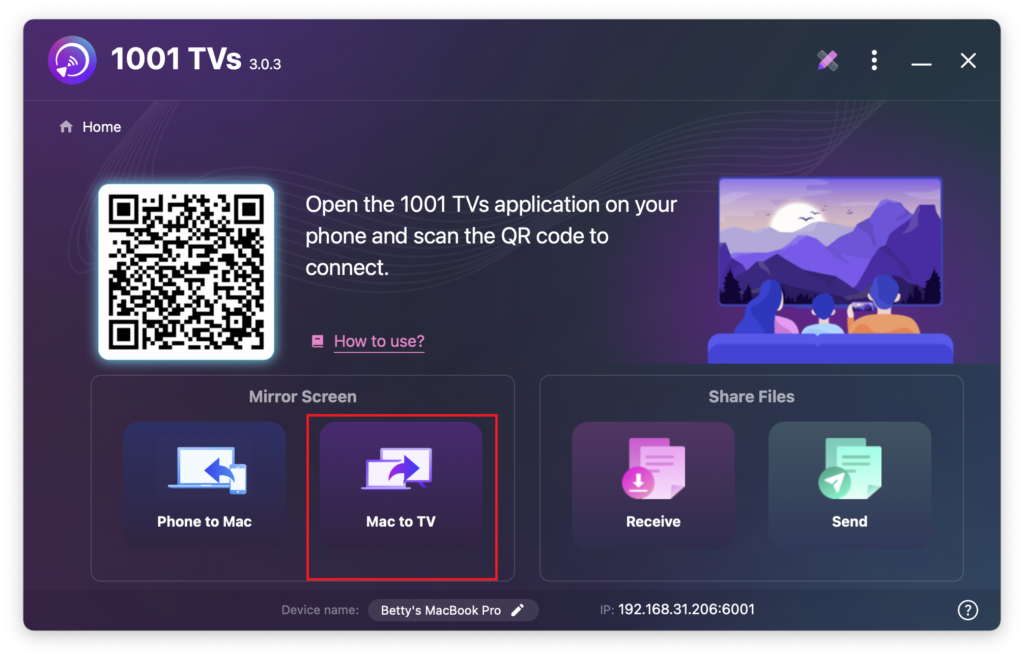
En 1001 TVs en su Mac, seleccione Mac a TV, elige Ampliar pantalla, y, a continuación, selecciona los dispositivos de destino (como PC, Mac, teléfono o TV).
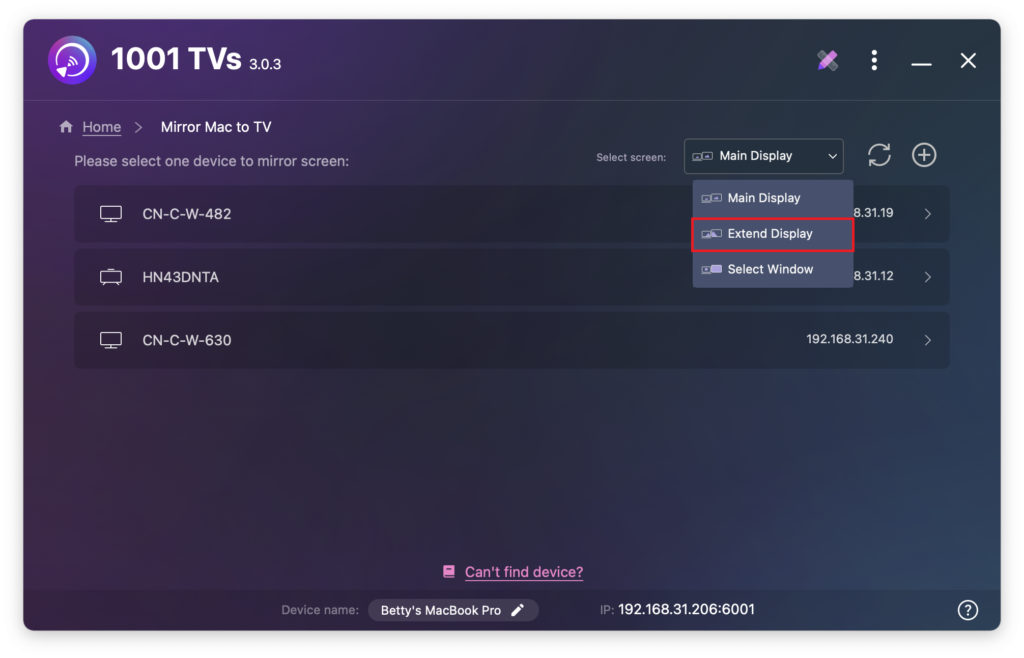
Puede pulsar el botón + Añadir para conectar más dispositivos según sea necesario.
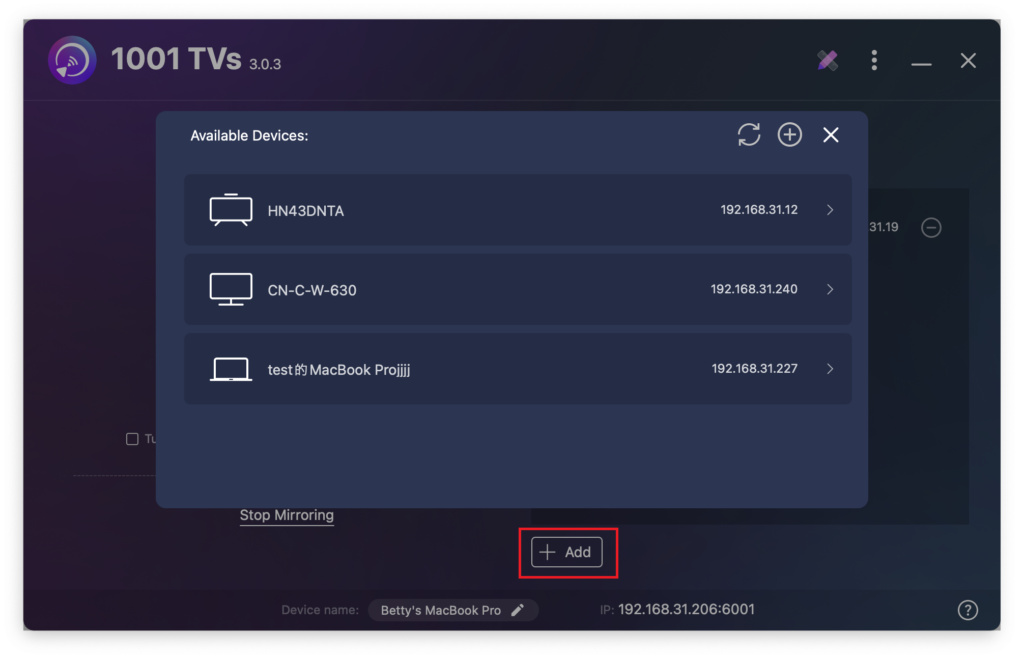
Sólo la pantalla del Mac y la pantalla principal ampliada son interactivas.
Todos los demás dispositivos conectados reflejan la pantalla ampliada y muestran el mismo contenido.
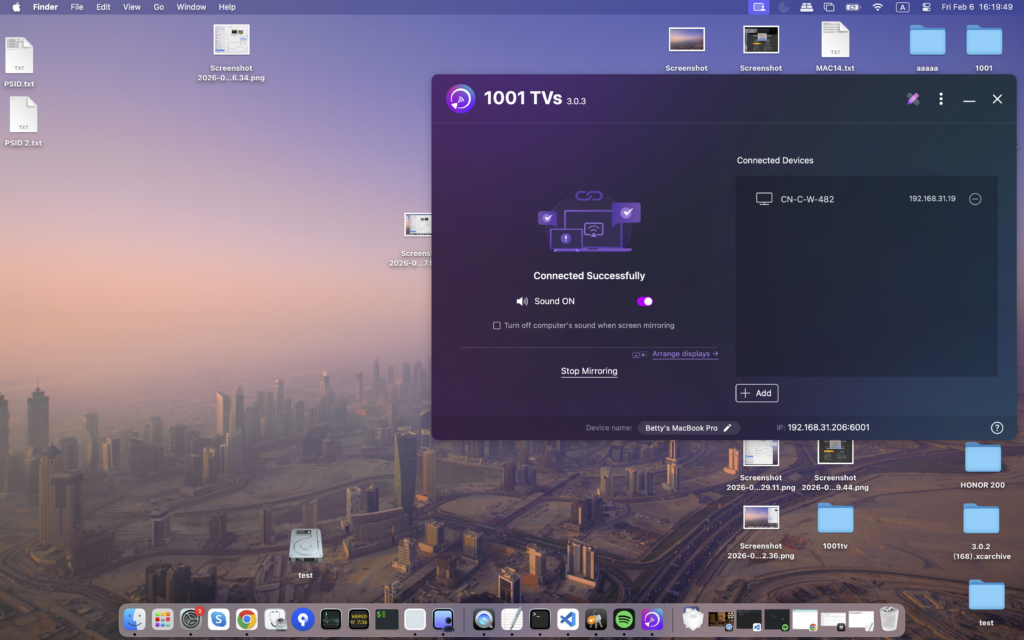
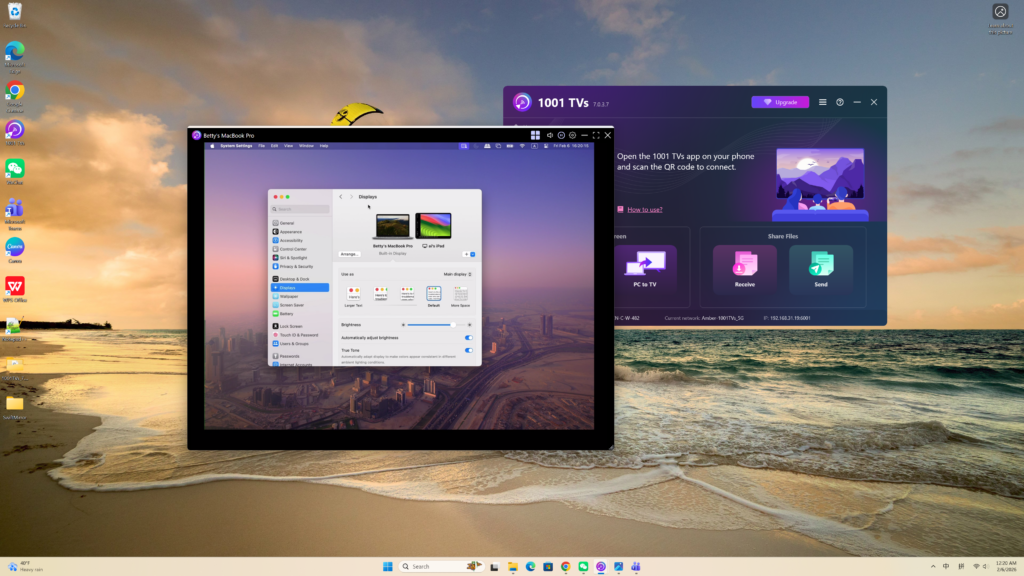
Esta configuración proporciona una experiencia de escritorio extendido, permitiéndote mover ventanas entre tu Mac y la pantalla extendida principal, mientras mantienes privado el contenido de tu pantalla principal.