
Sådan sender du filer fra din PC/Mac til TV/PC/Mac
Med 1001 TVs kan du sende filer fra din PC/Mac til dit TV/PC/Mac over det samme lokale netværk.
Og ja - pc'er og Mac'er på samme LAN kan overføre filer direkte til hinanden uden yderligere opsætning.
Ingen uploads fra skyen. Ingen kabler. Ingen tilmeldinger - bare hurtige, sikre lokale overførsler.
Før du begynder
- Sørg for, at din enhederne er forbundet til det samme Wi-Fi-netværk.
- Installer og åbn 1001 TVs på begge dine enheder, så lad appen køre på den modtagende enhed.
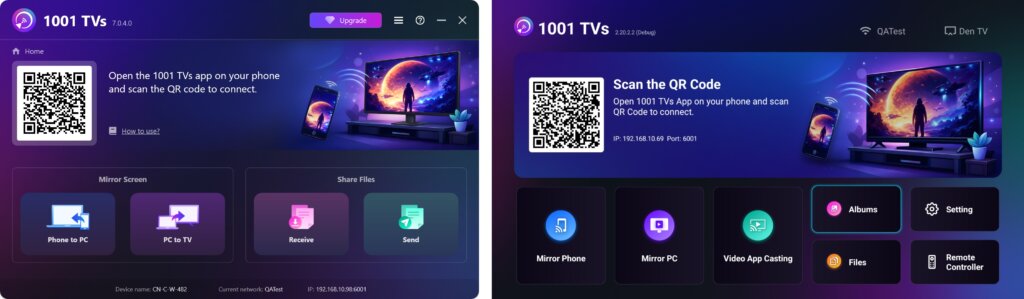
Begynd at sende
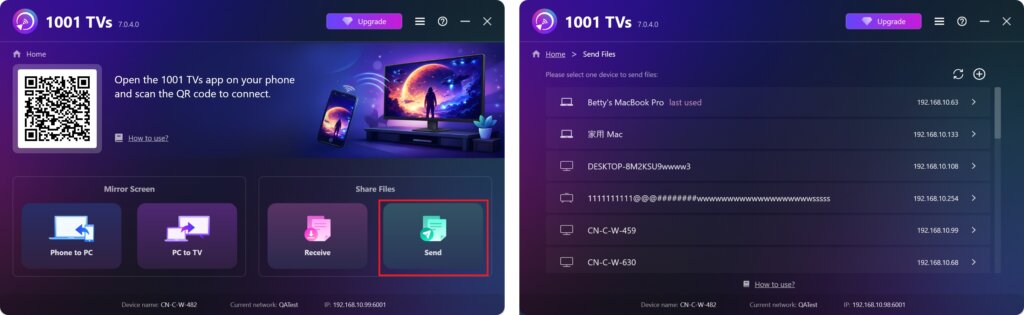
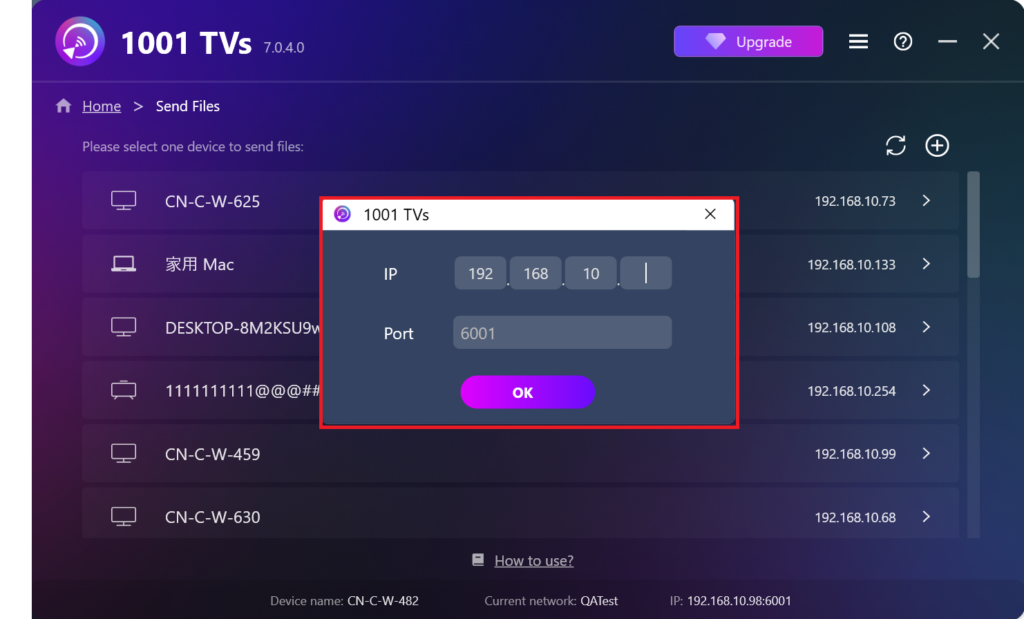
På din afsenderenhed skal du klikke på Send og appen vil automatisk søge efter tilgængelige enheder på samme netværk.
Vælg din målenhed fra listen. (f.eks. dit TV/PC/Mac)
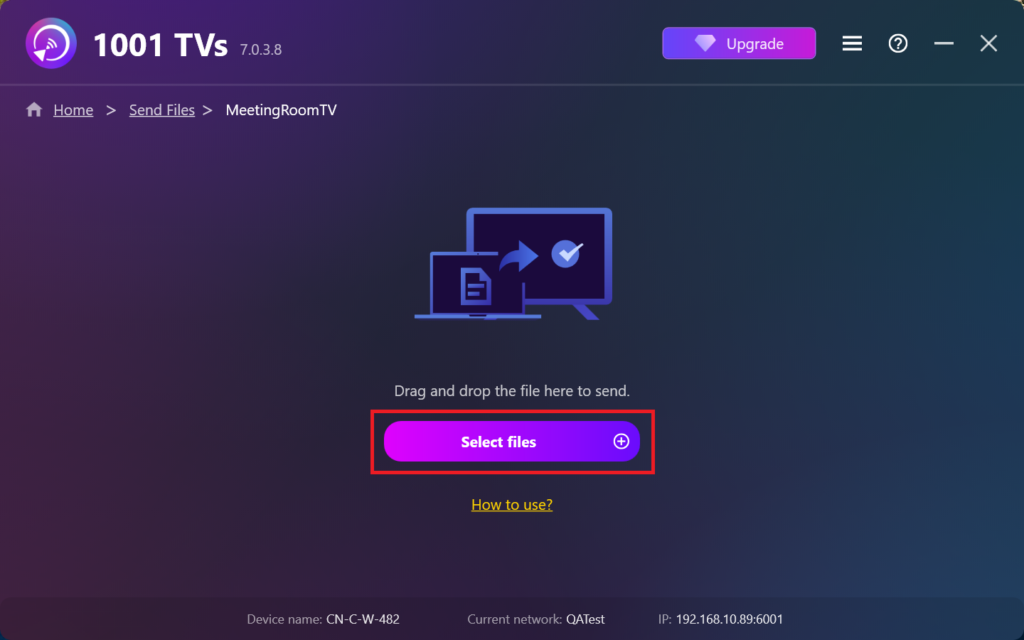
Vælg filer på din pc (videoer, fotos, musik, dokumenter m.m.), så starter overførslen automatisk til målenheden.
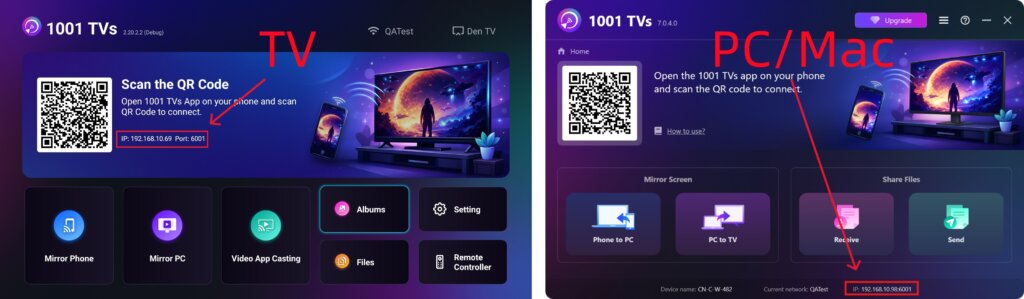
Kan du ikke finde din målenhed?
Hvis målenheden ikke vises på enhedslisten, skal du klikke på + ikon i øverste højre hjørne og brug Parring af IP-adresser til at forbinde hurtigt og sikkert.
Se modtagne filer på PC/Mac
Klik på Modtag på din pc/mac for at se alle indgående filer.
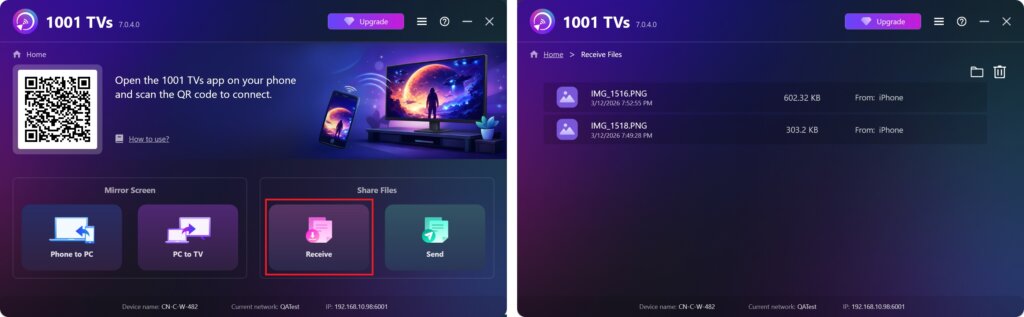
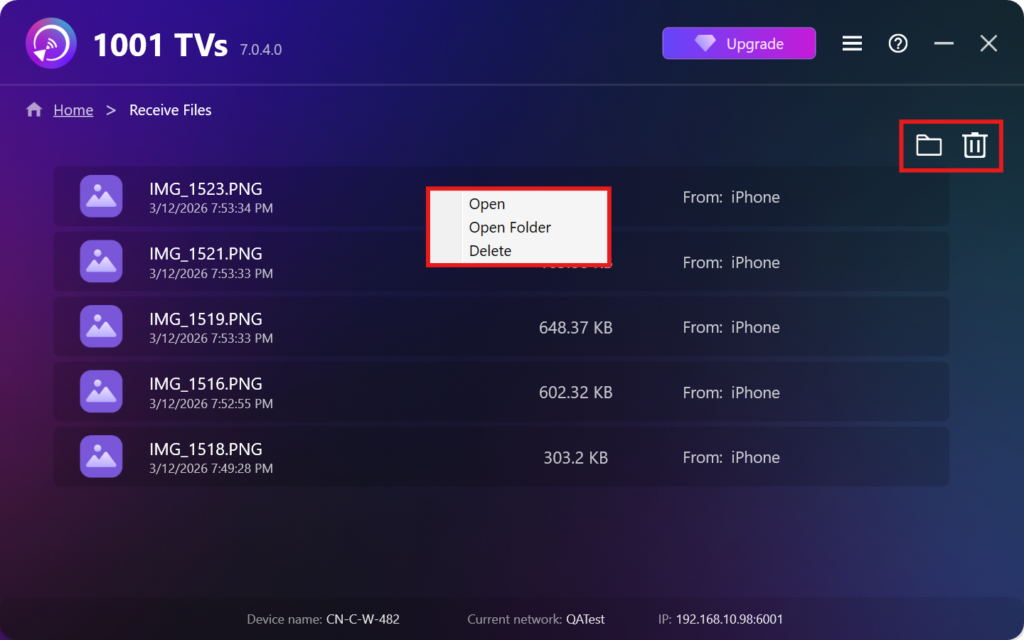
- Åbn Vis de modtagne filer – Klik på eller Højreklik og vælg “Åbn mappe” for at se alle filer fra den specifikke enhed (f.eks. iPhone 12123).
- Find dem i Finder (Mac) eller Stifinder (Windows) - Klik på mappe-ikon øverst til højre for at få adgang til alle enhedsmapper.
- Slet indstillinger – Højreklik på en fil, og vælg “Sletning” for at fjerne den enkeltvis, eller klik på Papirkurv-ikon øverst til højre for at slette alle modtagne filer på én gang.
Se modtagne filer på tv
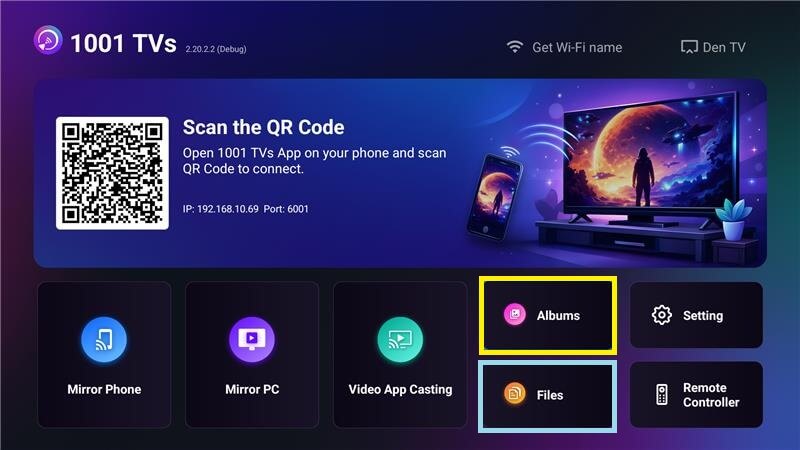
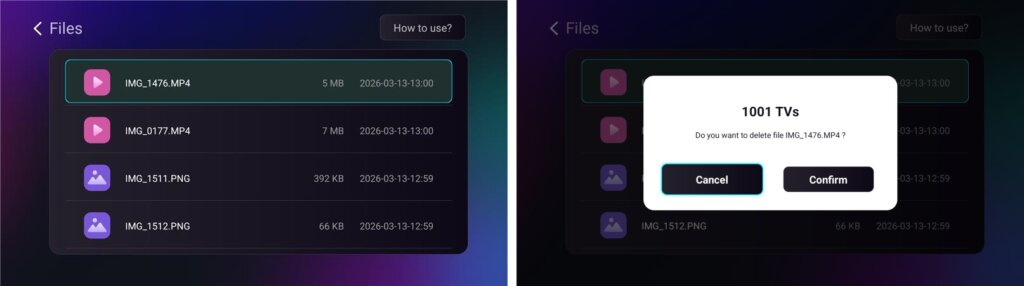
- Naviger til Filer for at se modtagne filer. Du kan vælge en fil og trykke længe på OK for at slette den.
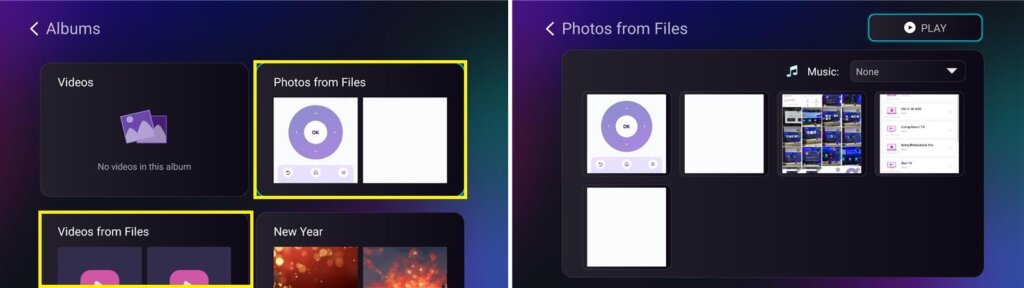
- Naviger til Album > Fotos/videoer fra filer for at se modtagne fotos og videoer. Du kan vælge en fil og trykke længe på OK for at slette dem eller afspille dem som et diasshow.
Hvorfor bruge 1001 TVs?
- Hurtig, privat og nem at bruge
- Lokal overførsel - ingen sky påkrævet
- Intet behov for login eller konto
- Understøtter overførsel af store filer
Har du brug for hjælp?
Hvis du støder på problemer, er du velkommen til at kontakte vores supportteam:
📧 E-mail: 1001tvs@nero.com
🌐 Hjemmeside: www.1001tvs.com
📖 Flere guider: Vejledning