
如何從 PC/Mac 傳送檔案到 TV/PC/Mac
使用 1001 TVs,您可以透過相同的區域網路從 PC/Mac 傳送檔案到 TV/PC/Mac。.
是的 - 同一 LAN 上的 PC 和 Mac 可以直接互相傳輸檔案,無需額外設定。.
無雲端上傳。無電纜。無需註冊 - 只需快速、安全的本地傳輸。.
開始之前
- 确保您的 裝置連接至相同的 Wi-Fi 網路.
- 安装并打开 1001 TVs 在您的兩部裝置上,保持應用程式在接收裝置上執行。.
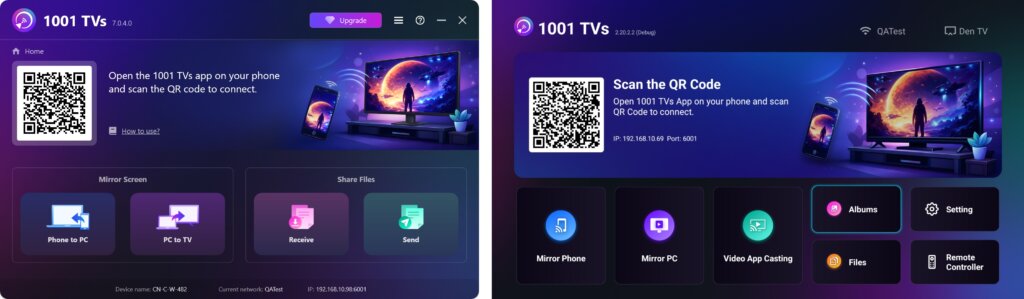
開始傳送
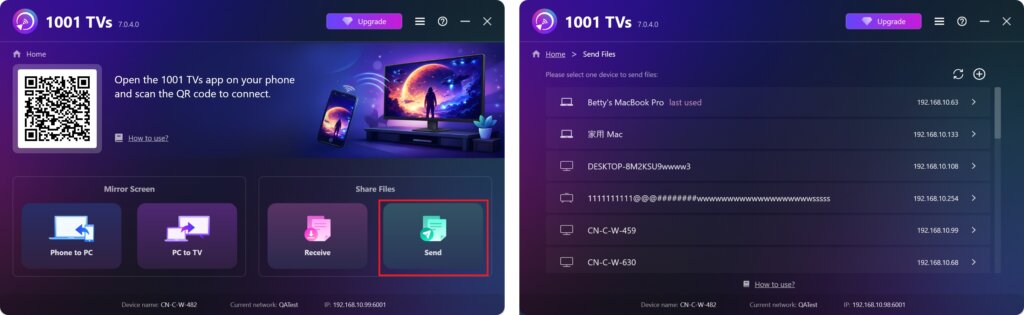
在您的傳送裝置上,按一下 发送 應用程式會自動搜尋同一網路中的可用裝置。.
從清單中選擇您的目標裝置。(例如,您的電視/電腦/Mac)。
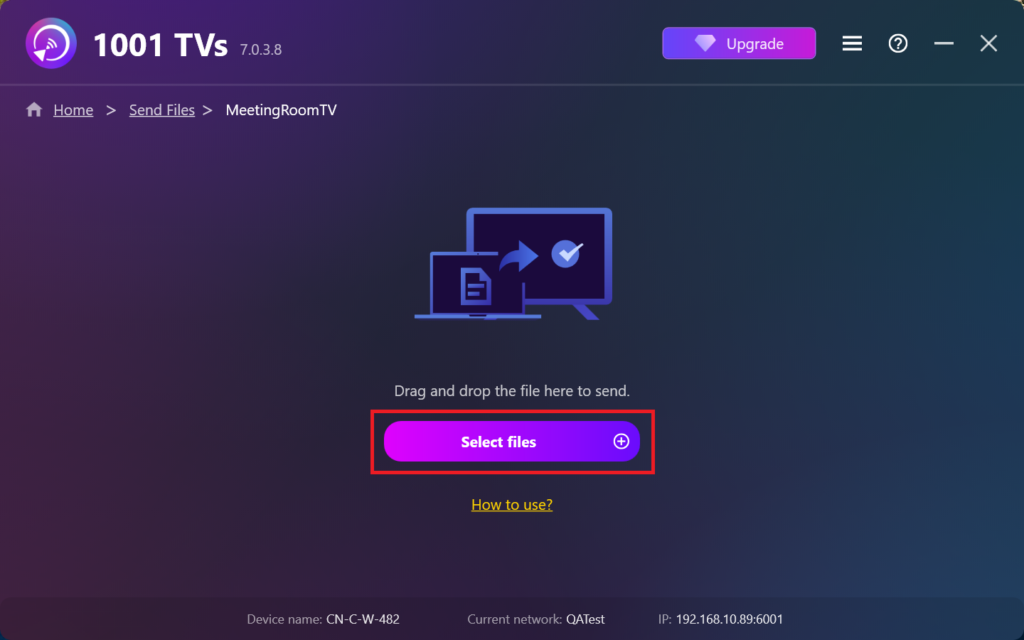
選擇 PC 上的檔案 (視訊、相片、音樂、文件等),傳輸會自動開始到目標裝置。.
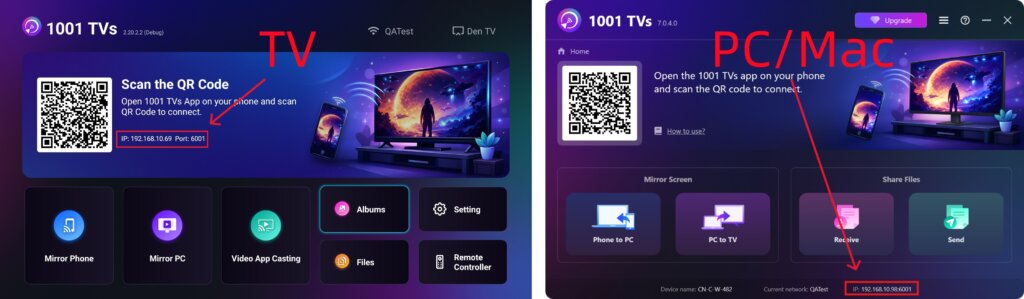
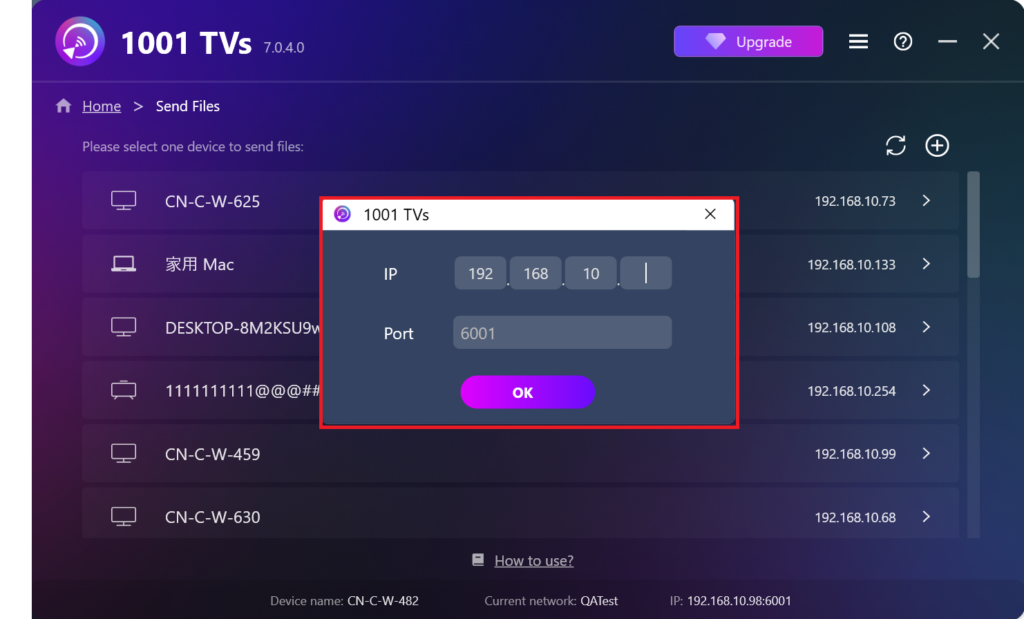
找不到您的目標裝置?
如果目標裝置未出現在裝置清單中,請按一下 + 圖示 在右上角使用 IP 位址配對 以快速安全地連接。.
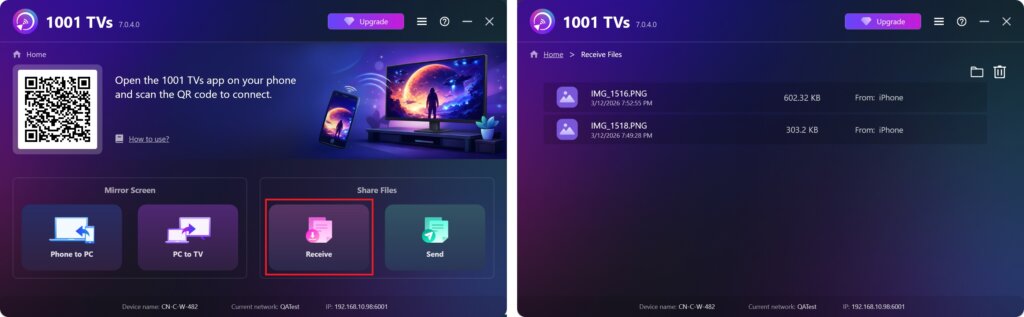
在 PC/Mac 上檢視已接收的檔案
点击 接收 在 PC/Mac 上查看所有傳入的檔案。.
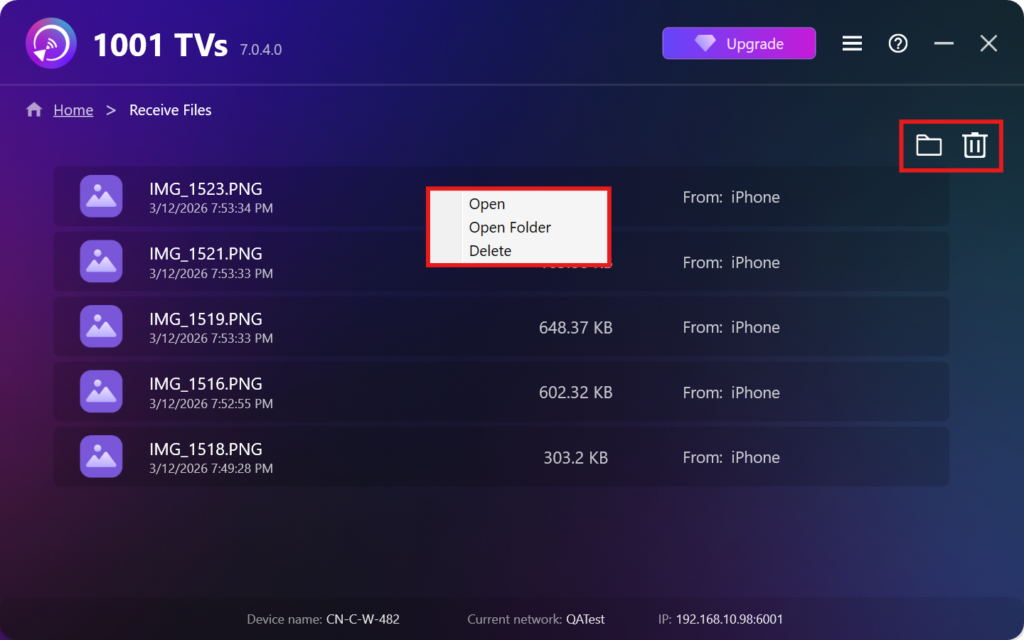
- 開啟 檢視已接收的檔案 – 点击 或 右擊 並選擇“開啟資料夾” 來檢視該特定裝置的所有檔案 (例如 iPhone 12123)。.
- 在 Finder (Mac) 或檔案總管 (Windows) 中找到它們 - 按一下 資料夾圖示 在右上方存取所有裝置資料夾。.
- 刪除選項 – 按一下滑鼠右鍵 檔案,並選擇“刪除” 將其個別移除,或按一下 垃圾桶圖示 在右上方一次刪除所有收到的檔案。.
在電視上檢視接收的檔案
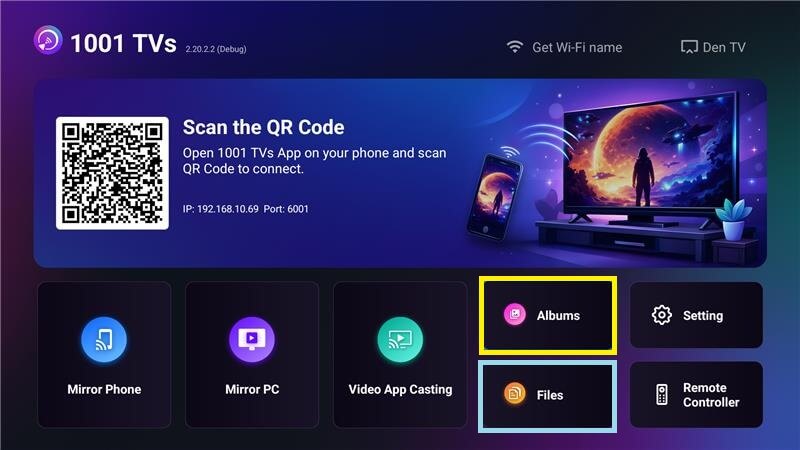
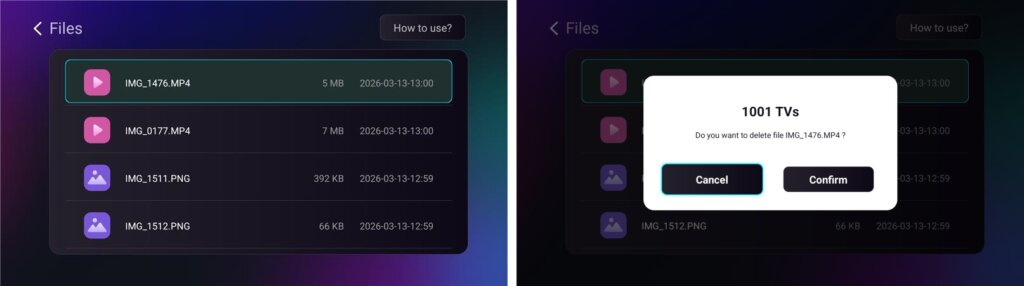
- 导航至 檔案 來檢視已接收的檔案。您可以選取檔案,然後長按 確定 來刪除它。.
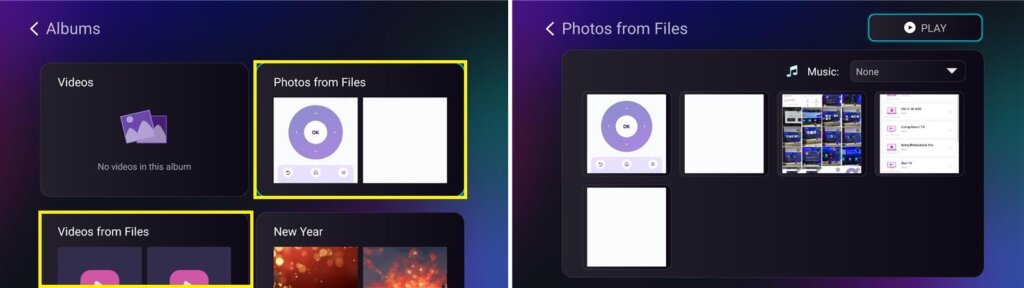
- 导航至 相簿 > 檔案中的相片/影片 來檢視收到的相片和影片。您可以選取檔案並長按 確定 來刪除,或以幻燈片播放。.
為何使用 1001 TVs?
- 快速、隱私且容易使用
- 本地傳輸 - 不需要雲端
- 無需登入或帳號
- 支援大型檔案傳輸
需要協助嗎?
如果您遇到任何問題,請隨時聯絡我們的支援團隊:
📧 电子邮件: 1001tvs@nero.com
🌐 網站: www.1001tvs.com
📖 更多指南: 使用指南