
Samsung TV Screen Mirroring: The Complete Guide (All Devices)

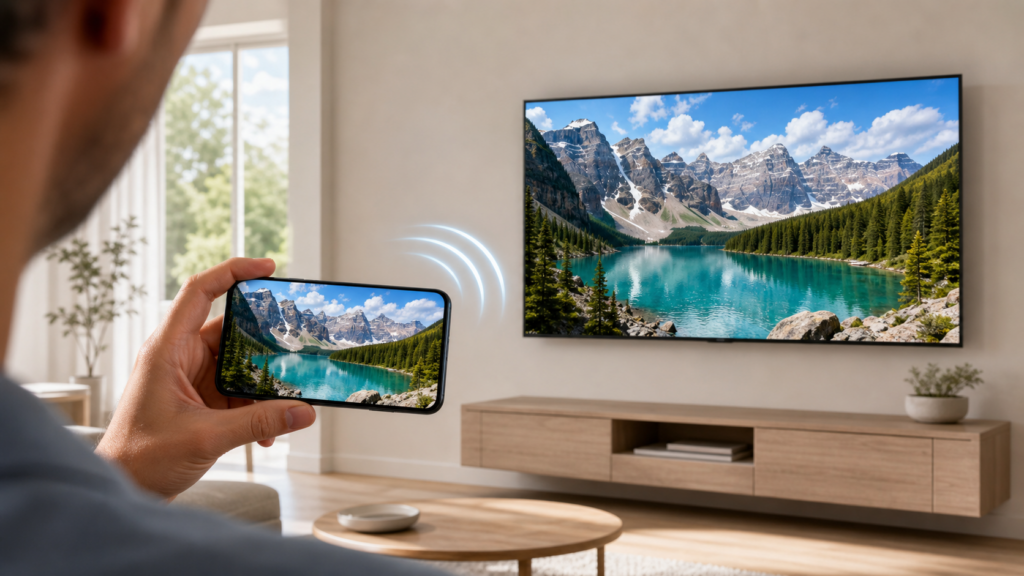
Samsung TV screen mirroring lets you display your phone, tablet, or computer screen on a Samsung Smart TV wirelessly or via cable. Samsung TVs support multiple mirroring technologies including Smart View (for Galaxy and Android), AirPlay 2 (for iPhone and iPad), and Google Cast (for Chrome and PC), plus native features like Tap View, DeX, and Multi View.
Samsung has been the world’s best-selling TV brand for 20 consecutive years, holding 29.1% of global TV market revenue in 2025 (Omdia). This guide covers every mirroring method, organized by device and TV model year, so you can find the right approach in seconds rather than scrolling through a dozen tutorials.
Use the decision tables below to identify which method fits your device and TV model. Then jump to the relevant section for an overview of how it works. For step-by-step setup instructions with screenshots, each section links to a dedicated deep-dive tutorial.
Which Screen Mirroring Method Should You Use?
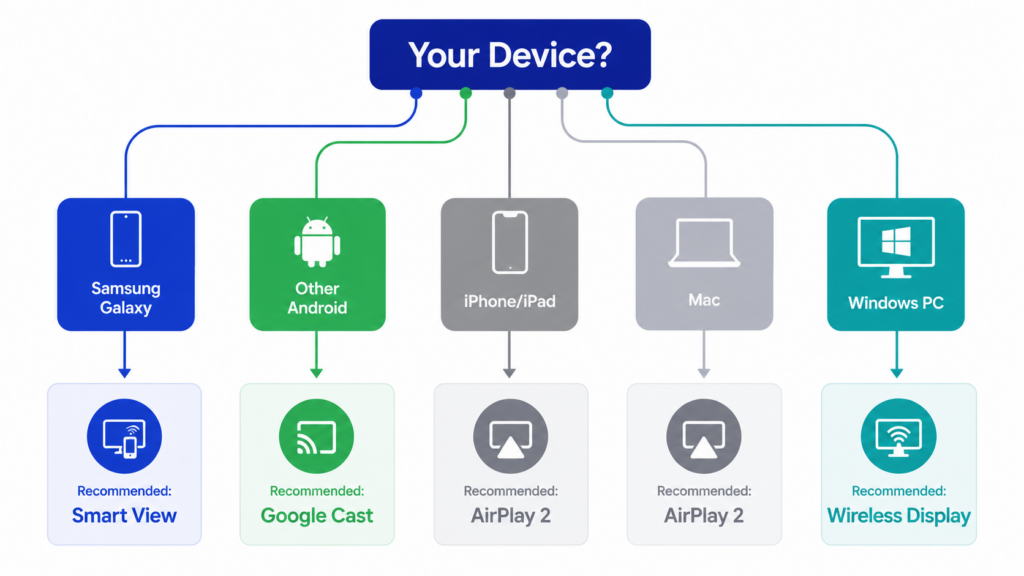
By Device
The right method depends primarily on what you’re mirroring from. Samsung was the first major TV brand to natively support all three major mirroring protocols — Miracast, AirPlay 2, and Google Cast — on a single lineup, and remains one of the few. Virtually any device can connect.
| Your Device | Recommended Method | Alternative Methods |
| Samsung Galaxy phone | Smart View (built-in) | SmartThings, Tap View, DeX |
| Other Android phone | Google Cast (2026+ TVs, select 2023-2025 via update) or 1001 TVs | Miracast |
| iPhone / iPad | AirPlay 2 (2018+ TV models) | 1001 TVs app, HDMI adapter, streaming stick |
| Mac | AirPlay 2 (macOS built-in) | 1001 TVs, HDMI cable |
| Windows 電腦 | Wireless Display (Miracast) | 1001 TVs, HDMI cable |
By Samsung TV Model Year
Not every Samsung TV supports every feature. The year and series of your TV determine which protocols and native features are available. This is the single most common source of confusion.
Someone with a 2017 Samsung TV will never see AirPlay 2, no matter how many tutorials they follow.
| Samsung TV Year | Smart View (Miracast) | AirPlay 2 | Google Cast | Tap View | DeX | Multi View |
| 2016-2017 | 是 | 没有 | 没有 | 没有 | 没有 | 没有 |
| 2018-2019 | 是 | Yes (select models) | 没有 | 没有 | 没有 | 没有 |
| 2020-2023 | 是 | 是 | Select 2023 models (via update) | 是 | 是 | Yes (2 screens) |
| 2024-2025 | 是 | 是 | Yes (via firmware update) | 是 | 是 | Yes (4 screens on 2025+) |
| 2026 | 是 | 是 | 是 | 是 | 是 | Yes (4 screens + ambient) |
How to check your TV‘s model year:
- On your Samsung TV, go to Settings > All Settings > About This TV.
- Find the model code (e.g., QN65Q80TAFXZA). The letter indicates the year: T = 2020, A = 2021, B = 2022, C = 2023, D = 2024, F = 2025.
- For AirPlay 2, check Settings > General > Apple AirPlay Settings. If that menu exists, your TV supports it.
Samsung’s Native Screen Mirroring Features
Samsung builds five screen-sharing technologies into its Smart TVs and Galaxy devices. Each has a sweet spot where it outperforms the others. Here is what each one does and when to use it.
Smart View (Samsung Galaxy / Android)
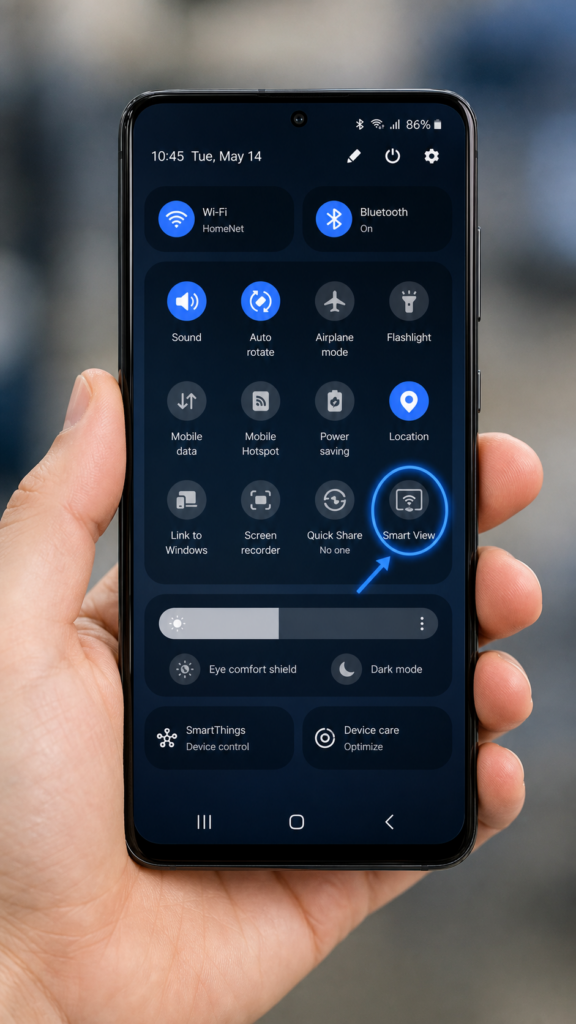
Smart View is Samsung’s built-in mirroring feature for Galaxy phones and tablets, using Miracast to wirelessly duplicate your screen on any Samsung Smart TV from 2016 onward. Access it from the Quick Settings panel: swipe down, tap the Smart View icon, select your TV, and confirm. Samsung’s official Smart View guide has the full setup.
One key distinction: Smart View mirrors your entire screen, while casting plays video only on the TV with your phone acting as a remote. Note that DRM-protected content from Netflix and Disney+ may show a black screen during full-screen mirroring. Use the in-app Cast or AirPlay button for those services instead.
SmartThings App (Cross-Platform Hub)
SmartThings is Samsung’s smart home app that also handles screen mirroring, available on both Android and iOS. It uses the same Miracast technology as Smart View but offers a richer interface.
It is particularly useful for iPhone users who want to mirror without AirPlay 2, and it supports reverse mirroring: streaming your TV’s screen back to your phone. Version 1.745 or higher is required for Tap View support.
Tap View (One-Tap Mirroring)
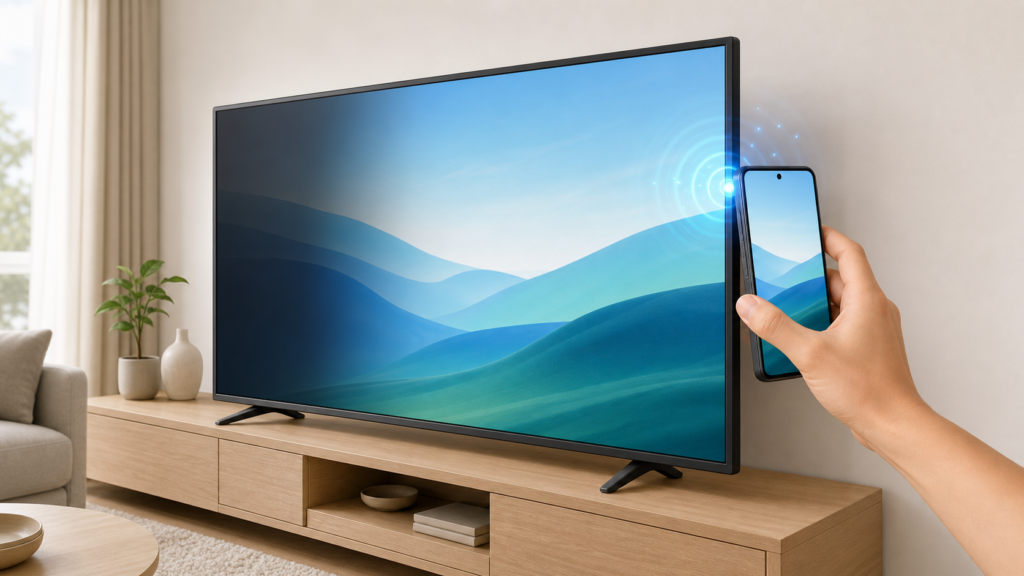
Tap View lets you start mirroring by physically tapping your Galaxy phone against the side of your Samsung TV. Available on 2020+ TVs with SmartThings v1.745+, it can even wake up a turned-off TV on 2021 through 2025 models, as described in Samsung’s Tap View support page.
This feature is exclusive to Samsung Galaxy phones. Non-Samsung Android users should use Smart View or Google Cast instead.
Samsung DeX (Desktop Mode)
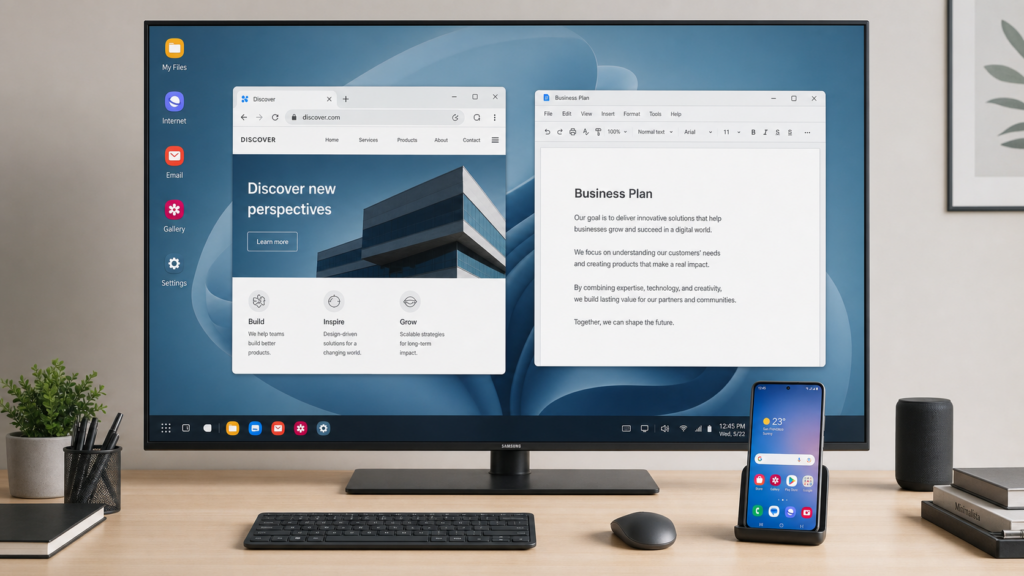
DeX transforms your Galaxy phone into a desktop-like experience on your TV, with a taskbar, resizable windows, and keyboard shortcuts. Unlike Smart View, which mirrors your phone screen, DeX launches a separate desktop environment so your phone remains usable for calls and browsing.
Wireless DeX works on any Miracast-supporting TV, not just Samsung models. It is available on Galaxy S and Note series from the S8 and Note8 onward, the Z Fold series, and select Tab tablets.
The Z Flip7 and Z TriFold support DeX, but earlier Z Flip models do not. Check Samsung’s DeX compatibility list for your model.
Multi View (Split-Screen Mirroring)
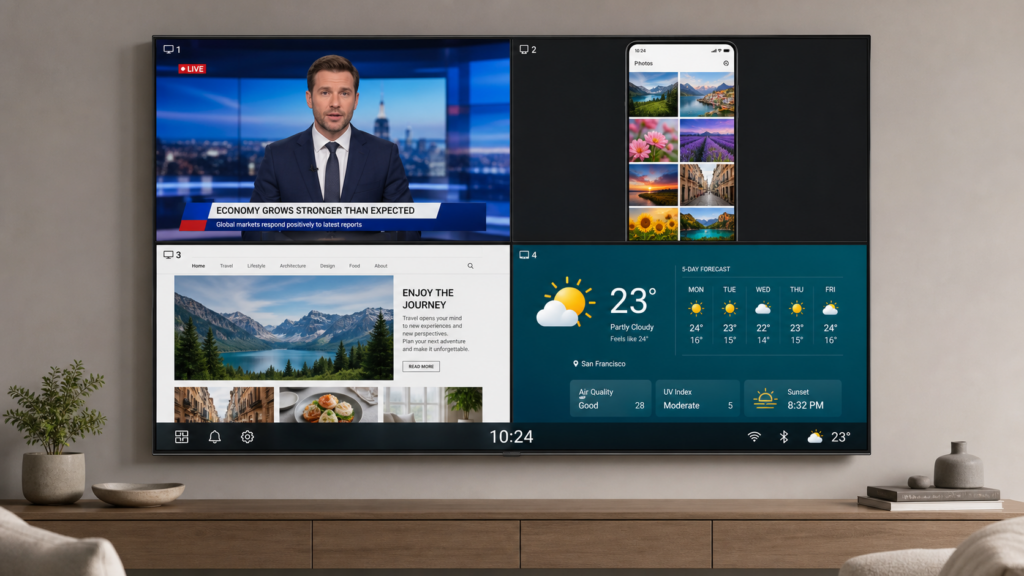
Multi View displays multiple content sources simultaneously on your Samsung TV. The 2020 through 2023 models support two screens. The 2025 and newer models (Q7F and above) support up to four screens plus an ambient information window with customizable layouts and independent audio routing.
DRM-protected apps like Netflix and Disney+ cannot be added to Multi View. Samsung’s Multi View support page has the full compatibility matrix.
How to Screen Mirror iPhone to Samsung TV
iPhone users have five proven methods for screen mirroring to a Samsung TV, ranging from the free built-in AirPlay 2 to wired HDMI adapters. Each method has specific compatibility requirements and trade-offs around cost, latency, and DRM support.
| 方法 | 如何使用 | 最適合 |
| AirPlay 2 | 1. Connect your iPhone and Samsung TV to the same Wi-Fi 2. Open Control Center and tap the Screen Mirroring icon 3. Select your Samsung TV and enter the on-screen code | Everyday wireless mirroring |
| 1001 TVs 应用程序 | 1.安裝 1001 TVs on your iPhone and Samsung TV 2. Open the app on both devices on the same network 3. Tap the mirror button and select your TV | When AirPlay is not available |
| HDMI adapter | 1. Plug a Lightning-to-HDMI adapter into your iPhone 2. Connect an HDMI cable from the adapter to the TV 3. Switch the TV to the matching HDMI input | Gaming and presentations |
| Streaming stick | 1. Plug a Roku or Apple TV stick into the TV’s HDMI port 2. Connect the stick to Wi-Fi and pair it with your iPhone 3. Use AirPlay or the stick’s app to start mirroring | Pre-2018 Samsung TVs |
| In-app casting | 1. Open a Cast-enabled app like YouTube or Netflix 2. Tap the Cast icon in the video player 3. Select your Samsung TV and start playback | Battery-efficient video watching |
For step-by-step instructions with screenshots and troubleshooting, see our dedicated guide on how to screen mirror an iPhone to a Samsung TV without Apple TV. It covers AirPlay 2 setup, the 1001 TVs app walkthrough, HDMI adapter compatibility, streaming stick options, and in-app casting.
How to Mirror Android Phone to Samsung TV
Samsung Galaxy Phones
Samsung Galaxy owners have the richest set of mirroring options. Here is a quick guide to choosing the right one:
| 方法 | 如何使用 | 最適合 |
| 智慧檢視 | 1. Swipe down from the top of your Galaxy screen 2. Tap the Smart View icon in Quick Settings 3. Select your Samsung TV and tap Start Now | Photos, videos, casual browsing |
| Tap View | 1. Open SmartThings and enable Tap View in settings 2. Make sure your phone screen is unlocked 3. Gently tap your phone against the side of the TV | Starting instantly when near the TV |
| SmartThings | 1. Install and open the SmartThings app on your phone 2. Select your Samsung TV from the device list 3. Tap the Smart View button to begin mirroring | Extra controls, reverse mirroring |
| DeX | 1. Swipe down to Quick Settings and tap DeX 2. Select your Samsung TV from the available displays 3. Tap Start to launch desktop mode on the TV | Documents, presentations, multitasking |
| 1001 TVs | 1. 下載 the app on your Galaxy phone and Samsung TV 2. Open the app on both devices on the same network 3. Select your TV and tap Start Mirroring | Extra features like file transfer and whiteboard |
For most Galaxy owners, Smart View handles 90% of situations. Reach for Tap View when speed matters, SmartThings when you need extra controls, and DeX when work is involved.
Non-Samsung Android Phones
If you are using a Google Pixel, OnePlus, Xiaomi, or other non-Samsung Android phone, Samsung’s native features (Smart View, Tap View, DeX) are not available. Three alternatives exist:
| 方法 | 如何使用 | 最適合 |
| Google Cast | 1. Connect your phone and Samsung TV to the same Wi-Fi 2. Open a Cast-enabled app like YouTube, Netflix, or Chrome 3. Tap the Cast icon and select your Samsung TV | Newer Samsung TVs (2026+; select 2023-2025 via update) |
| Miracast | 1. Swipe down to Quick Settings on your phone 2. Tap “Cast,” “Screen Cast,” or “Wireless Display” 3. Select your Samsung TV from the list | Older Samsung TVs (2016+) |
| 1001 TVs | 1. 下載 the app on your phone and Samsung TV 2. Open the app on both devices on the same network 3. Select your TV from the app and tap Start Mirroring | Universal solution; also adds file transfer and whiteboard |
How to Mirror Mac and Windows PC to Samsung TV
Mac to Samsung TV
Mac users have three reliable options:
| 方法 | 如何使用 | 最適合 |
| AirPlay 2 | 1. Connect your Mac and Samsung TV to the same Wi-Fi 2. Click the Control Center icon in the menu bar 3. Click Screen Mirroring and select your Samsung TV | Everyday wireless mirroring |
| 1001 TVs | 1. Install the 1001 TVs Mac client from the website 2. Open the app and connect to the same network as your TV 3. Select your Samsung TV and start mirroring | When AirPlay 2 is unavailable |
| HDMI | 1. Connect a USB-C or Thunderbolt-to-HDMI cable to your Mac 2. Plug the HDMI end into your Samsung TV 3. Switch the TV to the matching HDMI input | Gaming, video editing, presentations |
Windows PC to Samsung TV
Windows users have three reliable options:
| 方法 | 如何使用 | 最適合 |
| 無線顯示 | 1. Open Settings and go to Bluetooth and devices 2. Click Add device and select Wireless display or dock 3. Choose your Samsung TV and confirm the connection | Built-in wireless mirroring |
| 1001 TVs | 1. Install the 1001 TVs Windows client 2. Open the app and connect to the same network as your TV 3. Select your Samsung TV and start mirroring | Corporate environments, unreliable Miracast |
| HDMI | 1. Connect one end of an HDMI cable to your PC 2. Plug the other end into your Samsung TV 3. Switch the TV to the matching HDMI input | Most reliable option for any PC |
Screen Mirroring Protocols on Samsung TV: What Is Happening Under the Hood
Samsung Smart TVs support three major protocols: Miracast (Smart View for Android), AirPlay 2 (Apple devices, 2018+ models), and Google Cast (Chrome and Android, 2026 models with rollout to select 2023-2025 models). Samsung was the first major TV brand to support all three natively on a single lineup, and its triple-protocol coverage remains the broadest in the industry.
LG gained Google Cast via a webOS update starting in 2024; Sony supports both AirPlay 2 and Google Cast on its Google TV models. However, Samsung’s edge is that it supports all three protocols across its entire Smart TV lineup from 2016 onward, whereas competitors’ support varies by model series and OS platform. This broad coverage means virtually any phone, tablet, or computer can connect without third-party hardware.
| Protocol | Used By | Samsung TV Support | How It Works |
| Miracast | Android phones, Windows PCs | 2016+ | Screen duplication over Wi-Fi Direct; no internet router needed |
| AirPlay 2 | iPhone, iPad, Mac | 2018+ | Apple’s protocol; DRM-friendly; requires same Wi-Fi network |
| Google Cast | Chrome browser, Android apps | 2026 (all models); select 2023-2025 via update | App-level casting, not full-screen mirroring; TV streams directly |
These protocols differ in what they transmit. Miracast sends a compressed copy of your entire screen over a direct Wi-Fi connection, which is true screen mirroring.
AirPlay 2 can mirror your full screen or stream specific media from apps, and handles DRM-protected content more gracefully. Google Cast is a casting protocol: the TV fetches content from the internet while your phone acts as a remote. It is more battery-efficient but does not mirror your screen.
Common Samsung TV Screen Mirroring Problems (Quick Overview)
Screen mirroring issues on Samsung TVs fall into a handful of common categories. Here is a quick-reference table with the most likely cause and fix for each.
| Problem | Likely Cause and Quick Fix |
| TV doesn’t appear in device list | Both devices aren’t on the same Wi-Fi network or a VPN is interfering. Confirm same network, disable VPN, restart both devices. |
| Mirrored screen looks blurry | Adaptive image quality is prioritizing smoothness over resolution. In Smart View or 1001 TVs settings, turn off adaptive quality and increase resolution. |
| Noticeable lag or stuttering | 2.4 GHz Wi-Fi is too congested. Switch to a 5 GHz network, or use a wired HDMI connection for zero latency. |
| Netflix shows a black screen | DRM/HDCP protection blocks full-screen mirroring of protected content. Use the in-app Cast or AirPlay button instead of screen mirroring. |
| No audio through the TV | TV is muted, or the mirroring app has an audio routing issue. Check TV volume; for 1001 TVs, update to the latest version. |
| AirPlay won’t connect | Devices are on different Wi-Fi bands (2.4 vs 5 GHz), or AirPlay is disabled in TV settings. Confirm same band, check Settings > General > Apple AirPlay Settings. |
Samsung TV Screen Mirroring FAQ
What is Samsung TV screen mirroring?
Samsung TV screen mirroring displays your phone, tablet, or computer screen on your Samsung Smart TV. Samsung TVs support Miracast (Smart View for Android), AirPlay 2 (for Apple devices, 2018+ models), and Google Cast (2026 models, rolling out to select 2023-2025 models), plus native features including Tap View, DeX desktop mode, and Multi View split-screen.
Which Samsung TVs support screen mirroring?
All Samsung Smart TVs running Tizen OS support Miracast/Smart View from 2016 onward. AirPlay 2 requires 2018 or newer models (QLED, Neo QLED, OLED, The Frame, and Crystal UHD series).
Google Cast launched on all 2026 Samsung TVs out of the box and is rolling out to select 2023-2025 models via the One UI Tizen firmware update (v2115), starting with OLED and high-end Neo QLED models. Tap View, DeX, and Multi View require 2020 or newer models.
How do I screen mirror to my Samsung TV without an app?
Samsung Galaxy phones can use Smart View by swiping down the Quick Settings panel. No app installation needed. iPhones use AirPlay 2 from the Control Center. Windows PCs use the built-in Wireless Display feature in Settings. All three methods are built into the operating system and require no additional downloads.
Does Samsung TV screen mirroring work without Wi-Fi?
Miracast (Smart View) uses Wi-Fi Direct, which creates a direct connection between your phone and TV without needing a router or internet access. AirPlay 2 requires both devices on the same Wi-Fi network. HDMI cable connections do not use Wi-Fi at all. So yes, mirroring can work without Wi-Fi depending on the method you choose.
What’s the difference between Smart View and AirPlay on Samsung TV?
Smart View is based on the Miracast protocol and works with Samsung Galaxy and other Android devices. AirPlay 2 is Apple’s protocol and works with iPhone, iPad, and Mac. Both mirror your screen to the Samsung TV, but Smart View is Android-only while AirPlay is Apple-only. Samsung TVs from 2018 onward support both simultaneously.
Can I mirror my Samsung TV to my phone?
Yes. Through the SmartThings app, you can stream your Samsung TV’s screen to your phone or tablet. Open SmartThings, select your TV, go to the Smart View page, tap “Other device,” then “Phone,” and select your TV. This reverse mirroring feature is officially supported by Samsung.
How many screens can Samsung Multi View display?
Samsung Multi View on 2020 through 2023 TV models supports 2 screens. 2025 and newer models (Q7F and above) support up to 4 screens plus an ambient information window with customizable layouts. DRM-protected content from Netflix, Disney+, and similar services cannot be used in Multi View.
Why is screen mirroring not working on my Samsung TV?
The most common causes are devices not on the same Wi-Fi network, VPN interference, the TV requiring manual permission for the connection, or outdated firmware on either device. Quick fixes include confirming the Wi-Fi network, disabling VPNs, restarting both devices, and checking for software updates.
结论
Samsung TV screen mirroring covers more ground than any other TV brand thanks to its triple-protocol support and native features like Tap View, DeX, and Multi View. Whether you are coming from a Galaxy phone, an iPhone, a Mac, or a Windows PC, there is a method that works for your specific Samsung TV model.
Use the decision tables above to find your method, then follow the linked guides for step-by-step setup. And when the built-in options fall short, you can download 1001 TVs as the cross-platform tool that bridges every gap.