Digital Signage for Manufacturing: What to Display on the Factory Floor
The next shift is about to start. The schedule is ready for the break-room TV, and the production team needs to see the current output dashboard on the floor. The schedule can be prepared ahead of time. The team needs to see the current dashboard view from the system it already uses.
Use 1001 TVs Digital Signage with OneDrive for prepared schedules, notices and videos. Use Screen Mirroring when a team needs to see a dashboard running on a Windows PC. If people need to act immediately in an emergency, follow the factory’s established alarm and communication procedures.
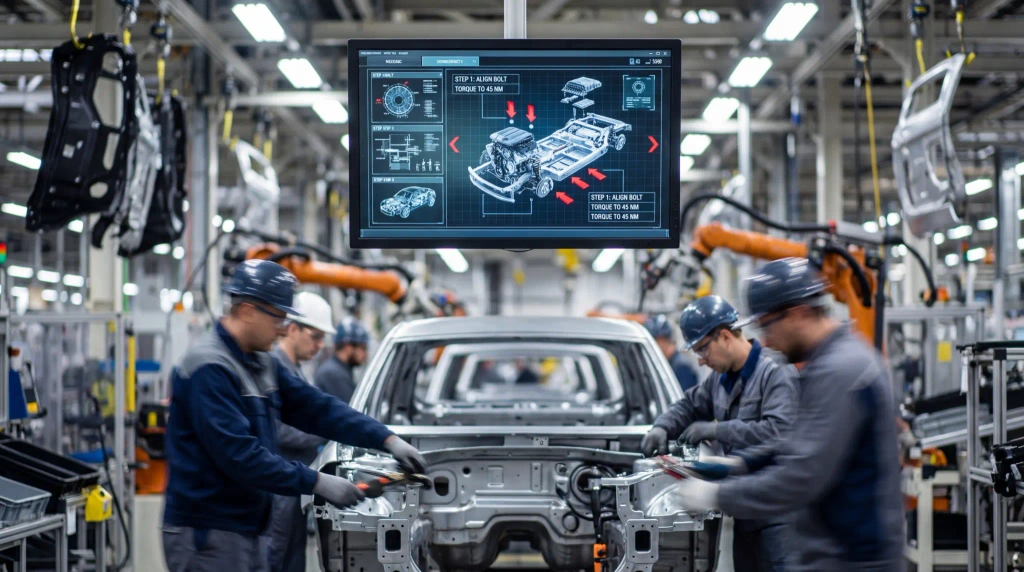
Before the Shift: Prepare Schedules and Routine Notices
Start with the approved schedule for the next shift. Export it as an image with a visible date or effective period. Check that shift names and times can be read from where employees normally stand. You can also prepare a training notice, a routine safety reminder, a team recognition slide or a short prerecorded training video.
Upload the approved images and videos to the 1001 TVs folder in OneDrive. Each TV configured with that folder can download the same media for playback. This works well when a break-room screen and a staff entrance screen need the same schedule and notices. If one production line needs its own instructions, plan a separate playback setup for that area.
Auto-Update can check for new files every 2, 4 or 24 hours, depending on the interval you select. Each TV checks on its own interval, so upload the schedule early enough to allow the configured check and download to complete. Before handover, watch the rotation on each screen that will show the schedule. If an earlier version still appears, resolve that on the affected display before counting on it for the next shift.
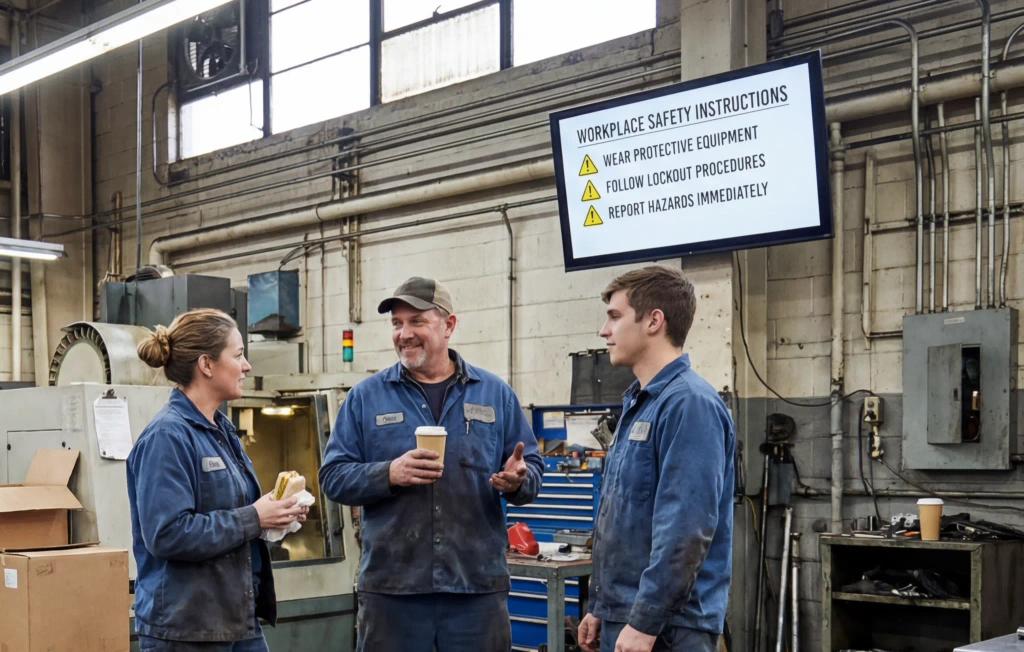
During the Shift: Mirror an Existing Production Dashboard
If your production team already uses a dashboard on a Windows PC, use 1001 TVs Screen Mirroring to show that screen on a compatible TV. Your existing production system supplies the data and determines how often it refreshes. The TV shows the view open on the source PC, whether that’s current output, progress against a target or a production line’s status.
Choose the dashboard view that people on the floor need for their work. At the test screen, look for the current shift, the timestamp if the dashboard shows one, and the figures people need to read at a glance. Follow an ordinary dashboard update on the source PC and check what appears on the TV. That gives you a way to check the actual display during a shift without assuming a refresh rate.
If several screens need the same dashboard view, test mirroring from the Windows PC to multiple compatible receivers. Connect the intended receivers during the pilot and check each screen. If two production lines need different views, confirm the source and display setup for each line before expanding.
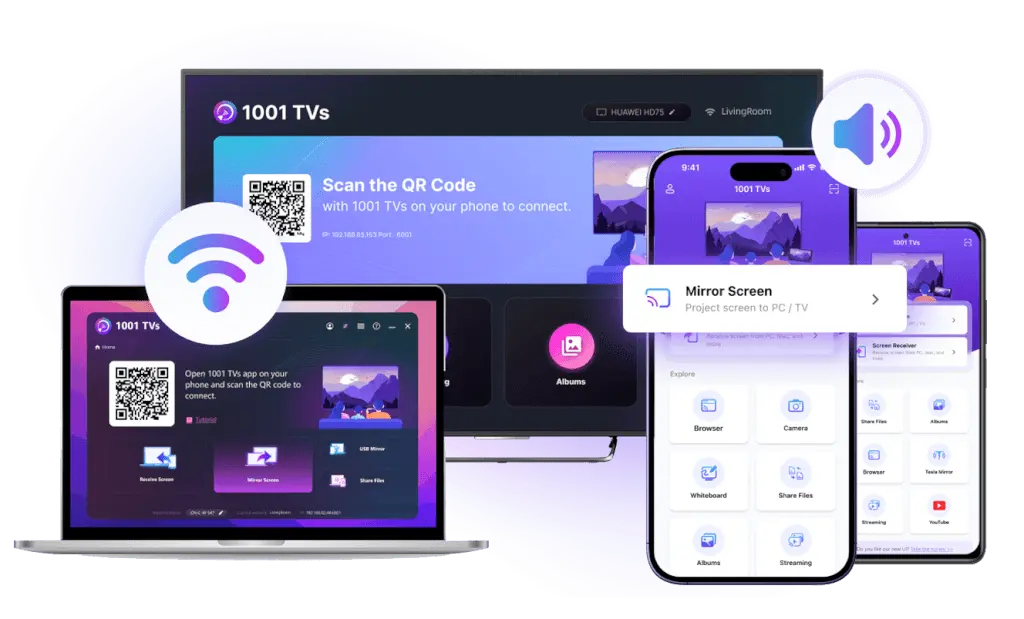
When Immediate Action Is Required: Follow Factory Procedures
A prepared safety reminder or training clip can reinforce routine practices before a shift. If an incident requires immediate action, follow the factory’s established emergency alarm and communication procedures. Use the channels specified in the site’s emergency plan to reach staff. A signage update may still be waiting for the TV’s next OneDrive check.
Test One Display Before You Expand
- Confirm the TV and network with site IT. Use the equipment and network the screen will actually operate on. Confirm that IT permits the required OneDrive access and local device discovery for Screen Mirroring.
- Pair the phone and TV for Digital Signage. Connect them to the same approved Wi-Fi, open 1001 TVs, and select the TV from Digital Signage on the phone. Complete OneDrive sign-in and upload a dated sample schedule or short training clip.
- Check download, playback and Auto-Update. Confirm that the sample downloads and plays on the TV. Enable Auto-Update and send a second sample. Check the screen after the configured interval to verify that the new file has arrived and can play.
- Test the Windows dashboard separately. Put the approved Windows PC and receiver on the intended local network, confirm the PC can discover the receiver, and mirror the dashboard the team actually uses. Check readability from the normal viewing position and compare an update on the TV with the source.
- Add the remaining displays once both paths work. Configure each signage TV individually. Verify the schedule at each location and test the Windows receivers together wherever teams need the same live dashboard.
Start with one display and a dated sample schedule. The 1001 TVs OneDrive setup guide walks through pairing, uploading media and setting the update interval.
Read More
 Digital Signage for Retail Stores: What to Display and How to Set It Up
A Saturday promotion is ready to go. The artwork has the featured products, prices, and offer dates. Now the store team needs to get…
 Digital Signage for Technology & B2B Teams
Use 1001 TVs Digital Signage with OneDrive to keep office TVs stocked with photos and videos, such as visitor welcome slides, team announcements, and…

