Core Features of the Desktop Casting Window (Split Screen · Full Screen · Pause · Hide Title Bar)
The 1001 TVs desktop app lets you control screen casting directly from the casting window, including full-screen mode, pause, hiding the title bar, and multi-device split-screen casting.
All actions can be performed on the desktop itself—no phone or additional sending device required—making it ideal for both individual use and team collaboration.
How to Use
1. Title Bar Controls
The title bar provides quick access to the following features:
1) Automatic Split Screen (Windows)
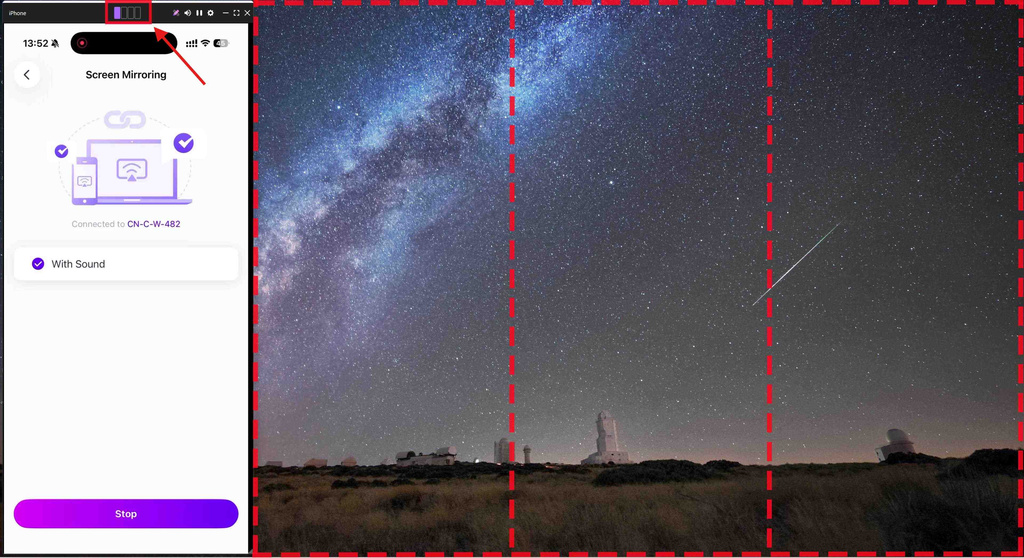
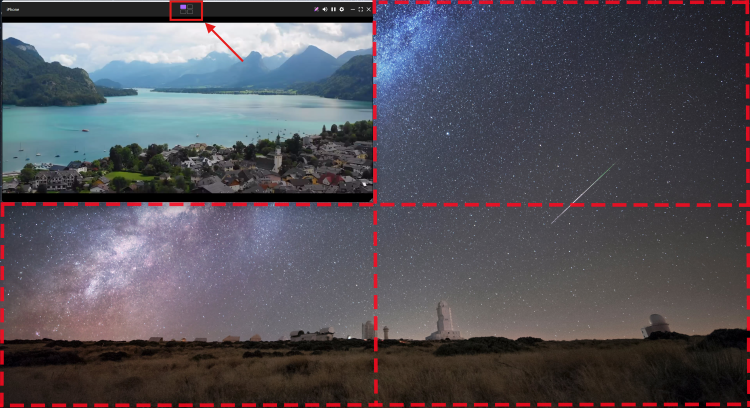
After a successful connection, click the four-square icon in the title bar to automatically split the screen into four sections.
Each connected device is displayed in its own window, supporting both portrait and landscape orientations—ideal for multi-device comparison or team collaboration.
2) Full Screen Display
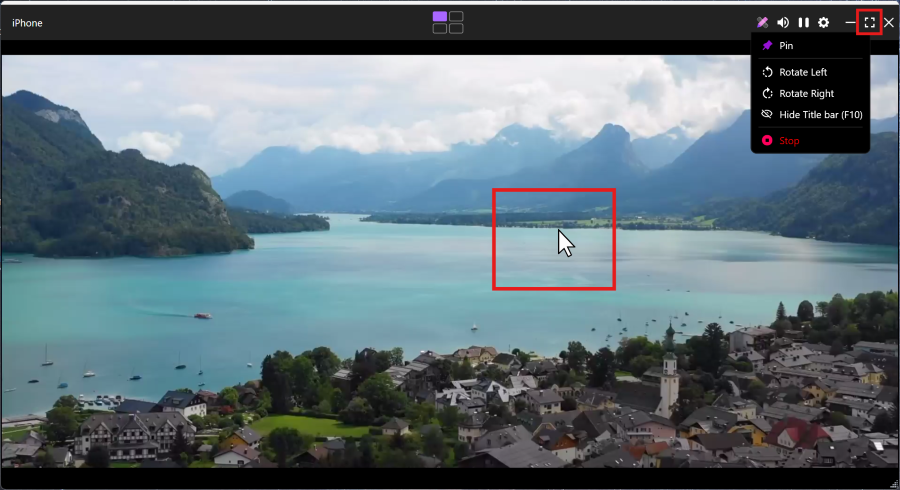
You can enter full-screen mode in two ways:
· Click the Full Screen icon in the title bar
· Double-click the center of the casting window
In full-screen mode, a minimize button appears in the top-right corner and automatically hides after 5 seconds.
Move your mouse to the top-right corner to show it again.
Press ESC to exit full-screen mode at any time.
3) Other Quick Controls
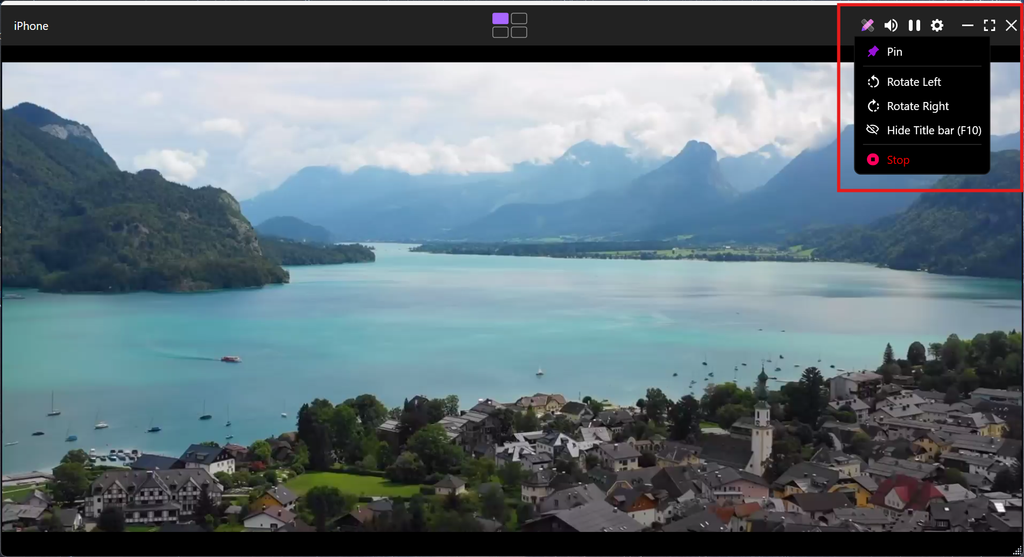
The title bar also includes quick controls—such as Annotation, Mute, Pause, Settings, and Minimize—so you can perform common actions with a single click.
2. Right-Click Menu Controls
Right-click on any blank area of the casting window to access additional options:
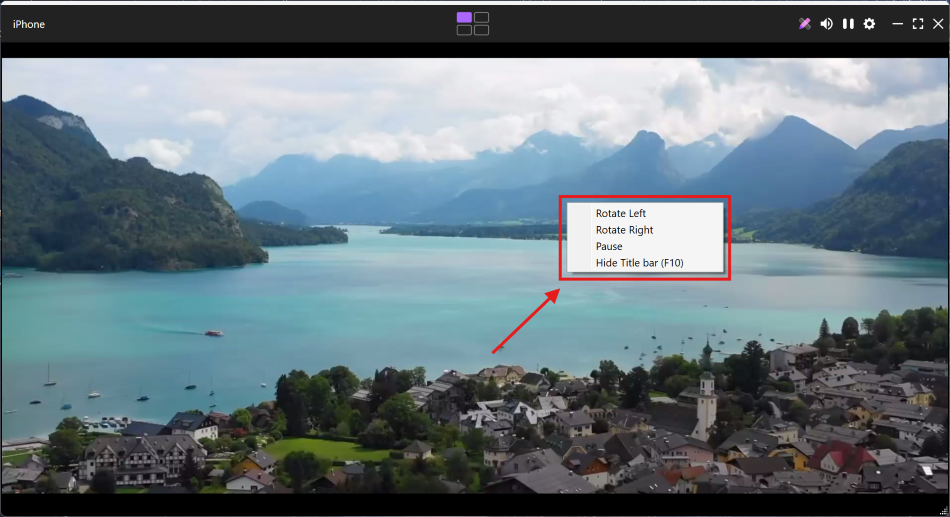
Screen Rotation
Select Rotate Left or Rotate Right (90° per rotation).
This is especially useful when mirroring a portrait-mode phone to a landscape computer screen.
Pause / Resume Casting
Click Pause to freeze the current screen.
Click Resume to continue real-time casting.
Hide Title Bar
Select Hide Title Bar (F10) to remove the title bar and maximize display space.
You can restore the title bar via the right-click menu or by pressing F10 again.
Supported Platforms
Supported systems:
- Windows 7 or later
- macOS 10.15 or later
Supported casting mode:
- Screen mirroring
Need Help?
If you encounter any issues, feel free to contact our support team:
- More Guides: Guidance
- Email: 1001tvs@nero.com
- Website: www.1001tvs.com

Read More
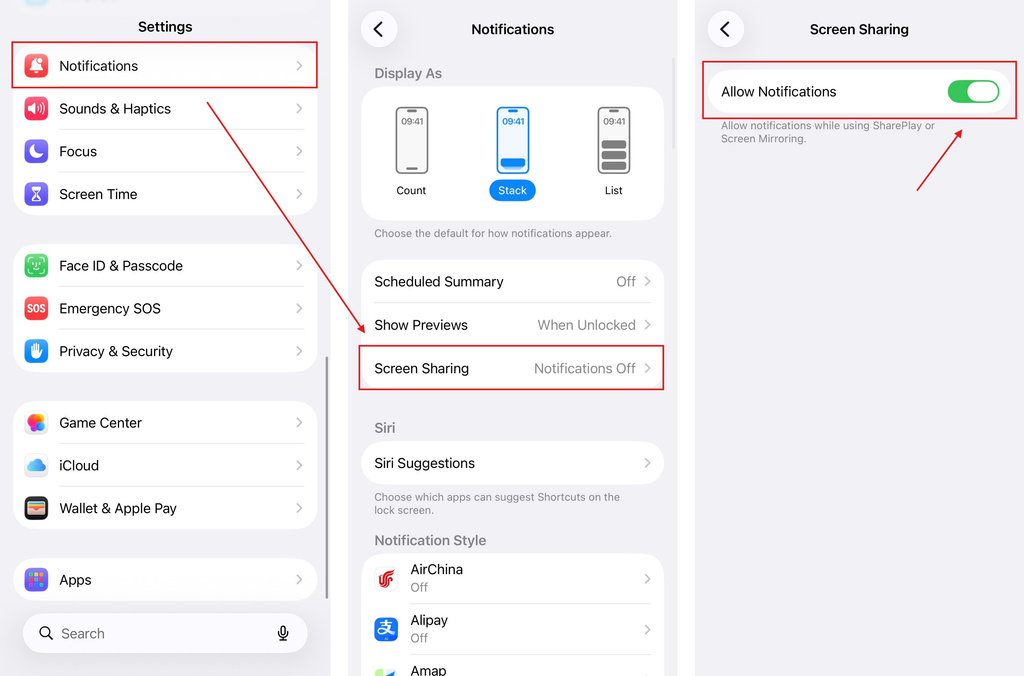 iOS: How to Fix Missing App Notifications During Screen Mirroring
Why Notifications Are Missing When you mirror your iPhone screen, notifications from other apps may not appear on the mirrored screen. This can happen…
iOS: How to Fix Missing App Notifications During Screen Mirroring
Why Notifications Are Missing When you mirror your iPhone screen, notifications from other apps may not appear on the mirrored screen. This can happen…
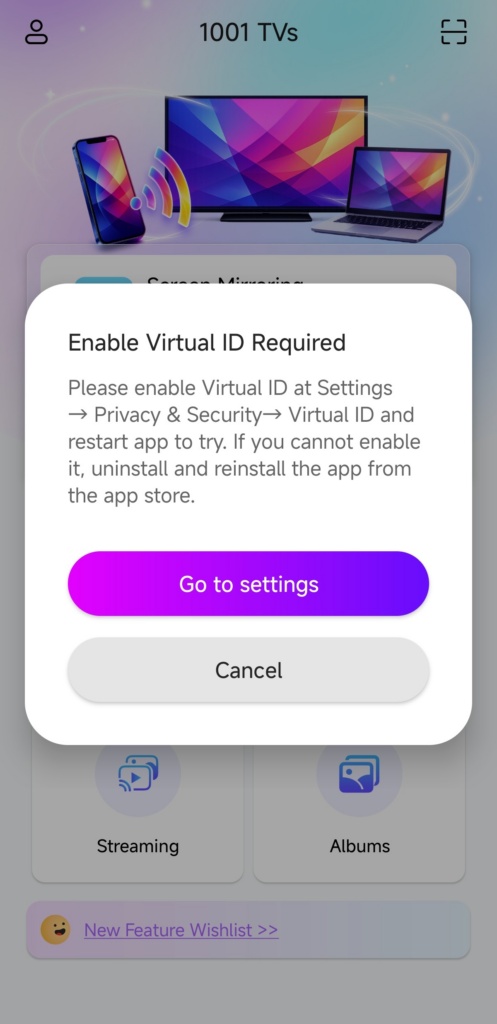 How to Fix the Enable Virtual ID Required Pop-Up
If you're using a Xiaomi or Redmi phone or tablet, you might see a pop-up that says "Enable Virtual ID Required" when you launch…
How to Fix the Enable Virtual ID Required Pop-Up
If you're using a Xiaomi or Redmi phone or tablet, you might see a pop-up that says "Enable Virtual ID Required" when you launch…

