How to Grant Screen Recording Permission for the 1001 TVs App (Mac DMG Version)
“Why does 1001 TVs keep asking for Screen Recording permission, even when it’s already turned on—or when the app doesn’t even appear in the list?”
If you previously installed the App Store version of 1001 TVs and have now switched to the DMG version, your Mac might be retaining old permission records. This version conflict can prevent macOS from correctly recognizing the new app. As a result, the app may be missing from the permissions list, or the toggle may appear to be on but is entirely ineffective.
Before installing the DMG version, fully quit and uninstall the App Store version of 1001 TVs.
⚠️ Important Installation Reminder:
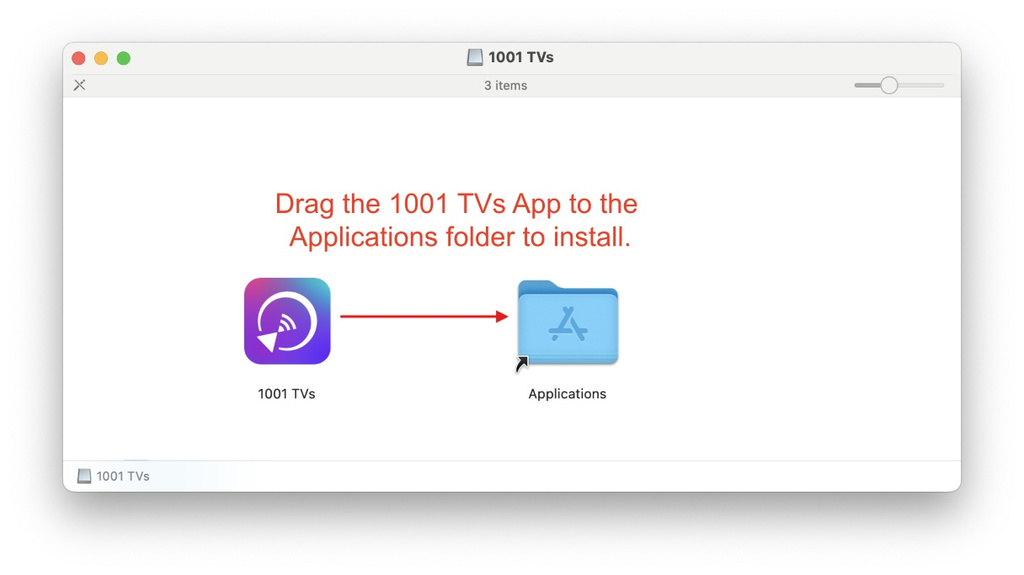
When you open the DMG installer, make sure to drag the “1001 TVs” icon into the “Applications” folder to complete the installation (as shown in the image).
Do not double-click to run the app directly from the installer window, and do not leave it running from your “Downloads” or “Desktop” folder. macOS can only reliably recognize and record permissions for apps properly installed in the “Applications” folder, which prevents authorization issues like this.
Here is how to fix it.
Step 1: Open the settings window
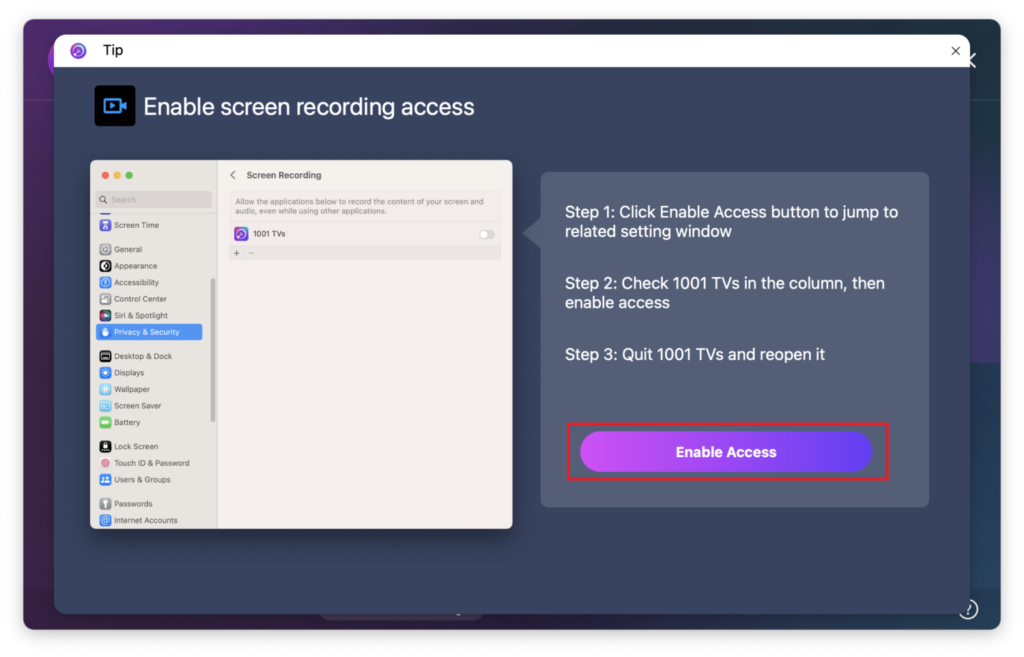
Open 1001 TVs and click “Send” > “Enable Access”.
(Note: Depending on your macOS version, you will be directed to System Settings > Privacy & Security > Screen Recording on macOS 14 and earlier, or Screen & System Audio Recording on macOS 15 and later.)

Step 2: Fix the permission based on the list
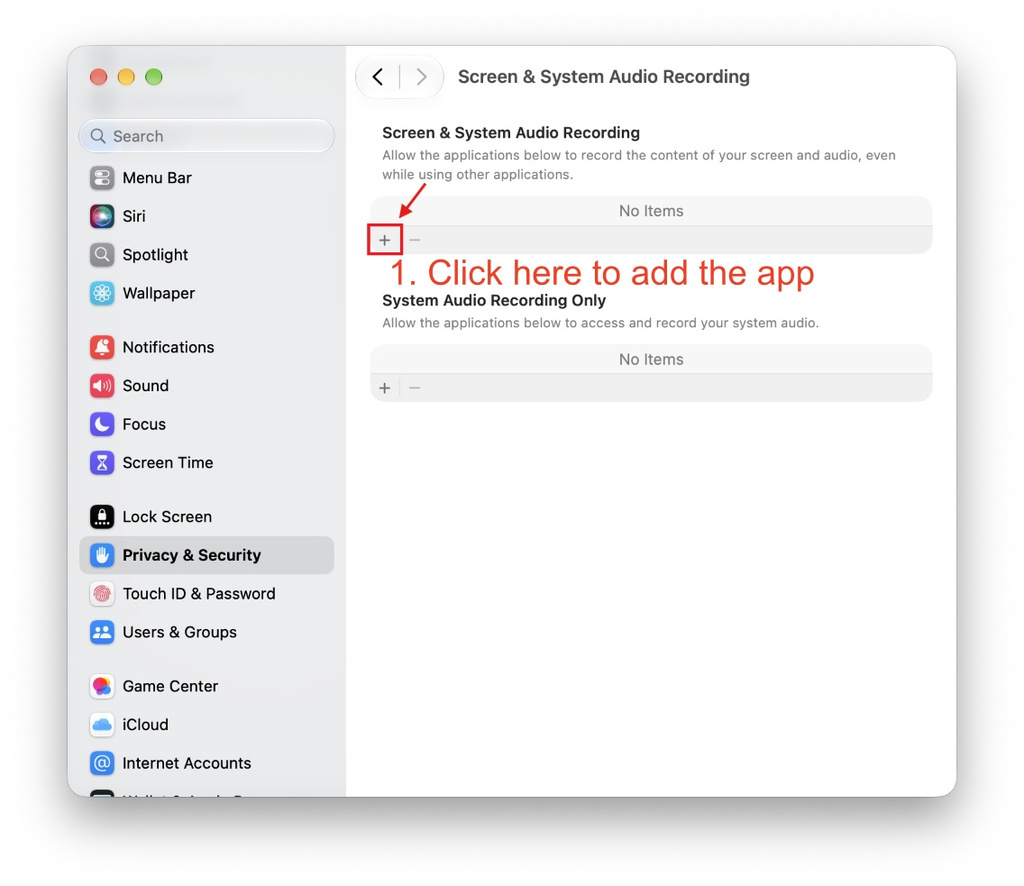
If 1001 TVs is NOT in the permissions list:
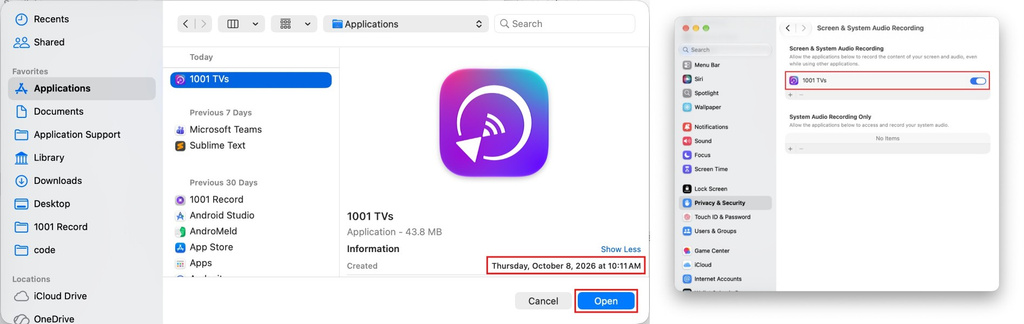
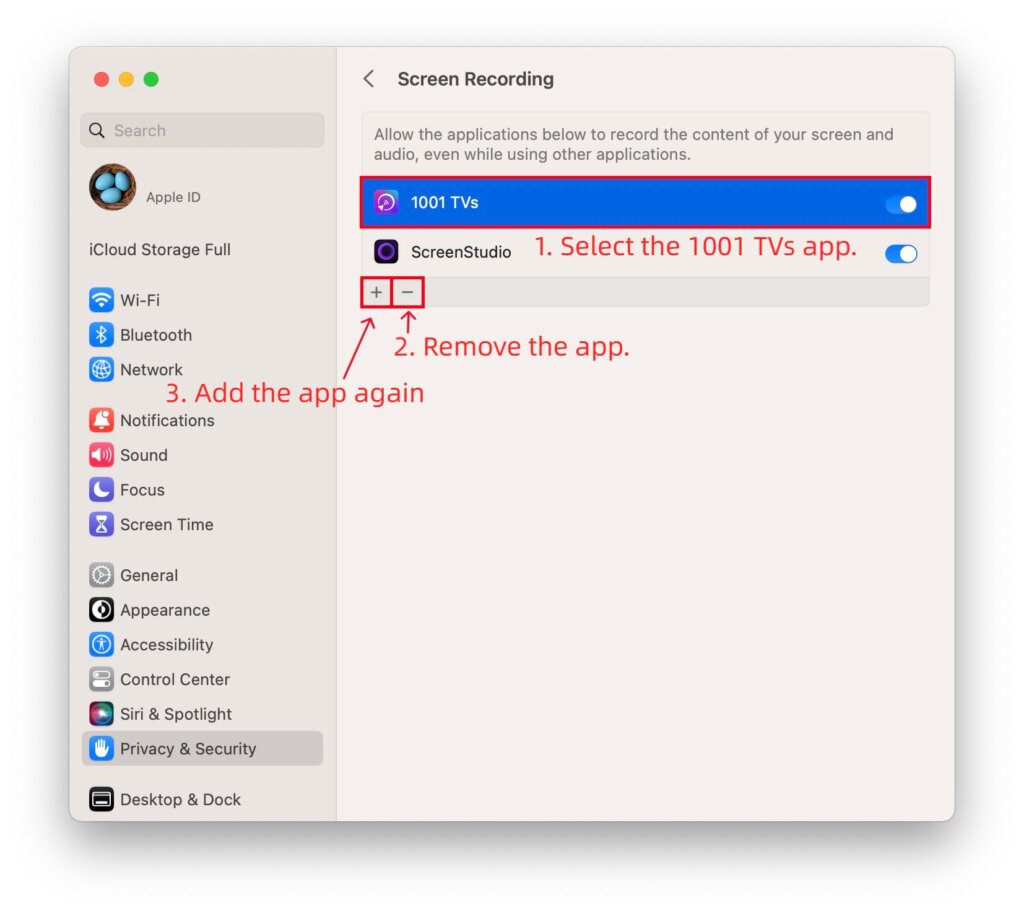
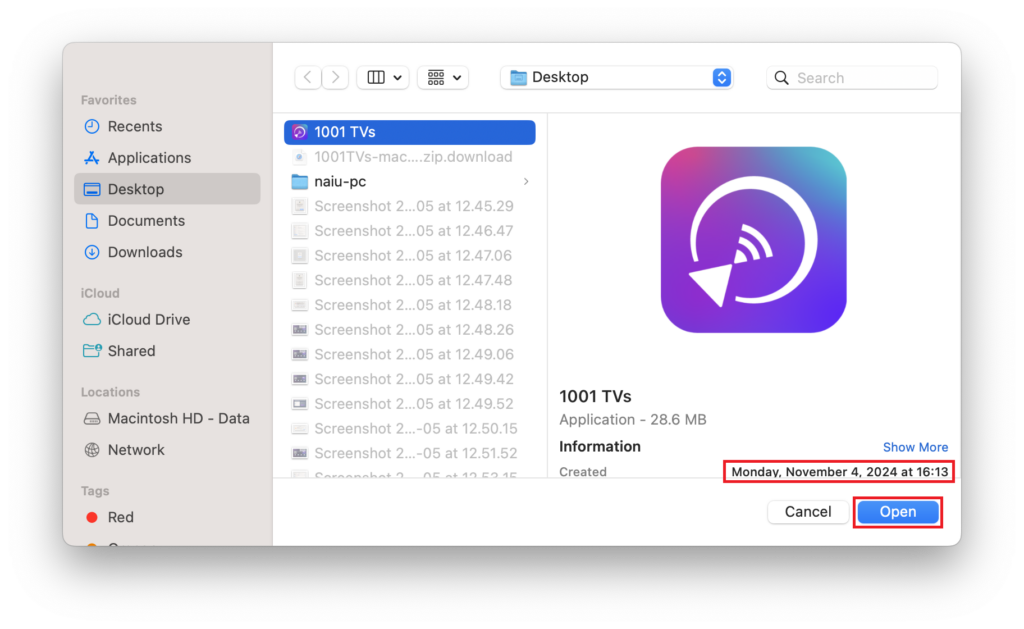
1. Click the “+” (plus) icon to manually add the newly installed 1001 TVs app from the Application folder.
2. Quit and reopen the 1001 TVs app. This usually resolves the issue.
If 1001 TVs IS in the list and already ON (but it still doesn’t work):
1. Select 1001 TVs and click the “–” (minus) icon to remove it.
2. Close the System Settings window completely, and reopen it. (This forces macOS to refresh the permission cache).
3. Click the “+” (plus) icon to add the newly installed 1001 TVs app again.
4. Quit and reopen the 1001 TVs app.
Step 3: Still not working?
1. Go to the settings list, select 1001 TVs, and click the “–” (minus) icon to remove it.
2. Restart your Mac.
3. After your Mac turns back on, open the newly installed 1001 TVs app, click “+” to add it again, turn on the switch, and restart the app.
Need Help?
If you encounter any issues, please feel free to contact our support team at 1001tvs@nero.com
Read More
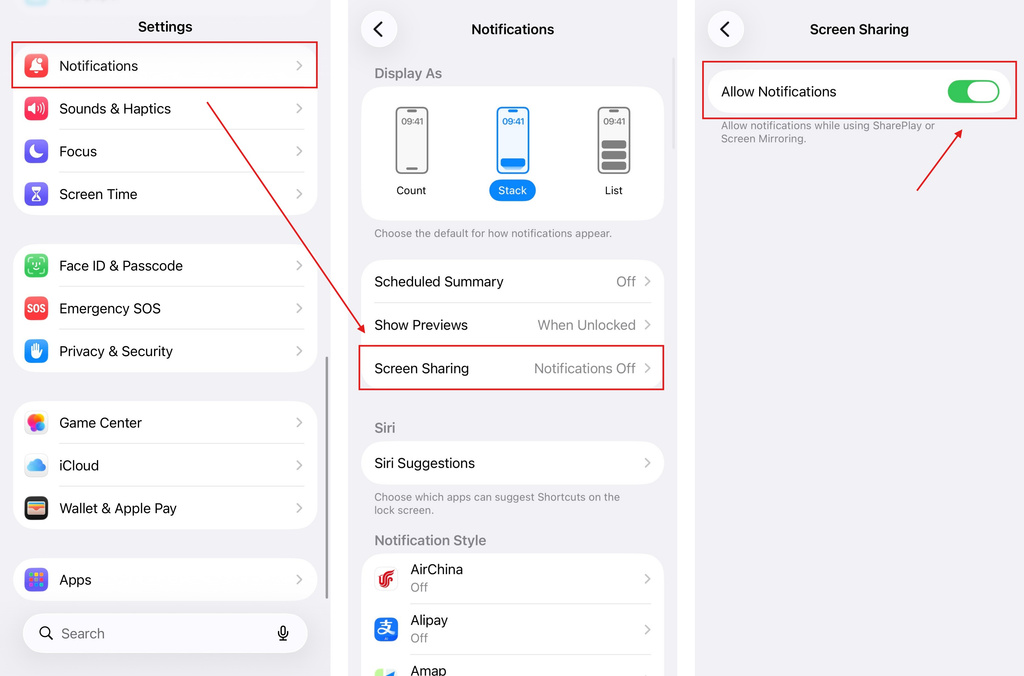 iOS: How to Fix Missing App Notifications During Screen Mirroring
Why Notifications Are Missing When you mirror your iPhone screen, notifications from other apps may not appear on the mirrored screen. This can happen…
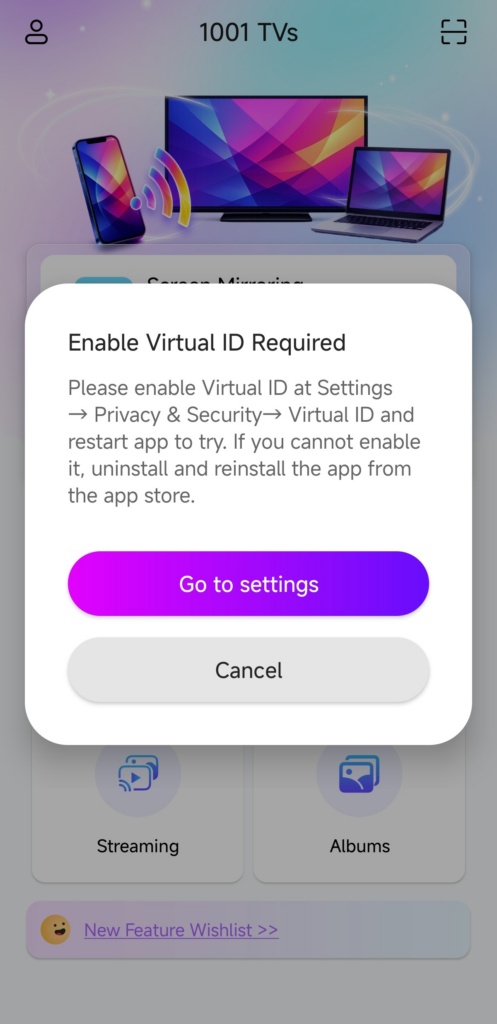 How to Fix the Enable Virtual ID Required Pop-Up
If you're using a Xiaomi or Redmi phone or tablet, you might see a pop-up that says "Enable Virtual ID Required" when you launch…

