如何同時將檔案從電腦傳送至多台裝置(電腦、手機、電視、平板電腦)
透過最新版 Windows 版 1001 TVs(v7.0.8.5),您的電腦現在可以同時將檔案傳送至多台裝置——電視、平板電腦、手機或其他電腦——...
一旦連線完成,即可將任何檔案(無論大小)同時傳送至多台裝置,且可重複傳送任意次數。無需壓縮,毫無麻煩。只需快速、無縫地將檔案傳輸至房間內的每台螢幕。.
非常適合團隊協作、課堂分發,或是單純要讓所有人立即取得檔案。.
教學
1. 在您的電腦和接收裝置上安裝 1001 TVs
📱 iOS 應用程式: 从 App Store 下载
📱 Android 應用程式: 从 Google Play 下载
📥PC 應用程式: 下載自 微軟商店
如需詳細步驟,請參閱 PC 安裝指南
📥Mac App: 从 App Store 下载
📥電視應用程式: 如何在電視上安裝 1001 TVs
2. 連接至相同的 Wi-Fi
確保您的 个人电脑 和 接收装置問題 連接至相同的 Wi-Fi 網路。.
若要獲得最佳效能,請使用 5 GHz Wi-Fi 網路 以減少延遲並提高穩定性。.
3. 若為您的第一台裝置,請依照以下指南操作:
如何將檔案傳送至 Android 和 iOS 手機及平板電腦
4. 新增更多裝置
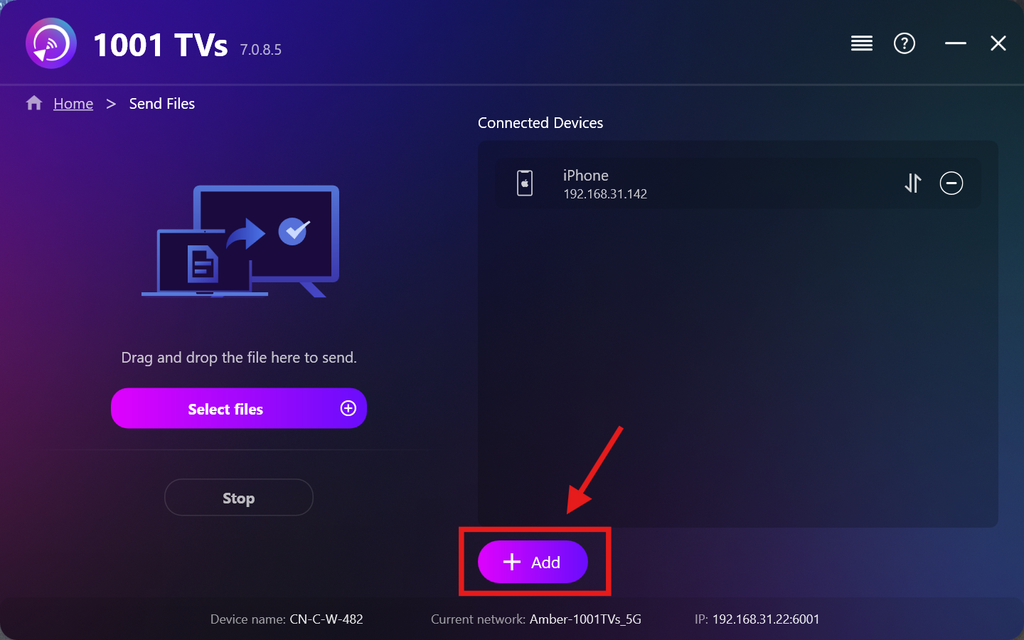
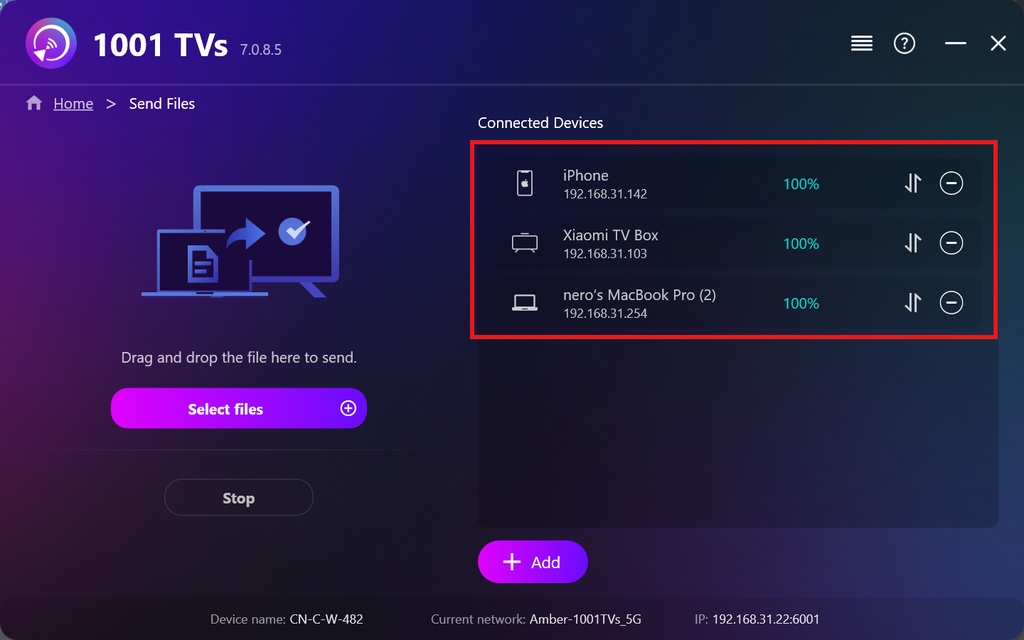
完成第一台裝置的設定後,您可以點擊 新增 圖示。.
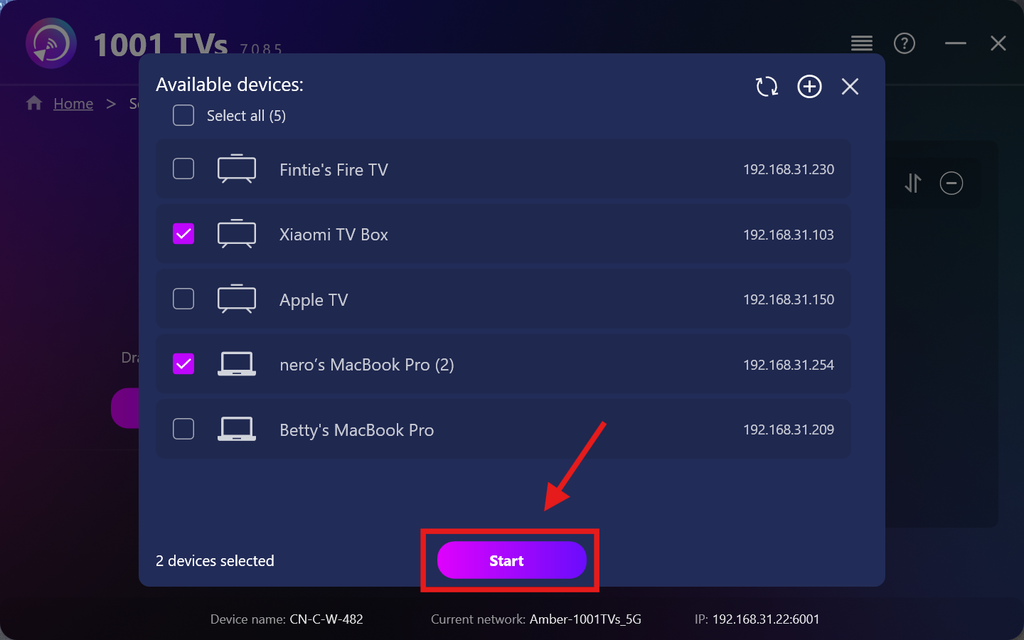
請選取所有您要傳送檔案的裝置(支援多重選取)。.
点击 開始 以建立連線。.
接受配對請求 在首次配對時,每台目標裝置上。.
5. 將檔案傳送至多台裝置
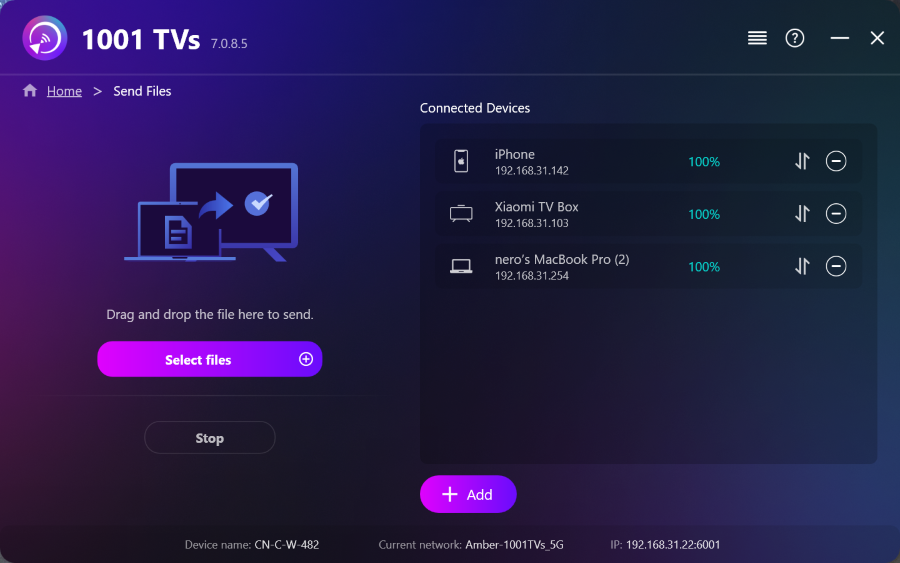
請選取您要傳送的檔案,或直接將它們拖曳至左側的檔案區域 — 檔案大小與數量均無限制。.
⚠️ 請確保您的接收裝置有足夠的儲存空間,否則傳輸將會失敗。.
6. 管理您的接收裝置
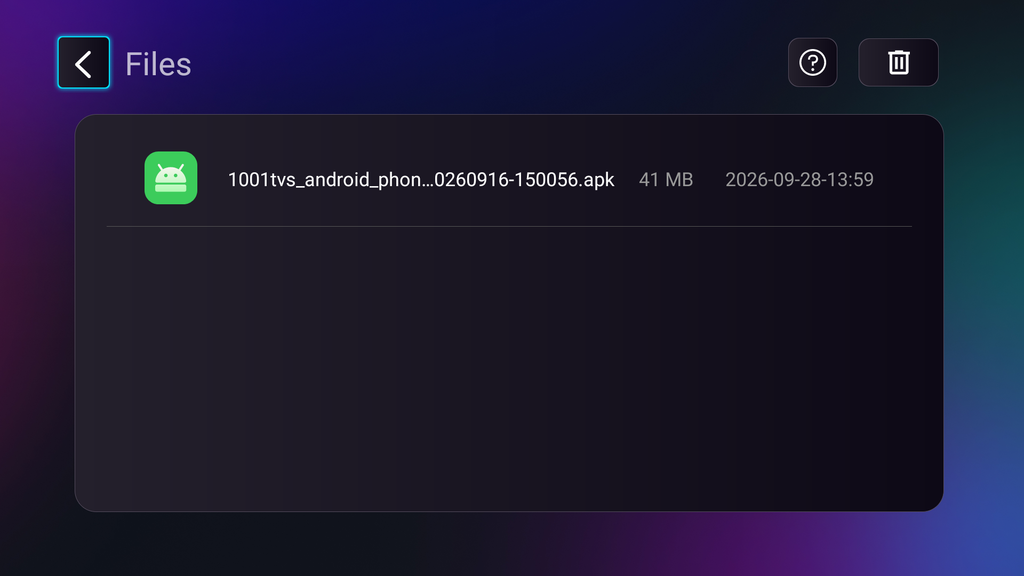
点击 – (減號) 圖示,用以將裝置從您的接收清單中移除。.
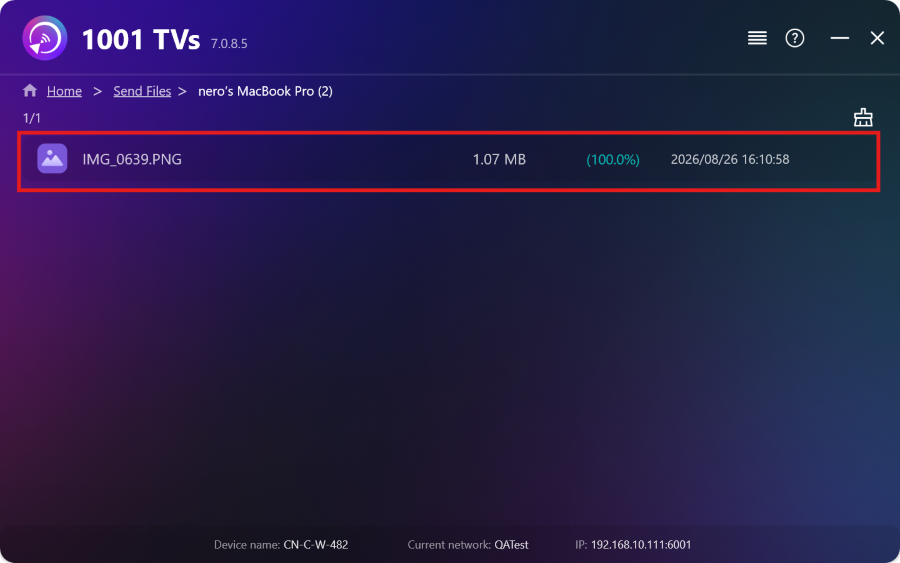
点击 轉帳 圖示,用以檢視所有傳送至此裝置的檔案。.
就是這樣!現在您可以隨時將檔案同時傳送至多台裝置,且毫無限制。.
立即取得 1001 TVs
📱 iOS 應用程式: 从 App Store 下载
📱 Android 應用程式: 从 Google Play 下载
📥PC 應用程式: 下載自 微軟商店
如需詳細步驟,請參閱 PC 安裝指南
📥Mac App: 从 App Store 下载
📥電視應用程式:如何在電視上安裝 1001 TVs