TslaCast — In-Car Screen Cast
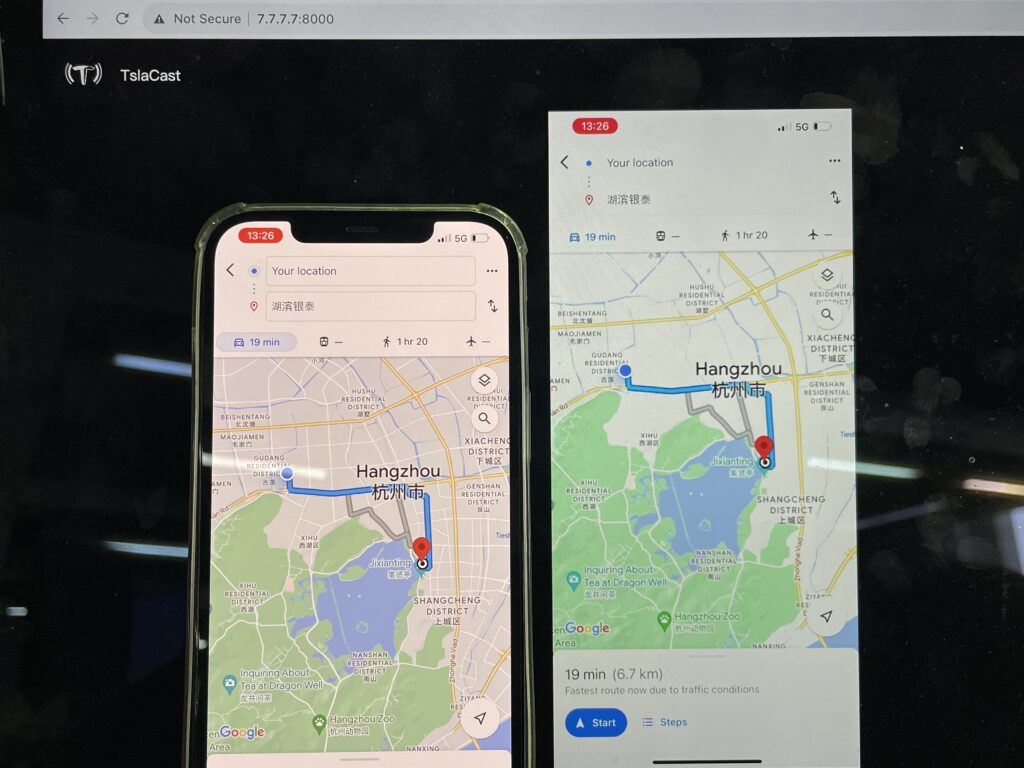
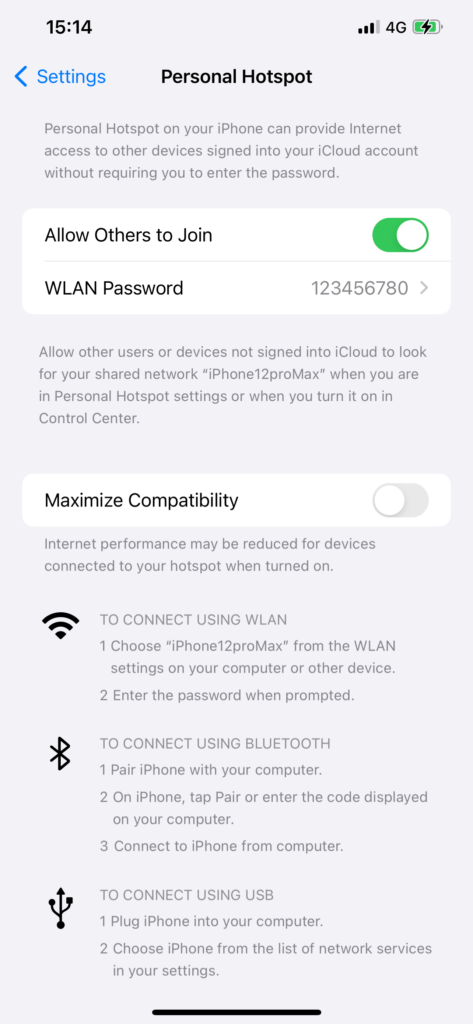
1. Open your iPhone’s [Settings] and enable [Allow Others to Join] in [Personal Hotspot]
2. Connect your Tesla to your iPhone’s Personal Hotspot
3. Launch the TslaCast app on your phone
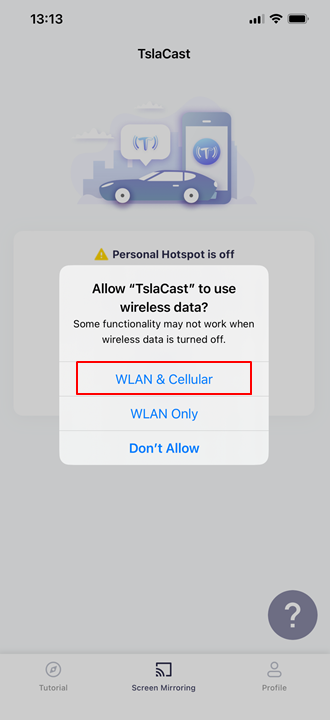
Allow “TslaCast” permission to use “WLAN & Cellular” for proper functoinality.
Choose “Allow”
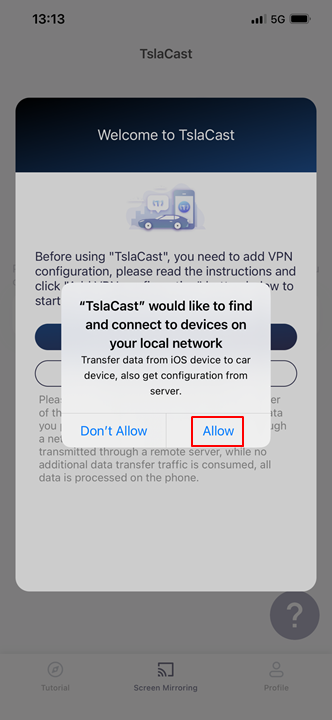
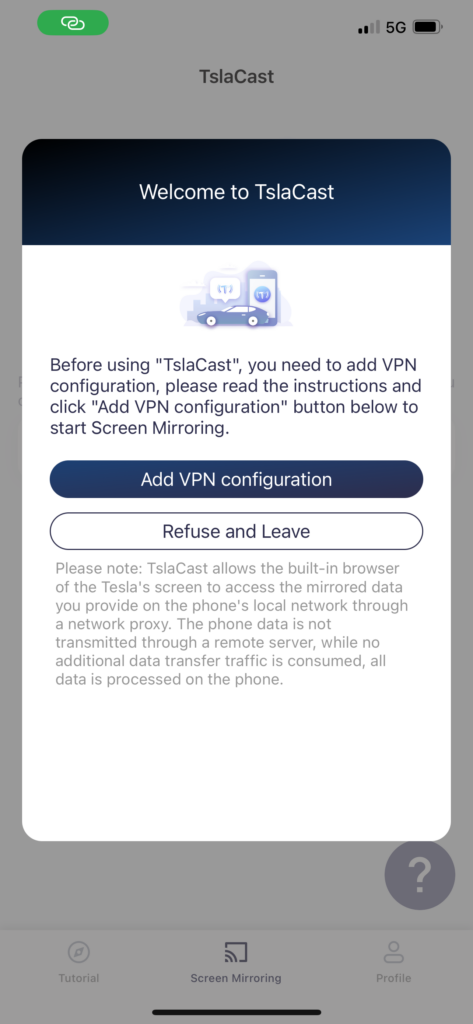
4. Click “Add VPN configuration” to connect.
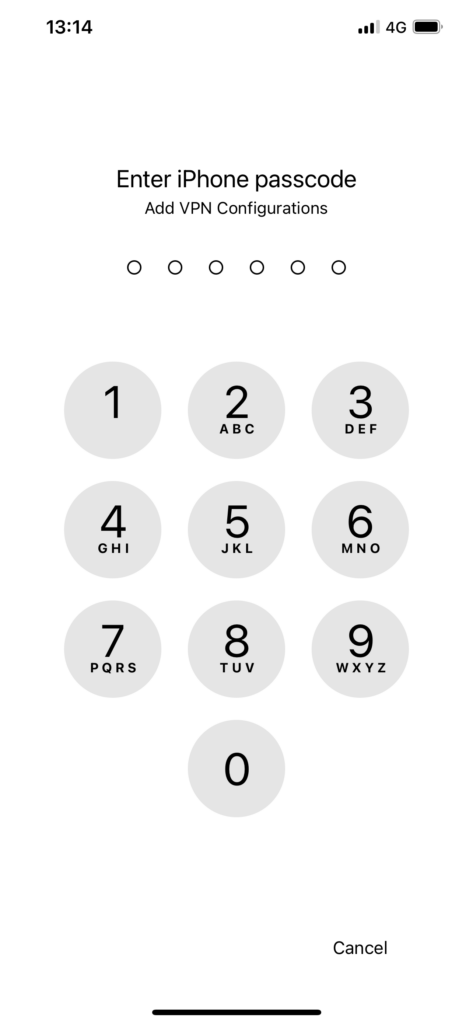
Enter your phone passcode to add a VPN.
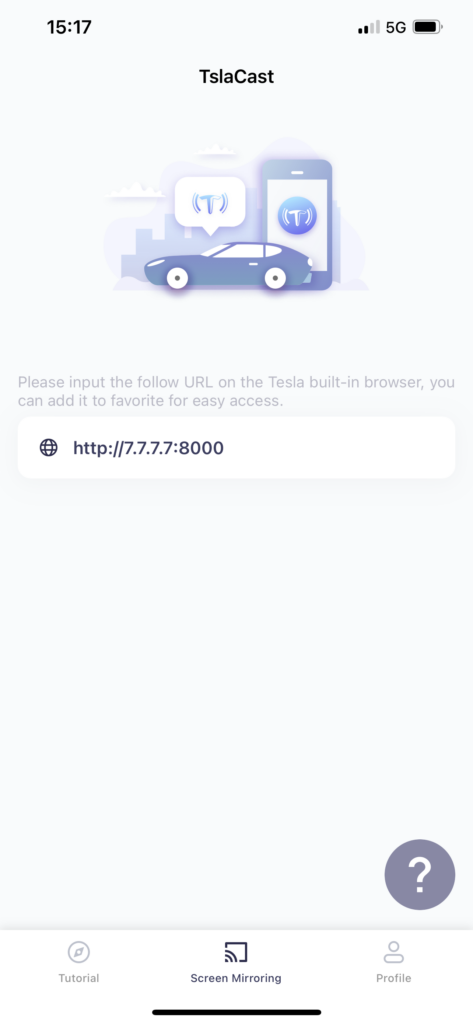
5. Open ‘http://7.7.7.7:8000’ in your Tesla’s browser
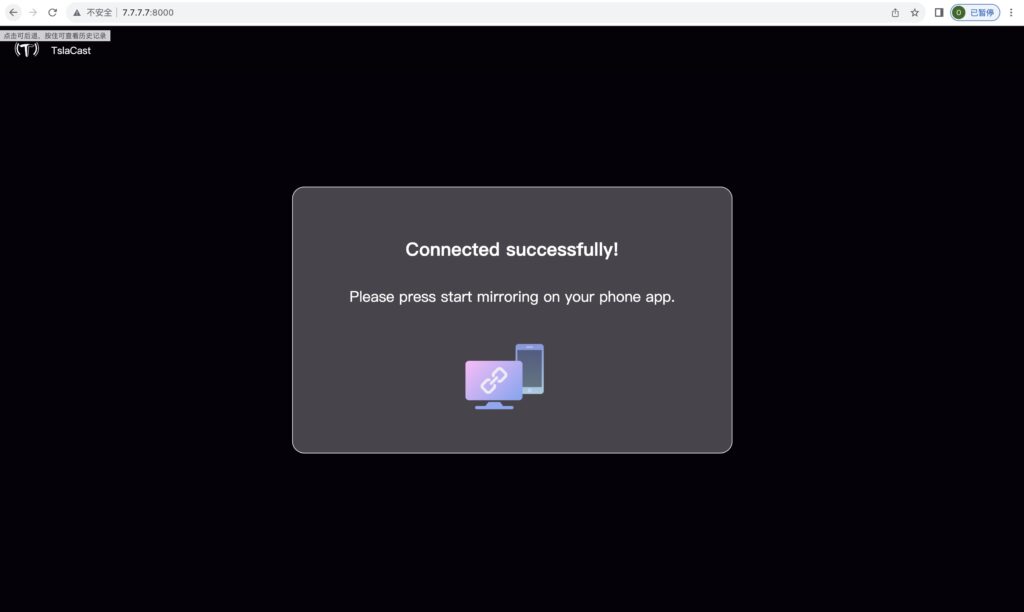
6. Tap ‘Start’ to initiate Screen Broadcast
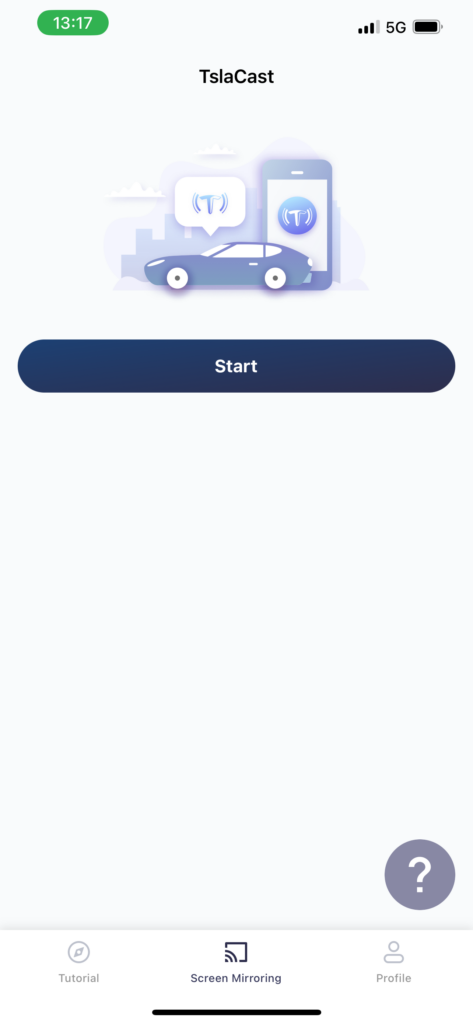
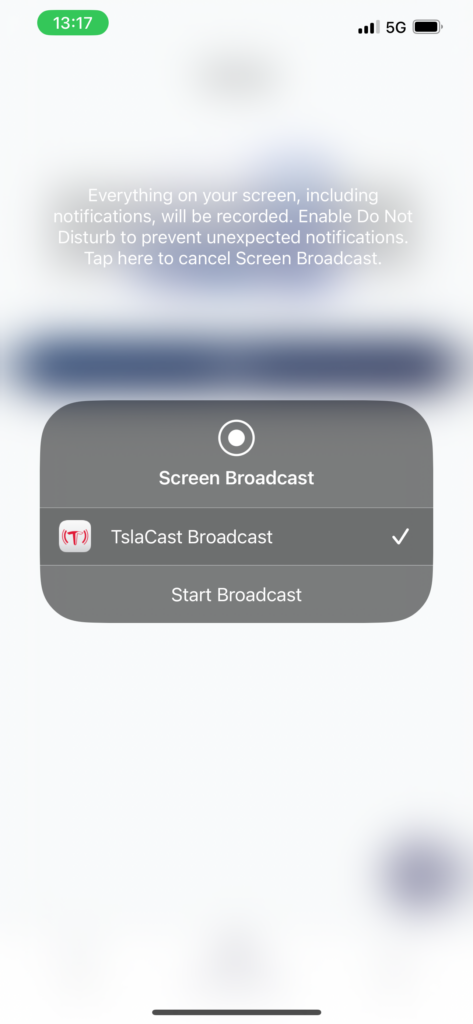
Screen casting is initiated successfully after the countdown.
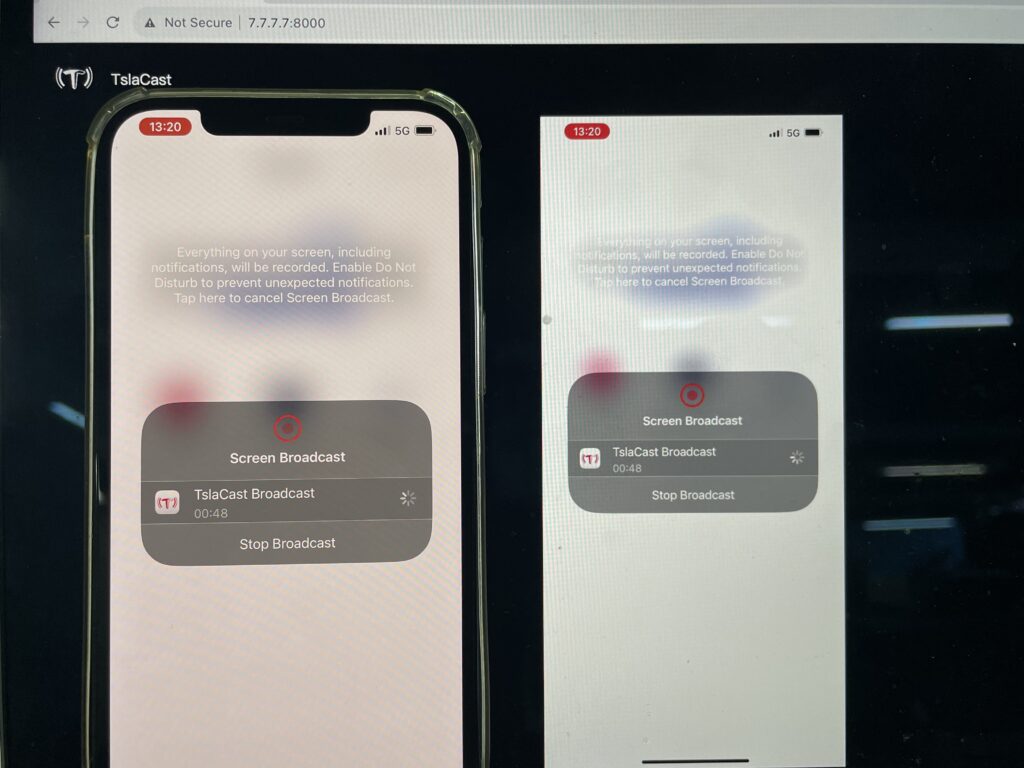
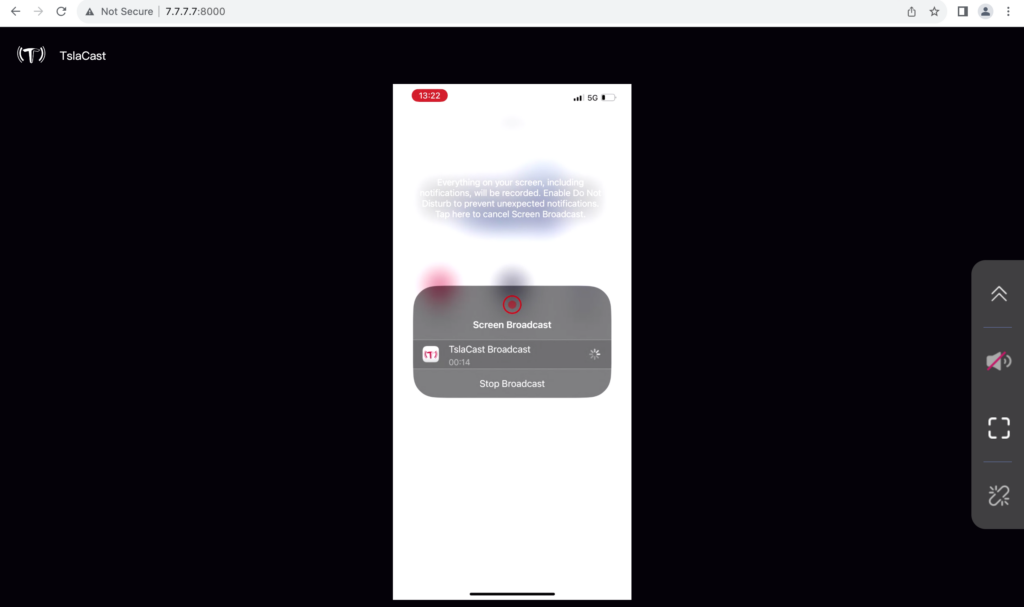
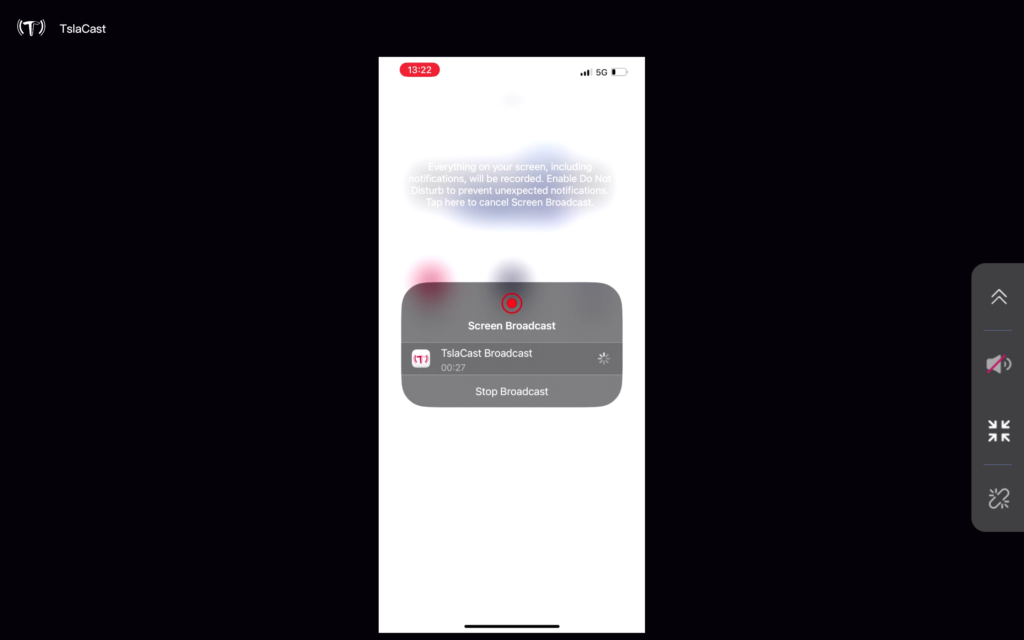
Easily switch between horizontal and vertical screens:
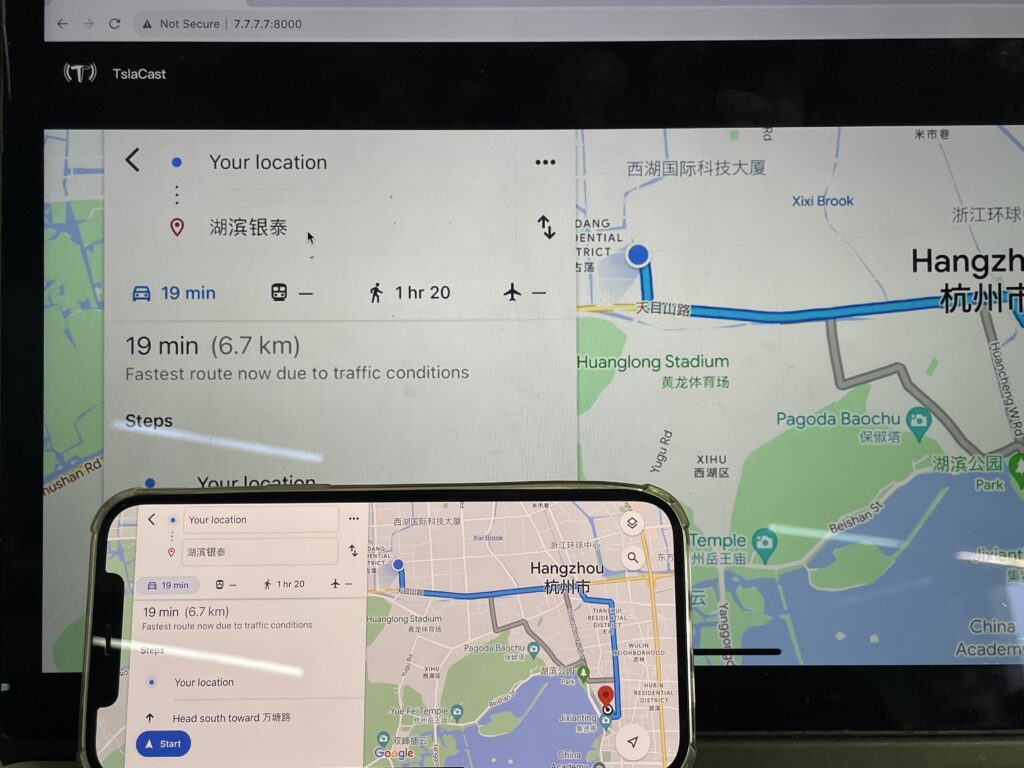
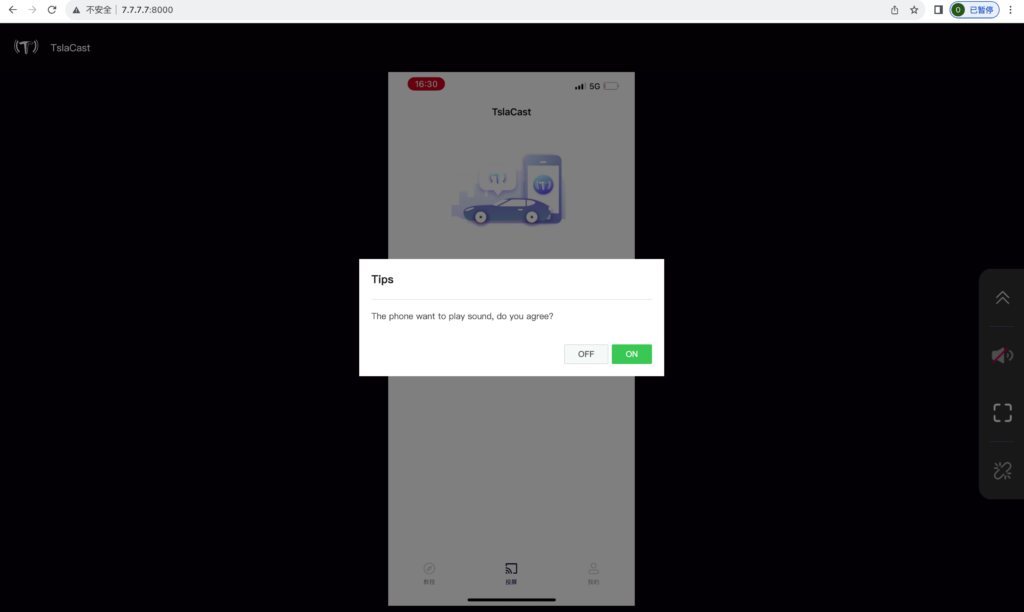
You can enable sound on your mobile phone; confirmation is required on Tesla.
Click to switch to full screen
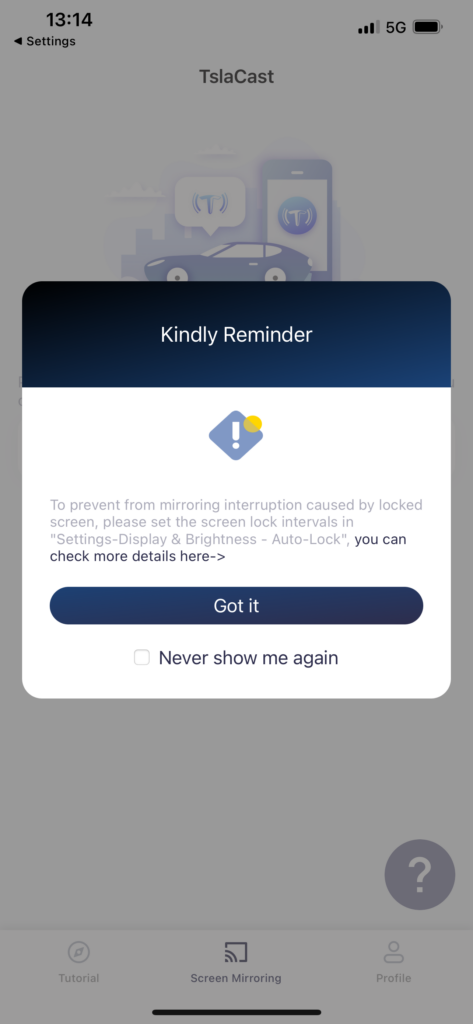
7.Keep your screen unlocked for uninterrupted mirroring.
Click “TslaCast” to download the APP now!

Read More
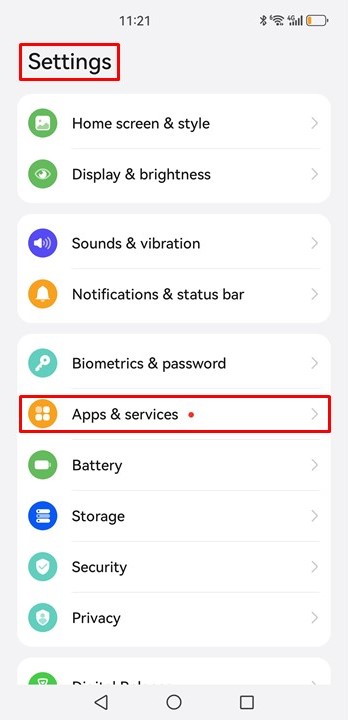 Ensure a Stable Screen Mirroring Connection on HUAWEI Phones (e.g., Mate40 Pro)
If your Huawei phone keeps disconnecting while using 1001 TVs for screen mirroring, it’s likely because the power management settings are restricting background activity.…
Ensure a Stable Screen Mirroring Connection on HUAWEI Phones (e.g., Mate40 Pro)
If your Huawei phone keeps disconnecting while using 1001 TVs for screen mirroring, it’s likely because the power management settings are restricting background activity.…
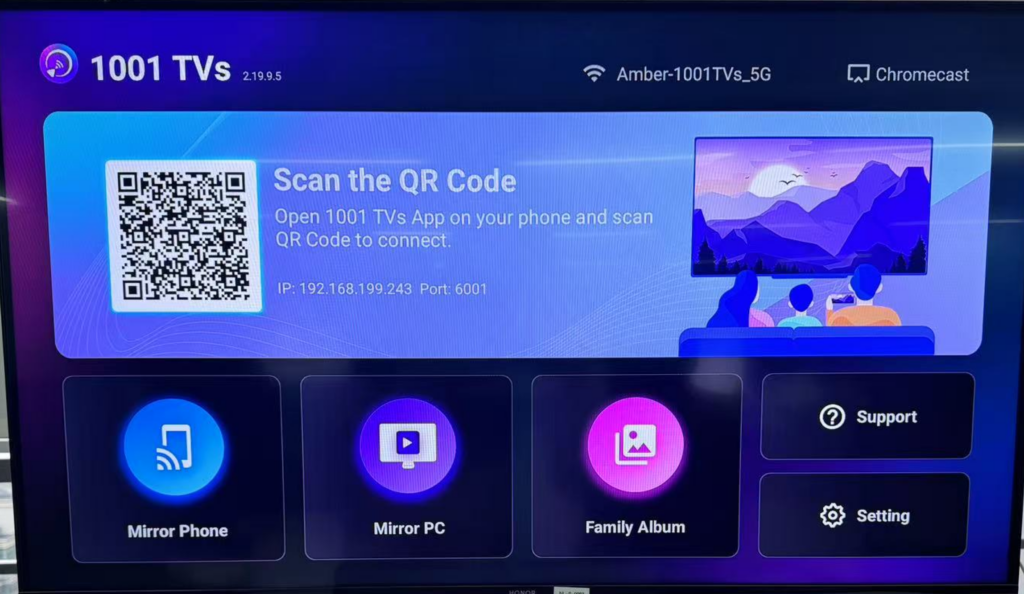 Guideline for Screen Mirroring with 1001 TVs on TCL 65″ Class 4-Series 4K UHD HDR LED Smart Android TV
1.Download and Install 1001 TVs: Search 1001 TVs in the Google Play store, or Visit the 1001 TVs website and download the app. Install it on…
Guideline for Screen Mirroring with 1001 TVs on TCL 65″ Class 4-Series 4K UHD HDR LED Smart Android TV
1.Download and Install 1001 TVs: Search 1001 TVs in the Google Play store, or Visit the 1001 TVs website and download the app. Install it on…

