
Как улучшить качество зеркалирования экрана: Настройка параметров разрешения
Если вы используете зеркальное отображение экрана 1001 TVs и качество изображения кажется размытым или менее четким, чем ожидалось, вы можете улучшить визуальный результат, точно настроив параметры разрешения в дополнительных параметрах. В этом руководстве описано, как настроить параметры максимальной ширины и максимальной высоты, чтобы добиться более четкого и детализированного изображения.
Подробные шаги по настройке
❶ Доступ к настройкам зеркала
- Откройте приложение 1001 TVs и коснитесь кнопки значок профиля в левом верхнем углу.
- На странице “Мой” найдите и нажмите Настройки зеркала.

❷ Включить дополнительные настройки
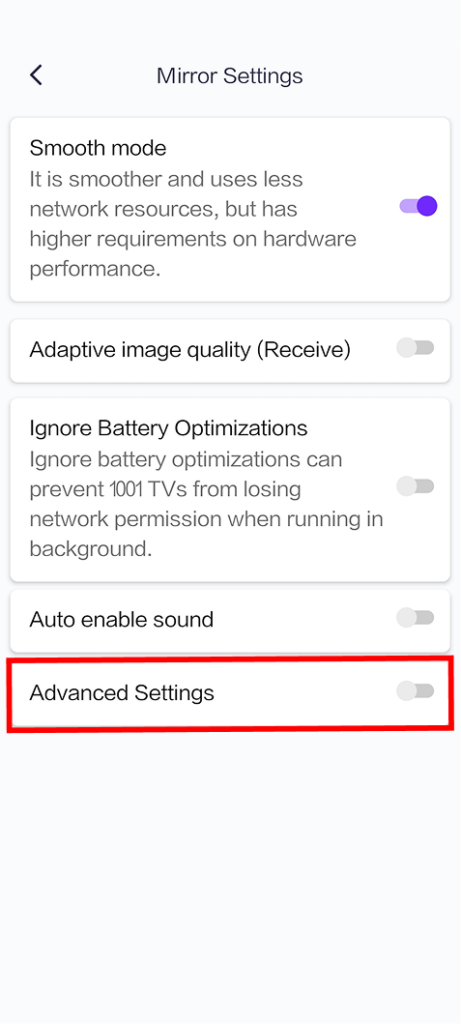
- На странице "Настройки зеркала" прокрутите вниз, чтобы найти пункт Дополнительные настройки вариант.
- Нажмите на тумблер справа, чтобы включить его (при включении тумблер становится фиолетовым).
- После включения появятся дополнительные параметры настройки.
❸ Настройка параметров разрешения
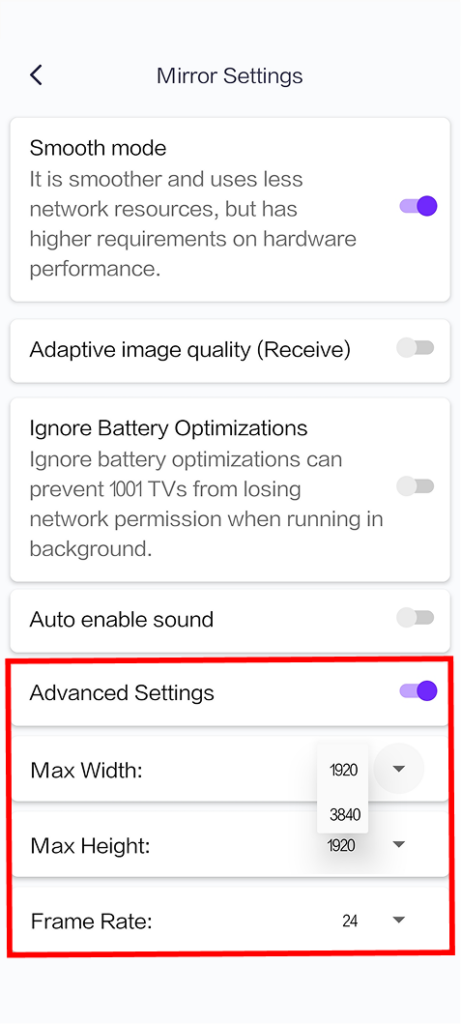
В разделе "Дополнительные настройки" вы увидите три важных параметра. Более высокие значения обеспечивают лучшее качество изображения, но требуют более высокой производительности сети:
1. Максимальная ширина
- Значение по умолчанию: 1920 (пикселей)
- Доступные варианты: 1920, 3840
2. Максимальная высота
- Значение по умолчанию: 1080 (пикселей)
- Доступные варианты: 1080, 1920, 3840
3. Частота кадров
- Значение по умолчанию: 24 к/с
- Доступные опции: 24/60 кадров в секунду
Нужна помощь?
Если у вас возникнут какие-либо проблемы при использовании приложения, не стесняйтесь обращаться в нашу службу поддержки:
- Другие учебники: Руководство
- Электронная почта: 1001tvs@nero.com
- Сайт: www.1001tvs.com