
PC/Mac에서 TV/PC/Mac으로 파일을 보내는 방법
1001 TVs를 사용하면 동일한 로컬 네트워크를 통해 PC/Mac에서 TV/PC/Mac으로 파일을 전송할 수 있습니다.
그리고 네. 동일한 LAN에 있는 PC와 Mac은 추가 설정 없이도 서로 파일을 직접 전송할 수 있습니다.
클라우드 업로드가 없습니다. 케이블이 필요 없습니다. 가입할 필요 없이 빠르고 안전한 로컬 전송만 가능합니다.
시작하기 전에
- 다음 사항을 확인하십시오. 장치가 동일한 Wi-Fi 네트워크에 연결되어 있습니다..
- 설치 및 열기 1001 TVs 를 클릭한 후 수신 기기에서 앱을 계속 실행하세요.
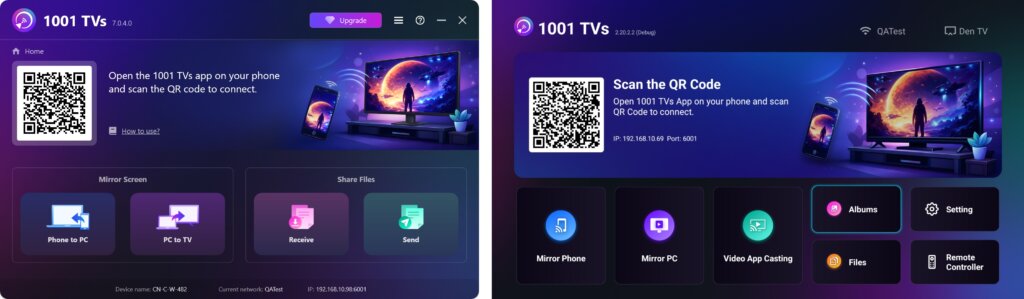
보내기 시작
보내는 장치에서 보내기 를 입력하면 앱이 동일한 네트워크에서 사용 가능한 기기를 자동으로 검색합니다.
목록에서 대상 디바이스를 선택합니다. (예: TV/PC/Mac)
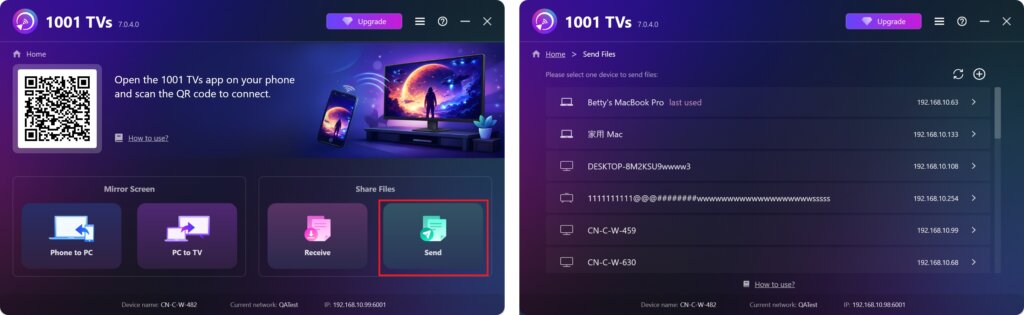
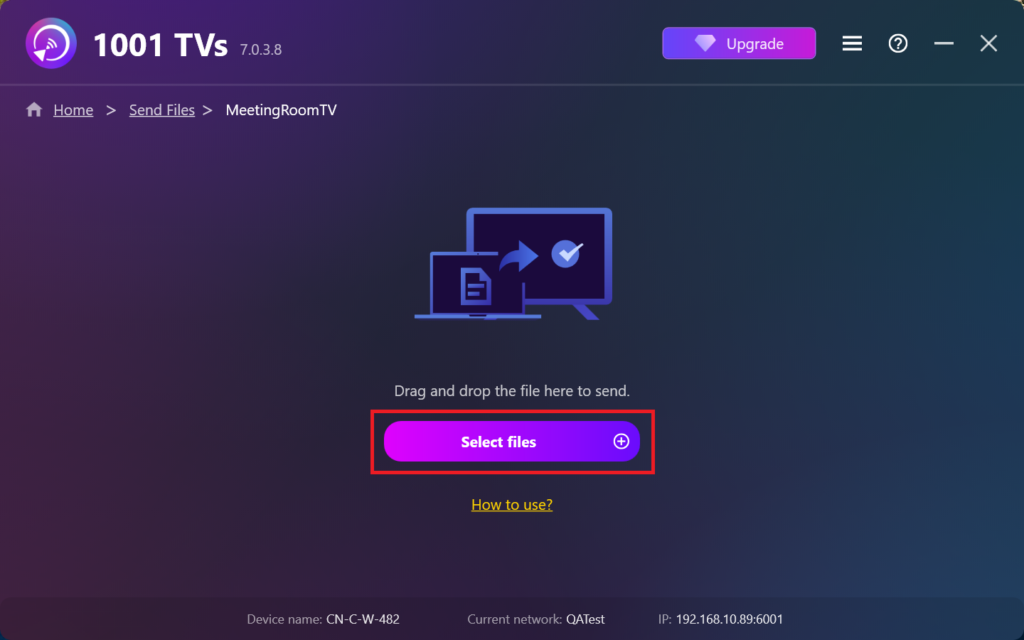
PC에서 파일(동영상, 사진, 음악, 문서 등)을 선택하면 대상 장치로 전송이 자동으로 시작됩니다.
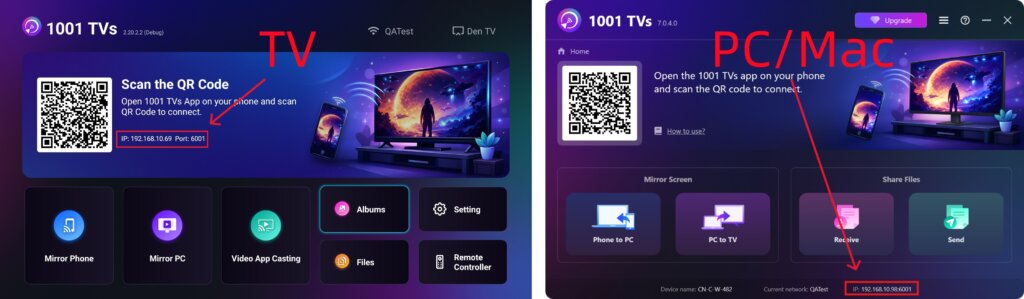
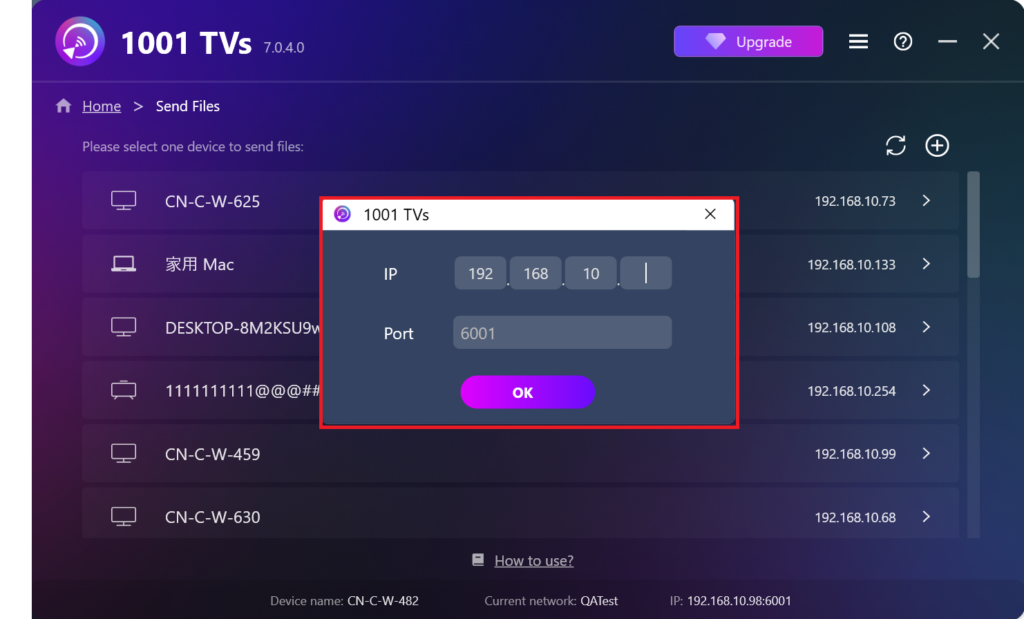
대상 디바이스를 찾을 수 없나요?
대상 디바이스가 디바이스 목록에 나타나지 않으면 + 아이콘 을 클릭하고 오른쪽 상단 모서리에 있는 IP 주소 페어링 를 클릭해 빠르고 안전하게 연결하세요.
PC/Mac에서 받은 파일 보기
클릭 수신 를 클릭하여 수신되는 모든 파일을 확인하세요.
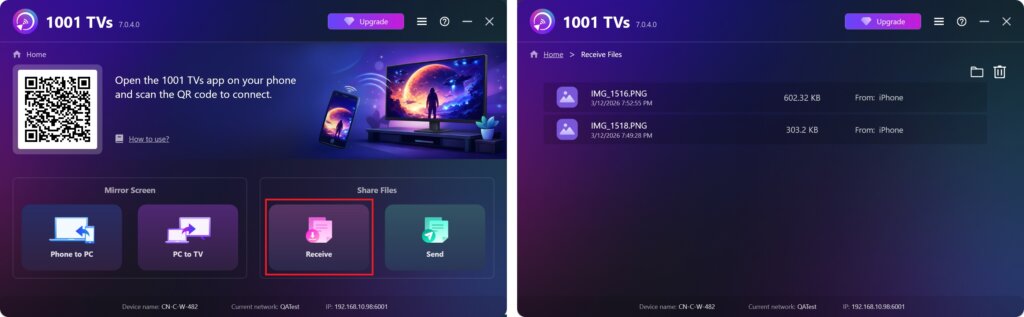
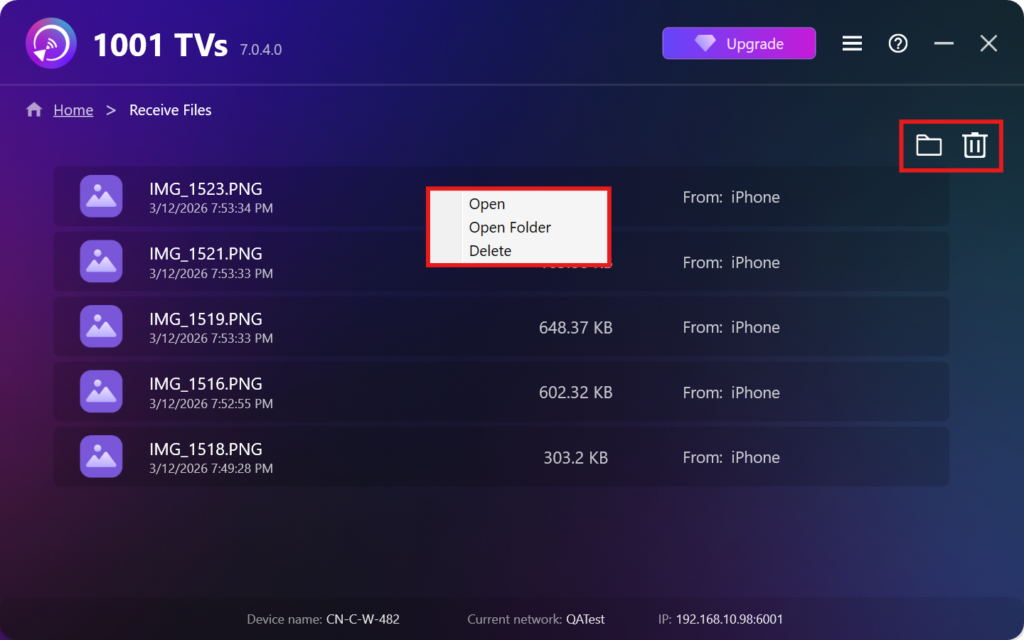
- 받은 파일 보기 열기 – 클릭 또는 마우스 오른쪽 버튼을 클릭 을 클릭하고 “폴더 열기”를 클릭하여 해당 특정 장치(예: iPhone 12123)의 모든 파일을 볼 수 있습니다.
- Finder(Mac) 또는 파일 탐색기(Windows)에서 해당 파일을 찾습니다. - 를 클릭합니다. 폴더 아이콘 를 클릭하여 모든 장치 폴더에 액세스합니다.
- 삭제 옵션 – 마우스 오른쪽 버튼 클릭 파일을 클릭하고 “삭제”을 클릭하여 개별적으로 제거하거나 휴지통 아이콘 를 클릭하면 수신된 모든 파일을 한 번에 삭제할 수 있습니다.
TV에서 수신된 파일 보기
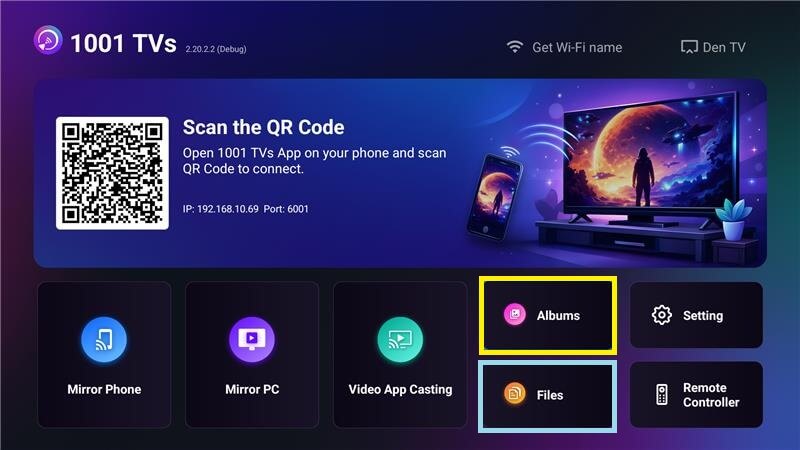
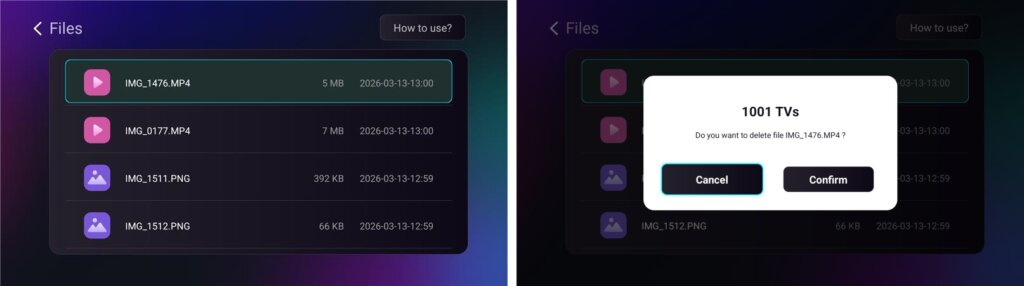
- 다음으로 이동합니다. 파일 을 눌러 받은 파일을 확인합니다. 파일을 선택하고 확인 를 클릭하여 삭제합니다.
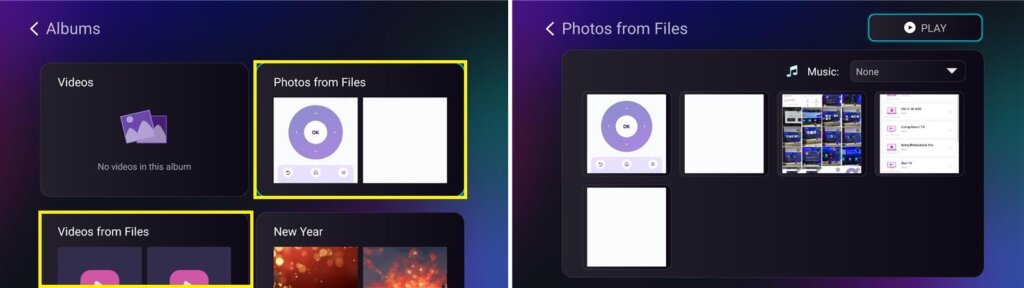
- 다음으로 이동합니다. 앨범 > 파일에서 사진/비디오 을 탭하여 받은 사진과 동영상을 확인합니다. 파일을 선택하고 확인 을 클릭해 삭제하거나 슬라이드쇼로 재생할 수 있습니다.
왜 1001 TVs를 사용하나요?
- 빠르고, 비공개적이며, 사용하기 쉽습니다.
- 로컬 전송 - 클라우드 필요 없음
- 로그인 또는 계정 필요 없음
- 대용량 파일 전송 지원
도움이 필요하세요?
문제가 발생하면 언제든지 지원팀에 문의하세요:
📧 이메일: 1001tvs@nero.com
🌐 웹사이트: www.1001tvs.com
📖 더 많은 가이드: 안내