Kuinka peilata näyttöä iPhone-laitteesta, Android-laitteesta tai tietokoneelta Hisense-televisioon
Jos haluat peilata näytön Hisense-televisioon, selvitä ensin television käyttöjärjestelmä ja valitse sitten menetelmä, jota molemmat laitteet tukevat. Käytä AirPlay-toimintoa, jos käytössäsi on iPhone ja AirPlay-yhteensopiva televisio, Google Cast -toimintoa, jos kyseessä on yhteensopiva Android-laitteen ja Google TV:n välinen yhteys, tai Miracast-toimintoa, jos molemmat laitteet tukevat sitä.
Jos sisäänrakennetut asetukset eivät täsmää, 1001 TVs voi tarjota toisen vaihtoehdon tuetuissa vastaanottolaitteissa.
Hisense-televisioissa käytetään erilaisia ohjelmistoalustoja, kuten Google TV, Android TV, Roku TV, VIDAA ja Fire TV. Menetelmä, joka toimii yhdessä Hisense-mallissa, ei välttämättä ole käytettävissä toisessa mallissa. Katso Hisensen alustan yleiskatsaus lisätietoja.
1. Selvitä Hisense-televisiosi käyttöjärjestelmä
Paina Koti kaukosäätimestä ja etsi Google TV-, Roku TV-, VIDAA- tai Fire TV -merkintöjä.
Jos et ole varma, toimi seuraavasti:
- Avaa Asetukset.
- Etsi Järjestelmä, Tietoja, Laitteen asetukset tai Tukea.
- Etsi ohjelmiston tiedot ja mallinumero.
- Jos käyttöjärjestelmä ei vieläkään ole selvä, tarkista laitteen käyttöohjeesta.
Valikoiden nimet vaihtelevat mallin ja alueen mukaan. Jos suoratoistolaitteesi on kytketty, paina Home-painiketta Hisense-kaukosäädin jotta tarkistetaan television oma järjestelmä eikä tikun järjestelmä.
Käytä tätä taulukkoa lähtökohtana:
| Hisense-televisiojärjestelmä | iPhonesta tai iPadista | Androidista |
|---|---|---|
| Google TV / Android TV | AirPlay, jos mukana (Luettelo AirPlay 2 -yhteensopivista televisioista); muussa tapauksessa yhteensopiva vastaanottosovellus | Google Cast |
| Roku TV | AirPlay päällä tuetut mallit | Miracast-yhteensopiva näytön peilaus |
| VIDAA | AirPlay, jos se sisältyy malliisi | Näytön jakaminen, jos molemmat laitteet tukevat tätä toimintoa |
| Fire TV | AirPlay tuetuissa malleissa; muussa tapauksessa yhteensopiva vastaanottosovellus | Näytön peilaus, jos käytettävissä |
| Muu tai vanhempi järjestelmä | Tarkista laitteen käyttöohje tai käytä ulkoista vastaanotinta | Tarkista laitteen käyttöohje tai käytä ulkoista vastaanotinta |
2. Tarkista nämä asetukset ennen liittämistä
Ennen kuin käytät AirPlayta, Google Castia tai sovellukseen perustuvaa näytön peilausmenetelmää:
- Liitä televisio ja lähetyslaite samaan kotiverkkoon.
- Vältä vierasverkkoja, jotka eristävät niihin liitetyt laitteet.
- Pidä televisio päällä ja avaa sen vastaanotin tai näytönjakotoiminto.
- Myönnä pyydetyt paikallisverkon ja näytön jakamisen käyttöoikeudet.
- Päivitä television ohjelmisto ja sovellus, jota aiot käyttää.
VPN, joka estää pääsyn paikallisverkkoon, voi estää television näkyvyyden. Katkaise yhteys väliaikaisesti vianmäärityksen ajaksi.
Päätä myös, tarvitsetko näytön peilaus tai videovalinta. Peilaus näyttää puhelimesi tai tietokoneesi koko näytön. Lähetys siirtää valitun sisällön sovelluksesta yhteensopivaan vastaanottimeen. Jos haluat vain katsella videota, sovelluksen Cast- tai AirPlay-painike saattaa riittää.
3. Kuinka peilata iPhonen näyttö Hisense-televisioon
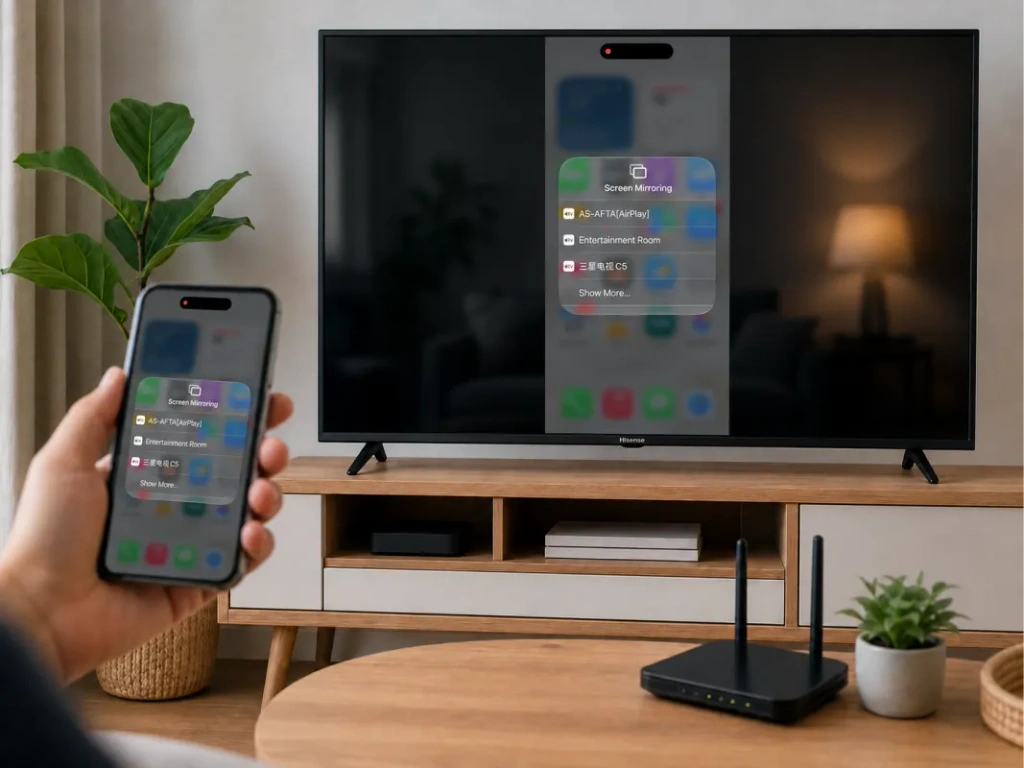
Käytä AirPlay-toimintoa, jos televisiosi tukee sitä
Tarkista television asetuksista tai tulolistasta, onko siellä AirPlay tai Apple AirPlay ja HomeKit. Hisense ilmoittaa AirPlay-tuen tuetuissa malleissa, mutta saatavuus vaihtelee mallin ja alueen mukaan. Katso Hisense AirPlay -ohjeet.
iPhonen liittäminen:
- Käynnistä AirPlay televisiossa.
- Yhdistä iPhone ja televisio samaan Wi-Fi-verkkoon.
- Avaa Valvontakeskus iPhonessa.
- Napauta Näytön peilaus.
- Valitse Hisense-televisiosi.
- Syötä televisiossa näkyvä koodi, jos sitä pyydetään.
Lopeta peilaus avaamalla Näytön peilaus uudelleen ja napauta Lopeta peilaus. Sama menettely toimii myös iPadilla. Katso Applen näytön peilausopas.
Jos Hisense-televisiossasi ei ole AirPlay-toimintoa
Jos ”Näytön jakaminen” -valikko ei liity asiaan, iPhone ei muodosta yhteyttä. Television vastaanottotoiminnon on tuettava iPhoneen käytettyä menetelmää.
Tarkista yhteensopivalla Google TV- tai Android TV -mallilla, voiko 1001 TVs-sovelluksen asentaa. Roku- tai VIDAA-laitteiden osalta älä oleta, että Android TV -sovellus voidaan asentaa. Käytä tarvittaessa tuettua ulkoista vastaanotinta.
4. Kuinka peilata Android-laitteen näyttö Hisense-televisioon
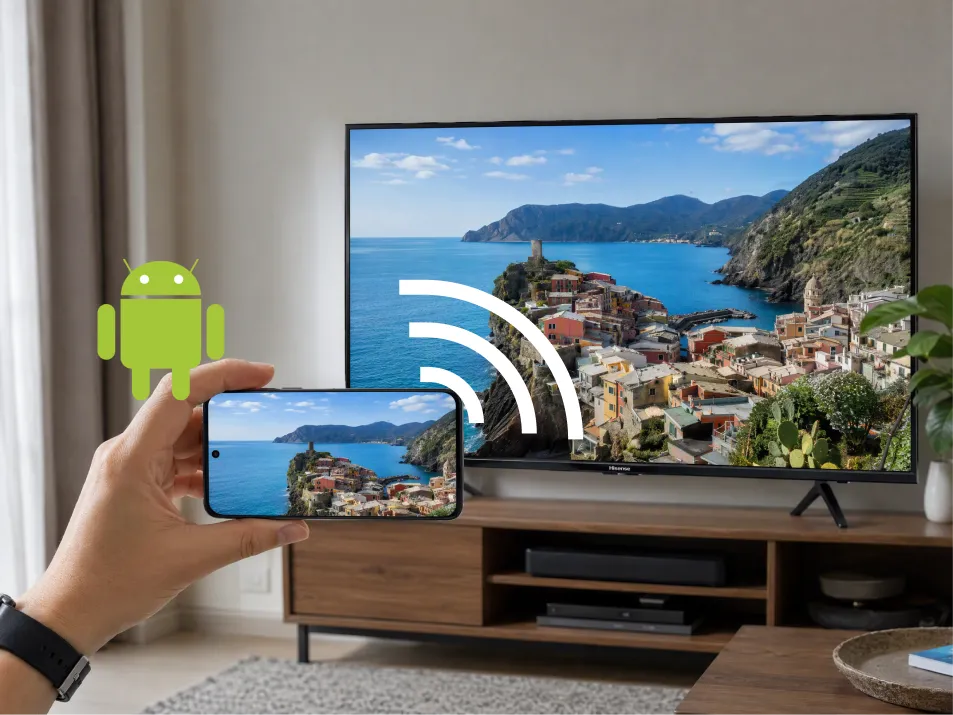
Google TV vai Android TV: käytä Google Castia
Google Cast -toiminnolla varustetun Hisense-television osalta:
- Yhdistä Android-puhelin ja televisio samaan Wi-Fi-verkkoon.
- Avaa Google Home.
- Etsi ja valitse television laiteruutu.
- Etsi Näytön peilaus tai näytön tallennuksen hallinta.
- Seuraa ohjeita, kun haluat jakaa näytön tai valitun sovelluksen.
Sanamuoto voi vaihdella sovelluksen ja Android-version mukaan. Googlen nykyiset ohjeet koskevat Android 8.0:aa ja sitä uudempia versioita. Katso Google Home -lähetysohjeet.
Roku, VIDAA vai Fire TV: tarkista ensin vastaanotin
Yhteensopivissa malleissa etsi seuraavat asetukset:
- Roku TV: Asetukset → Järjestelmä → Näytön peilaus.
- VIDAA: Näytön jakaminen, löytyy usein kohdasta ”Syötteet” tai ”Sovellukset”.
- Fire TV: Asetukset → Näyttö ja äänet → Ota näytön peilaus käyttöön.
Avaa sitten puhelimessasi yhteensopiva langattoman näytön hallintasovellus, valitse televisio ja hyväksy yhteys.
Samsungin puhelimissa tätä ominaisuutta saatetaan kutsua Smart View. Muissa puhelimissa käytetään erilaisia nimityksiä, eikä “Cast”-painike aina tarkoita samaa tekniikkaa. Roku huomauttaa, että Google Pixel -puhelimet eivät tue sen tavanomaista Android-näytön peilausmenetelmää. Katso Roku-yhteensopivuusopas.
Fire TV:n osalta Amazon toteaa, että jos Ota näytön peilaus käyttöön puuttuu, natiivi menetelmä ei ole käytettävissä. Katso Amazonin yhteensopivuusohjeet.
5. Kuinka peilata kannettavan tietokoneen näyttö Hisense-televisioon
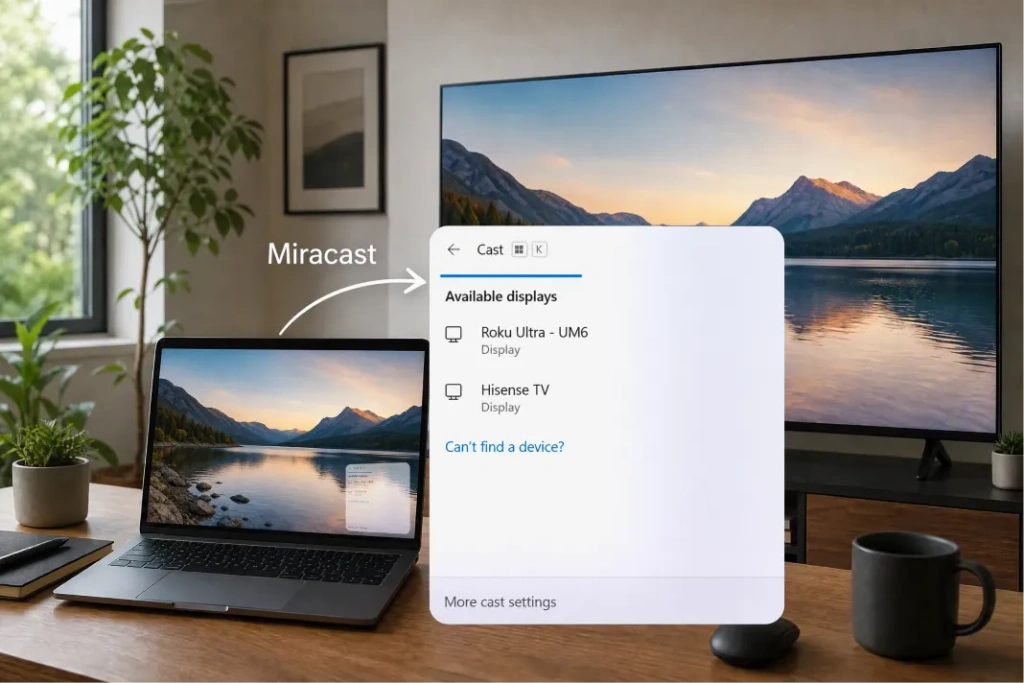
Esimerkiksi Windows-kannettava tietokone, paina Windows + K kun sekä tietokone että televisio tukevat Miracast-tekniikkaa. Valitse televisio ja hyväksy yhteys. Paina tarvittaessa Windows + P ja valitse Kaksoiskappaleet.
Google Cast -vastaanotin ei näy automaattisesti Windows + K -näppäinyhdistelmän avulla. Jos käytät Google Cast -yhteensopivaa televisiota, käytä Chromen erillistä lähetystoimintoa.
Esimerkiksi Mac, käytä Ohjauskeskus → Näytön peilaus jos Hisense-televisio tukee AirPlay-toimintoa. Muussa tapauksessa harkitse yhteensopivaa vastaanottosovellusta tai HDMI-liitäntää.
6. Milloin 1001 TVs-menetelmää tulisi käyttää
1001 TVs voi olla avuksi, kun puhelimellasi ja televisiollasi ei ole yhteistä alkuperäistä peilausmenetelmää — esimerkiksi silloin, kun iPhone yhdistetään yhteensopivaan Android TV:hen ilman AirPlayta.
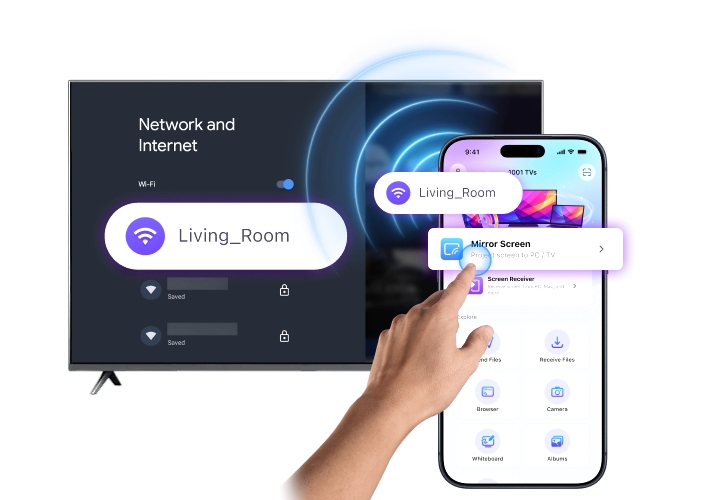
Varmista ensin, että 1001 TVs voi toimia vastaanottavassa laitteessa. Tarkista virallinen asennusopas tuetuille alustoille. Fire TV -käyttäjät voivat käyttää erillistä 1001 TVs Fire TV -opas.
Sitten:
- Asenna ja avaa 1001 TVs molemmilla laitteilla.
- Yhdistä molemmat laitteet samaan Wi-Fi-verkkoon.
- Valitse Näytön peilaus lähettäjän puolella.
- Valitse vastaanotin tai skannaa sen QR-koodi, jos sellainen on saatavilla.
- Hyväksy yhteys- ja näytönjakopyyntöjä.
Suorita iPhonessa lähetysvahvistus, kun sinua pyydetään tekemään niin. Katso 1001 TVs iPhone-laitteille tuettujen vastaanottoalustojen osalta.
Jos Hisense-televisiosi ei pysty asentamaan vastaanottosovellusta, yhteensopiva Android TV -laite tai HDMI-liitännän kautta kytketty Apple TV voi toimia vastaanottoalustana.

Hisense-television näytön peilaus ei toimi?
Aloitetaan oireesta:
| Ongelma | Mitä kannattaa tarkistaa |
|---|---|
| Televisio ei näy | Varmista, että menetelmä on yhteensopiva, verkko on jaettu ja vastaanotin on päällä |
| iPhone ei löydä televisiota | Tarkista, että AirPlay on käytettävissä ja käytössä |
| Android ei löydä televisiota | Tarkista, käyttääkö puhelin Google Castia vai tukeeko se Miracastia |
| 1001 TVs ei löydä vastaanotinta | Tarkista käyttöoikeudet, vierasverkon eristäminen ja VPN-asetukset |
| Peilaus jumiutuu tai viivästyy | Paranna Wi-Fi-signaalia, vähennä kilpailevaa liikennettä ja käynnistä molemmat laitteet uudelleen |
| Ainoastaan suoratoistovideo on musta | Sisällön suojaus saattaa estää tallennuksen; käytä palvelun TV-sovellusta |
Kokeile ensin valokuvalla tai aloitusnäytöllä. Jos se toimii, mutta yksi videosovellus ei toimi, ongelman syynä saattavat olla sisältörajoitukset eikä yhteys.
Usein kysytyt kysymykset
Voinko peilata näytön Hisense-televisioon ilman sovellusta?
Kyllä, kun molemmat laitteet tukevat samaa sisäänrakennettua toimintoa, kuten AirPlayta tai Miracastia. Android-näytön heijastaminen Google Home -laitteen kautta edellyttää kyseisen sovelluksen käyttöä.
Tukevatko kaikki Hisense-televisiot AirPlay-toimintoa?
Ei. Tarkista juuri sinun mallisi asetukset ja käyttöohje. Pelkkä Hisense-tuotemerkki ei riitä vahvistamaan AirPlay-tukea.
Voinko käyttää peilausominaisuutta ilman Wi-Fi-yhteyttä?
HDMI-liitännän avulla voi välttää Wi-Fi-yhteyden käyttöä, jos tietokoneesi tai puhelimesi tukee videolähtöä valitun kaapelin tai sovittimen kautta. Tavallinen USB-latauskaapeli ei automaattisesti toimi videoliitännänä.
Mikä on helpoin tapa?
Aloita television omasta yhteensopivasta vaihtoehdosta. Jos se ei sovi laitteeseesi, tarkista, voiko tuettu 1001 TVs-vastaanotin tarjota tarvitsemasi yhteyden.

Lue lisää
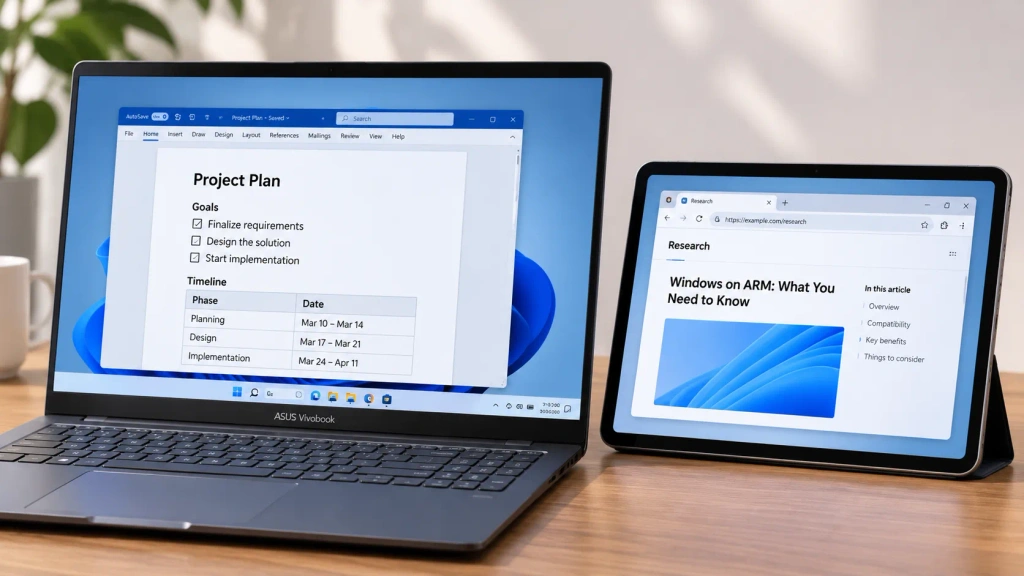 Kuinka laajentaa näyttöä Windows ARM -ympäristössä
1001 TVs toimii nyt natiivisti Windows ARM -ympäristössä – näytön laajennuksella, ei pelkästään peilauksella. Sen Arm64-sovellus toimii suoraan ARM-prosessoreilla sen sijaan, että se toimisi...
Kuinka laajentaa näyttöä Windows ARM -ympäristössä
1001 TVs toimii nyt natiivisti Windows ARM -ympäristössä – näytön laajennuksella, ei pelkästään peilauksella. Sen Arm64-sovellus toimii suoraan ARM-prosessoreilla sen sijaan, että se toimisi...
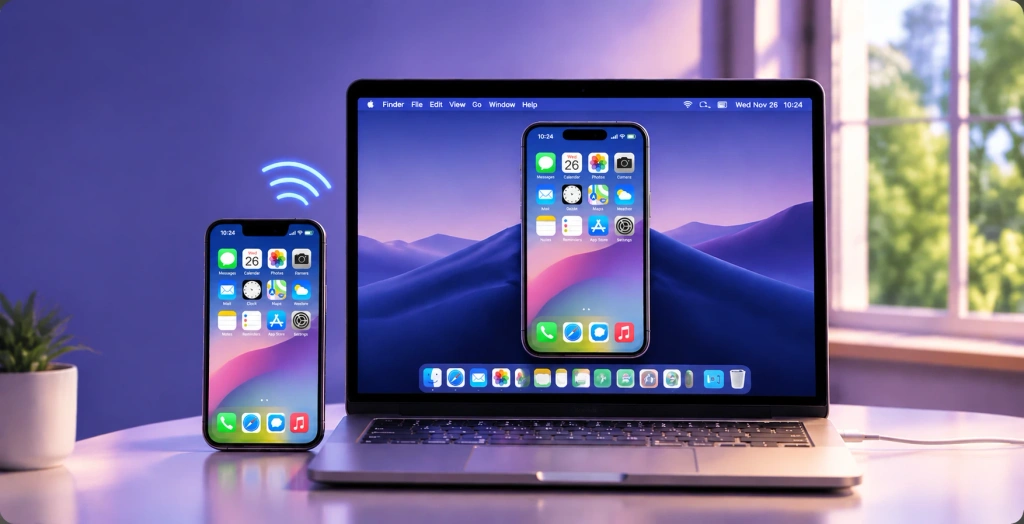 iPhonen peilaaminen Maciin: Helppo langallinen ja langaton menetelmä
Jos haluat peilata iPhonen näytön Maciin, käytä langatonta näytön jakamista varten AirPlay-toimintoa, iPhone Mirroring -sovellusta iPhonen ohjaamiseen Macista käsin tai QuickTimea...
iPhonen peilaaminen Maciin: Helppo langallinen ja langaton menetelmä
Jos haluat peilata iPhonen näytön Maciin, käytä langatonta näytön jakamista varten AirPlay-toimintoa, iPhone Mirroring -sovellusta iPhonen ohjaamiseen Macista käsin tai QuickTimea...

