
Cómo enviar archivos desde tu PC/Mac a la TV/PC/Mac
Con 1001 TVs, puedes enviar archivos desde tu PC/Mac a tu TV/PC/Mac a través de la misma red local.
Y sí: los PC y Mac de la misma red LAN pueden transferirse archivos directamente entre sí, sin configuraciones adicionales.
Sin cargas en la nube. Sin cables. Sin registros: solo transferencias locales rápidas y seguras.
Antes de empezar
- Asegúrese de que su los dispositivos están conectados a la misma red Wi-Fi.
- Instalar y abrir 1001 TVs en ambos dispositivos, mantén la aplicación en ejecución en el dispositivo receptor.
Empezar a enviar
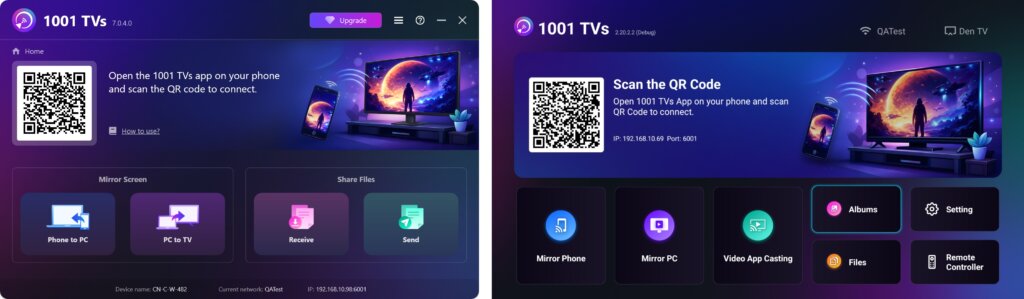
En el dispositivo de envío, haga clic en Enviar y la aplicación buscará automáticamente los dispositivos disponibles en la misma red.
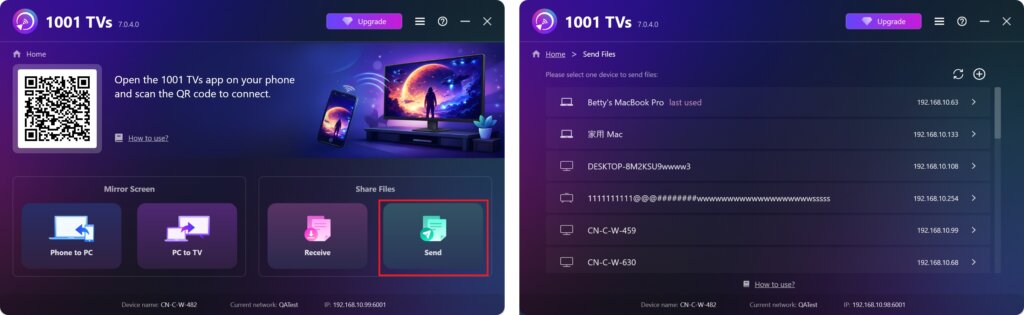
Elige el dispositivo de destino en la lista. (por ejemplo, tu TV/PC/Mac)
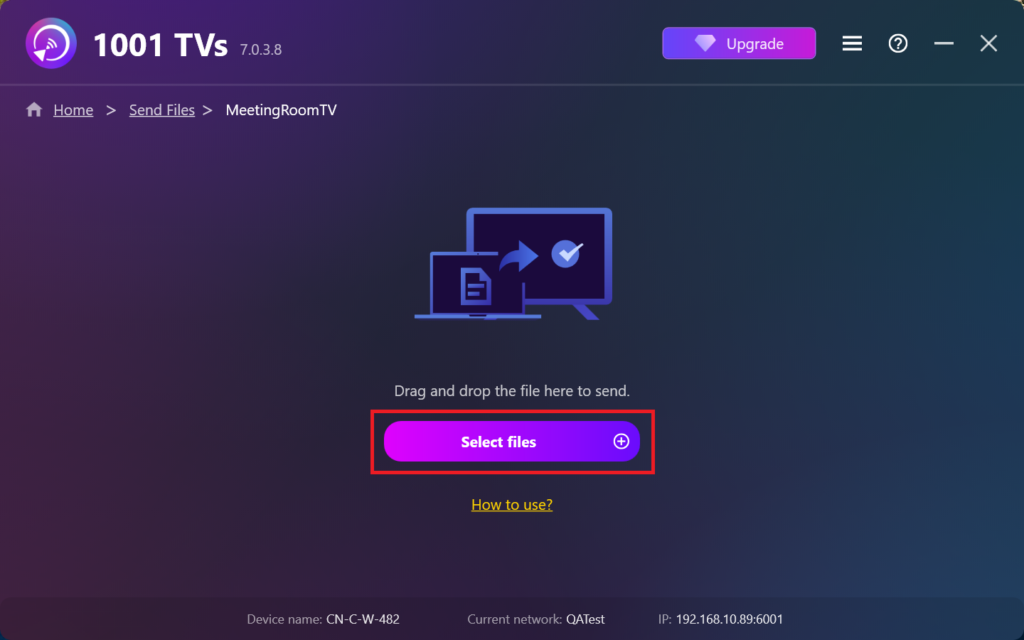
Selecciona los archivos de tu PC (vídeos, fotos, música, documentos, etc.) y la transferencia se iniciará automáticamente al dispositivo de destino.
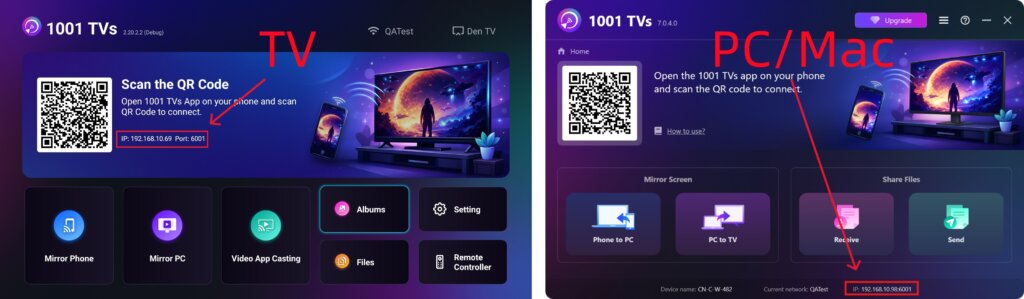
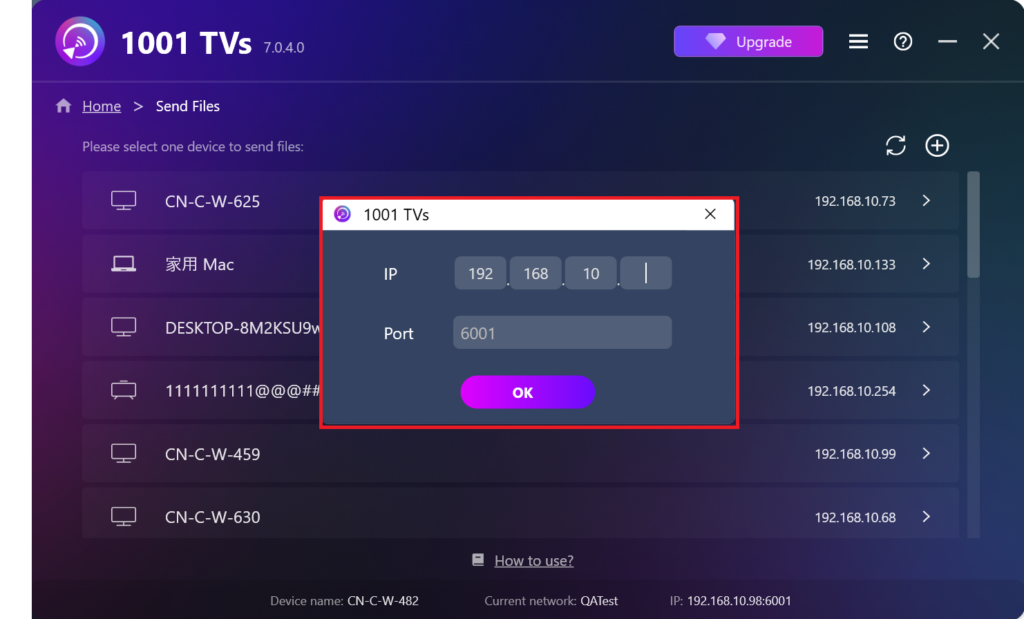
¿No encuentra su dispositivo de destino?
Si el dispositivo de destino no aparece en la lista de dispositivos, haga clic en el botón + icono en la esquina superior derecha y utilice Emparejamiento de direcciones IP para conectarse de forma rápida y segura.
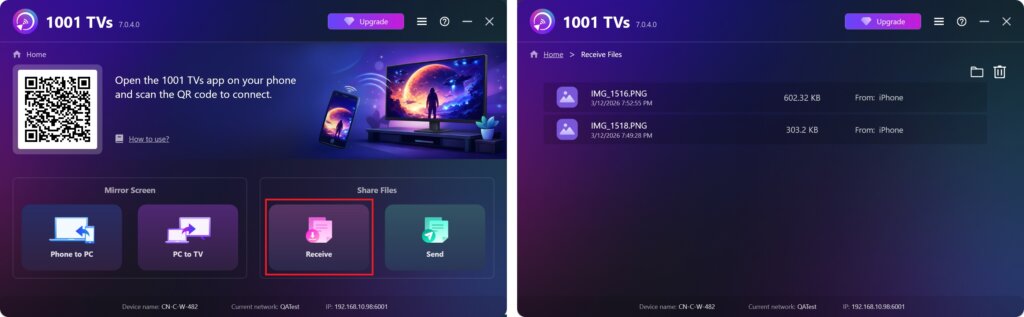
Ver archivos recibidos en PC/Mac
Haga clic en Reciba en tu PC/Mac para ver todos los archivos entrantes.
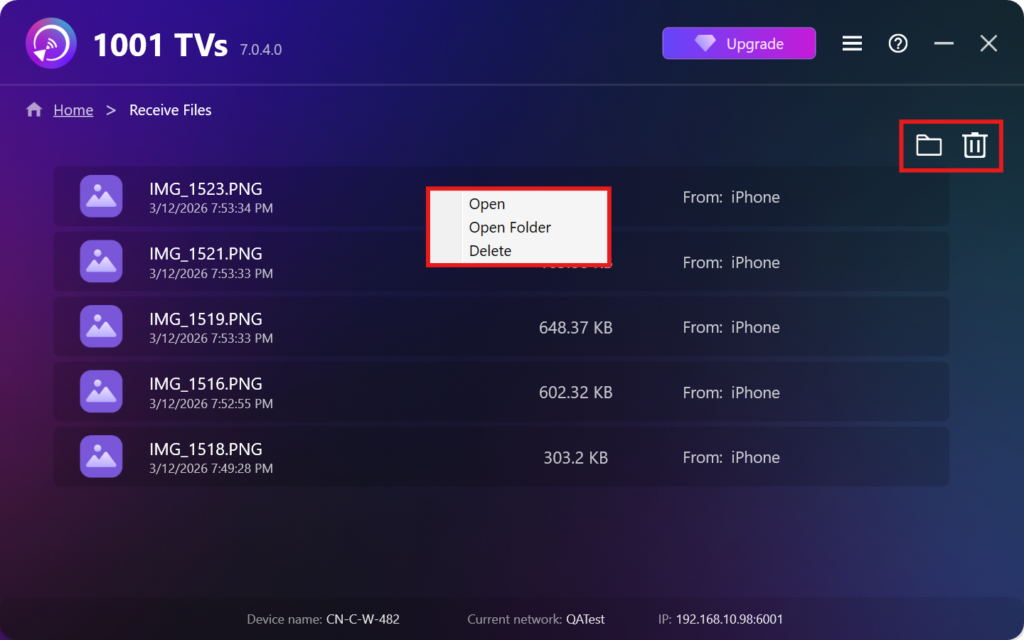
- Abrir Ver los archivos recibidos – Haga clic en o haga clic con el botón derecho del ratón en y seleccione “Abrir carpeta” para ver todos los archivos de ese dispositivo específico (por ejemplo, iPhone 12123).
- Localícelos en Finder (Mac) o en el Explorador de archivos (Windows) - Haga clic en el botón icono de carpeta en la parte superior derecha para acceder a todas las carpetas de dispositivos.
- Eliminar opciones – Haga clic con el botón derecho del ratón en un archivo y seleccione “Borrar” para eliminarlo individualmente, o pulse el botón icono de papelera en la parte superior derecha para eliminar todos los archivos recibidos a la vez.
Ver en TV los archivos recibidos
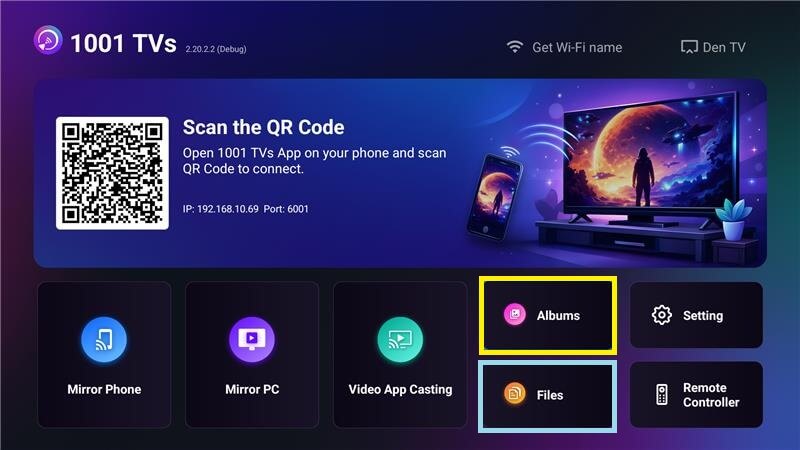
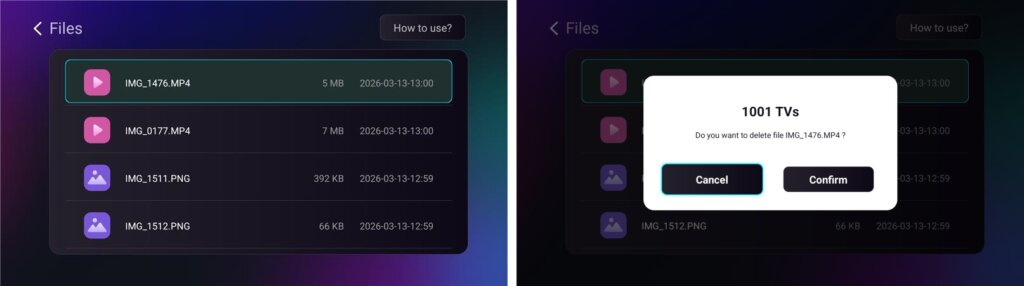
- Vaya a Archivos para ver los archivos recibidos. Puede seleccionar un archivo y pulsar prolongadamente OK para borrarlo.
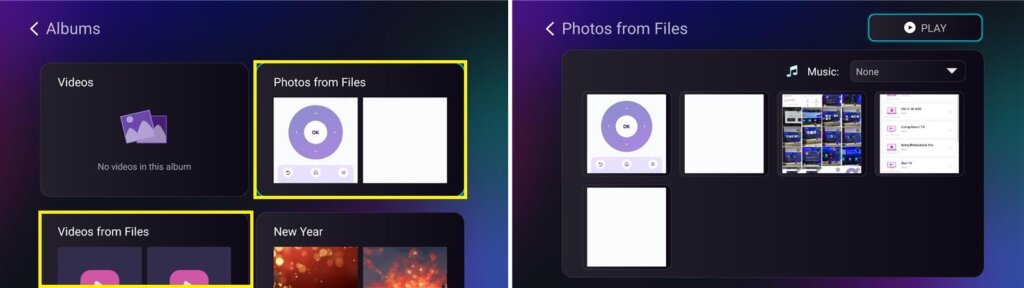
- Vaya a Álbumes > Fotos/Vídeos de Archivos para ver las fotos y vídeos recibidos. Puede seleccionar un archivo y pulsar prolongadamente OK para borrarla, o reproducirlas como una presentación de diapositivas.
¿Por qué utilizar 1001 TVs?
- Rápido, privado y fácil de usar
- Transferencia local: no requiere nube
- No es necesario iniciar sesión ni crear una cuenta
- Admite transferencias de archivos de gran tamaño
¿Necesita ayuda?
Si tiene algún problema, no dude en ponerse en contacto con nuestro equipo de asistencia:
📧 Correo electrónico: 1001tvs@nero.com
🌐 Página web: www.1001tvs.com
📖 Más guías: Orientación