
Řešení časového limitu zrcadlení obrazovky v systému macOS 15+

Pokud používáte macOS 15 nebo novější a narazíte na chybu:
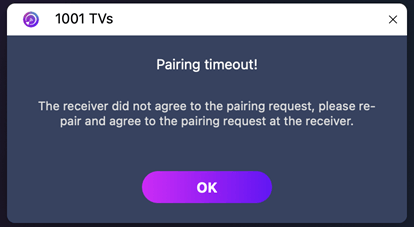
"Párování vypršelo! Přijímač nepřijal požadavek na spárování. Zkuste spárovat znovu."
-i když jsou obě zařízení připojena k počítači. stejná síť Wi-Fi-problém je pravděpodobně způsoben Omezení oprávnění v místní síti v systému macOS 15+.
Jak to napravit
Pro macOS 15 a novější:
1. Open Terminal and run the following commands:
Zadejte první příkaz a poté stiskněte Vstupte na:
sudo rm /Library/Preferences/com.apple.networkextension.plistPo zobrazení výzvy zadejte své přihlašovací heslo a stiskněte Vstupte na znovu. (Heslo se na obrazovce nezobrazí.)
Then enter the second command, and press Vstupte na:
sudo rm /Library/Preferences/com.apple.networkextension.uuidcache.plist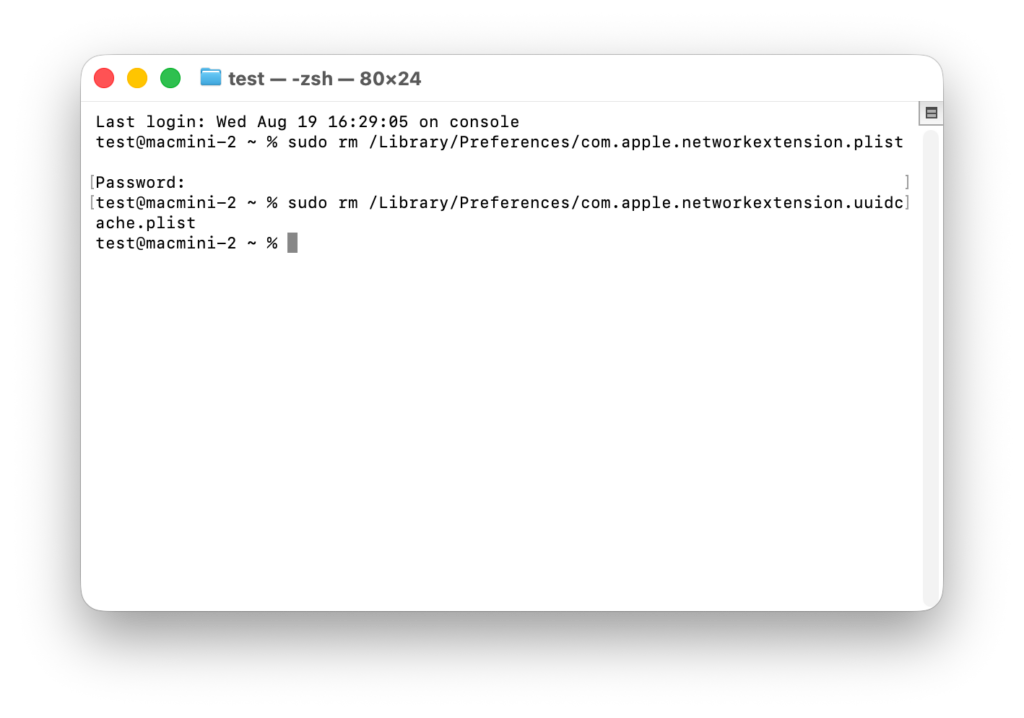
2. Restart your Mac, open 1001 TVs, and try pairing again.
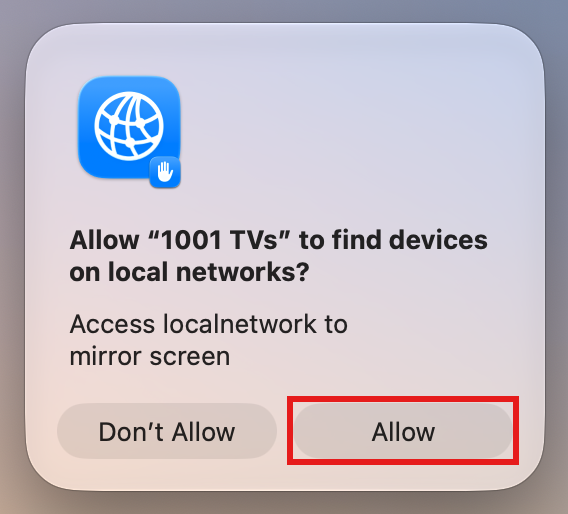
⚠️ Important: When you open the app, if a Local Network permission prompt appears, be sure to click "Povolit" to grant access.
Pro macOS 26 a vyšší:
1. Vytvořte nový uživatelský účet
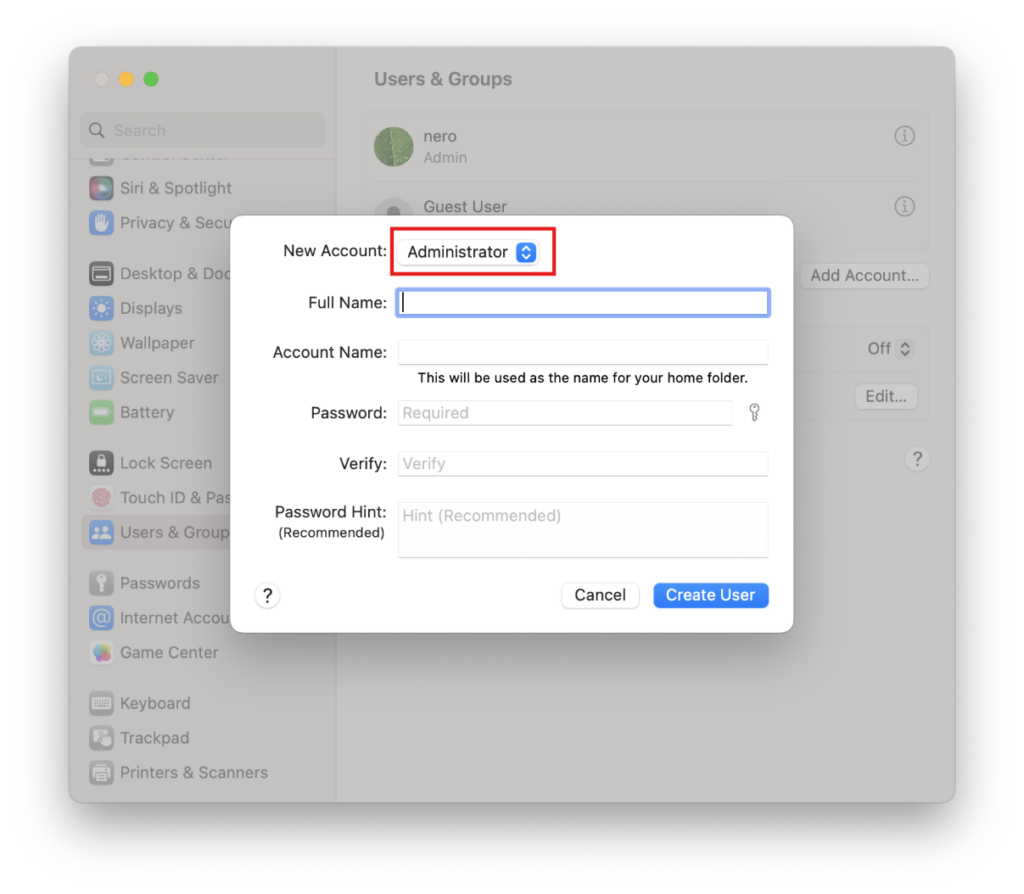
Přejít na Nastavení systému > Uživatelé a skupiny a klikněte na Přidat účet.
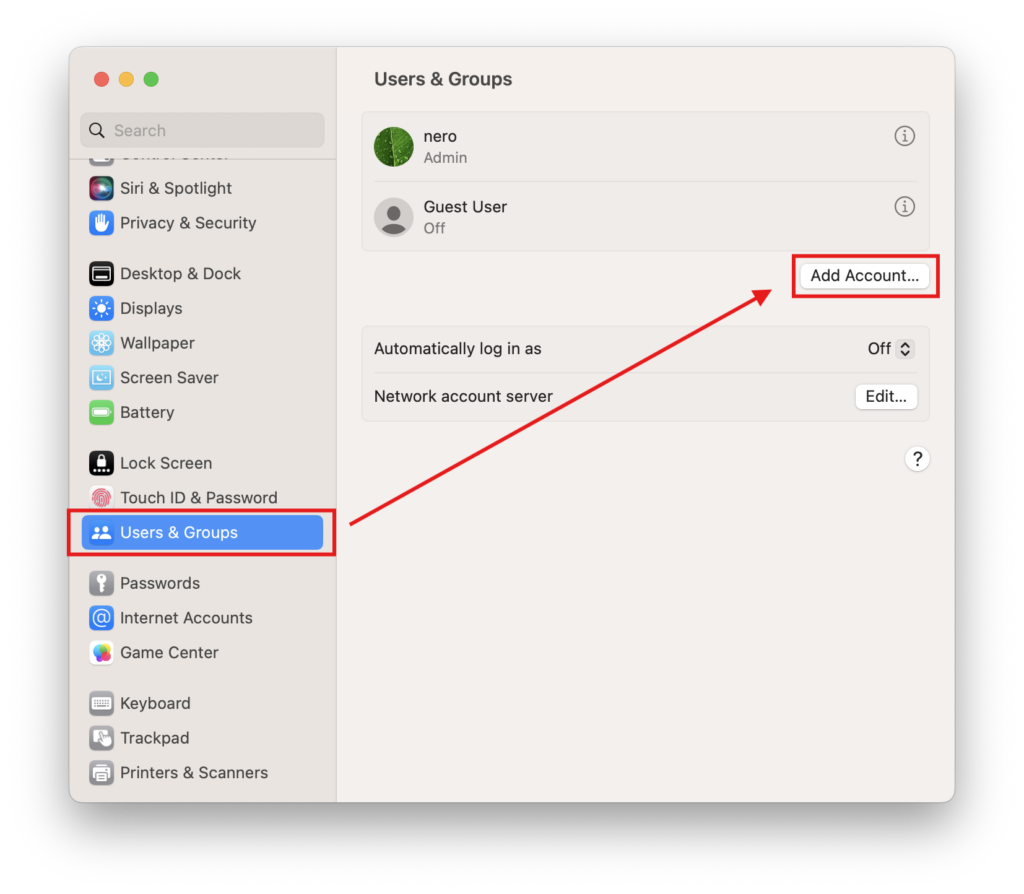
Nastavte nový typ účtu na Správce, poté zadejte celé jméno a název účtu, nastavte heslo a klikněte na Vytvořit uživatele.
2. Přihlaste se k novému účtu
Klikněte na logo Apple v levém horním rohu a vyberte Odhlásit se Chcete-li se odhlásit ze svého aktuálního účtu.
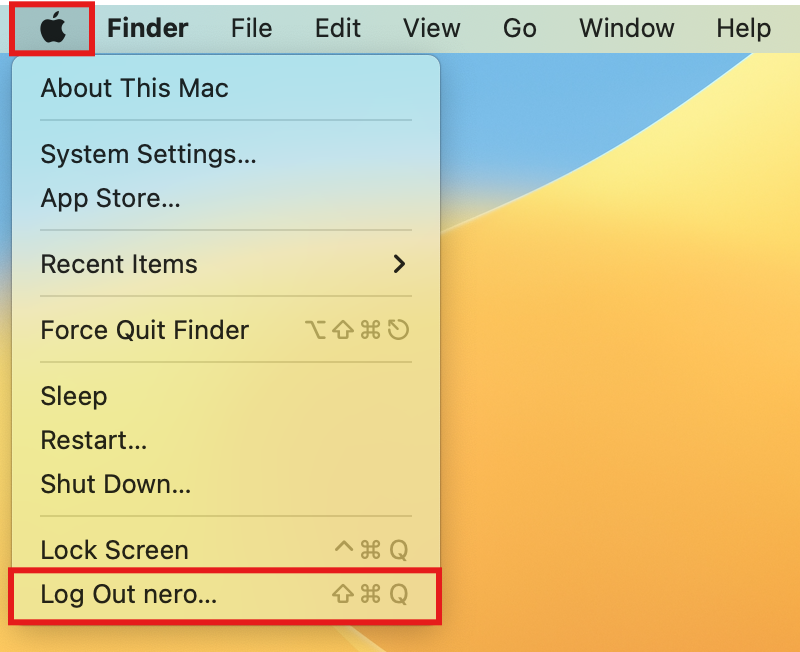
Přihlaste se k účtu právě jste vytvořili.
3. Retry Pairing
Restart your Mac, open 1001 TVs, and try pairing again.
⚠️ Important: When you open the app, if a Local Network permission prompt appears, be sure to click "Povolit" to grant access.
As a last resort, please follow the steps below.
1. Start up in Recovery Mode
Klikněte na logo Apple v levém horním rohu a vyberte Shut Down.
Depending on your Mac’s chip type, do the following:
- Apple Silicon Mac: After shutting down, press and hold the power button (Touch ID) until you see “Loading startup options”. Release the power button, then click Options.
- Intel Mac: After shutting down, press the power button to turn on your Mac, then immediately press and hold Command (⌘) + R until the Apple logo or a progress bar appears on screen, then release the keys.
Once you are in Recovery Mode, select your account and enter your login password.
2. Turn off system protection temporarily
In the Recovery menu bar, click Utilities > Terminál.
Type the following command and press Vstupte na:
csrutil disableWhen you see “Successfully disabled System Integrity Protection.”, click the Apple logo and select Restartování.
3. Delete the cached permission files
After your Mac restarts, open Terminál (found in Launchpad or Applications > Utilities).
Enter the first command and press Vstupte na:
sudo rm /Library/Preferences/com.apple.networkextension.plistPo zobrazení výzvy zadejte své přihlašovací heslo a stiskněte Vstupte na again. (Your password will not be shown on screen — this is normal.)
Enter the second command and press Vstupte na:
sudo rm /Library/Preferences/com.apple.networkextension.uuidcache.plist4. Turn system protection back on
Shut down your Mac again.
Repeat Krok 1 to re-enter Recovery Mode.
Otevřít Terminál, type the following command, and press Vstupte na:
csrutil enableWhen you see the success message, click the Apple logo and select Restartování.
5. Try pairing again
Restart your Mac, open 1001 TVs, and try pairing again.
⚠️ Important: When you open the app, if a Local Network permission prompt appears, be sure to click "Povolit" to grant access.