
Jak odesílat soubory z PC/Mac do TV/PC/Mac
Pomocí 1001 TVs můžete posílat soubory z počítače PC/Mac do televizoru PC/Mac prostřednictvím stejné místní sítě.
A ano - počítače PC a Mac ve stejné síti LAN mohou přenášet soubory přímo mezi sebou, bez dalších nastavení.
Žádné nahrávání do cloudu. Žádné kabely. Žádné registrace - jen rychlé a bezpečné místní přenosy.
Než začnete
- Ujistěte se, že vaše zařízení jsou připojena ke stejné síti Wi-Fi.
- Instalace a otevření 1001 TVs na obou zařízeních, nechte aplikaci spuštěnou na přijímacím zařízení.
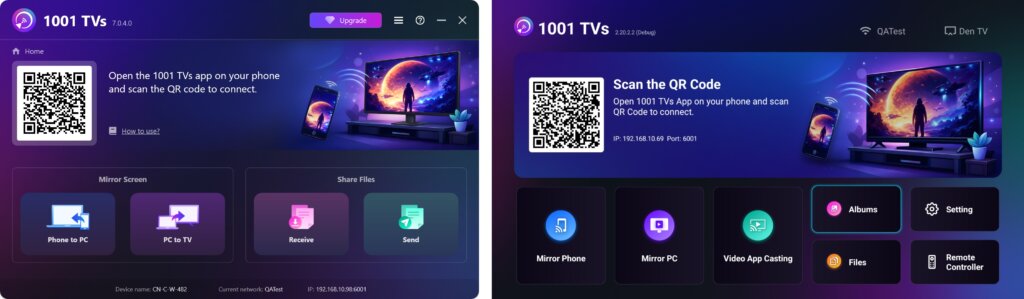
Zahájení odesílání
V odesílajícím zařízení klikněte na Odeslat a aplikace automaticky vyhledá dostupná zařízení ve stejné síti.
Ze seznamu vyberte cílové zařízení. (např. TV/PC/Mac).
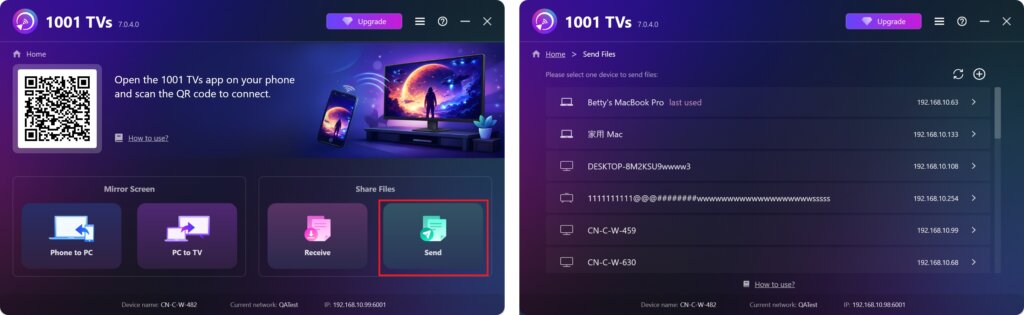
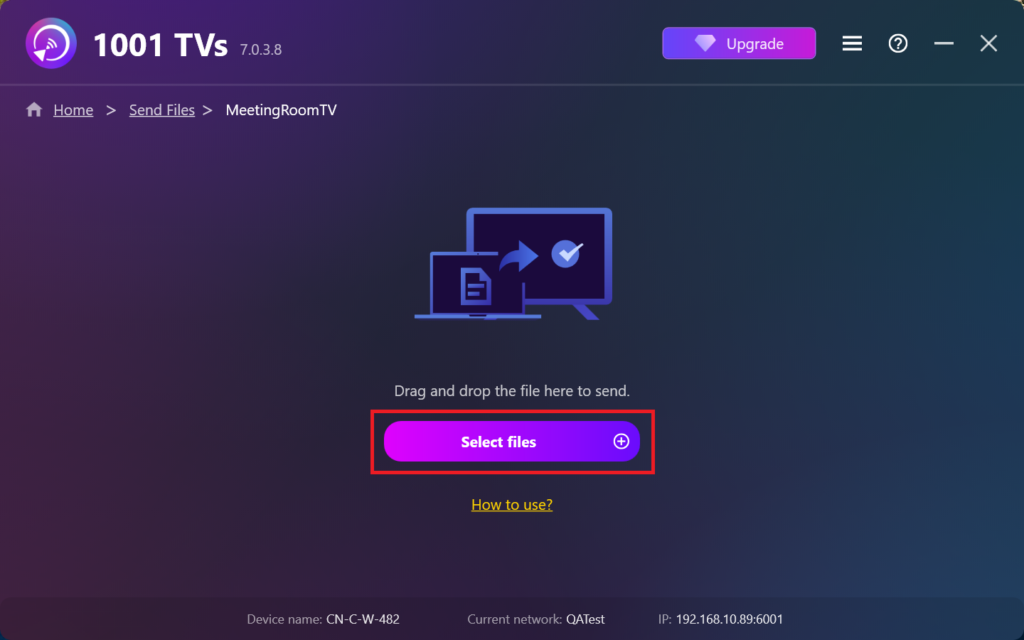
Vyberte soubory v počítači (videa, fotografie, hudbu, dokumenty a další) a přenos se automaticky spustí do cílového zařízení.
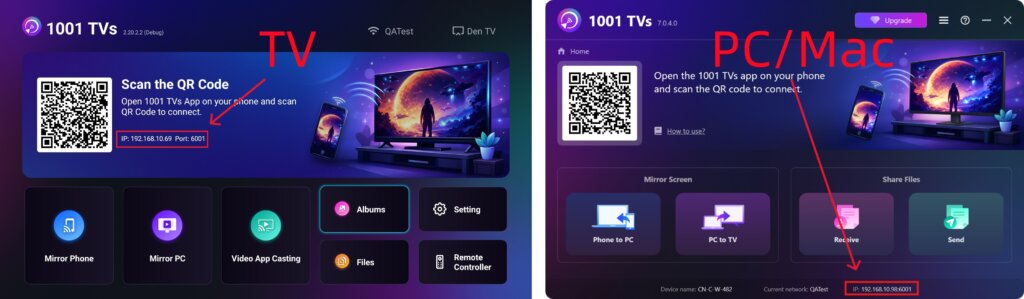
Nemůžete najít cílové zařízení?
Pokud se cílové zařízení nezobrazí v seznamu zařízení, klikněte na tlačítko + ikona v pravém horním rohu a použijte Párování IP adres k rychlému a bezpečnému připojení.
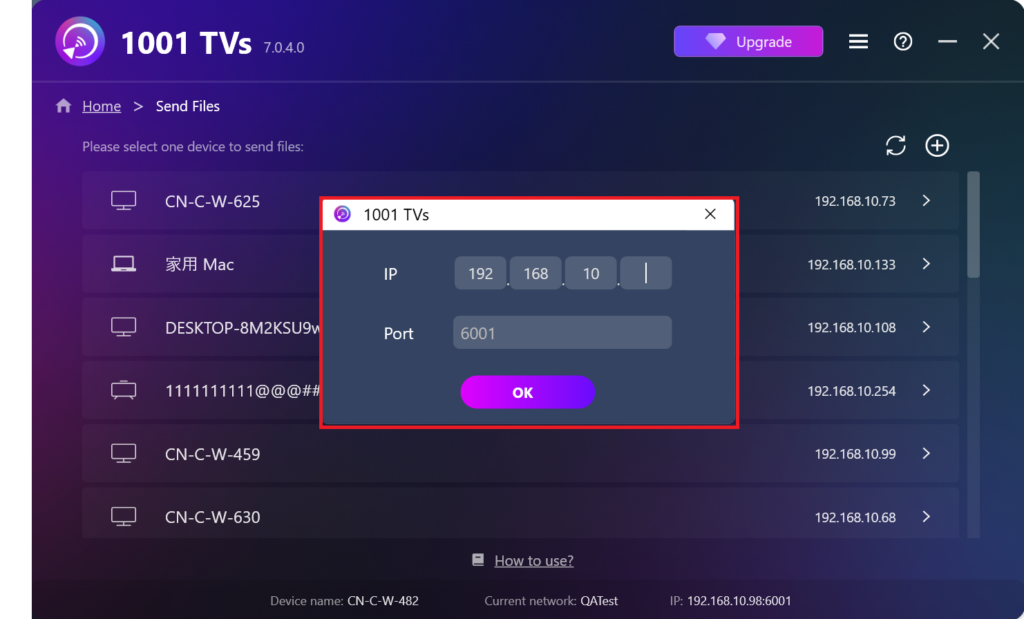
Zobrazení přijatých souborů na PC/Mac
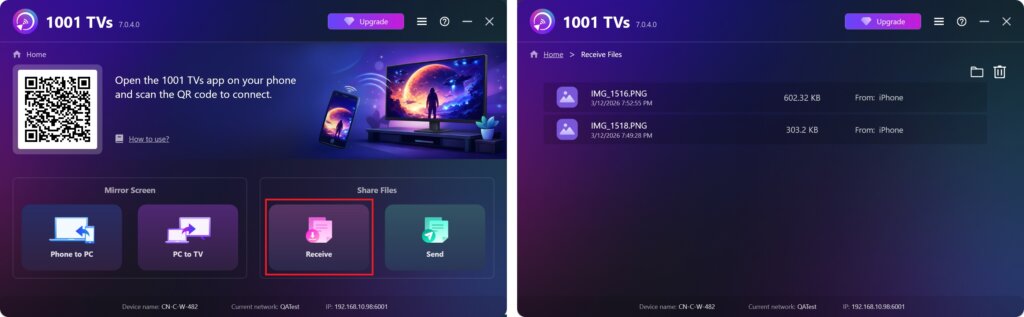
Klikněte na Příjem na počítači PC/Mac, abyste viděli všechny příchozí soubory.
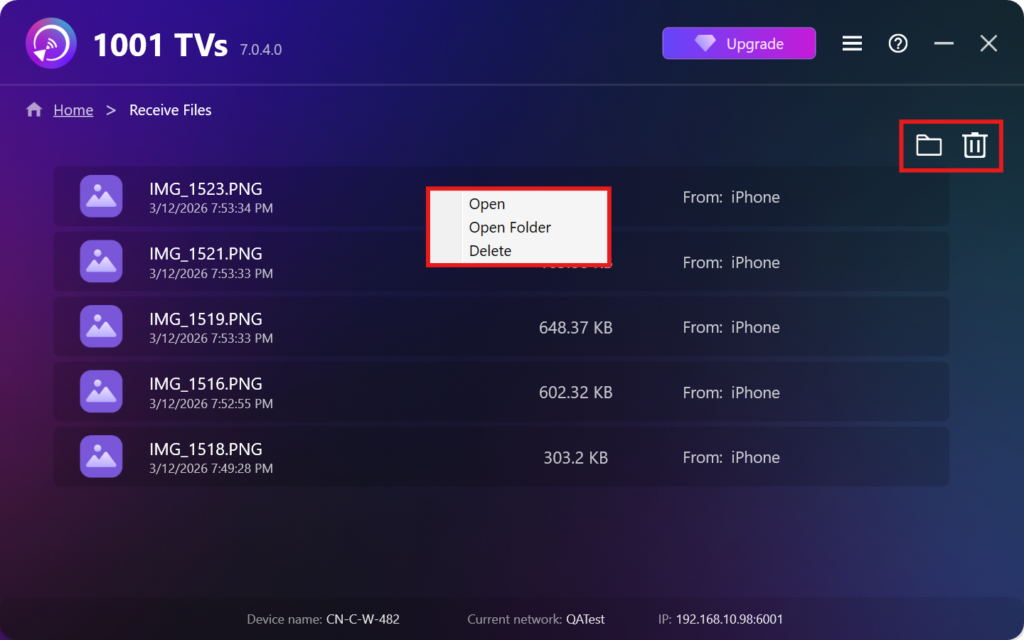
- Otevřít Zobrazení přijatých souborů – Klikněte na nebo klikněte pravým tlačítkem myši na a vyberte možnost “Otevřít složku” pro zobrazení všech souborů z daného zařízení (např. iPhone 12123).
- Vyhledejte je ve Finderu (Mac) nebo v Průzkumníku souborů (Windows). - Klikněte na ikona složky vpravo nahoře pro přístup ke všem složkám zařízení.
- Možnosti odstranění – Klikněte pravým tlačítkem myši na soubor a vyberte možnost “Odstranit”, pokud ji chcete odebrat jednotlivě, nebo klikněte na tlačítko ikona koše vpravo nahoře, abyste odstranili všechny přijaté soubory najednou.
Zobrazit přijaté soubory v televizi
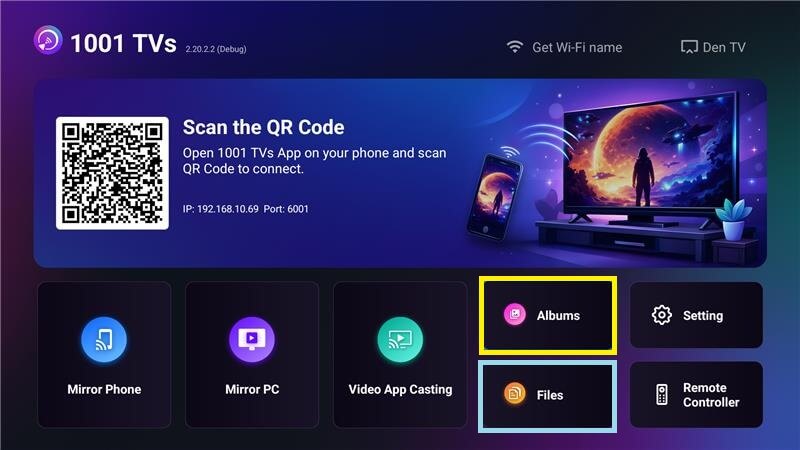
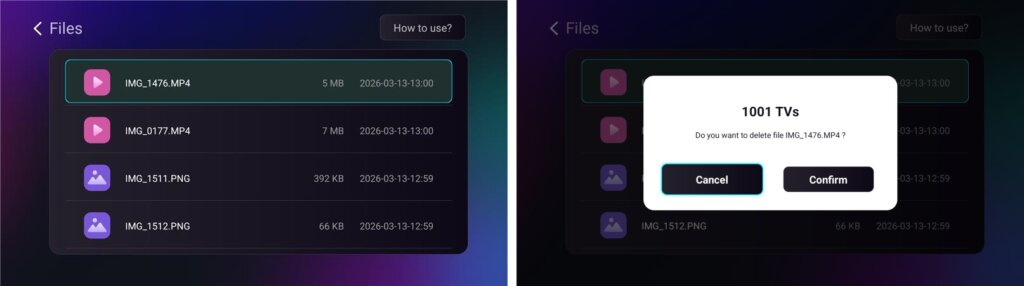
- Přejděte na Soubory zobrazit přijaté soubory. Můžete vybrat soubor a dlouze stisknout OK odstranit.
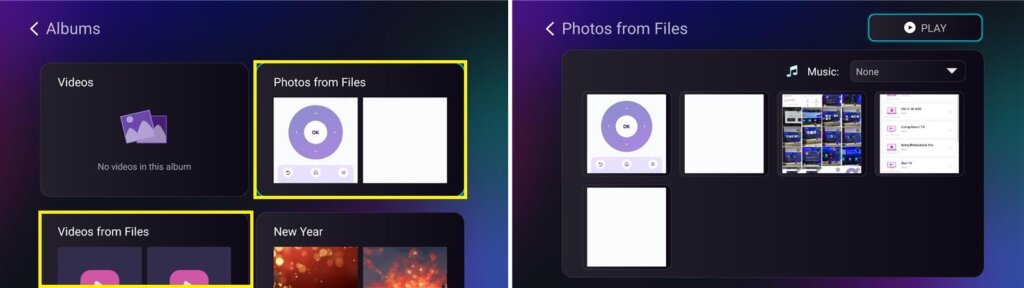
- Přejděte na Alba > Fotografie/videa ze souborů zobrazit přijaté fotografie a videa. Můžete vybrat soubor a dlouze stisknout OK odstranit nebo je přehrát jako prezentaci.
Proč používat 1001 TVs?
- Rychlé, soukromé a snadné použití
- Místní přenos - není nutný cloud
- Není potřeba žádné přihlášení ani účet
- Podporuje přenosy velkých souborů
Potřebujete pomoc?
Pokud narazíte na nějaké problémy, neváhejte se obrátit na náš tým podpory:
📧 E-mail: 1001tvs@nero.com
🌐 Webové stránky: www.1001tvs.com
📖 Další průvodci: Průvodce