检测到浏览器语言为中文,点此切换到中文页面->
How to Share Files in 3 Simple Steps?
1
Install the App
Download and launch the 1001 TVs app on both devices.
2
Connect Devices
Make sure both devices are on the same Wi-Fi. Tap “File Transfer” in the app to scan and connect.
3
Send Files
Select what you want to share — no cables, no size limits, and no waiting.
Private, Fast & Flexible File Sharing
FAST TRANSFER
Transfer large files at high speed over Wi-Fi — no cables, no cloud, no delays. Files move instantly and stay within your local network.
fast-transfers
ZERO BARRIERS
Cross-platform and private. Seamlessly share files between Windows/macOS and Android/iOS — safely and easily, all on the same Wi-Fi.
zero-barriers
Use Cases
Photos Backup
Video Export
File Transfer
Secure & Effortless Photo Backup
Free up your phone storage and keep your memories safe — without the cloud, without logging in.

Whether it’s photos, videos, music, or more, 1001 TVs lets you wirelessly back up your entire gallery to your Windows or Mac in one tap.

No internet required. No size limits. Just fast, private transfers on your local Wi-Fi.
photos-backup
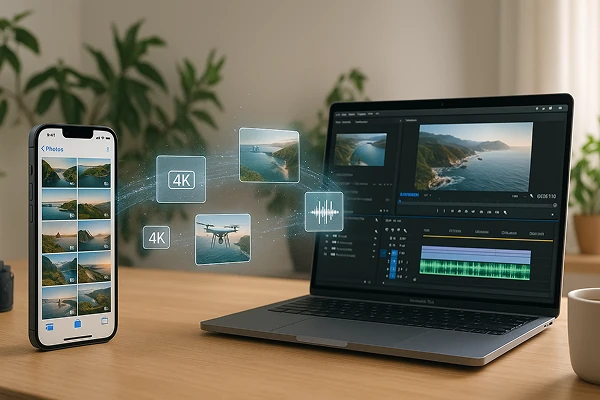
Reliable Video Export — Even for Large 4K Files
As video quality keeps improving, so does file size — making it harder to move your footage around.

Whether it's drone clips, lectures, or 4K vlogs, large files often fail to send via AirDrop or take forever with cables.

1001 TVs gives you a better way: transfer videos wirelessly from your phone to your computer without compression. No cloud, no cables, and no failed transfers — just smooth, secure exporting over your local Wi-Fi.
video-export
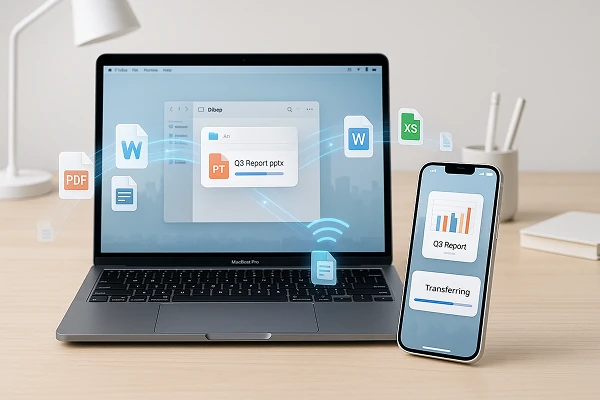
Batch File Transfer — Send Everything at Once
Need to send a folder full of photos, videos, or documents?

1001 TVs lets you transfer files in bulk — with no size or quantity limits. As long as your receiving device has enough space, you're good to go.

Whether it’s images, videos, audio, or work files, everything is sent wirelessly over your local network — fast, private, and without any quality loss.
file-transfer
Download
FAQ
What is 1001 TVs?
1001 TVs is a superpower tool that connects any device wirelessly — phones, tablets, Macs, PCs, and TVs. Enjoy seamless screen mirroring and unlimited file transfer.
Which devices and platforms are supported for screen mirroring?
Devices: Phone, tablet, PC, Mac, TV
Platforms:
· iOS (iPhone/iPad)
· Android
· macOS
· Windows
· Smart TV platforms: Google Android TV, Apple tvOS, HarmonyOS, MIUI TV, Amazon Fire OS
How do I mirror my phone or computer screen to a TV?
· Install 1001 TVs app on your phone/PC/Mac and TV.
· Ensure both devices are connected to the same Wi-Fi network.
· Open the app, select the device or scan the QR code to start.
Can I Try 1001 TVs for Free?
1001 TVs offers a limited-time free trial with full, unlimited access to premium features like screen mirroring, file transfer, and album.
To continue enjoying the service, simply upgrade to a subscription once the trial ends.
How do I install the 1001 TVs app?
You can find it by searching "1001 TVs" in the following app stores:
· Apple App Store (for iPhone, iPad, Mac, Apple TV)
· Microsoft Store (for Windows)
· Google Play (for Android phones, tablets, and TVs)
What subscription plans and pricing options does 1001 TVs offer?
We offer weekly, monthly, yearly, and lifetime plans. Paid membership is only needed on the sender side after a free trial. See in-app for your local pricing.
How to cancel subscription?
Cancel a subscription on your iOS
·  Open the Settings app → your name → Subscriptions → the subscription → Cancel Subscription
Cancel a subscription on Google Play
· Open the Google Play Store app → Profile picture on top right → Payment & subscriptions → Subscriptions → the subscription → Cancel Subscription → Confirm the cancellation
Can I mirror multiple devices at the same time?
Yes. You can mirror multiple devices to one PC/Mac (e.g., phones, tablets, PCs, or Macs), or mirror one PC/Mac to multiple devices (TVs, phones, tablets, PCs, Macs, etc.) — all simultaneously.
Does 1001 TVs store personal data or have privacy risks?
No. All screen data stays within your local network — never uploads to internet.
How can I contact support or get help?
Please contact us at 1001tvs@nero.com.