
[Mac] How to Mirror Mac Screen to TV
1. Connect to the Same Wi-Fi
Make sure both your Mac and TV are connected to the same Wi-Fi network.
For best performance, use a 5 GHz Wi-Fi network to reduce delay and improve stability.
2. Install and Open 1001 TVs App
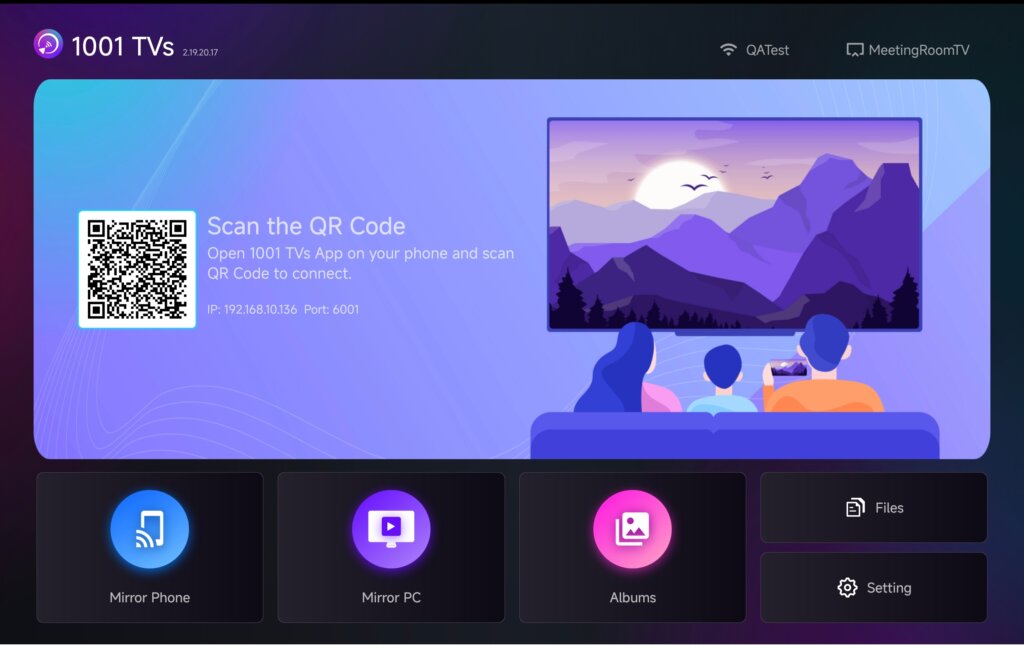
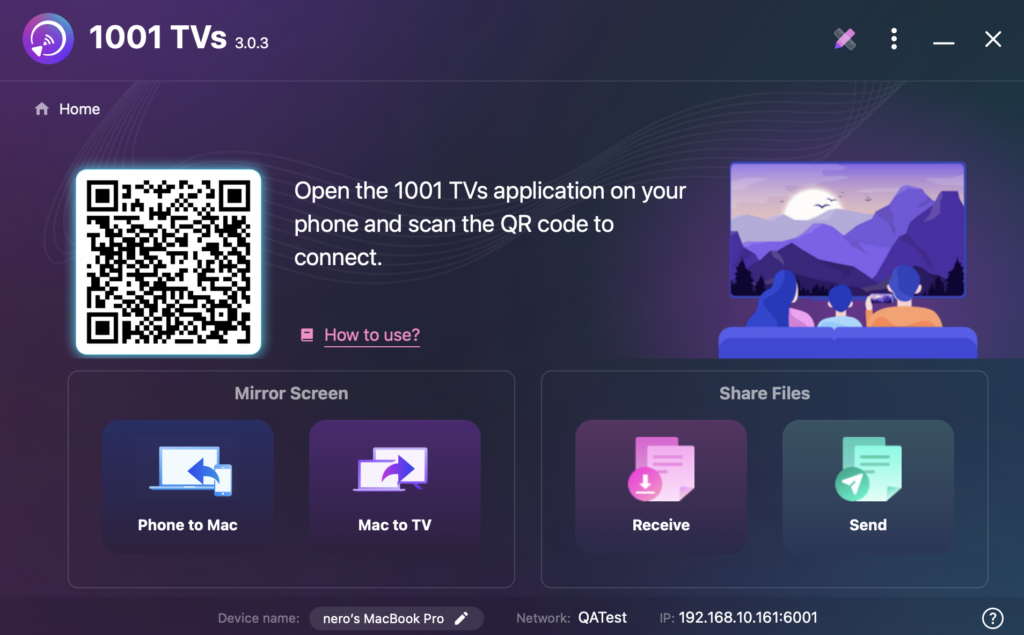
Install and open the 1001 TVs app on both your Mac and TV.
📥 Mac App: Download from App Store
📥 TV App: How to Install 1001 TVs on Your TV
3. Start Screen Mirroring
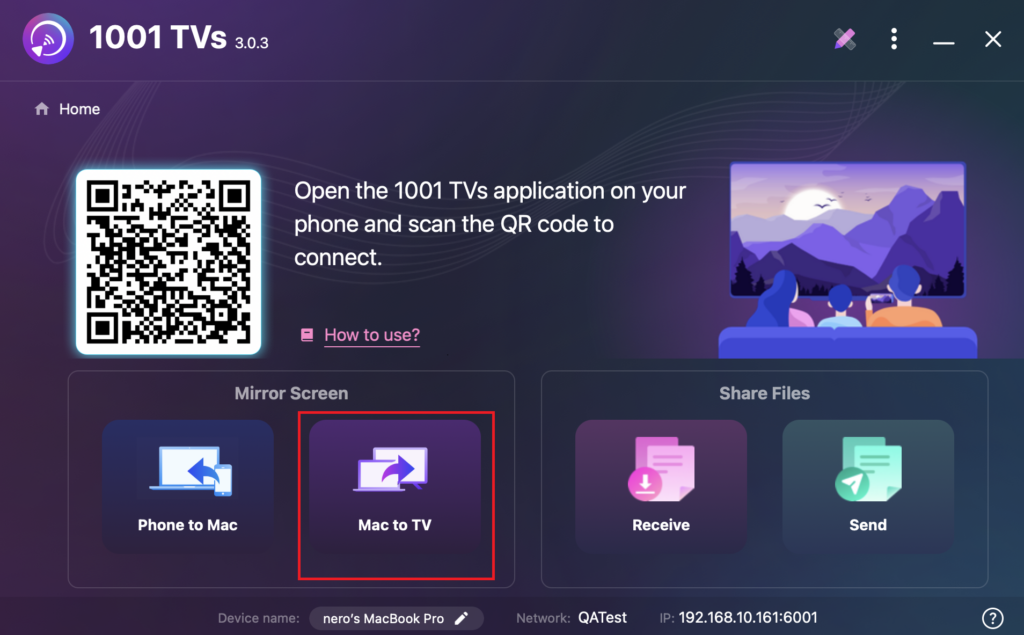
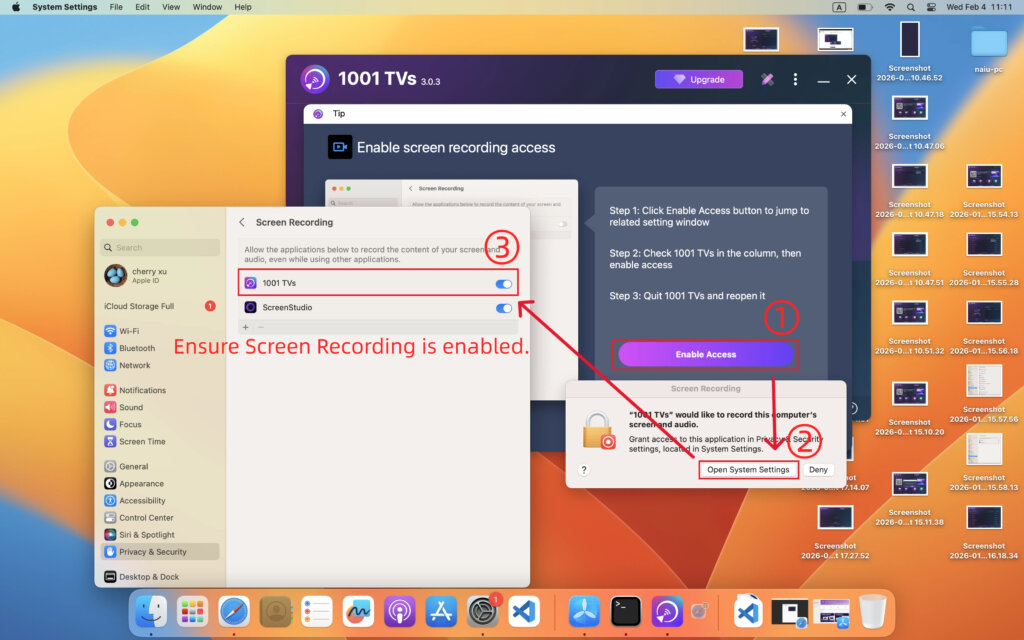
1) On your Mac, click “Mac to TV” and follow the on-screen instructions.
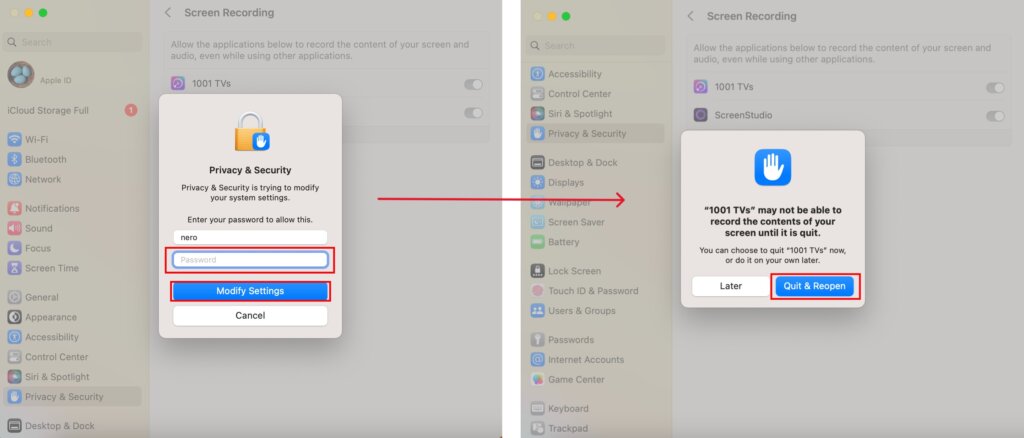
Ensure Screen Recording access is enabled for 1001 TVs.
If prompted, allow the permission and reopen the app to apply the changes.
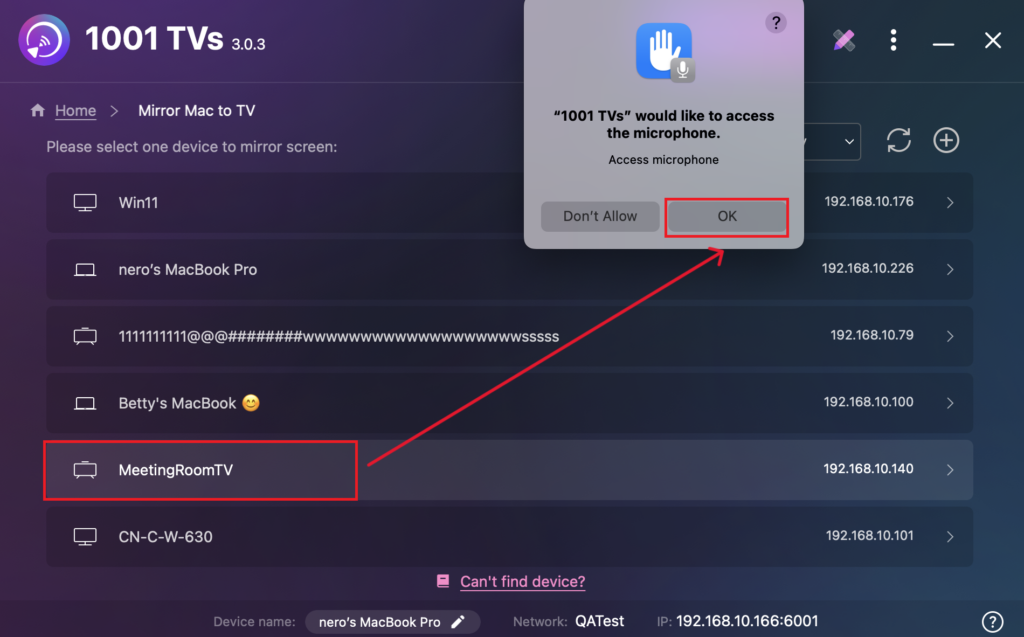
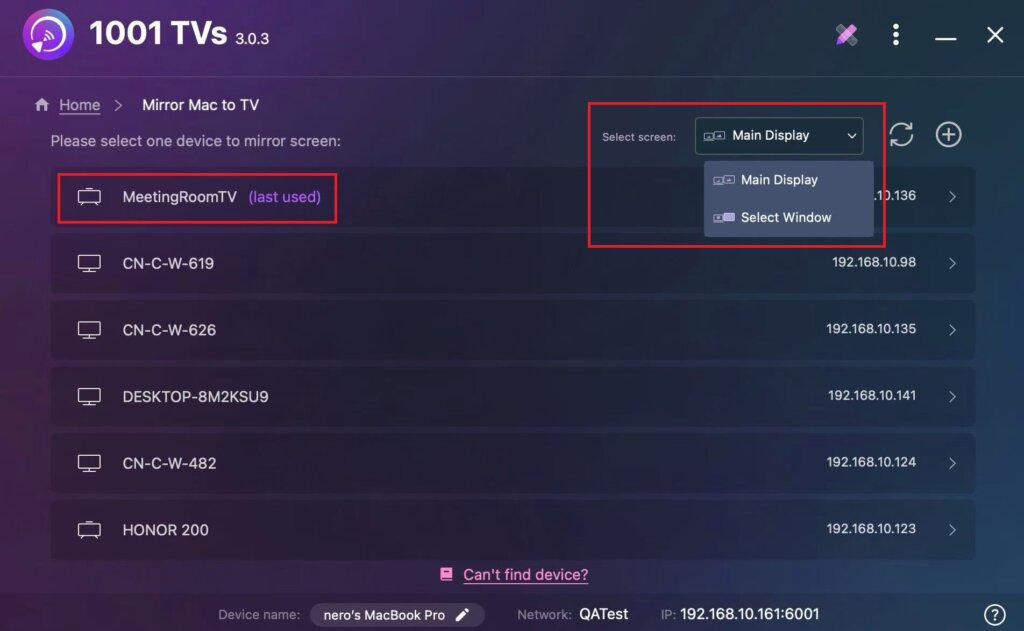
2) Select your target device (in this case, your TV).
The app will automatically detect available devices (such as TVs, TV boxes, and PCs) on the same network running 1001 TVs.
Tip:
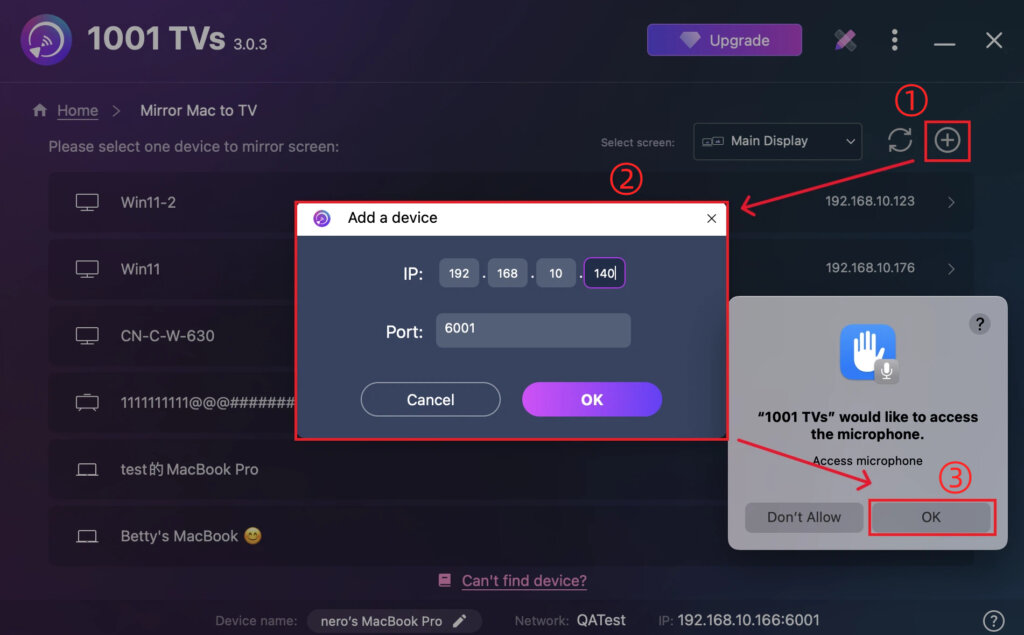
- If the device is not listed, make sure the app is running on the TV, then click Refresh to reload the device list.
- You can also click the + icon in the top-right corner and manually enter the IP address shown on the TV.
When prompted, allow microphone access to ensure audio works properly.
3) Select what you want to mirror: your entire main screen or a specific window.
4. Confirm the Connection
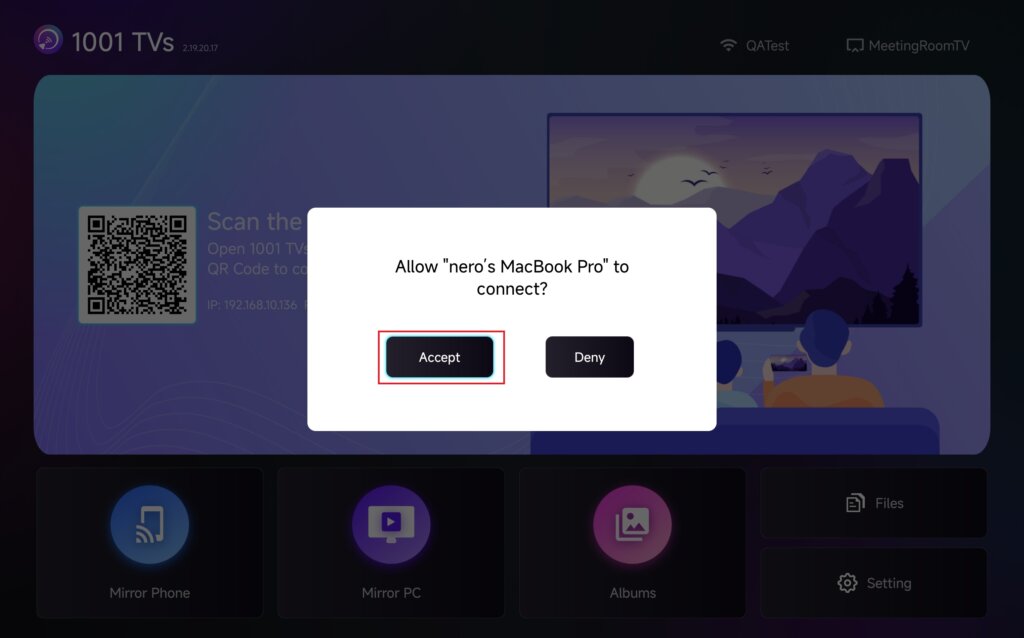
When prompted on the TV, select “Accept” to pair the devices.
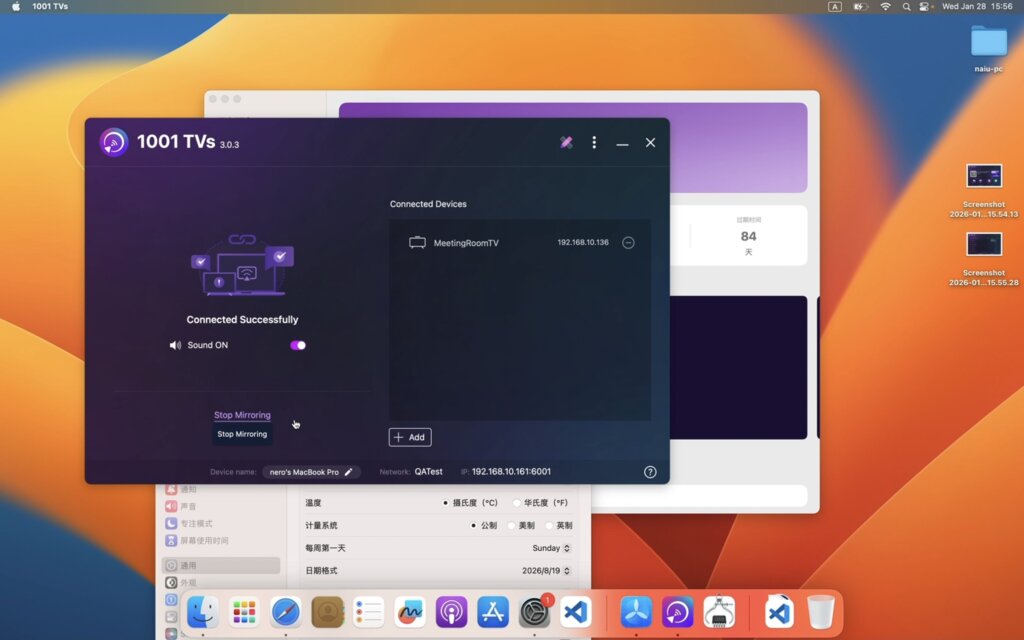
Once paired, your Mac screen will instantly be mirrored to your TV!
Notes
No sound: Use a computer with built-in or external speakers.
Audio is supported on macOS 13.0 and later.
For a stable connection: For smoother screen performance with less delay, connect to a 5 GHz Wi-Fi network.
Want to Extend Your Mac Screen?
In addition to screen mirroring, 1001 TVs also supports a special mirroring mode that allows you to extend your Mac screen to another device and use it as a second display.
👉 Learn more: How to Extend Your Mac Screen to Another Device as a Second Display
Get 1001 TVs Now!
📥 Mac App: Download from App Store
📥 TV App: How to Install 1001 TVs on Your TV