
اپنے پی سی/میک سے ٹی وی/پی سی/میک میں فائلیں کیسے بھیجیں
1001 TVs کے ساتھ، آپ اپنے پی سی/میک سے اپنی ٹی وی/پی سی/میک پر ایک ہی مقامی نیٹ ورک کے ذریعے فائلیں بھیج سکتے ہیں۔.
اور ہاں — ایک ہی LAN پر موجود پی سیز اور میک ایک دوسرے کو براہِ راست فائلیں منتقل کر سکتے ہیں، کسی اضافی سیٹ اپ کی ضرورت نہیں۔.
کوئی کلاؤڈ اپ لوڈ نہیں ہے۔ کوئی کیبلز نہیں ہیں۔ کوئی سائن اپ نہیں — بس تیز، محفوظ مقامی منتقلی۔.
اس سے پہلے کہ آپ شروع کریں۔
- یقینی بنائیں کہ آپ کی ڈیوائسز ایک ہی وائی فائی نیٹ ورک سے منسلک ہیں۔.
- انسٹال کریں اور کھولیں۔ 1001 TVs اپنے دونوں آلات پر، وصول کرنے والے آلے پر ایپ کو چلتا ہوا رکھیں۔.
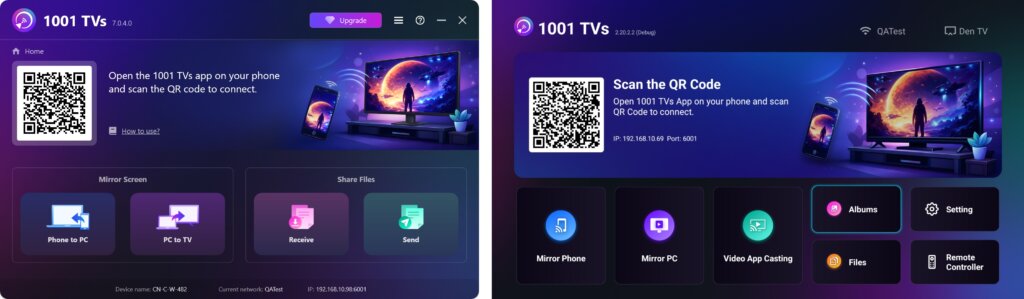
بھیجنا شروع کریں
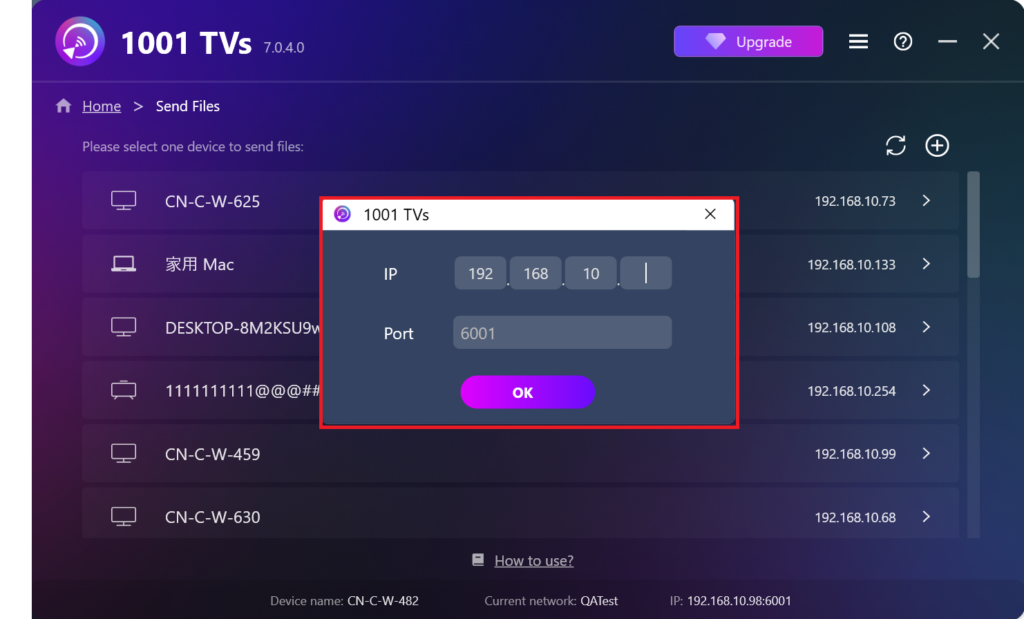
اپنے بھیجنے والے آلے پر کلک کریں۔ بھیجیں۔ اور ایپ خود بخود ایک ہی نیٹ ورک پر دستیاب آلات کی تلاش کرے گی۔.
فہرست میں سے اپنا ہدف آلہ منتخب کریں۔ (مثلاً آپ کا ٹی وی/پی سی/میک)
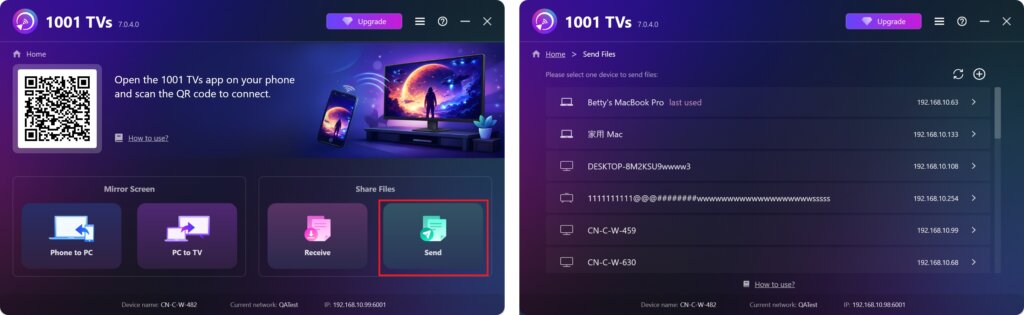
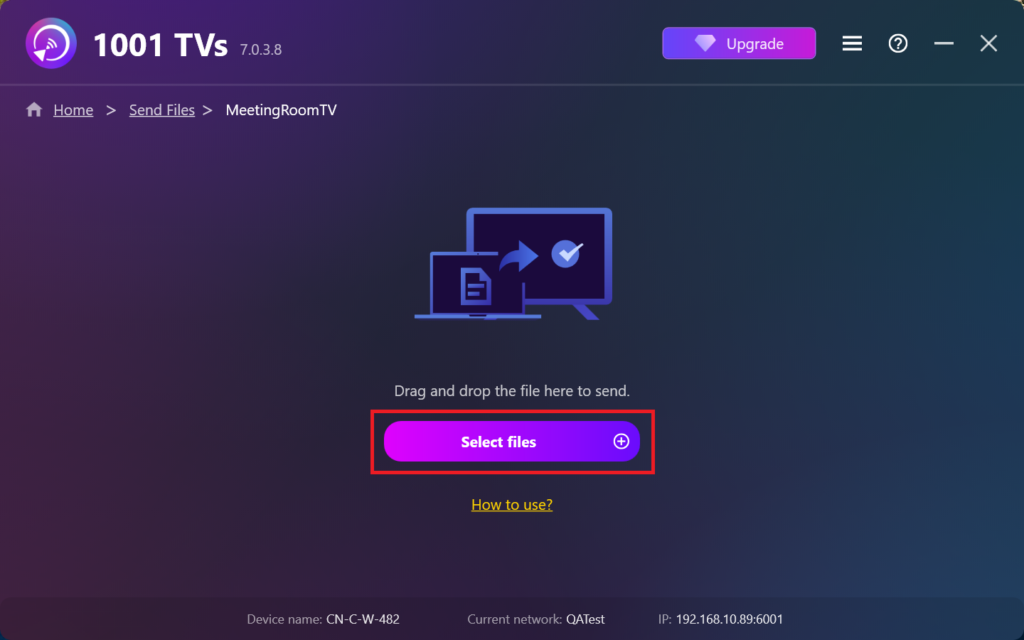
اپنے پی سی پر فائلیں منتخب کریں (ویڈیوز، تصاویر، موسیقی، دستاویزات اور مزید)، اور منتقلی خود بخود ہدف ڈیوائس پر شروع ہو جائے گی۔.
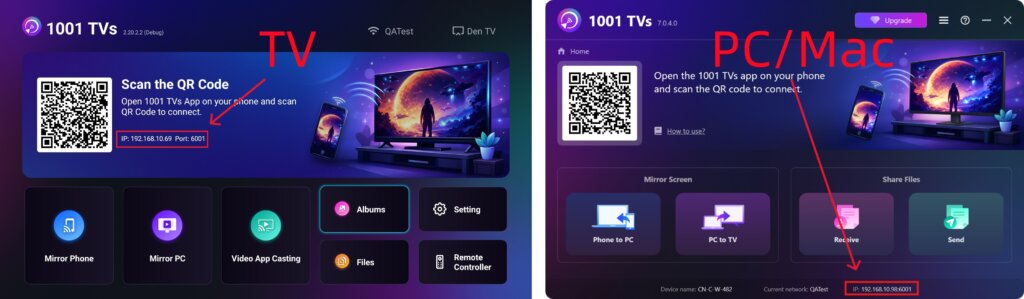
کیا آپ اپنا ہدف ڈیوائس نہیں ڈھونڈ پا رہے؟
اگر ہدف ڈیوائس ڈیوائسز کی فہرست میں ظاہر نہ ہو تو کلک کریں۔ + آئیکن اوپری دائیں کونے میں اور استعمال کریں۔ آئی پی ایڈریس جوڑا جلدی اور محفوظ طریقے سے جڑنے کے لیے۔.
پی سی/میک پر موصول شدہ فائلیں دیکھیں
کلک کریں۔ حاصل کریں اپنے پی سی/میک پر تمام آنے والی فائلوں کو دیکھنے کے لیے۔.
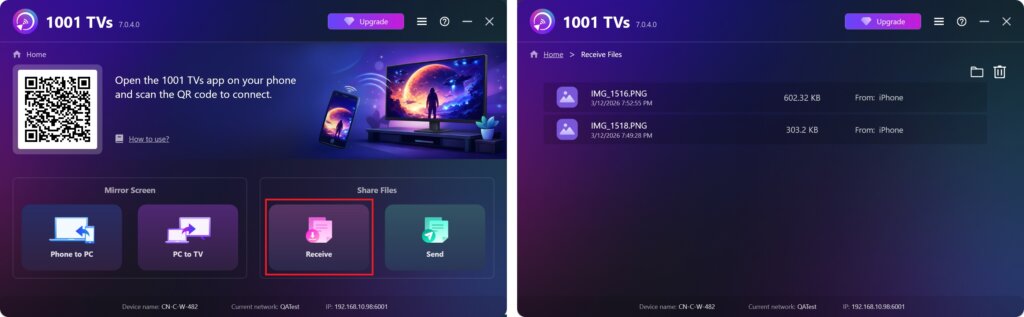
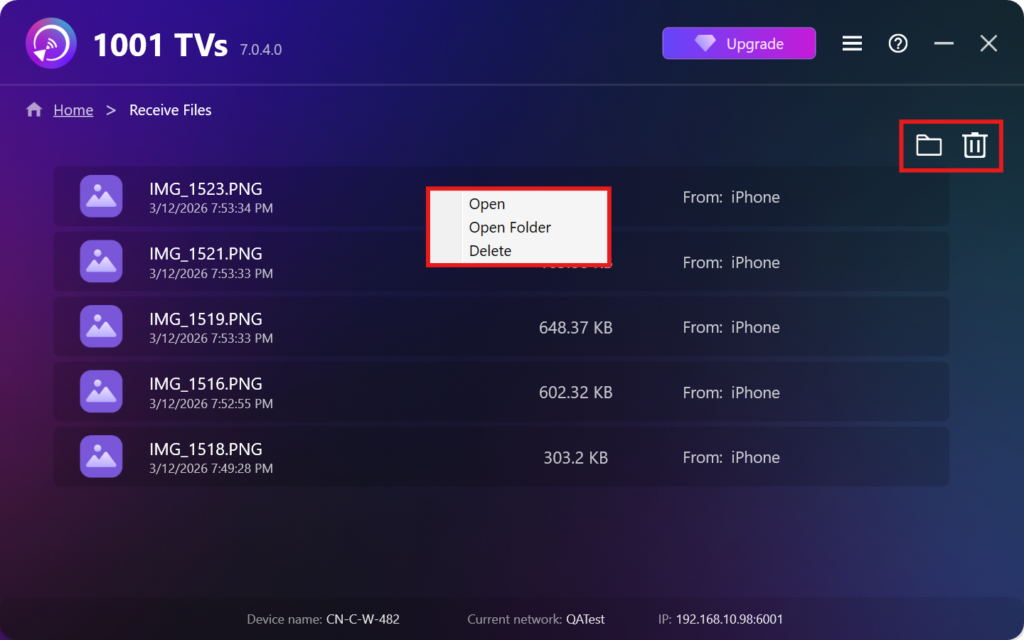
- موصول شدہ فائلوں کو کھولیں اور دیکھیں – کلک کریں۔ یا دائیں کلک کریں اور منتخب کریں“فولڈر کھولیں”اس مخصوص ڈیوائس (مثلاً، آئی فون 12123) کی تمام فائلیں دیکھنے کے لیے.
- انہیں Finder (Mac) یا File Explorer (Windows) میں تلاش کریں۔ – پر کلک کریں فولڈر کا نشان تمام ڈیوائس فولڈرز تک رسائی کے لیے اوپر دائیں جانب۔.
- مٹانے کے اختیارات – دائیں کلک کریں ایک فائل اور منتخب کریں “مٹائیں”اسے علیحدہ طور پر ہٹانے کے لیے، یا کلک کریں کچرے کا آئیکن سب موصول شدہ فائلوں کو ایک ساتھ حذف کرنے کے لیے اوپر دائیں جانب۔.
ٹی وی پر موصول شدہ فائلیں دیکھیں
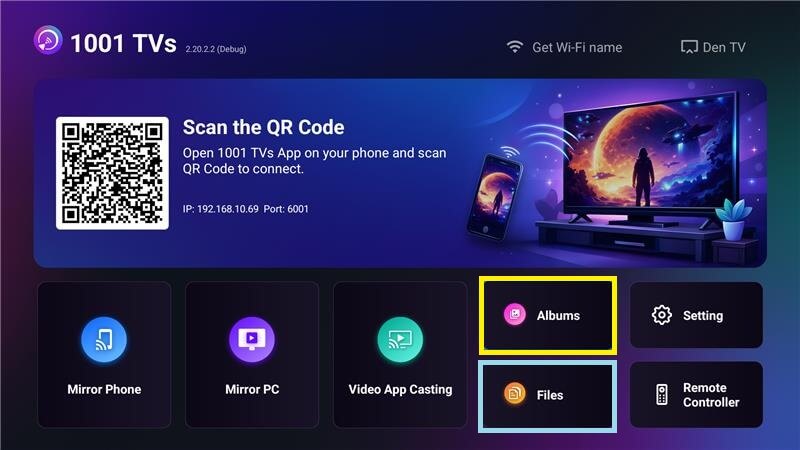
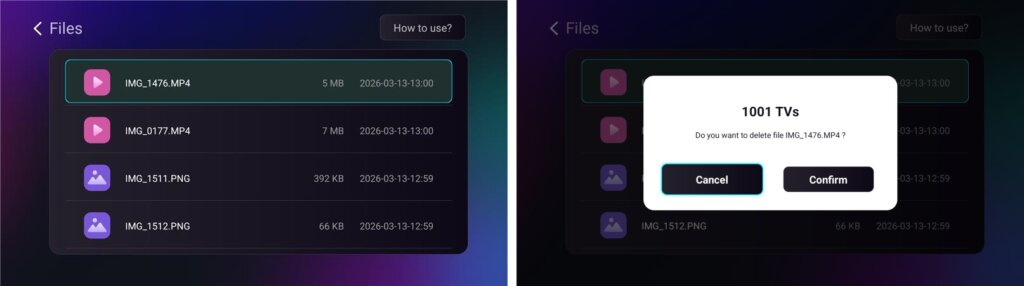
- پر نیویگیٹ کریں۔ فائلیں موصول شدہ فائلوں کو دیکھنے کے لیے۔ آپ ایک فائل منتخب کر کے اسے دیر تک دبا سکتے ہیں۔ ٹھیک ہے اسے حذف کرنے کے لیے۔.
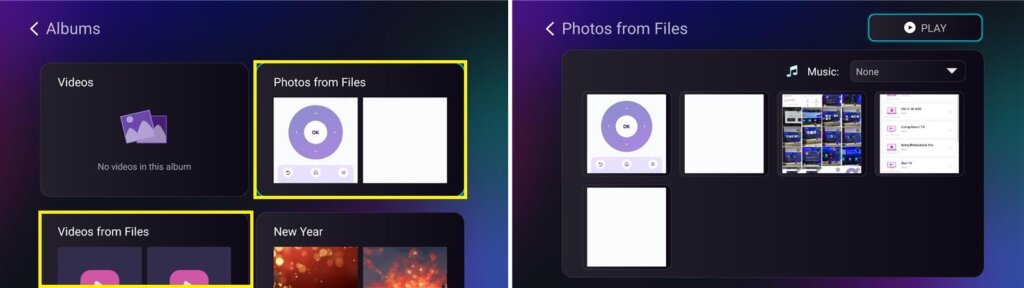
- پر نیویگیٹ کریں۔ البمز > فائلوں سے تصاویر/ویڈیوز موصول شدہ تصاویر اور ویڈیوز دیکھنے کے لیے۔ آپ ایک فائل منتخب کر کے اسے دیر تک دبا سکتے ہیں۔ ٹھیک ہے اسے حذف کریں، یا انہیں سلائیڈ شو کے طور پر چلائیں۔.
1001 TVs کیوں استعمال کریں؟
- تیز، نجی، اور استعمال میں آسان
- مقامی منتقلی - بادل کی ضرورت نہیں ہے۔
- لاگ ان یا اکاؤنٹ کی ضرورت نہیں ہے۔
- بڑی فائل کی منتقلی کی حمایت کرتا ہے۔
مدد کی ضرورت ہے؟
اگر آپ کو کوئی مسئلہ درپیش ہے تو بلا جھجھک ہماری سپورٹ ٹیم سے رابطہ کریں:
📧 ای میل: 1001tvs@nero.com
🌐 ویب سائٹ: www.1001tvs.com
📖 مزید گائیڈز: رہنمائی