
ایئر پلے بمقابلہ اسکرین مررنگ: آپ کے آلات کیوں منسلک نہیں ہو رہے ہیں (اور اسے کیسے ٹھیک کریں)
وائرلیس اسکرین کا اشتراک اب جدید زندگی کے لیے ضروری ہے—ہوم تھیٹر پر 4K ویڈیوز کو اسٹریم کرنے سے لے کر ہائی اسٹیک بزنس میٹنگ کے دوران موبائل ایپس کی عکس بندی تک۔ تاہم، ایپل کے صارفین کے لیے، "اسکرین مررنگ" کی اصطلاح اکثر ایک عام مایوسی کا باعث بنتی ہے: میرا آئی فون میرا ونڈوز پی سی یا اینڈرائیڈ ٹی وی کیوں نہیں ڈھونڈ سکتا،, جیسا کہ دیگر "اسکرین مررنگ" ایپس کرتی ہیں؟
اس کا جواب ایپل کے درمیان تکنیکی فرق میں ہے۔ ایئر پلے پروٹوکول اور عالمگیر اسکرین مررنگ ایپس۔.
اس گائیڈ میں، ہم ان اختلافات کو ختم کریں گے اور آپ کو دکھائیں گے کہ کسی بھی ڈیوائس کو کسی بھی اسکرین سے منسلک کرنے کے لیے "ایپل والڈ گارڈن" کو کیسے نظرانداز کیا جائے۔.
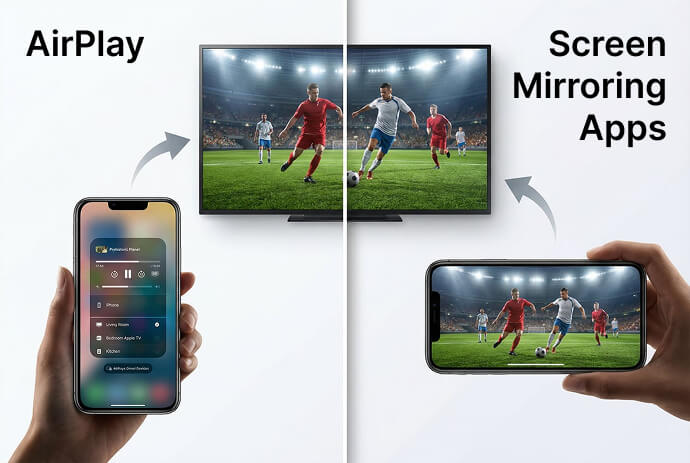
فوری خلاصہ: ایئر پلے بمقابلہ تھرڈ پارٹی مررنگ
➤ ایئر پلے: ایپل کا بلٹ ان سسٹم۔ یہ تیز ہے لیکن ایپل سے تصدیق شدہ ہارڈویئر (ایپل ٹی وی، میک، لائسنس یافتہ سمارٹ ٹی وی) تک محدود ہے۔.
➤ اسکرین مررنگ ایپس (مثلاً 1001 TVs): پلیٹ فارم سے آزاد سافٹ ویئر۔ یہ آئی فون کو آئینے کی اجازت دیتا ہے۔ ونڈوز، اینڈرائیڈ اور ویب براؤزرز ایپل کے محدود پروٹوکول کے بجائے اپنی مرضی کے مطابق ڈیٹا پائپ لائن کا استعمال کرکے۔.
بنیادی فرق: پروٹوکول بمقابلہ پکسل ٹرانسمیشن
ایئر پلے: محدود پروٹوکول
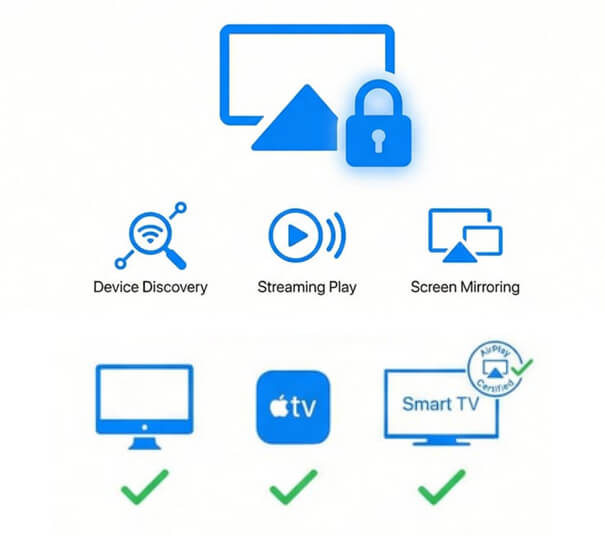
AirPlay ایپل کی ملکیتی زبان ہے۔ یہ ڈیوائس کی دریافت، میڈیا اسٹریمنگ یا اسکرین ڈپلیکیشن، اور بھیجنے والے اور وصول کنندہ کے درمیان مواصلت کے لیے ایپل کے طے کردہ اصولوں پر انحصار کرتا ہے۔.
اس کی وجہ سے، AirPlay صرف کے ساتھ کام کرتا ہے ایپل کے موافق ریسیورز, جیسا کہ Mac، Apple TV، تصدیق شدہ سمارٹ ٹی وی اور اسٹریمنگ ڈیوائسز۔ iOS، tvOS، یا فرم ویئر اپ ڈیٹس میں تبدیلیاں AirPlay کے برتاؤ کو متاثر کر سکتی ہیں۔.
اسکرین مررنگ: یونیورسل پکسل اسٹریم
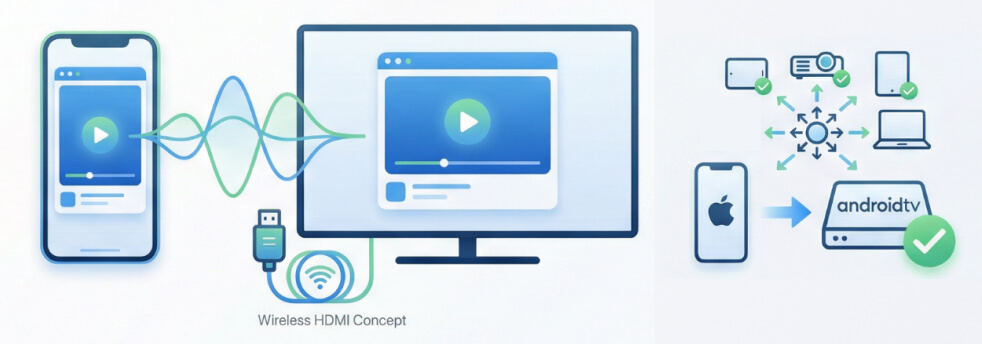
اسکرین مررنگ ایپس "وائرلیس HDMI کیبل" کے طور پر کام کرتی ہیں۔ یہ پکسل ڈیٹا منتقل کرتا ہے اور وصول کنندہ کو آپ کی سکرین کی مسلسل ویڈیو فیڈ بھیجتا ہے۔.
• بھیجنے والا اس چیز کو پکڑتا ہے جو اسکرین پر ظاہر ہوتا ہے۔
• تصویر براہ راست وصول کنندہ کو منتقل کی جاتی ہے۔
یہ ڈیزائن اسکرین کی عکس بندی کو مختلف پلیٹ فارمز پر کام کرنے کی اجازت دیتا ہے، بشمول وہ امتزاج جن کا AirPlay تعاون نہیں کرتا ہے۔.
فائدہ: چونکہ یہ اپنی "اسکرین پر مبنی" ٹرانسمیشن کا استعمال کرتا ہے، اس لیے یہ آئی فون کی عکس بندی کر سکتا ہے۔ اینڈرائیڈ فون یا ٹی وی، کروم براؤزر، یا ونڈوز پی سیایسی جگہوں پر ایئر پلے نہیں جا سکتا۔.
ایپل کس چیز کو "اسکرین مررنگ" کہتے ہیں (اور یہ واقعی کیا ہے)؟
آئی فون اور آئی پیڈ پر، کنٹرول سینٹر میں لیبل لگا ایک بٹن شامل ہوتا ہے۔ اسکرین مررنگ.
نام کے باوجود، یہ وسیع AirPlay پروٹوکول کے اندر ایک مخصوص خصوصیت ہے۔ ہینڈ آف فیچرز، ایئر پلے ویڈیو اور ایئر پلے آڈیو سے ممتاز، یہ وہ جگہ ہے جہاں آپ کی پوری اسکرین کو دوسرے ڈیوائس پر ڈپلیکیٹ کیا جاتا ہے۔.
– ہاں، دیگر اسکرین مررنگ ایپس کی طرح، لیکن صرف ان مطابقت پذیر ریسیورز کے لیے۔.
کچھ آلات کیوں نہیں دکھائے جاتے ہیں (خاص طور پر پی سی)؟
بہت سے صارفین کو اس مسئلے کا سامنا کرنا پڑتا ہے: "میرا پی سی اسکرین مررنگ میں کیوں ظاہر نہیں ہوتا؟"“
اس طرز عمل کی توقع ہے، کیونکہ ایپل ونڈوز پی سی یا غیر مصدقہ آلات کے لیے مقامی AirPlay رسیور فراہم نہیں کرتا ہے۔ نتیجے کے طور پر، یہ آلات کبھی بھی ایپل کی سکرین مررنگ لسٹ میں ظاہر نہیں ہوں گے۔.
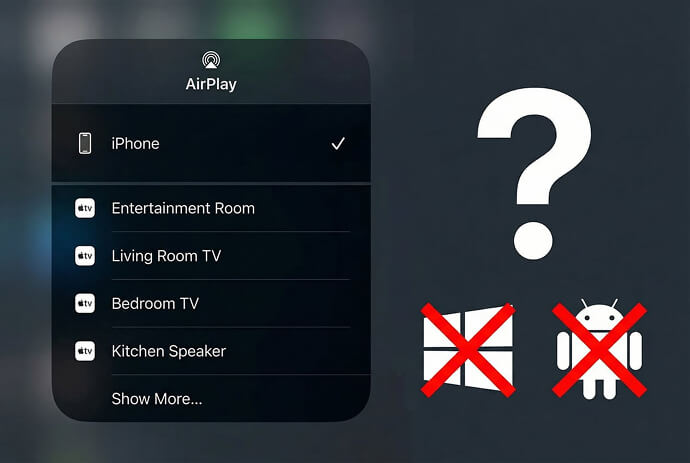
➤ عام طور پر پائے جانے والے آلات
• Apple آلات (Mac, Apple TV)
• AirPlay سپورٹ کے ساتھ منتخب سمارٹ ٹی وی
➤ آلات کا عام طور پر پتہ نہیں چلتا ہے۔
• آئی فون اور آئی پیڈ (آبائی ایپل کی مصنوعات ہونے کے باوجود، وہ وصول کنندہ کے بجائے صرف ایئر پلے بھیجنے والے کے طور پر کام کرتے ہیں)
• ونڈوز پی سی اور زیادہ تر لیپ ٹاپ
• بلٹ ان AirPlay کے بغیر Android TV
• پروجیکٹر اور میٹنگ روم ڈسپلے
تھرڈ پارٹی اسکرین مررنگ کس طرح مختلف ہے۔
AirPlay پروٹوکول پر انحصار کرنے کے بجائے، وہ مقامی نیٹ ورک پر اپنا اسکرین ٹرانسمیشن طریقہ قائم کرتے ہیں، جس سے آلات کو براہ راست یا ایپ لیول کنکشن کے ذریعے بات چیت کرنے کی اجازت ملتی ہے۔.
تنصیب کی اکثر ضرورت کیوں ہوتی ہے؟
کنکشن قائم کرنے کا عمل دونوں طرف سے آپریٹنگ سسٹم میں نہیں بنایا گیا ہے، اسکرین کیپچر، انکوڈنگ، ٹرانسمیشن اور ڈسپلے کو سنبھالنے کے لیے بھیجنے اور وصول کرنے والے دونوں آلات پر اکثر انسٹالیشن کی ضرورت ہوتی ہے۔.
اگرچہ یہ سیٹ اپ کے ایک اضافی مرحلے کا اضافہ کرتا ہے، یہ آلہ کی وسیع تر مطابقت کو بھی قابل بناتا ہے، جس سے اسکرین مررنگ کو پلیٹ فارمز جیسے کہ iPhones، Android فونز، Android TVs، اور Windows PCs پر کام کرنے کی اجازت ملتی ہے جن کا Apple کی بلٹ ان Screen Mirroring پتہ نہیں لگا سکتی۔.
حقیقی دنیا کے استعمال میں استحکام اور مطابقت
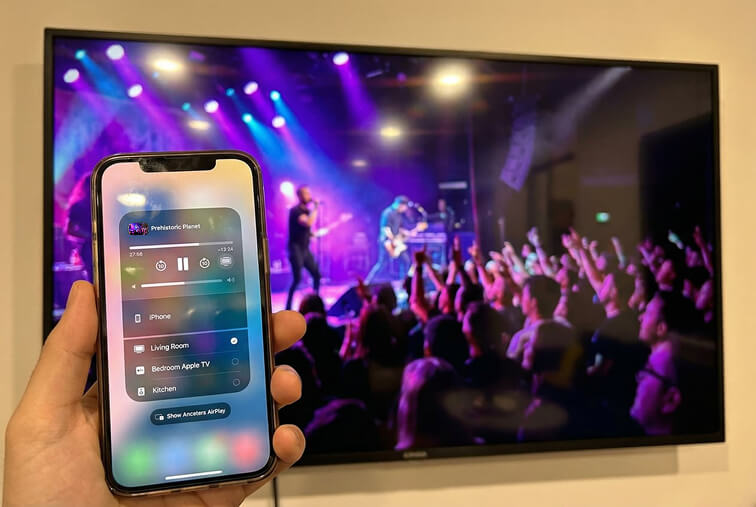
➤ جب ایئر پلے بہترین کام کرتا ہے۔
• صرف ایپل کے ماحول
معاون آلات کے ساتھ ہوم نیٹ ورکس
➤ جہاں ایئر پلے اکثر جدوجہد کرتا ہے۔
• مخلوط آلے کے ماحول
• دفاتر، اسکول، اور ہوٹل
➤ اسکرین مررنگ ایپس اکثر زیادہ قابل اعتماد کیوں ہوتی ہیں۔
پروٹوکول اپ ڈیٹس پر کم انحصار
• سرٹیفیکیشن کی کم رکاوٹیں۔
• کراس پلیٹ فارم کے استعمال کے لیے ڈیزائن کیا گیا ہے۔
ان صارفین کے لیے جو اکثر آلات یا ماحول کو تبدیل کرتے ہیں، یہ اعتبار صفر سیٹ اپ سہولت سے زیادہ اہمیت رکھتا ہے۔.
رازداری اور سلامتی کے تحفظات
وائرلیس طور پر اسکرینوں کا اشتراک کرتے وقت رازداری کے خدشات عام ہیں۔ فرق اس میں ہے۔ ہر ٹیکنالوجی کو کس طرح ڈیزائن کیا گیا ہے۔, ، پوشیدہ رویے میں نہیں۔.
➤ ایئر پلے کیا شیئر کرتا ہے۔
میڈیا میٹا ڈیٹا
• ڈیوائس کی دریافت کا ڈیٹا
پروٹوکول کی سطح پر مواصلات
➤ کیا اسکرین مررنگ شیئر کرتا ہے۔
• جو آپ کی سکرین پر ظاہر ہوتا ہے۔
• مقامی نیٹ ورک ٹرانسمیشن
• کوئی کلاؤڈ انحصار نہیں (مقامی آئینہ دار ایپس کے لیے)
قابل اعتماد نیٹ ورکس پر استعمال ہونے پر دونوں نقطہ نظر محفوظ ہو سکتے ہیں، لیکن وہ اپنے بنیادی ڈیزائن کی وجہ سے مختلف قسم کے ڈیٹا کو بے نقاب کرتے ہیں۔.
کراس پلیٹ فارم اسکرین مررنگ کے لیے ایک عملی آپشن: 1001 TVs
1001 TVs ایک اسکرین مررنگ ایپ ہے جسے کراس پلیٹ فارم کے استعمال کے لیے ڈیزائن کیا گیا ہے۔ یہ ان آلات کے درمیان اسکرین شیئرنگ کی اجازت دیتا ہے جن کا AirPlay پتہ نہیں لگا سکتا، جیسے کہ iPhones سے Android TVs یا Windows PCs۔.

1001 TVs کو کیسے ترتیب دیا جائے۔
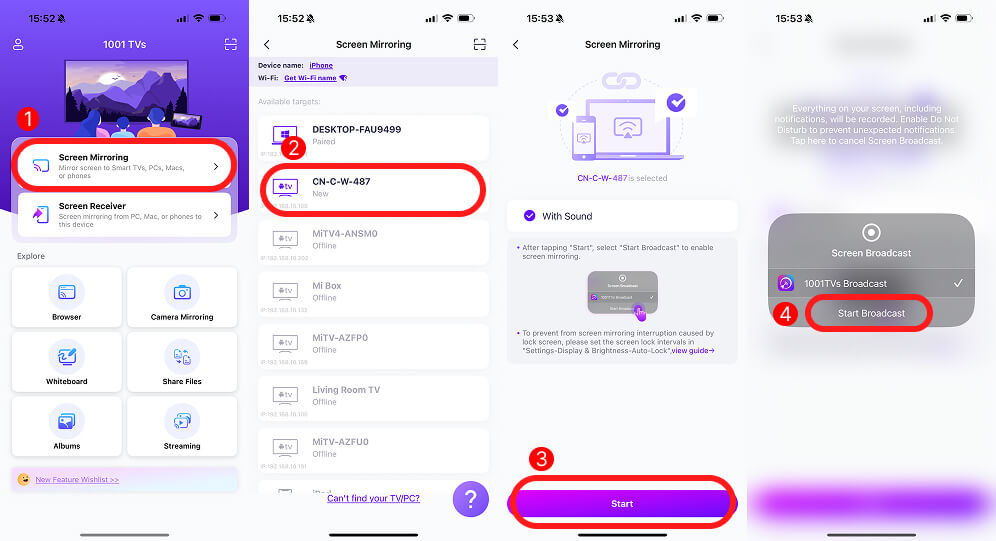
1. دونوں آلات پر 1001 TVs انسٹال کریں (مثال کے طور پر، iPhone اور Android TV)
2. دونوں ڈیوائسز کو ایک ہی مقامی نیٹ ورک سے جوڑیں، دونوں ڈیوائسز پر 1001 TVs ایپ کھولیں۔
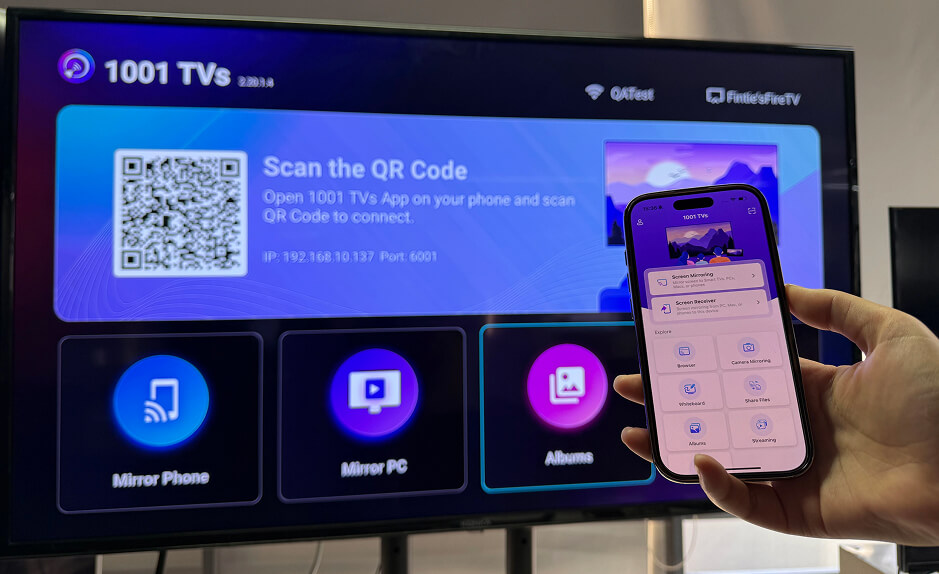
3. اپنے بھیجنے والے کے آخر میں (iPhone)، پر جائیں۔ اسکرین مررنگ, ، اپنا ہدف آلہ منتخب کریں۔
4. *اگر آپ کا ٹارگٹ ڈیوائس ظاہر نہیں ہوتا ہے تو اوپر دائیں کونے میں موجود ایپ اسکینر سے QR کوڈ اسکین کرنے کی کوشش کریں۔
5. اس کنکشن کو ٹارگٹ ڈیوائس پر اجازت دیں (Android TV)
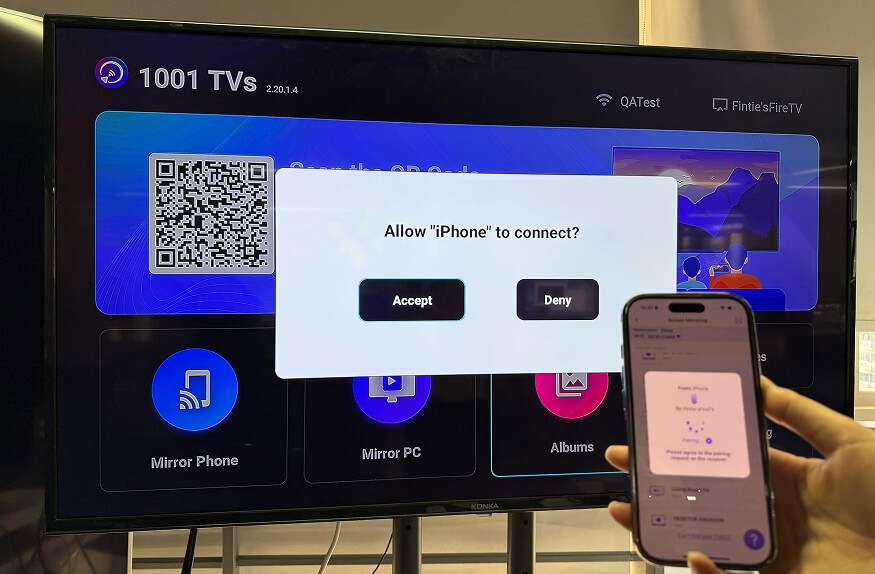
ایک بار منسلک ہونے کے بعد، آپ کی اسکرین پر موجود ہر چیز — پیشکشیں، ویب سائٹس، ایپس، یا مقامی فائلیں — حقیقی وقت میں عکس بند ہو جاتی ہیں۔.

نتیجہ: آپ کو کون سا استعمال کرنا چاہئے؟
ایئر پلے اور تھرڈ پارٹی اسکرین مررنگ کو مختلف استعمال کے معاملات کے لیے ڈیزائن کیا گیا ہے۔ ان کی تفریق کو سمجھنے سے آپ کو صحیح ٹول کا انتخاب کرنے میں مدد ملتی ہے — اور جب کچھ آلات صرف ظاہر نہیں ہوتے ہیں تو مایوسی سے بچتے ہیں۔.
AirPlay کا انتخاب کریں اگر:
• آپ مکمل طور پر Apple کے ماحولیاتی نظام کے اندر رہتے ہیں۔
• آپ صفر سیٹ اپ کو ترجیح دیتے ہیں۔
اسکرین مررنگ ایپس کا انتخاب کریں۔ جیسے 1001 TVs اگر:
• آپ کو ونڈوز پی سی یا اینڈرائیڈ ٹی وی کا عکس دینے کی ضرورت ہے۔
• آپ کا ڈسپلے AirPlay کو سپورٹ نہیں کرتا ہے۔
• آپ مختلف آلات پر یکساں رویہ چاہتے ہیں۔