2027 Guide: How to Screen Mirror PC to TV
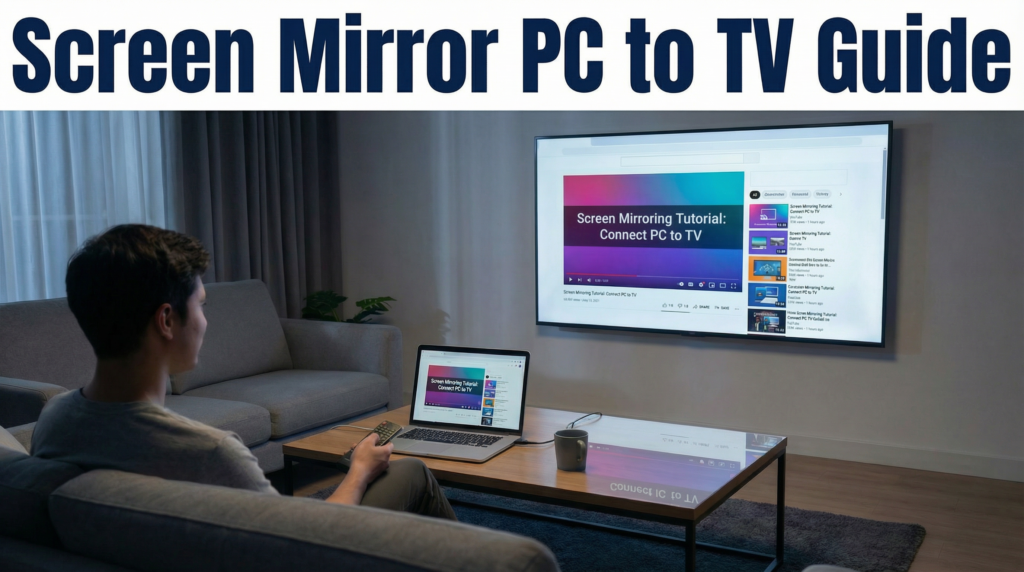
To screen mirror a PC to a TV, connect an HDMI cable and press Windows + P → Duplicate, or press Windows + K if your PC and TV support Miracast. You can also use Chrome with a Google Cast receiver, or 1001 TVs on compatible devices. Choose the method that matches your TV and the steps below.
1. ئېكران ئەينىكى دېگەن نېمە؟
Screen mirroring duplicates your computer’s display on a TV through a wired or wireless connection. (Check Microsoft Screen Mirroring Support.)
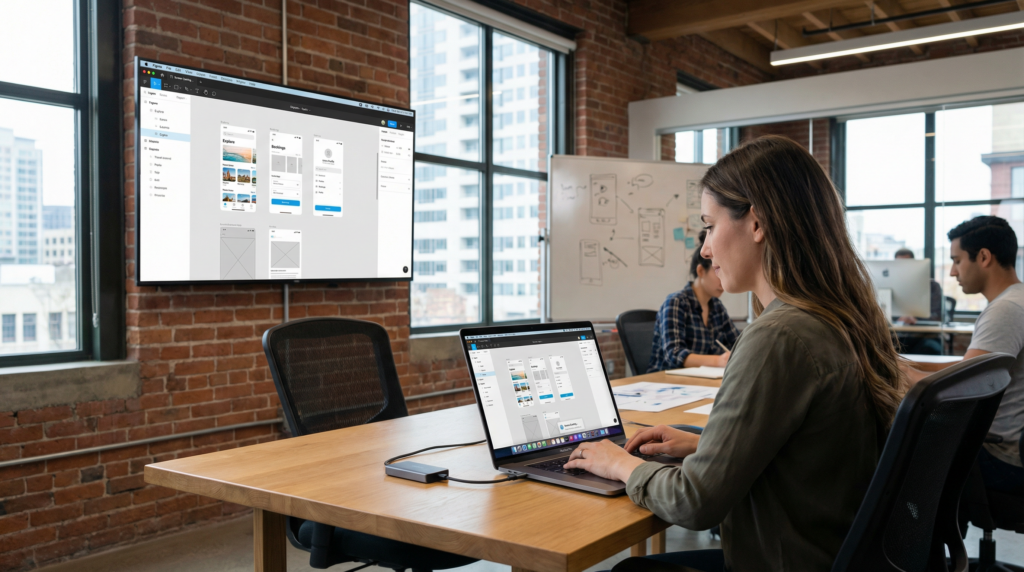
Casting can share media, a browser tab, or an entire screen, depending on the tool (e.g. Chrome Casting). Full-screen mirroring lets you see everything, including professional apps like Figma, your taskbars, and system notifications exactly as they appear on your PC.
2. ئۇلىنىشنىڭ تۆت ئەڭ ياخشى ئۇسۇلى
Use HDMI for a direct wired connection. For wireless mirroring, choose Miracast, Google Cast, or 1001 TVs according to what your TV or connected receiver supports.
A ئۇسۇلى: سىملىق ئۇلىنىش (HDMI) – ئەڭ يۇقىرى مۇقىملىق
يۇقىرى سۈرئەتلىك، تۆۋەن كېچىكىشلىك ئويۇنلار ياكى 4K توردا تارقىتىش ئۈچۈن، فىزىكىلىق كابېل ئەڭ ئىشەنچلىك ئۇسۇل بولۇپ قالىدۇ.
• ئۇلاڭHDMI سىمىنىڭ بىر ئۇچىنى كومپيۇتېرىڭىزغا، يەنە بىر ئۇچىنى تېلېۋىزورىڭىزغا قىستۇرۇڭ. ئەگەر نۇتبۇكىڭىزدا پەقەت USB-C بولسا، سىزگە USB-C دىن HDMI غا ئۆزگەرتكۈچ كېرەك. a USB-C port that supports video output.
• كىرگۈزۈش: تېلېۋىزورىڭىزدىكى ماس كېلىدىغان HDMI كىرىش مەنبەسىنى تاللاڭ.
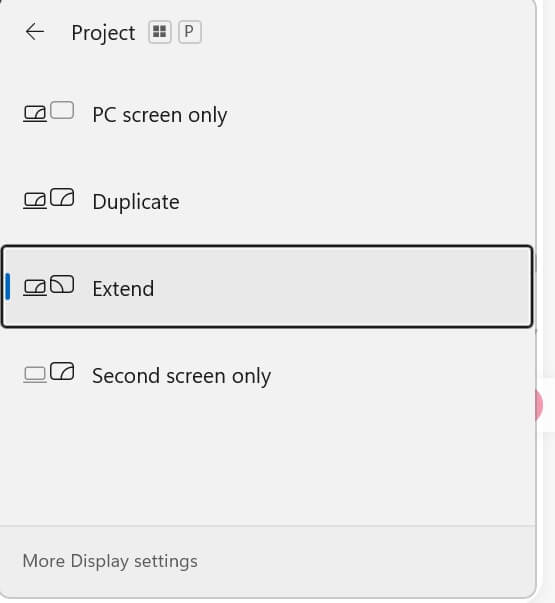
• تەڭشەش: باسما Windows كۇنۇپكىسى + P تاللاش كۆپەيتىلگەن for screen mirroring, كېڭەيتىش for a separate workspace, or Second Screen Only to use only the TV.
Supported resolution and refresh rate depend on your PC, TV input, cable, and adapter.
B ئۇسۇلى: Windows يەرلىك سىمسىز تور (مىراكاست)
You can mirror a Windows 10/11 PC wirelessly when both the PC and TV or receiver support Miracast.
• قىسقا يول:
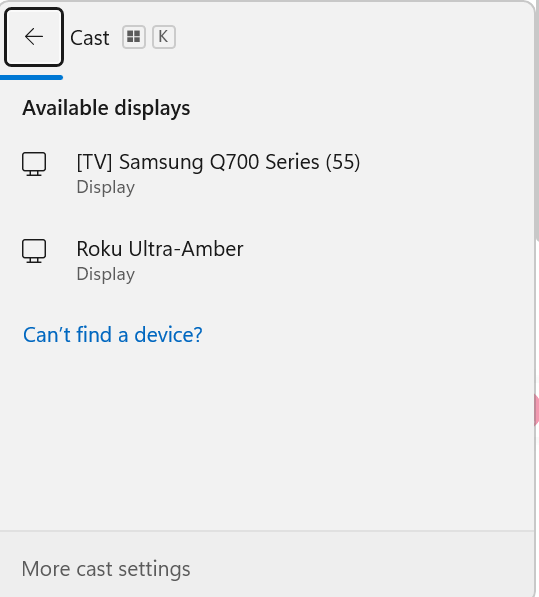
- Turn on Wi-Fi on the PC and enable the TV’s screen-mirroring mode if required. Press Windows Key + K on your PC to open the wireless display menu.
- Choose your TV from the list of available wireless displays. Accept any connection request on the TV.
- Press Windows Key + P → Duplicate if you want the same picture on both screens.
• تېلېۋىزور تاللاڭتېلېۋىزورىڭىزنىڭ سىمسىز ئېكران تىزىملىكىدىن تاللاڭ.
• كۈرەش: If the TV does not appear, check Miracast support, the TV’s receiver mode, and your PC’s Wi-Fi and graphics drivers. A Google Cast-only receiver will not appear as a Miracast display.
C ئۇسۇلى: تور كۆرگۈچكە ئاساسلانغان تارقىتىش (Google Cast)
Google Chrome ئارقىلىق مەلۇم تور كۆرگۈچ مەزمۇنىنى ياكى پۈتۈن ئۈستەل يۈزىڭىزنى ئەكس ئەتتۈرۈشكە ئەڭ ماس كېلىدۇ.
You need a TV with Google Cast or a connected Chromecast or Google TV Streamer. Connect the PC and receiver to the same Wi-Fi network
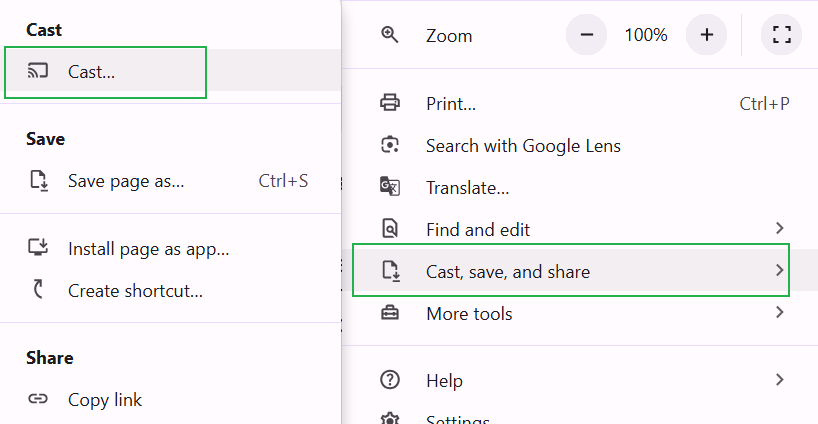
- تارقىتىش تىزىملىكى: Chrome دا، ئۈچ نۇقتىلىق تىزىملىكنى چېكىپ، تاللاڭ Cast, save, and share → Cast…
- مەنبە: Select Sources → Cast screen, then choose your TV or receiver.
When casting your whole screen, audio may remain on the PC. To send a browser tab’s audio to the TV, use Cast tab instead.
Method D: Third-Party Apps (1001 TVs)
1001 TVs can mirror a Windows PC to a compatible TV or streaming device running the receiver app.
1. Install and open 1001 TVs on your PC and supported TV or streaming device.
2. Connect both devices to the same Wi-Fi network. On the PC, open the sending view and choose your TV from the device list.
3. Select Accept on the TV to start mirroring.
Compatibility depends on the receiver’s operating system, model, and app availability. Check the Windows app page ۋە Windows-to-TV tutorial for installation and setup

3. ئورتاق ئاغرىق نۇقتىلىرىنى ھەل قىلىش
If mirroring fails, check the connection method first: receiver compatibility, network discovery, and audio output require different fixes.
| Problem | Possible cause | What to try |
|---|---|---|
| Device not found | Unsupported receiver, receiver mode/app closed, or network discovery blocked | For Windows + K, check Miracast support and turn on Wi-Fi. For Chrome or 1001 TVs, use the same network and keep the receiver ready. Guest-network isolation may prevent discovery; ask the network administrator or use HDMI. For app-based mirroring, check the app’s firewall permission on your trusted private network. |
| Lag and stuttering | Weak signal, congestion, or device processing | Try 5 GHz if supported and the signal is strong, move closer to the router, and reduce competing network activity. Game Mode may reduce TV processing delay where available; HDMI is an alternative for latency-sensitive tasks. |
| No audio on TV | Incorrect output or method-specific audio limits | For HDMI, select the TV in Windows Sound settings. In Chrome, try Cast tab. For 1001 TVs, check its audio setting and the volume on both devices. |
| HDMI shows No signal | Wrong TV input, loose cable, or unsupported adapter | Select the matching HDMI input, reconnect the cable, and confirm that the PC port and adapter support video output. |
| Desktop appears but a protected video is black | DRM or an app’s screen-capture restriction | Use the streaming service’s official TV app or a playback method it explicitly supports. Changing Wi-Fi will not remove a DRM restriction. |
قاراڭ Google’s network-isolation guidance ۋە 1001 TVs Android TV black-screen FAQ for these specific limitations.
4. كومپيۇتېرنىڭ ئېكران ئەينىكىنى تېلېۋىزورغا ئايلاندۇرۇش توغرىسىدىكى كۆپ سورىلىدىغان سوئاللار
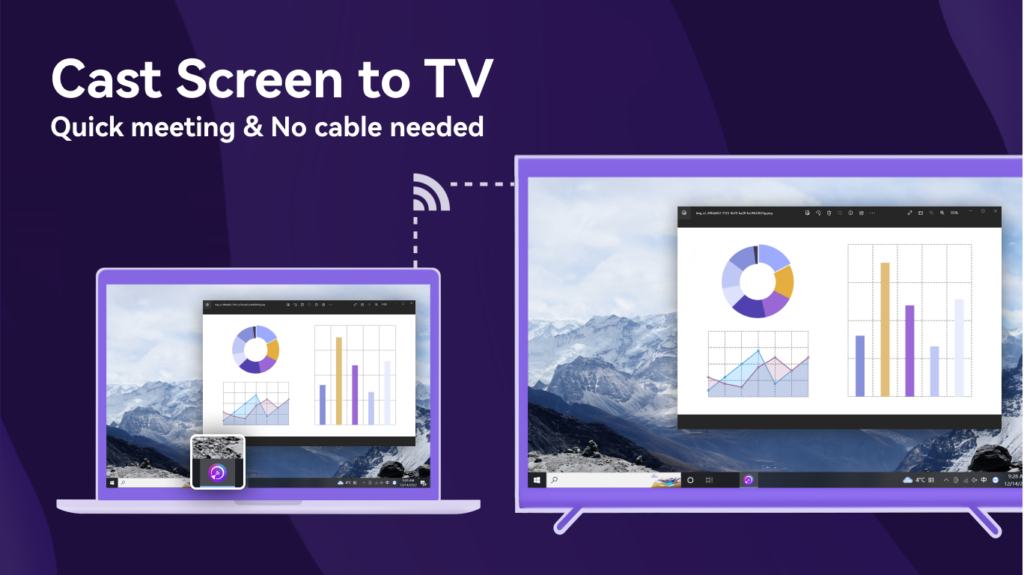
س: كومپيۇتېرىمنى HDMI ئىشلەتمەي تېلېۋىزورغا قانداق ئايلاندۇرالايمەن؟
سىز مەخسۇس سىمسىز ئەپنى ئىشلەتسىڭىز بولىدۇ، مەسىلەن 1001 TVs or built-in protocols like Miracast and Google Cast, provided your TV or connected receiver supports the chosen method.
س: ئەگەر كومپيۇتېرىمنىڭ ماركىسى باشقا بولسا، تېلېۋىزورۇمنى تېلېۋىزورۇمغا كۆچۈرەلەيمەنمۇ؟
Yes. The PC and TV need a compatible connection method, not matching brands. For 1001 TVs, the receiving TV or streaming device must support the receiver app.
Q: Can I use a Windows 10 PC for screen mirroring?
Yes. Compatible Windows 10 PCs can use HDMI or Miracast. Before installing 1001 TVs, check the current installer or Microsoft Store requirements for your Windows build. Windows 10’s standard support ended on October 14, 2025; this did not stop existing PCs from working. See Microsoft’s support and Extended Security Updates guidance.
ئاخىرقى: ئىچكى قوراللار ئەڭ ياخشى باشلىنىش نۇقتىسى بولسىمۇ، ئەمما ئۇلاردا زامانىۋى ئۆيلەرگە لازىم بولغان ئەركىنلىك كەمچىل بولىدۇ.
ئەگەر سىز 2026-يىلى مۇقىم، “پەقەت ئۈنۈملۈك” تەجرىبىسى ئىزدەۋاتقان بولسىڭىز، مەسىلەن، مەخسۇس ھەل قىلىش چارىسى 1001 TVs ئارىلىقنى تولدۇرۇشنىڭ ئەڭ ئىشەنچلىك ئۇسۇلى.

Read More
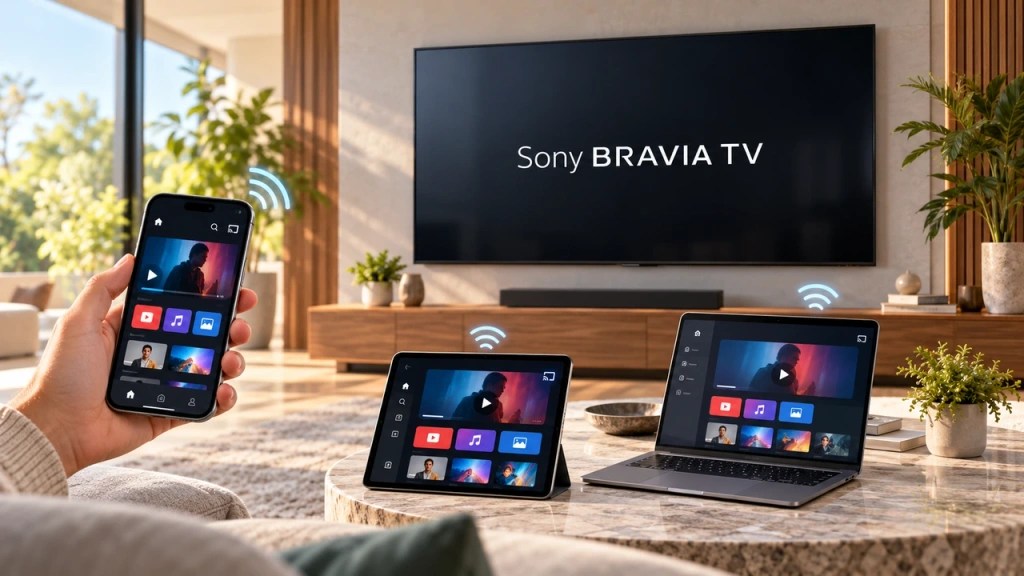 How to Screen Mirror to Sony Bravia TV (Google TV)
A Sony Bravia Google TV does not use one universal “Screen Mirroring” method for every phone and computer. The right choice depends on both…
How to Screen Mirror to Sony Bravia TV (Google TV)
A Sony Bravia Google TV does not use one universal “Screen Mirroring” method for every phone and computer. The right choice depends on both…
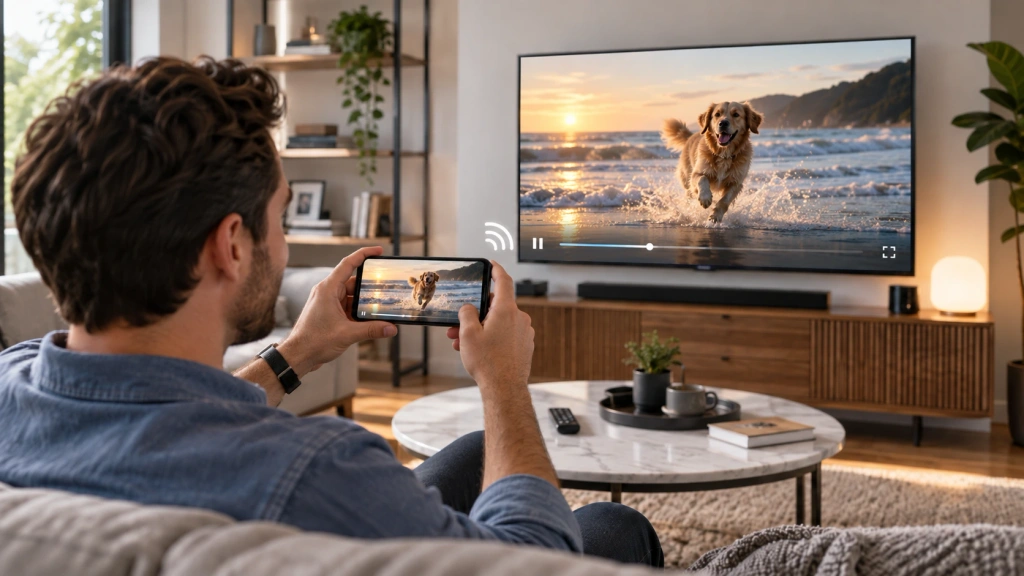 How to Cast to LG webOS TV
You can cast—or, in some cases, mirror—an iPhone, iPad, Android phone, Windows PC, or Mac to an LG webOS TV. The right method depends…
How to Cast to LG webOS TV
You can cast—or, in some cases, mirror—an iPhone, iPad, Android phone, Windows PC, or Mac to an LG webOS TV. The right method depends…

