iPhone Duo Screen Mirroring and Camera Preview
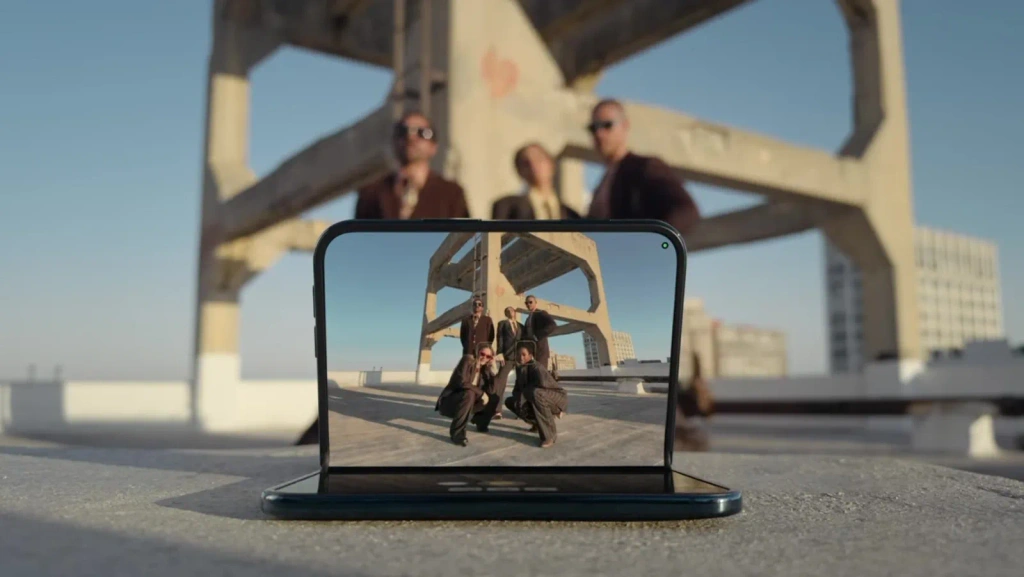
Apple’s foldable iPhone Duo introduces new ways to use a larger screen on a phone. This article focuses on two that connect particularly well to a second screen: seeing a live camera preview while you shoot, and sharing the content already on your phone with other people.
Those are different jobs. A camera preview helps you frame a shot; screen mirroring helps a group see photos, videos, apps, or a presentation.
Duo Preview Uses the Outer Display as a Live Camera Preview
Apple introduces Duo Preview as a live camera preview on iPhone Duo’s outer display. When you use the rear camera, the outer screen can show the live view instead of leaving you to guess whether you are centered or whether the framing works.
That is useful for the kinds of shots that are awkward to set up alone: taking a self-portrait with the rear camera, photographing an outfit, recording a vlog, filming a tutorial, or arranging a group photo. Being able to see the shot as it is framed makes it easier to adjust your position, angle, and the edges of the image before you capture it.
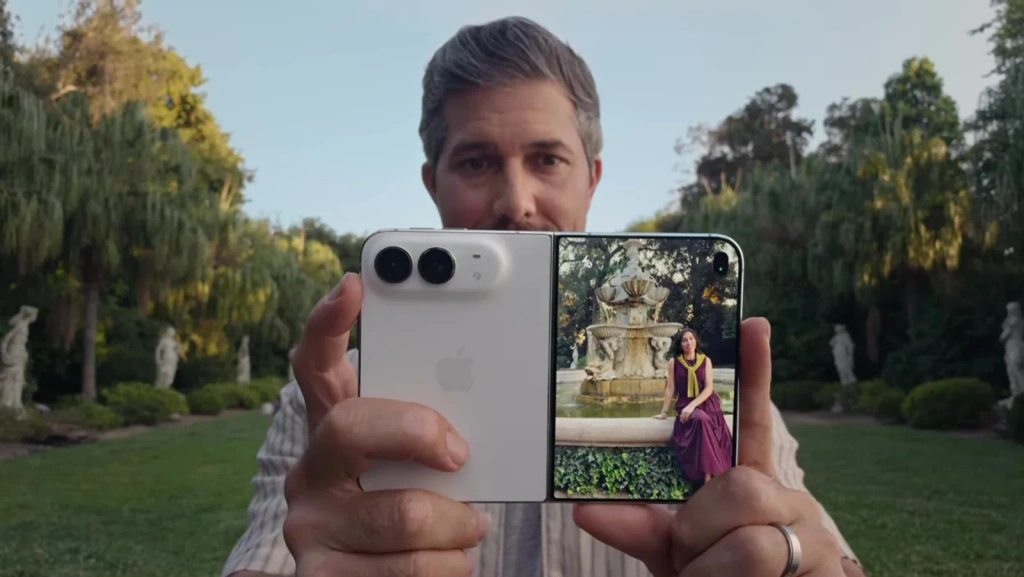
Mirror Camera Brings Camera Preview to Another Screen
Duo Preview and an external camera monitor work differently. Duo Preview uses the outer display built into iPhone Duo. An external monitoring setup keeps a current iPhone in position for shooting and shows its camera view on another supported screen.
بىلەن 1001 TVs Mirror Camera, you can bring an iPhone camera preview to a larger display while keeping the phone positioned for the shot. The goal is not to recreate Duo Preview on another device. It is to solve a similar framing problem when you are using an existing iPhone: you can watch the composition, posture, angle, and edges of the frame without repeatedly walking back to check each photo or clip.
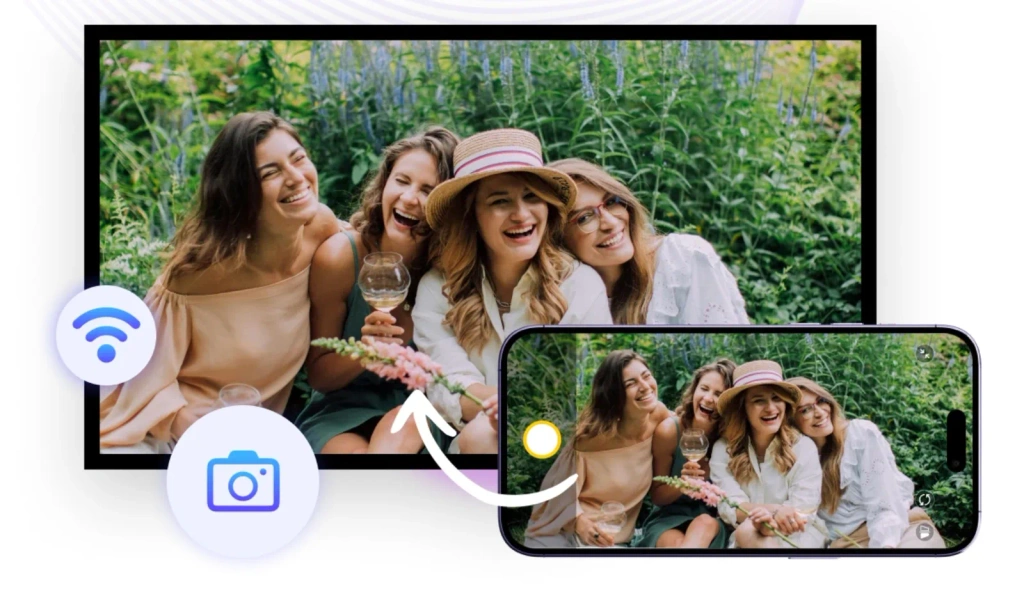
That can be useful for solo photos, outfit videos, vlogs, tutorials, and group shots. In this workflow, the phone stays focused on capturing the image while the second screen is there to help you monitor it.
The Foldable Inner Display Is Built for Personal Viewing
Camera monitoring is one use for a second screen. Content sharing is another.
Apple’s iPhone Duo announcement describes a 7.6-inch inner display and a 5.4-inch outer display. The larger inner display gives you more room for reading, browsing, watching, and multitasking when you are using the phone yourself.
A TV, monitor, or projector still has a different role. It is better suited to situations where more than one person needs to see the same thing: showing travel photos to family, playing a video in a room, presenting work, or walking people through an app. A foldable inner display expands personal viewing; an external display makes sharing easier.
Share iPhone Content with AirPlay
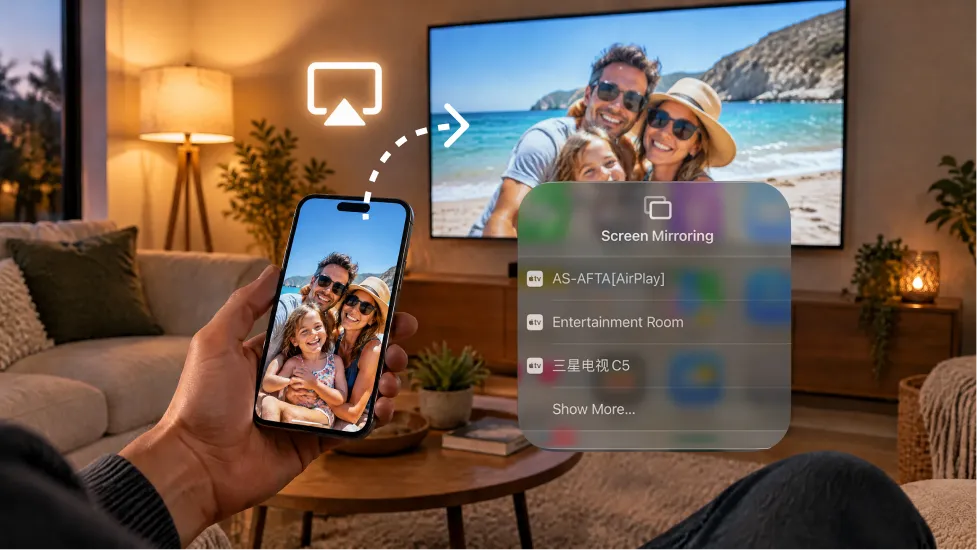
If your TV, Apple TV, or receiver supports AirPlay, it is the built-in option to consider first. On current iPhone models, the phone and receiver normally need to be on the same Wi-Fi network.
The expected workflow is straightforward:
- Connect the iPhone and the AirPlay receiver to the same Wi-Fi network.
- ئېچىق كونترول مەركىزى ۋە تاللاڭ ئېكران ئەينىكى.
- Choose the TV or receiver from the list.
- Enter a code if the receiving display requests one.
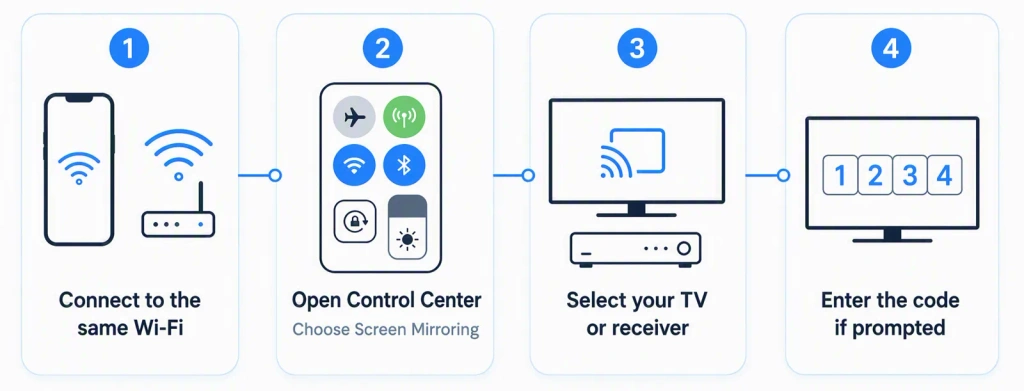
This route makes sense when you already have an AirPlay-compatible receiver. It lets you share what is on the phone without adding another app simply to duplicate a capability the receiver already provides.
Because iPhone Duo has not shipped yet, its final controls, supported modes, and third-party compatibility should be checked against Apple’s documentation after release.
Use 1001 TVs for Supported Cross-Device Screen Mirroring
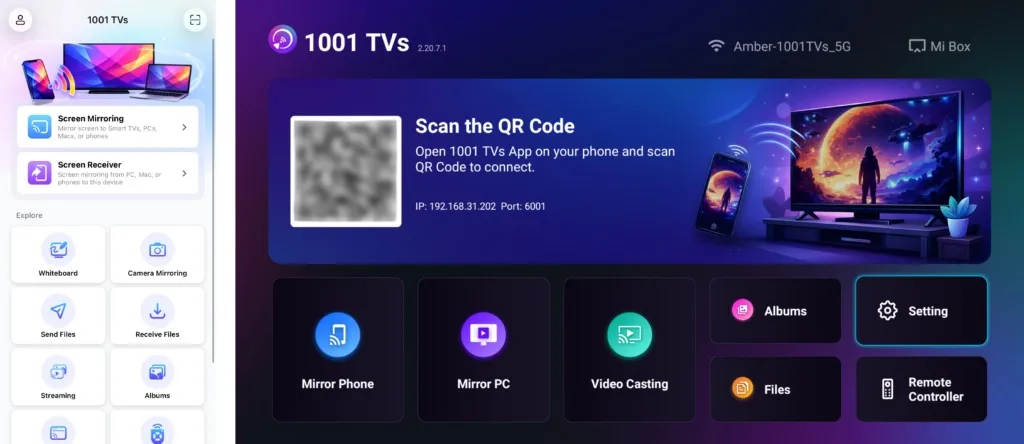
For content-sharing setups that do not use an AirPlay-compatible receiver, 1001 TVs is another option to consider. Here, its role is different from Mirror Camera: ئېكران ئەينىكى is for sharing the phone’s existing content, while Mirror Camera is for monitoring the camera view while shooting.
With supported devices, the typical flow is to open 1001 TVs on the receiving device, keep the sender and receiver on the same local network, then choose the receiver from the phone and start mirroring. This can be relevant when you want to share photos, videos, apps, or presentations across supported phones, tablets, computers, TVs, and projectors.
Choose the Second Screen Based on the Job
| What you want to do | iPhone Duo approach | Alternative or external workflow |
|---|---|---|
| See yourself while using the rear camera | Duo Preview on the outer display | 1001 TVs Mirror Camera on a supported external screen |
| Get more room for personal viewing and multitasking | Foldable inner display | — |
| Share photos, videos, apps, or presentations | Share from iPhone Duo to a larger display | AirPlay or 1001 TVs Screen Mirroring |
The first row is about camera monitoring. The third is about sharing content. They may both involve another screen, but they are not the same task—and choosing the right one starts with knowing what you want that screen to do.
Make the Most of Your Second Screen
If you want to see a rear-camera shot while you create it, Duo Preview offers a native outer-display preview on iPhone Duo, while Mirror Camera provides an external monitoring workflow for supported current-iPhone setups. If you want other people to see what is already on your phone, AirPlay and 1001 TVs Screen Mirroring are the relevant paths.
The second screen matters less for its size than for its job: helping you see the shot you are creating, or helping you share the content already on your phone.
Disclaimer: All third-party trademarks, brand names, product names, and event names mentioned in this article belong to their respective owners. This article is for informational purposes only. 1001 TVs is not affiliated with, sponsored by, or endorsed by the respective rights holders.

Read More
 How to Cast Photos from Your Phone to a TV
You can cast phone photos to a compatible TV using AirPlay on iPhone, Google Photos with Chromecast, or 1001 TVs Streaming and Albums. The…
How to Cast Photos from Your Phone to a TV
You can cast phone photos to a compatible TV using AirPlay on iPhone, Google Photos with Chromecast, or 1001 TVs Streaming and Albums. The…
 How to Turn On AirPlay on iPhone in iOS 26 (Screen Mirroring Guide)
To turn on AirPlay screen mirroring in iOS 26, open Control Center, tap the Screen Mirroring button (two overlapping rectangles), and choose your TV…
How to Turn On AirPlay on iPhone in iOS 26 (Screen Mirroring Guide)
To turn on AirPlay screen mirroring in iOS 26, open Control Center, tap the Screen Mirroring button (two overlapping rectangles), and choose your TV…

