Remove Black Bars: Portrait & Landscape Mirroring
Seeing black bars when mirroring your screen? Whether you’re in portrait mode with bars on the sides, or landscape mode with bars on the top, bottom, or sides — don’t worry. Both can be fixed with a few simple adjustments in the 1001 TVs TV App.
For portrait mirroring, there’s a dedicated setting to eliminate side bars. (See how to set up vertical mirroring 👉تىك ئېكران ئەينىكى)
For landscape mirroring, there’s also a way to significantly reduce the black bars.
Follow the steps below to make your content truly full screen and fully immersive.
For Portrait Mirroring
Step 1. On your TV, open the 1001 TVs App and Go to “تەڭشەش”.
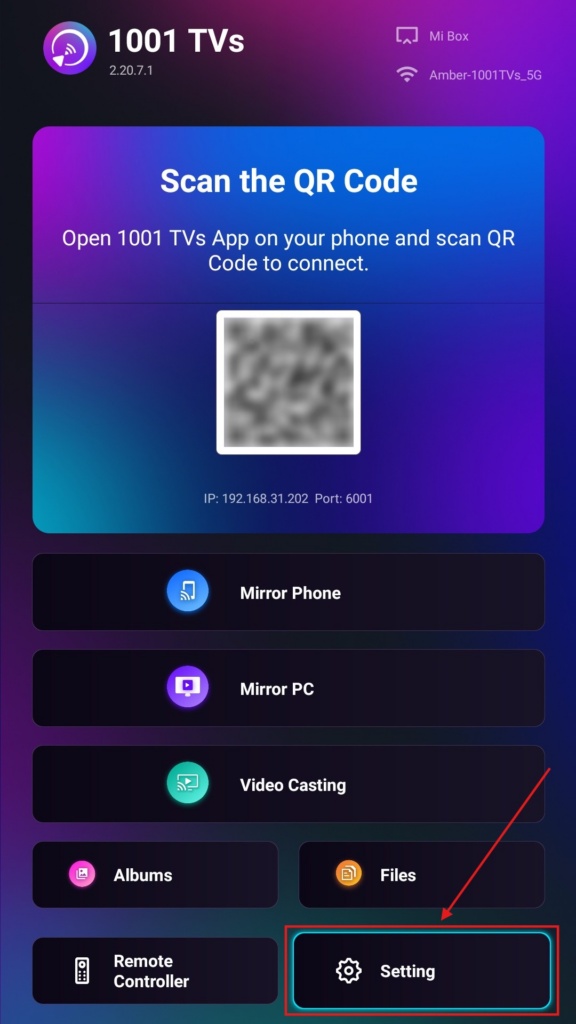
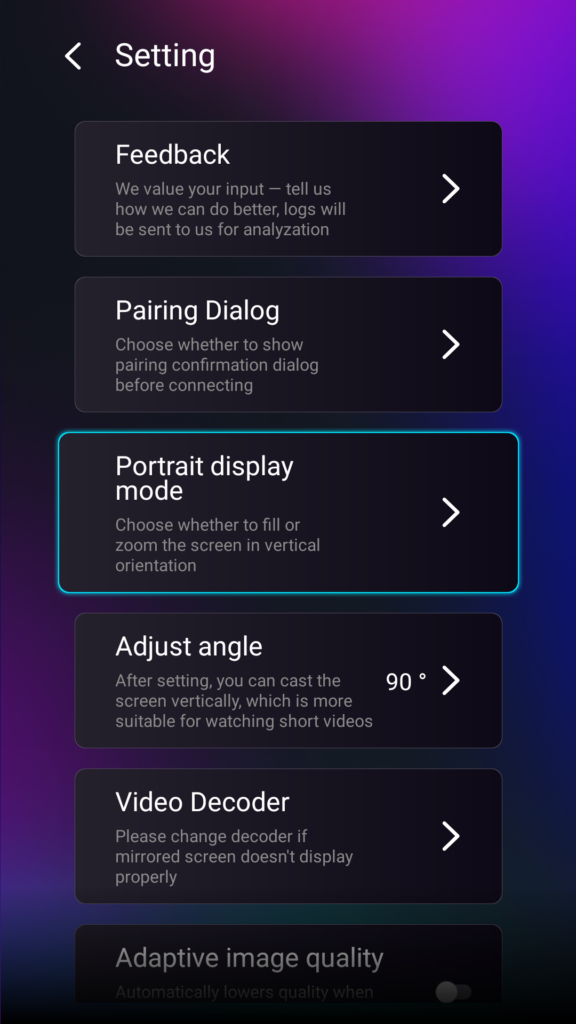
Step 2. Select “Portrait display mode”.
Step 3. Simply select the mode you prefer for displaying on your TV.
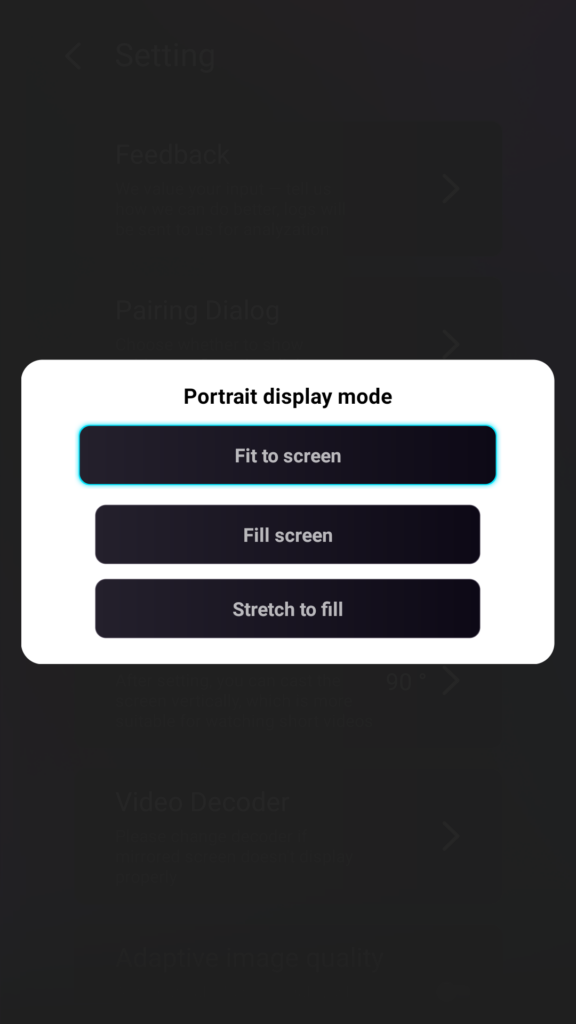
Tips About Portrait Display Modes
- ئېكرانغا ماسلاشتۇرۇش
Expands the content to fully fill your vertical TV. Once enabled, you’ll see a completely different result in your next mirroring session. - Fill Screen
Keeps the original aspect ratio. Black bars may still appear on the sides depending on your device. - Stretch to Fill
Fills one side while maintaining correct proportions.
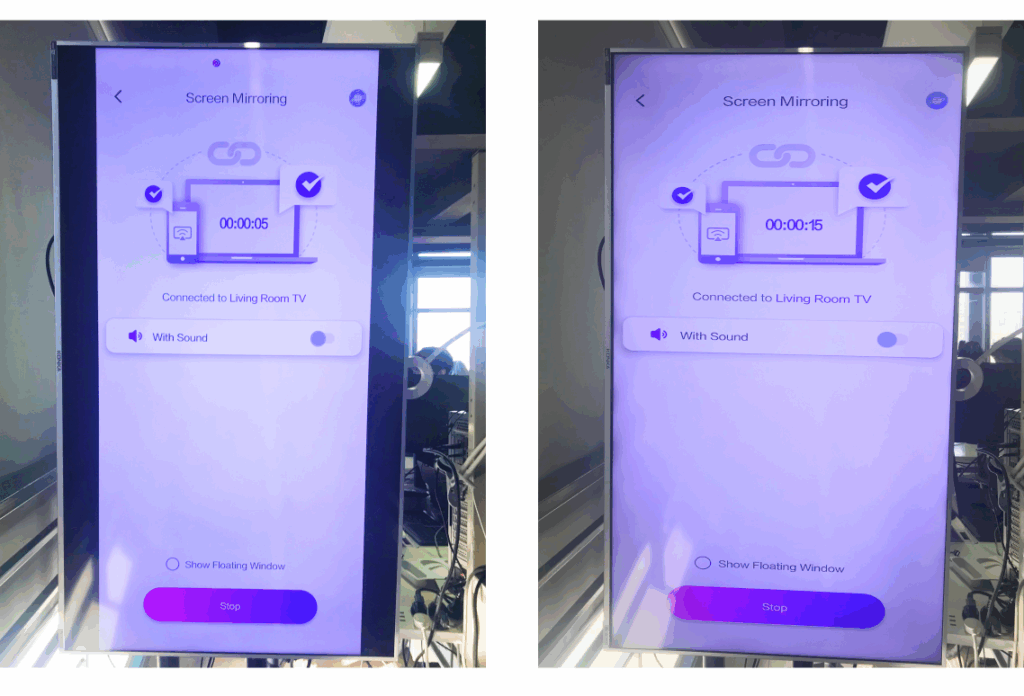
Check the side-by-side comparison below (Stretch to Fill mode shown):
بۇ ئىقتىدار قاچان پايدىلىق بولىدۇ؟
بۇ تەڭشەك تۆۋەندىكىلەر ئۈچۈن ئەڭ ماس كېلىدۇ:
- تىك رەقەملىك بەلگىلەرنى ئىشلىتىدىغان پارچە سېتىش دۇكانلىرى
- ئۆي ئىشلەتكۈچىلىرى تىك مۇھىت ئېكرانى يارىتىۋاتىدۇ
- ئوقۇتقۇچىلار تىك دەرس ماتېرىياللىرىنى كۆرسىتىۋاتىدۇ
- تىك سۈرەتلەر ياكى پورترېت ھالىتىدىكى سىنلار كۆرسىتىلىۋاتىدۇ
- TikTok/YouTube قىسقا فىلىملىرىنى تولۇق ئېكراندا قويۇۋاتىدۇ
- ستۇدىيە، رەسىمخانا ياكى سەنئەت كۆرگەزمىسى قۇرۇلمىلىرى
For Landscape Mirroring
Step 1. On your TV, open the 1001 TVs App and Go to “تەڭشەش”.
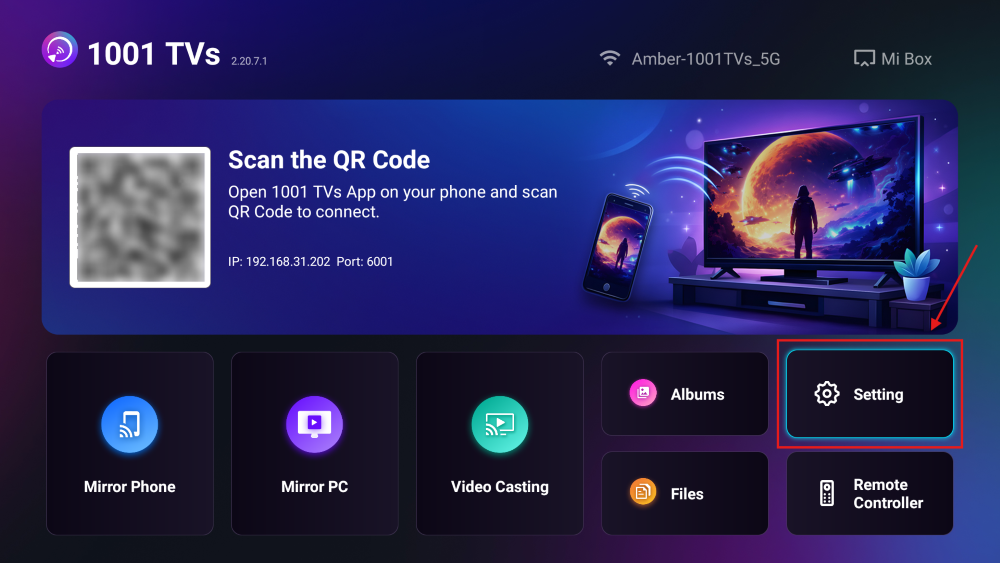
Step 2. Enable “Fill Mode”.
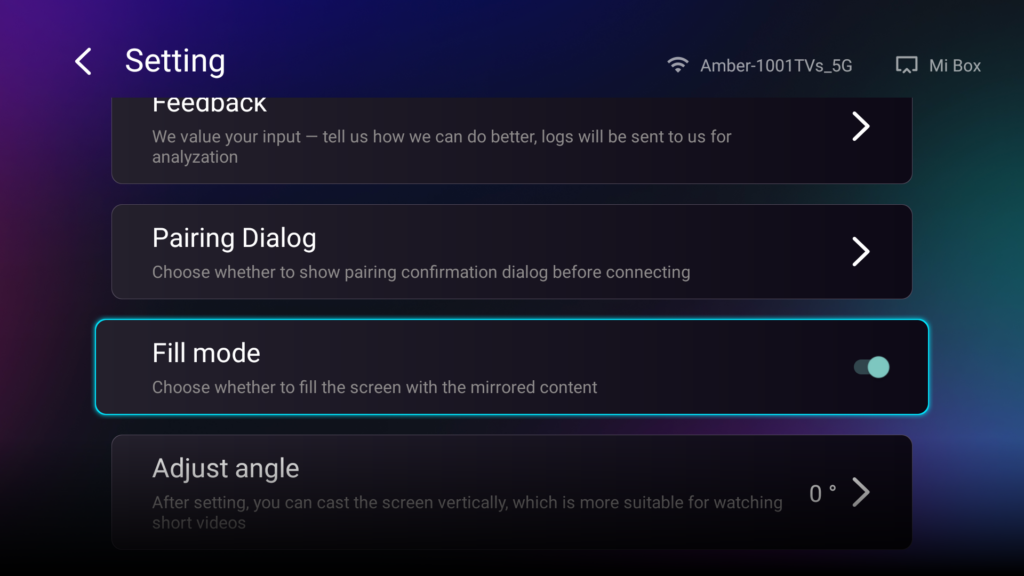
After enabling this option, use the up/down buttons on your TV remote to cycle through the available scaling modes: 1×, 2×, 3×, and Fit to Screen.
- 1× / 2× / 3×
zoom in at fixed increments - ئېكرانغا ماسلاشتۇرۇش
automatically scales the content to fill the entire TV display
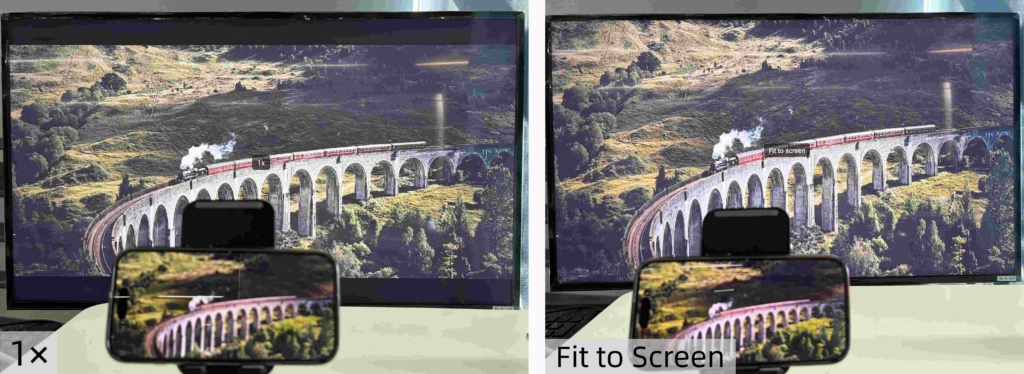
Now you can sit back and enjoy your content — full screen, no black bars, fully immersive.
تېخىمۇ كۆپ كۆرسەتمىلەر ۋە دەرسلىكلەر:

Read More
 New Setting: No More Pop-ups When Mirroring Ends
When you're mirroring your PC screen to a TV and stop the session using the TV remote, the 1001 TVs window pops back up…
New Setting: No More Pop-ups When Mirroring Ends
When you're mirroring your PC screen to a TV and stop the session using the TV remote, the 1001 TVs window pops back up…
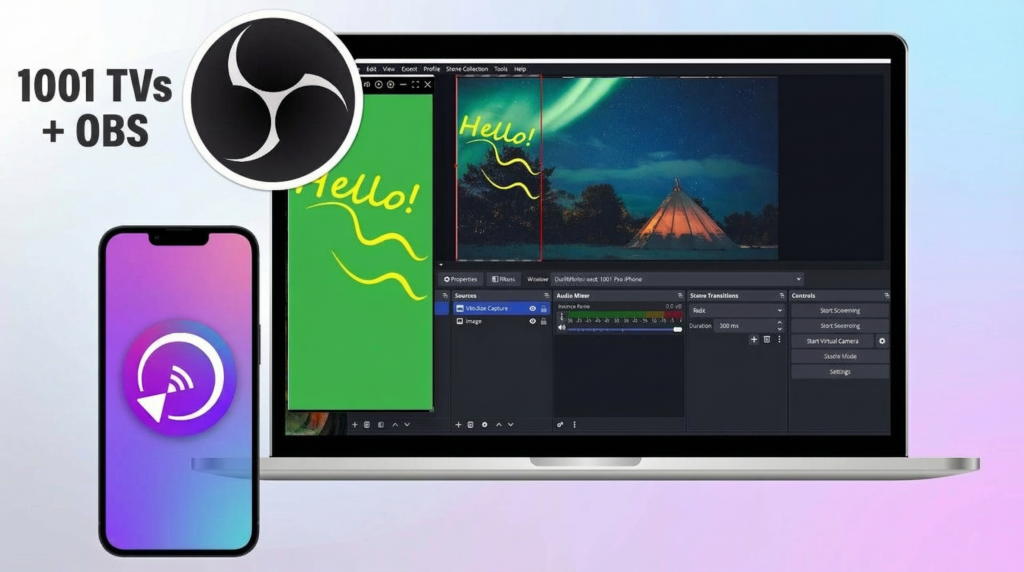 How to Capture Screen Mirroring in OBS (Android & iPhone)
Want to capture screen mirroring in OBS for mobile gameplay, tutorials, or live content? With 1001 TVs, you can easily mirror your phone screen…
How to Capture Screen Mirroring in OBS (Android & iPhone)
Want to capture screen mirroring in OBS for mobile gameplay, tutorials, or live content? With 1001 TVs, you can easily mirror your phone screen…

